Auto-Create Tables and Fields in Whalesync
Automatically create tables and fields in your destination app.
Contents

Curtis is the CEO of Whalesync. Previous startup founder, MIT grad, and Googler. Loves pushing the limits of automation.
Whalesync has always been about one thing: syncing your data across tools, instantly, accurately, and without code. Now, it's even easier.
We're excited to announce a brand new feature: auto-create tables and fields. With this update, you can now automatically create tables and fields in your destination app based on the structure of your source app from Whalesync’s user interface. This means less manual setup and faster, cleaner syncs.
What does this mean?
Until now, if you wanted to sync data between two tools (say, Airtable and Notion), you needed to make sure both sides had matching tables and fields already created.
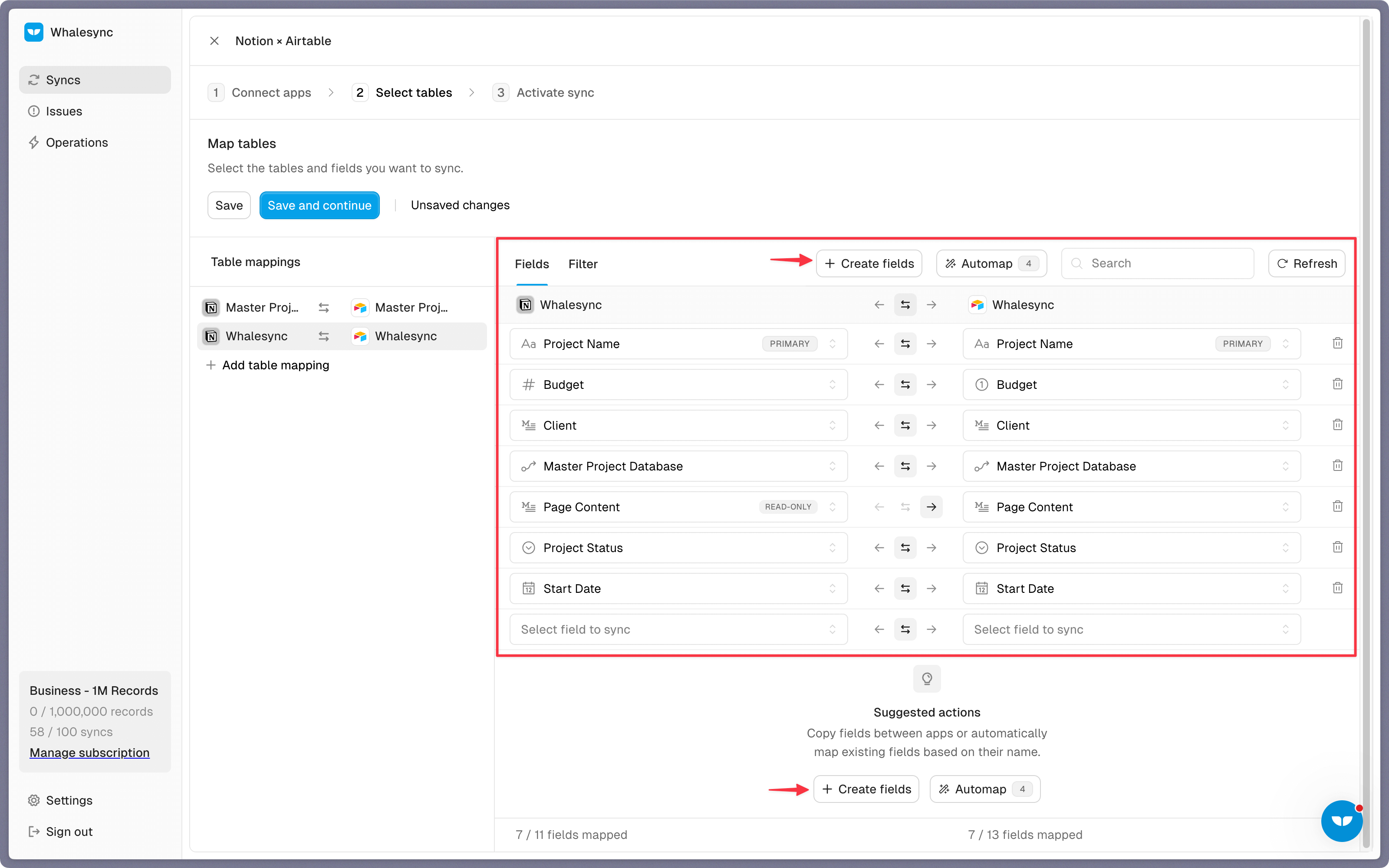
Now, when you connect your two apps, you can create fields and tables from your source app to your destination app all from the Whaleync user interface.
Why it matters
Auto creating tables and fields saves you time when you’re setting up your syncs or trying out new workflows. Instead of manually building the same structure in both tools, Whalesync mirrors your setup for you, quickly and accurately.
How it works
Setting up auto-create tables and fields is simple. Here’s how to do it with a Notion and Airtable sync.
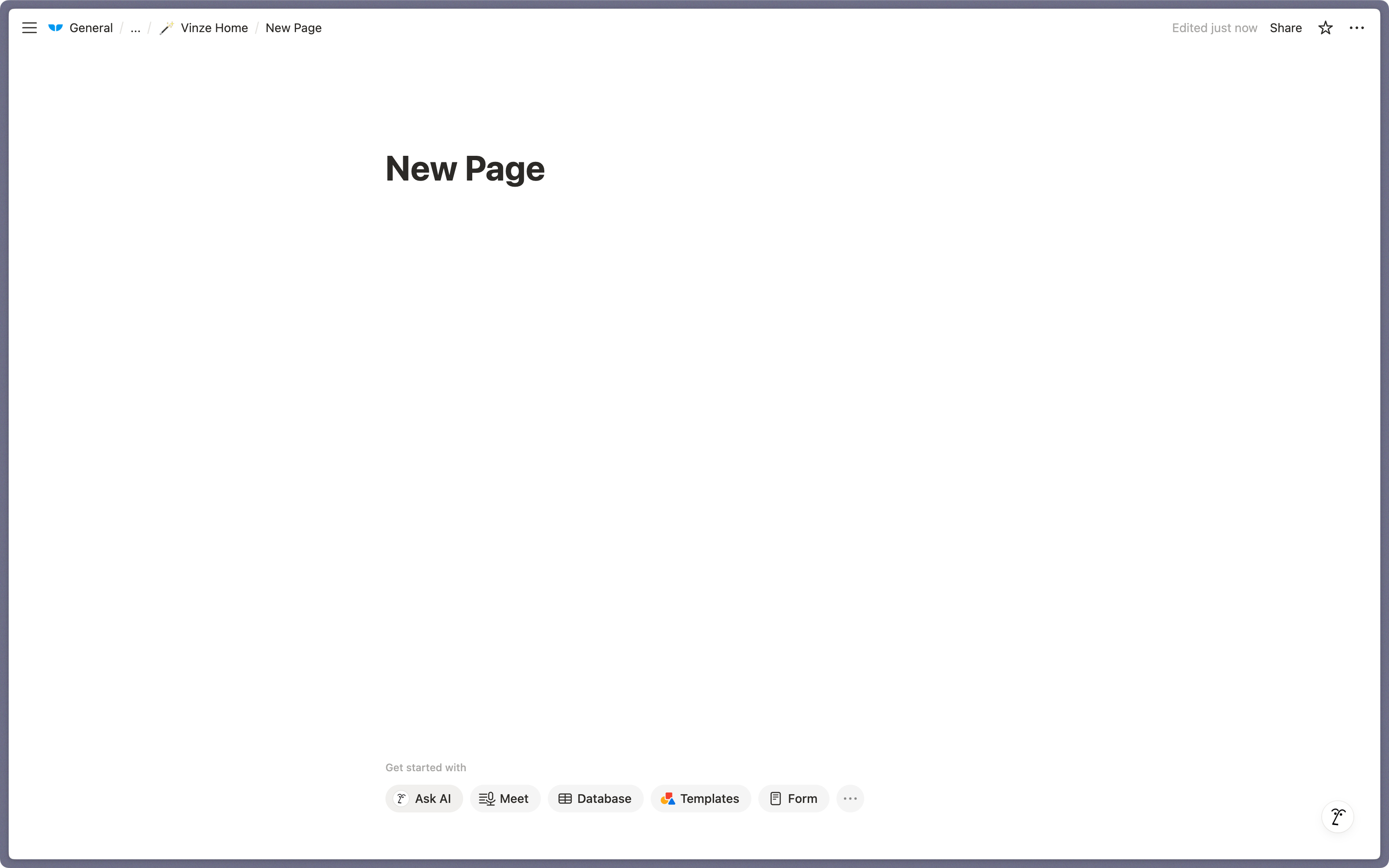
Create a new Notion page
This is where your new tables will live. Make sure the page is created before setup.
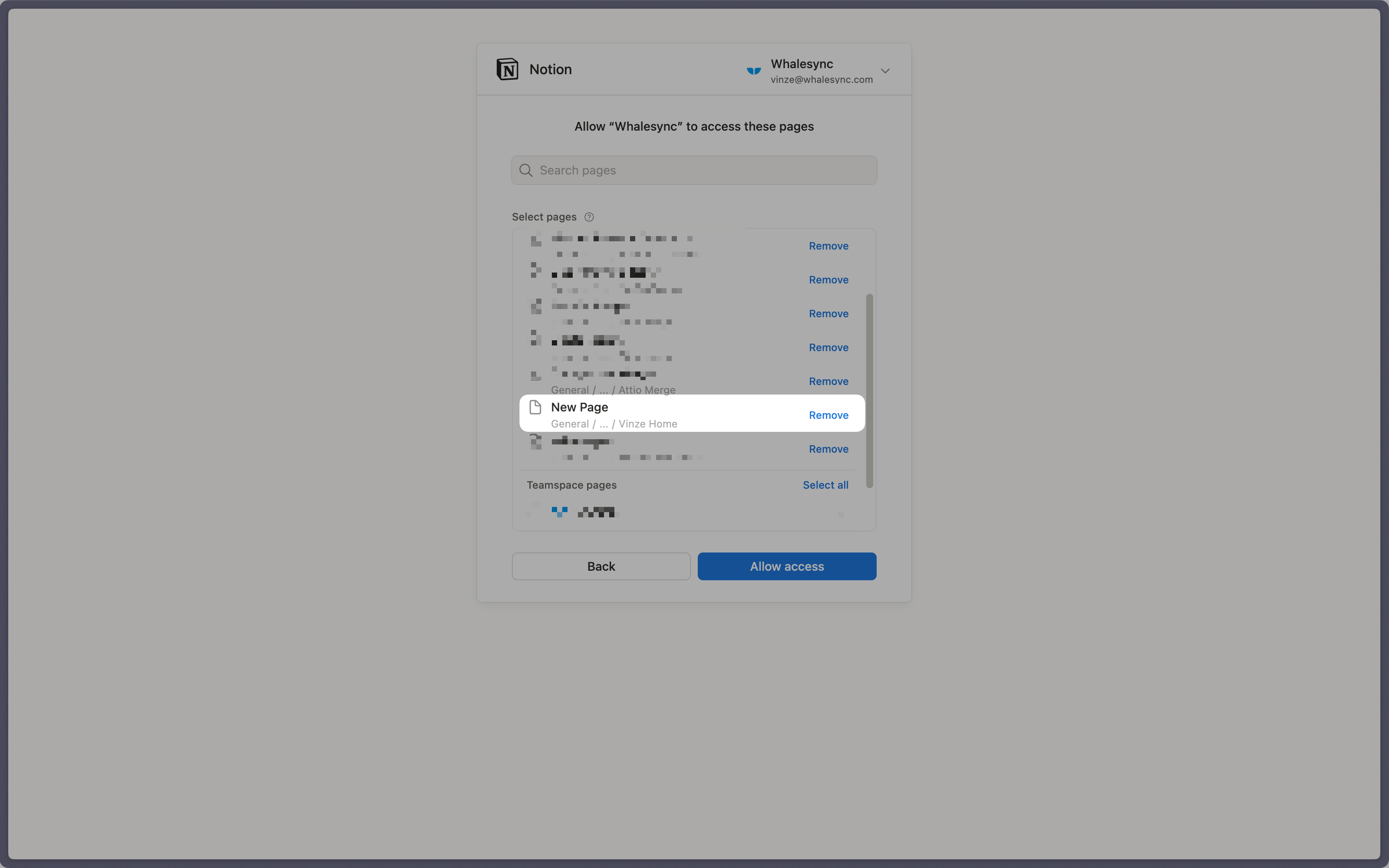
Authorize the Notion page
When connecting Notion, you’ll be asked to authorize access. Be sure to authorize the full Notion page where you want Whalesync to create the tables.
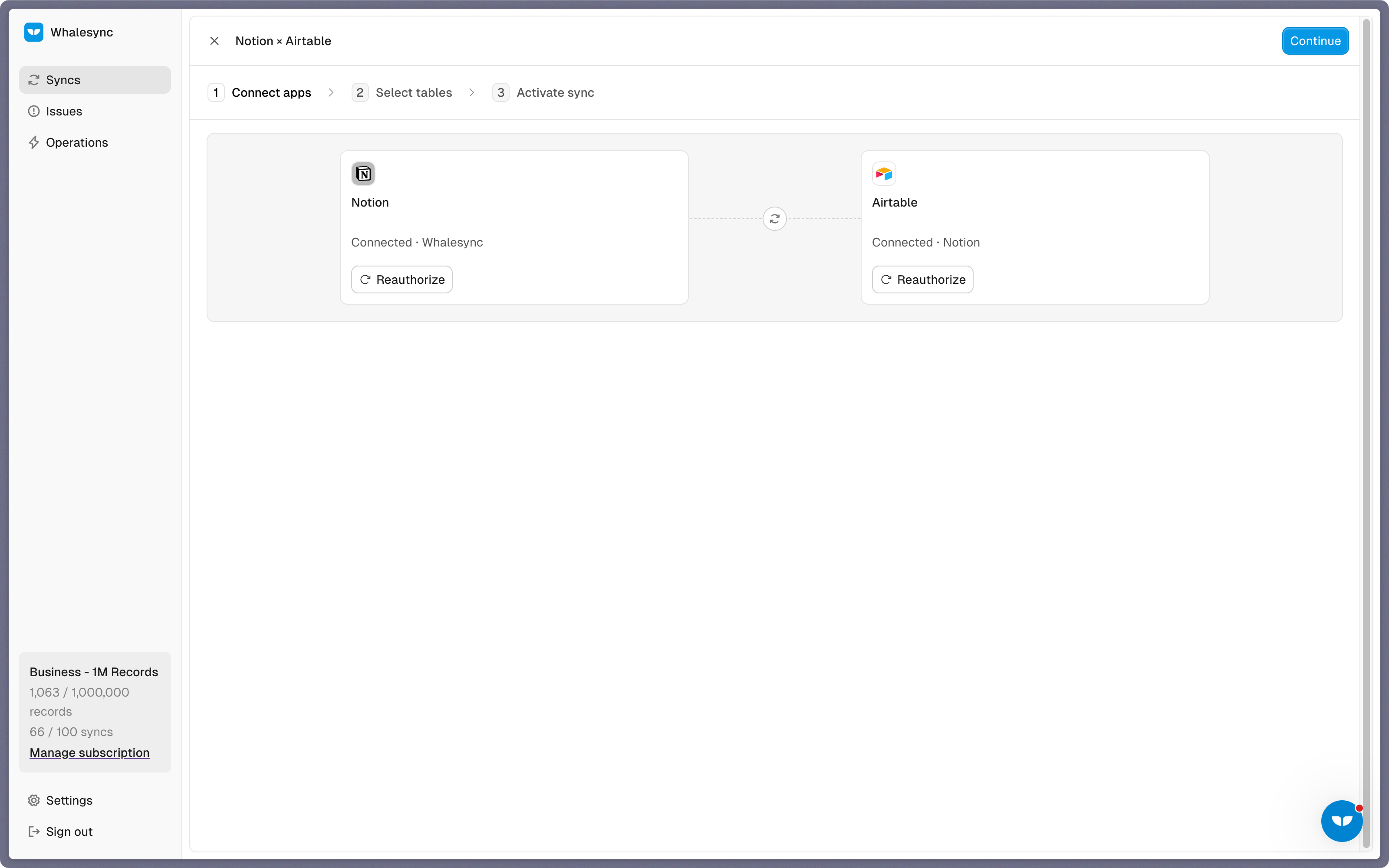
Set up your sync by selecting the apps you want to connect
In this instance, it’s Notion and Airtable.
Select tables from your source app
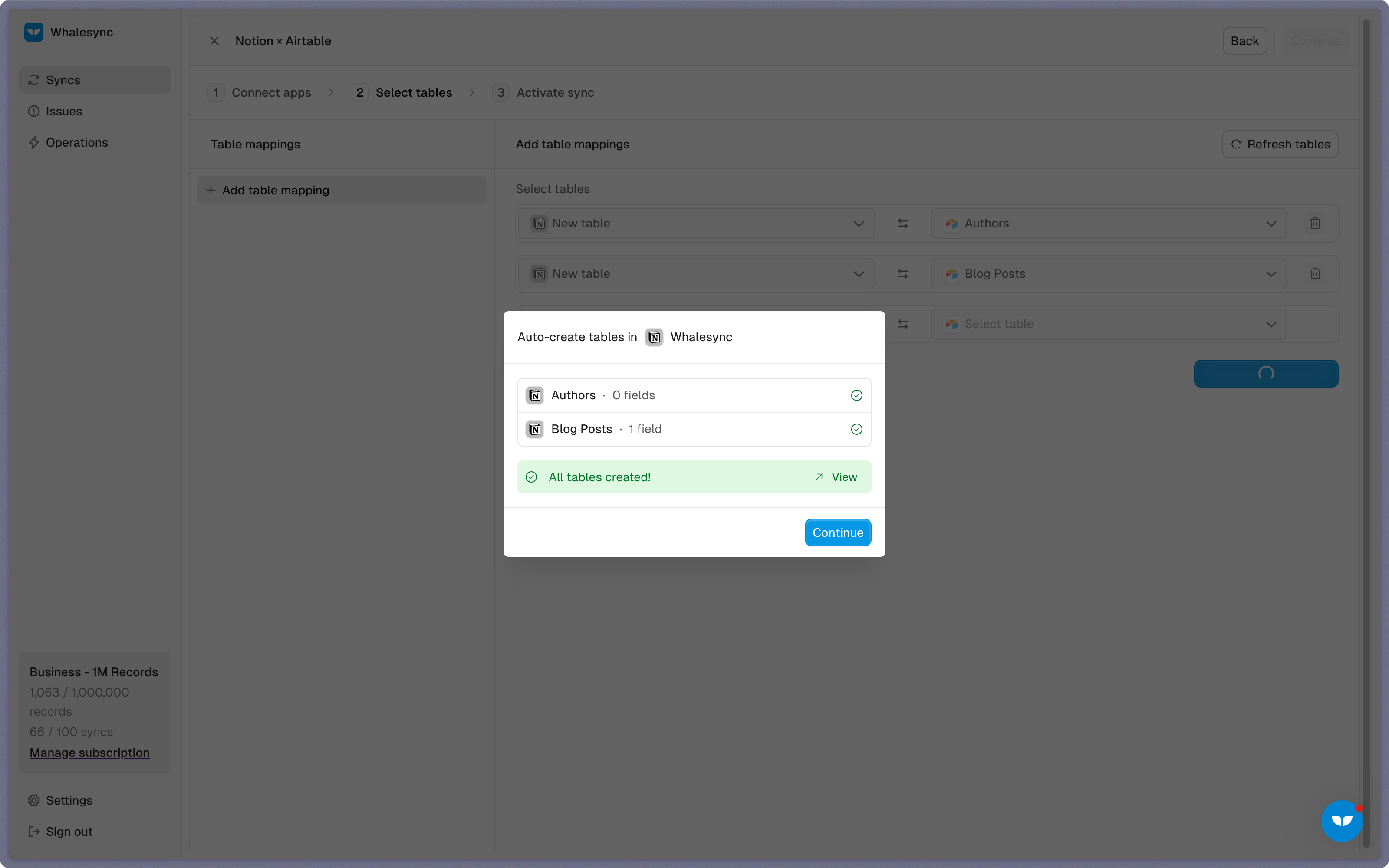
Choose the Airtable tables you want to copy from Airtable, select New Table as the destination in Notion. Whalesync will auto-create a new table inside the authorized Notion page.
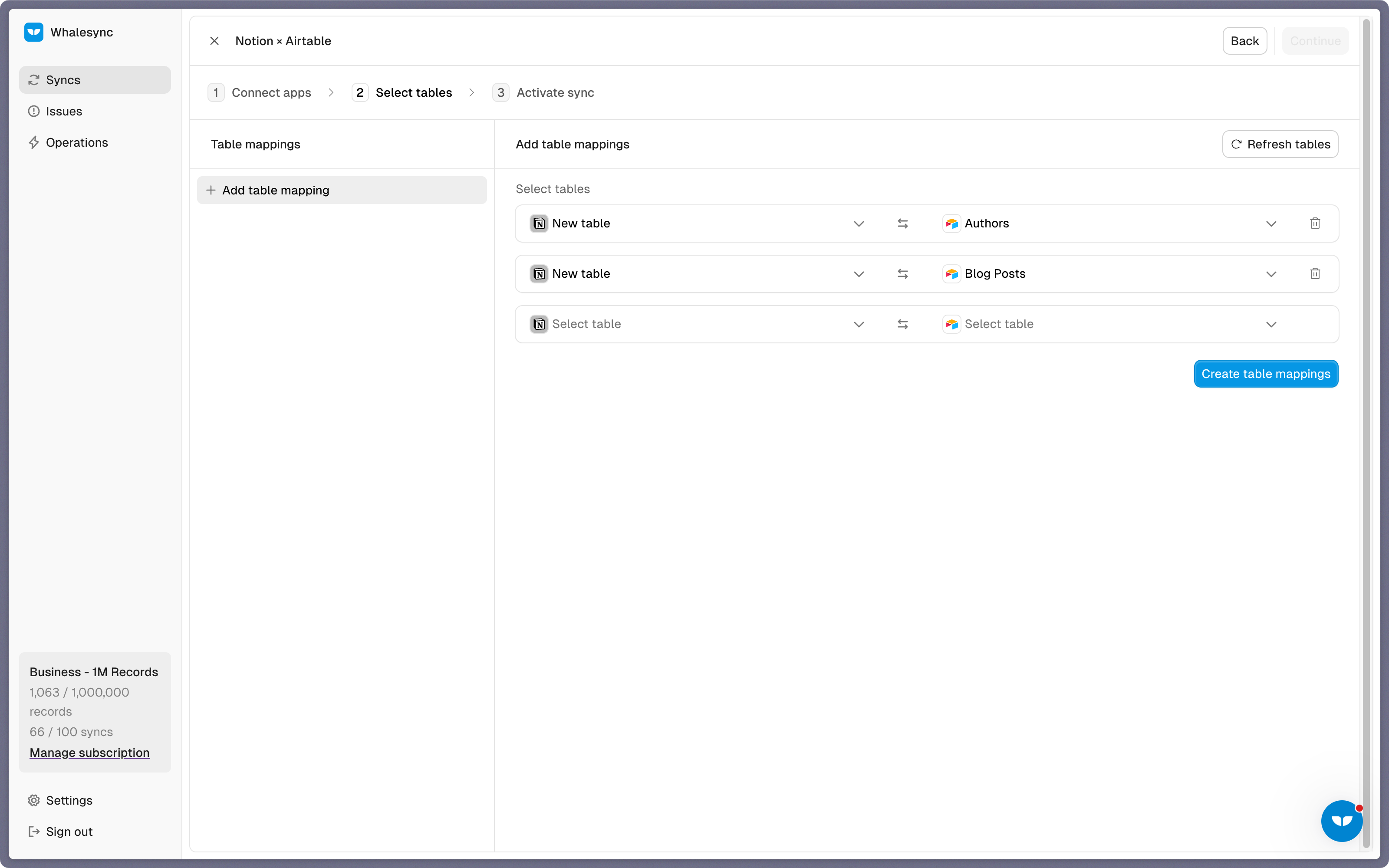
The tables have been created
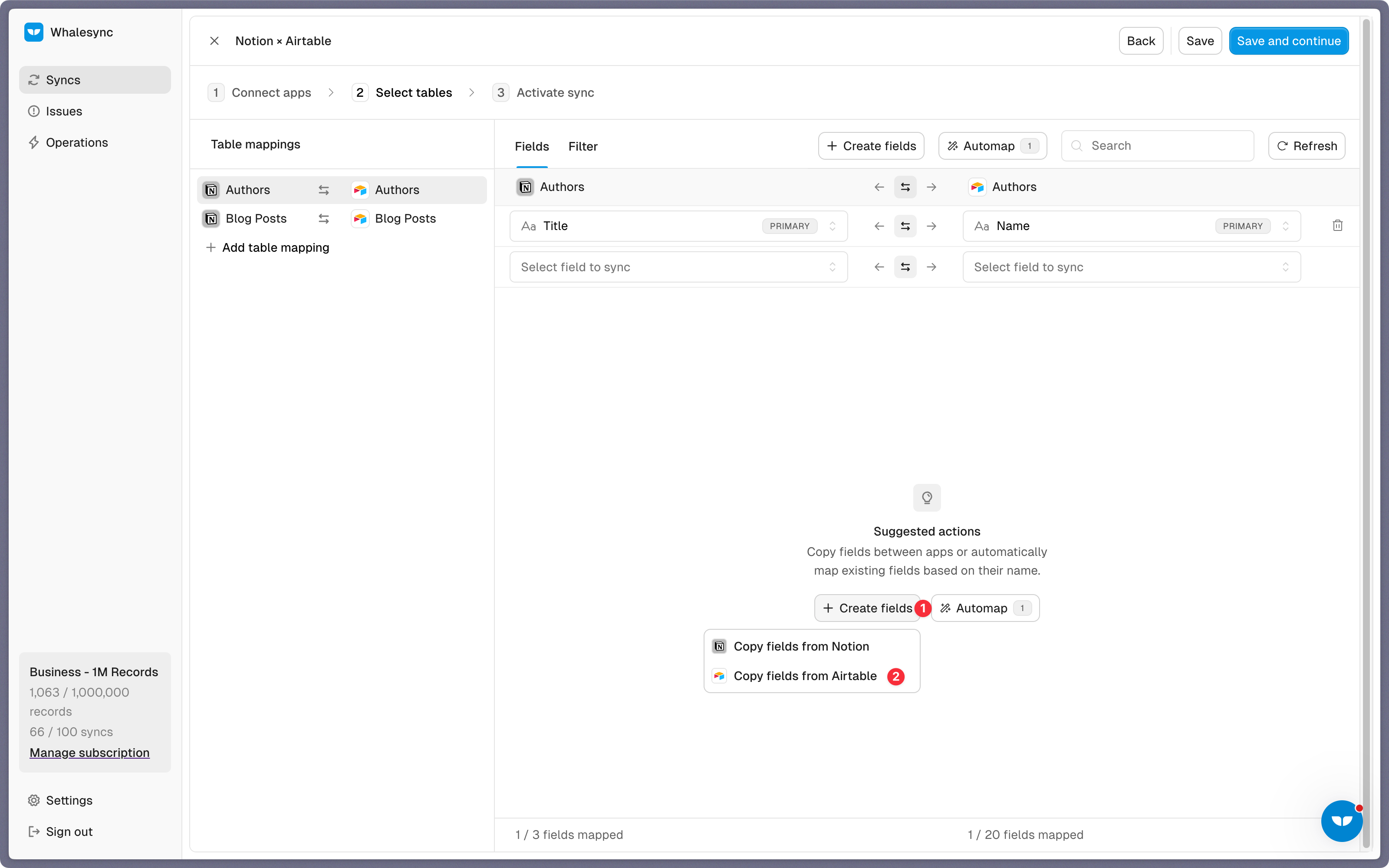
Click "Copy Fields"
Once tables are created, click Copy Fields to automatically generate matching fields from your source app (e.g., Airtable).
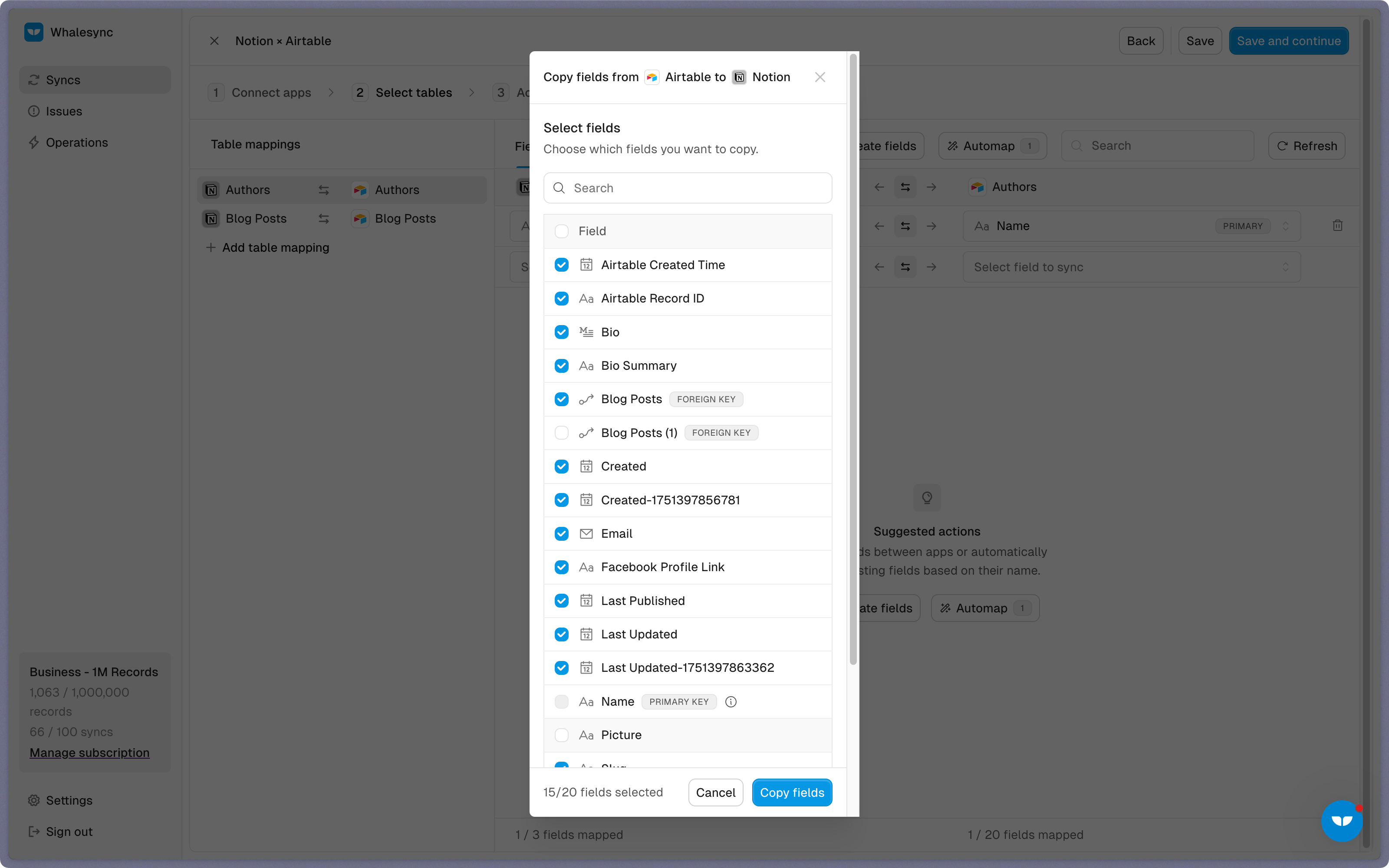
Select which fields to copy to your destination app (Notion)
You’ll see a list of all available fields, choose the ones you want to bring into Notion. Whalesync will automatically add them for you.
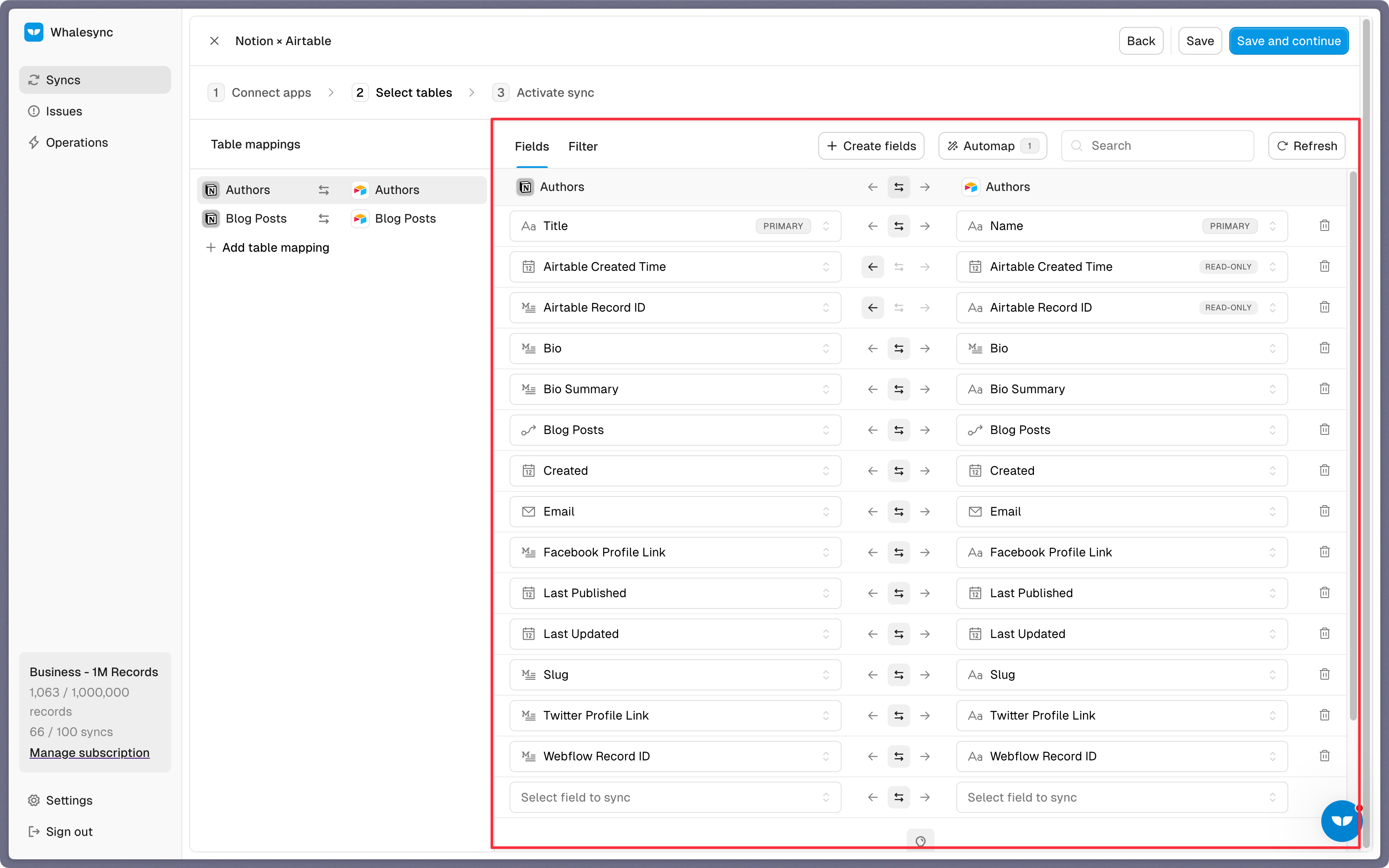
You’re done!
Your new tables and fields will appear in Notion, ready for real-time syncing.
Built to simplify your set up
We built this feature to simplify your set up. The best part? It works whether you're syncing one table or multiple. We’re excited to keep building features that enable you to sync data across your tools easily.
Give it a try and let us know what you think.
Subscribe for more
Stay up to date with the latest no-code data news, strategies, and insights sent straight to your inbox!