Airtable as a CRM: The 2026 Setup Guide
A practical guide to building a flexible CRM in Airtable, plus how to two-way sync it with HubSpot or Salesforce as you scale.

Somewhere between the first hundred leads and the first sales hire, the spreadsheet stops working. Contacts get duplicated, deal notes live in six different tabs, and nobody can say with confidence what is actually in the pipeline. The standard advice is to buy a "real" CRM, but for a lot of early teams, Salesforce and HubSpot feel like moving into an office tower when all you needed was a bigger desk.
That is why so many founders and ops leads turn to Airtable as a CRM. Airtable gives you the structure of a relational database with the approachability of a spreadsheet. You can model contacts, companies, and deals exactly the way your business works, change the schema in seconds when it turns out you got it wrong, and let every team build the views they need on top of the same shared data.
This guide walks through when Airtable makes sense as a CRM, how to build one properly, and what to do when part of your company eventually needs a dedicated sales platform without giving up the flexibility that made you choose Airtable in the first place.
When Airtable works as a CRM (and when it doesn't)
Airtable is a genuinely good CRM for a specific set of teams, and a poor fit for others. Knowing which side you are on before you build saves months of frustration later.
Where Airtable shines
- You need a custom data model. Agencies tracking projects alongside clients, marketplaces with two-sided relationships, investors tracking deal flow alongside portfolio support: traditional CRMs force all of these into a sales-shaped box. Airtable lets you model your actual business, with whatever tables and fields that requires.
- Ops owns the tooling. If the person running your CRM is an operations lead rather than a sales manager, Airtable's build-it-yourself approach is a feature, not a bug. You get to design the exact workflow you want instead of configuring around someone else's assumptions.
- The CRM is part of a bigger workflow. When customer data feeds hiring plans, finance models, or content calendars, keeping it in Airtable means every downstream process can link to the same records directly instead of working from stale exports.
- You want to move fast and stay lean. A workable Airtable CRM takes an afternoon to build, and the per-seat cost is a fraction of an enterprise sales platform.
Where it falls short
- Sales-specific features. Airtable has no built-in email sequencing, call recording, meeting scheduling, or revenue forecasting. You can bolt some of this on with third-party tools, but a dedicated CRM does it all out of the box.
- Rep-facing workflows. Experienced salespeople expect a CRM-shaped interface: activity timelines, next-step nudges, one-click call logging. Asking a quota-carrying team to live inside a database tool creates friction you will feel in your data quality.
- Scale and permissions. Airtable bases have record limits that vary by plan, and the permission model is coarser than what larger sales organizations typically need for territory management and compliance.
The honest summary: Airtable is a great CRM for founder-led sales and ops-driven teams, and a risky choice as the only system for a mature sales organization. Later in this post we will look at how to get the best of both.
How to set up Airtable as a CRM
A solid Airtable CRM comes down to three tables, a handful of linked fields, and views that mirror how your team actually sells.
1. Structure the base around three tables
Resist the urge to put everything in one giant table. Create three:
- Contacts: people. Name, email, phone, role, and a link to the company they work for.
- Companies: organizations. Domain, size, industry, and whatever qualification fields matter to your business.
- Deals: opportunities. Deal name, value, expected close date, owner, and most importantly a single select field called Stage with options like Lead, Qualified, Proposal, Negotiation, Won, and Lost.
This separation is what makes a CRM a CRM rather than a spreadsheet. One company can have many contacts and many deals over time, and you record each fact exactly once instead of copying it across rows.
2. Connect the tables with linked records
Use Airtable's linked record field type to tie everything together. Link Contacts to Companies, and link each Deal to both the Company and the specific Contacts involved. Then add lookup and rollup fields to surface related data where you need it: pull the company's industry onto the deal record, or roll up the total value of open deals onto each company. Open any company and you will see every person and every opportunity attached to it, which is the whole point of a CRM.
3. Turn views into your pipeline
Views are where Airtable earns its keep. On the Deals table, create a kanban view grouped by the Stage field and you have a drag-and-drop pipeline: moving a card from Proposal to Negotiation updates the record instantly. From there, add a grid view filtered to deals closing this month for your forecast check-in, a calendar view plotted on expected close date, and a personal view for each deal owner filtered to their own records. Everyone works from the same underlying data but sees it in the shape that suits their job.
4. Use forms to capture new leads
Create a form view on the Contacts table and you have an intake channel. Embed it on your website, link it from a QR code at events, or share it with partners who refer business. Submissions land directly in your base with consistent, structured fields, so nobody is copy-pasting details out of email threads. Pair the form with an automation that notifies the right owner in Slack or email the moment a new lead arrives.
5. Add light automation
Airtable's built-in automations handle the basics well: send a notification when a deal moves to Negotiation, stamp a date when a record enters a new stage, or create a follow-up task when a lead sits untouched for a week. Keep them simple. The goal is a CRM your team trusts, not a machine only one person understands.
Shortcut: start from a free CRM template
You do not have to build any of this from scratch. Whalesync publishes a free CRM template pack with the table structure, linked records, and pipeline views described above already wired up. Copy it into your workspace, rename the stages to match your sales process, and start entering deals. Editing a working example is far faster than designing a schema on a blank canvas, and it helps you avoid the classic mistake of cramming everything into one table.
Scaling up: two-way sync Airtable with a dedicated CRM
Eventually, many teams hit the moment described earlier: you hire experienced salespeople, and they need the sequences, dialers, and forecasting that come with HubSpot or Salesforce. The usual outcome is painful. Either ops gives up the flexible Airtable layer the rest of the company runs on, or the two systems drift apart and someone spends every Friday exporting CSVs to reconcile them.
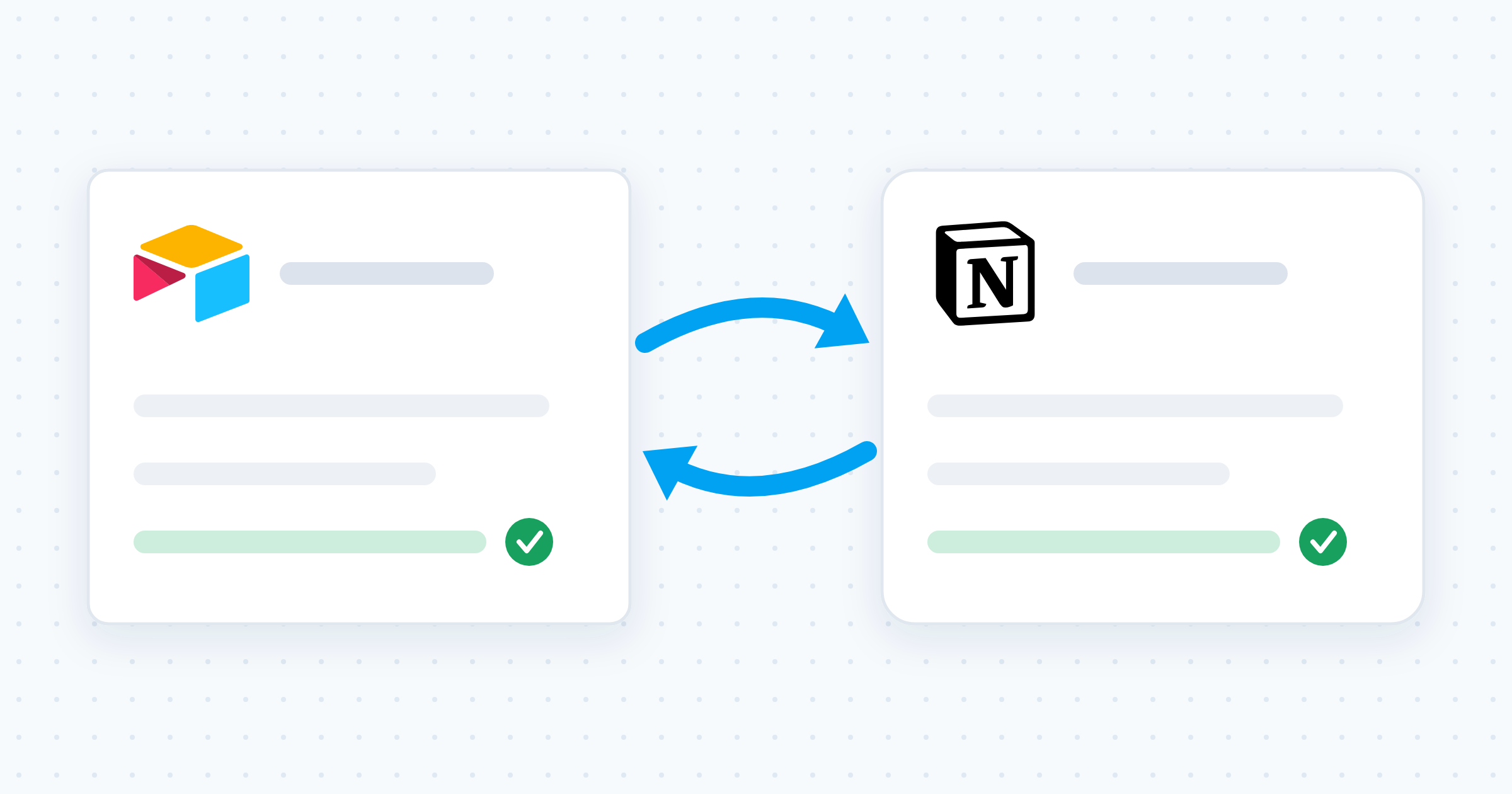
There is a third option: run both, and keep them in sync automatically. Whalesync's Airtable connector provides real-time, two-way sync between Airtable and dedicated CRMs. Connect Airtable and HubSpot or Airtable and Salesforce, map your tables and fields once, and changes flow in both directions as they happen. In practice, that means:
- Sales lives in the CRM. Reps get the pipeline tooling, logging, and reporting they expect, and never have to touch the base.
- Ops lives in Airtable. The same contacts, companies, and deals stay linked into hiring plans, finance models, and every other workflow you have built around them.
- Bulk edits become trivial. Need to reassign 400 accounts or clean up messy lead-source values? Make the change in Airtable with spreadsheet-style editing, and it syncs back to HubSpot or Salesforce record by record.
- No CSV round-trips. Nobody exports, dedupes, or re-imports anything. There is one set of data with two front doors.
Because the sync is two-way and real-time rather than a scheduled one-way push, neither system goes stale. A stage change a rep makes in Salesforce shows up in your Airtable pipeline view moments later, and an enrichment ops makes in Airtable lands back in the CRM just as fast.
A real-world example: Kunai's Airtable CRM
Kunai, a software consultancy that works with some of the world's largest financial institutions, runs exactly this kind of setup. Rather than settling for rigid legacy tooling, their team uses Airtable as the user-friendly front end for company data, with their sales CRM data synced into Airtable through Whalesync in real time. Downstream teams in finance and recruiting rely on that live sales data for resourcing and planning decisions.
Before adopting Whalesync, the alternative on the table was building a custom sync tool in-house, which their Head of Strategy estimated would have taken one to two months of engineering time to develop, plus ongoing maintenance forever after. The full story is in the Kunai customer story, but the takeaway is simple: the Airtable-as-CRM pattern is not just a scrappy startup hack. It scales, as long as the data flowing into Airtable stays current.
Build the CRM your team will actually use
The best CRM is the one your team keeps up to date, and teams keep Airtable up to date because it bends to fit them rather than the other way around. Start with the three-table structure above, or grab the template pack and skip straight to customizing. Then, when sales grows into HubSpot or Salesforce, sync the two systems instead of choosing between them. Whalesync sets up in minutes, requires no code, and keeps every record matched in both directions. Your ops team keeps its flexible database, your sales team gets its dedicated CRM, and nobody ever emails a CSV again.
Subscribe for more
Stay up to date with the latest no-code data news, strategies, and insights sent straight to your inbox!