The easiest way to sync Notion and WordPress
Get true, two-way sync between Notion and WordPress in minutes. Update data in one tool, and Whalesync mirrors it in the other.


Empowering top operators — From startups to enterprises
-
 Series C$350M
 -
 Series C$330M
 -
 Series C$100M
 -

-
 Series B$72M
 -
 Series C$30M
 -
 Series A$50M
 -
 Series B$86M
 -
 Series B$65M
 -
 Series B$100M
How to connect Notion and WordPress in 3 steps
Connect Notion and WordPress, map the fields you want, and turn sync on. From then on, a change in either app shows up in the other.
Connect your apps
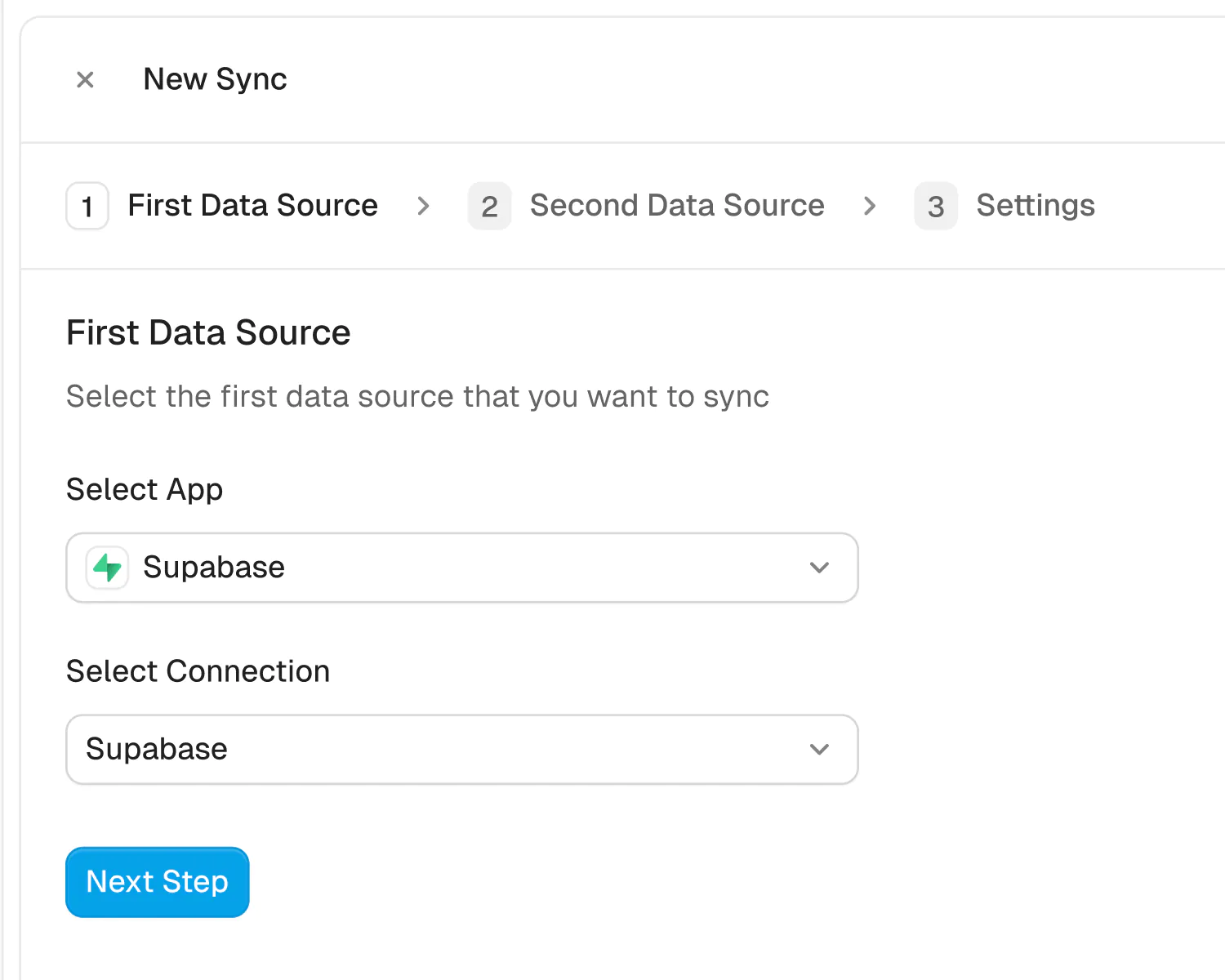
Securely connect your Notion and WordPress accounts in seconds. Just authorize Whalesync with a few clicks and you're ready for the next step.
How to sync Notion to WordPress in 5 minutes
If you’re like me, you probably draft your blog content in Notion first. It’s where ideas live, calendars stay organized, and collaboration happens. But when it’s time to publish, you still have to copy everything into WordPress, fix the formatting, and double-check links and images.
That extra step can slow your workflow down and lead to formatting errors. With Whalesync, you can connect Notion and WordPress in just a few minutes. Once set up, your posts are published into WordPress, directly from Notion to WordPress.
The best part? You can set this up in 5 minutes. Here’s how
Why should you connect Notion and WordPress?
Notion is one of the most popular tools for drafting blog posts, managing content calendars, and collaborating with teams. WordPress, on the other hand, powers over 40% of the internet and remains the go-to CMS for publishing for many teams.
When you connect Notion and WordPress, you eliminate copy-paste workflows and ensure your content stays consistent across platforms. You can
- Draft and collaborate in Notion
- Automatically publish posts to WordPress
- Keep edits and updates synced across both tools
This saves time, reduces errors, and makes publishing a lot easier.
When should you connect Notion and WordPress?
You should connect Notion and WordPress if you find that you spend too much time formatting and uploading content into WordPress. You should also connect Notion and WordPress when you:
- Draft your content or manage your editorial calendar in Notion
- Work with external writers or editors who collaborate in Notion
- Publish regularly to WordPress and want to speed up your workflow
- Need a reliable way to keep posts in sync without managing two versions
How to connect Notion and WordPress in 5 minutes
Here’s how to connect Notion and WordPress:
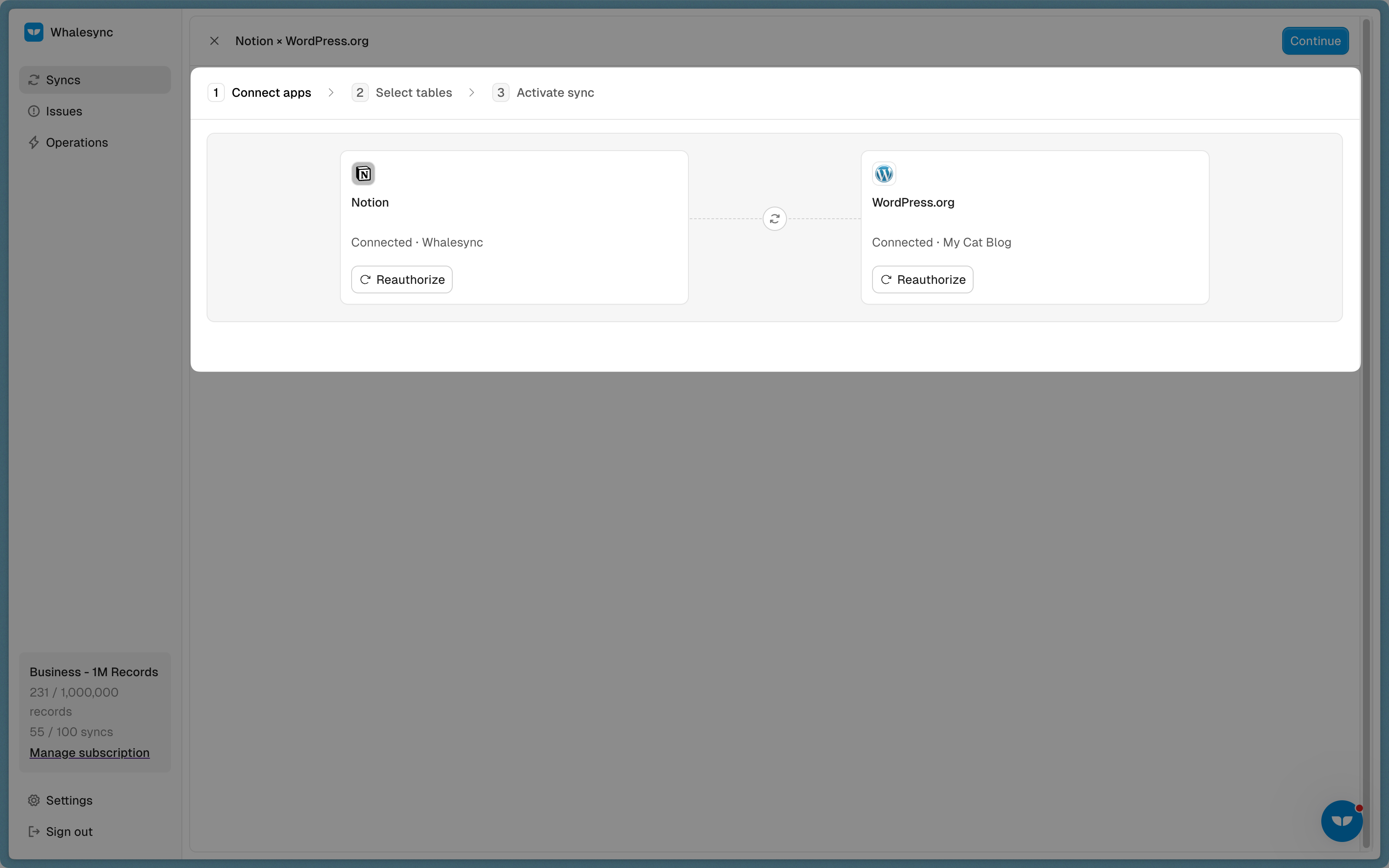
Select your apps
Select Notion and WordPress
Authorize your apps
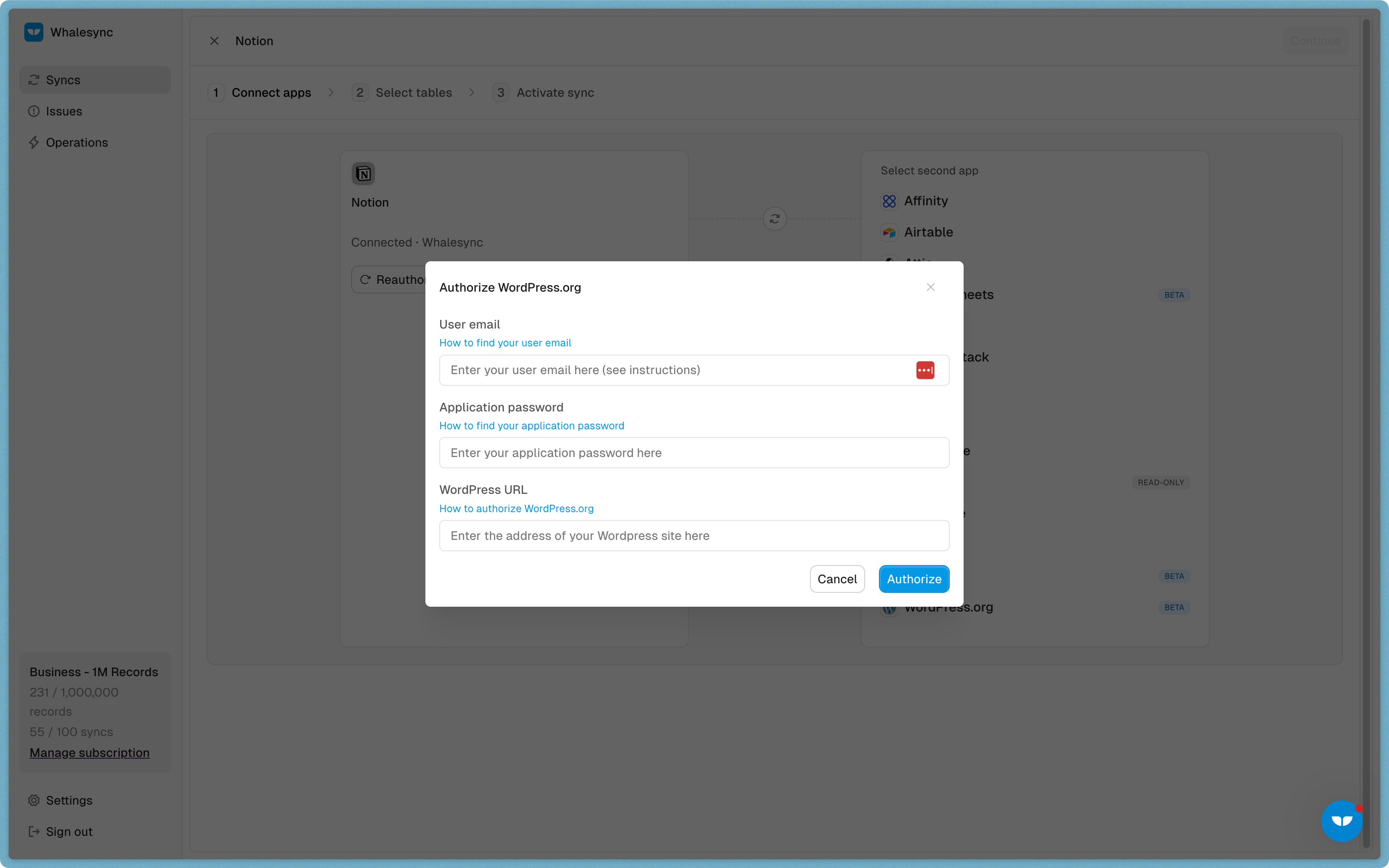
Authorize WordPress by entering the following information:
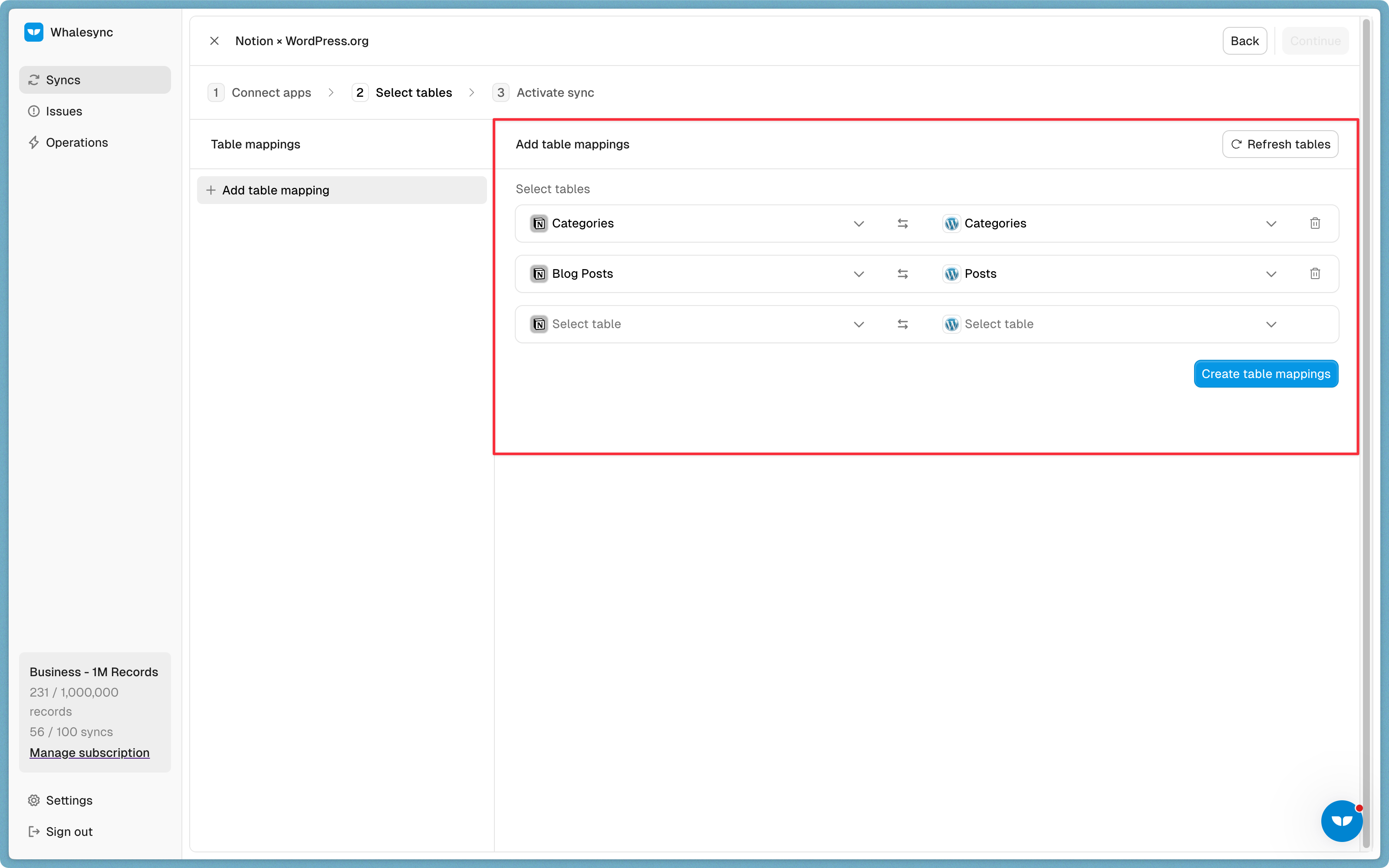
Map your tables
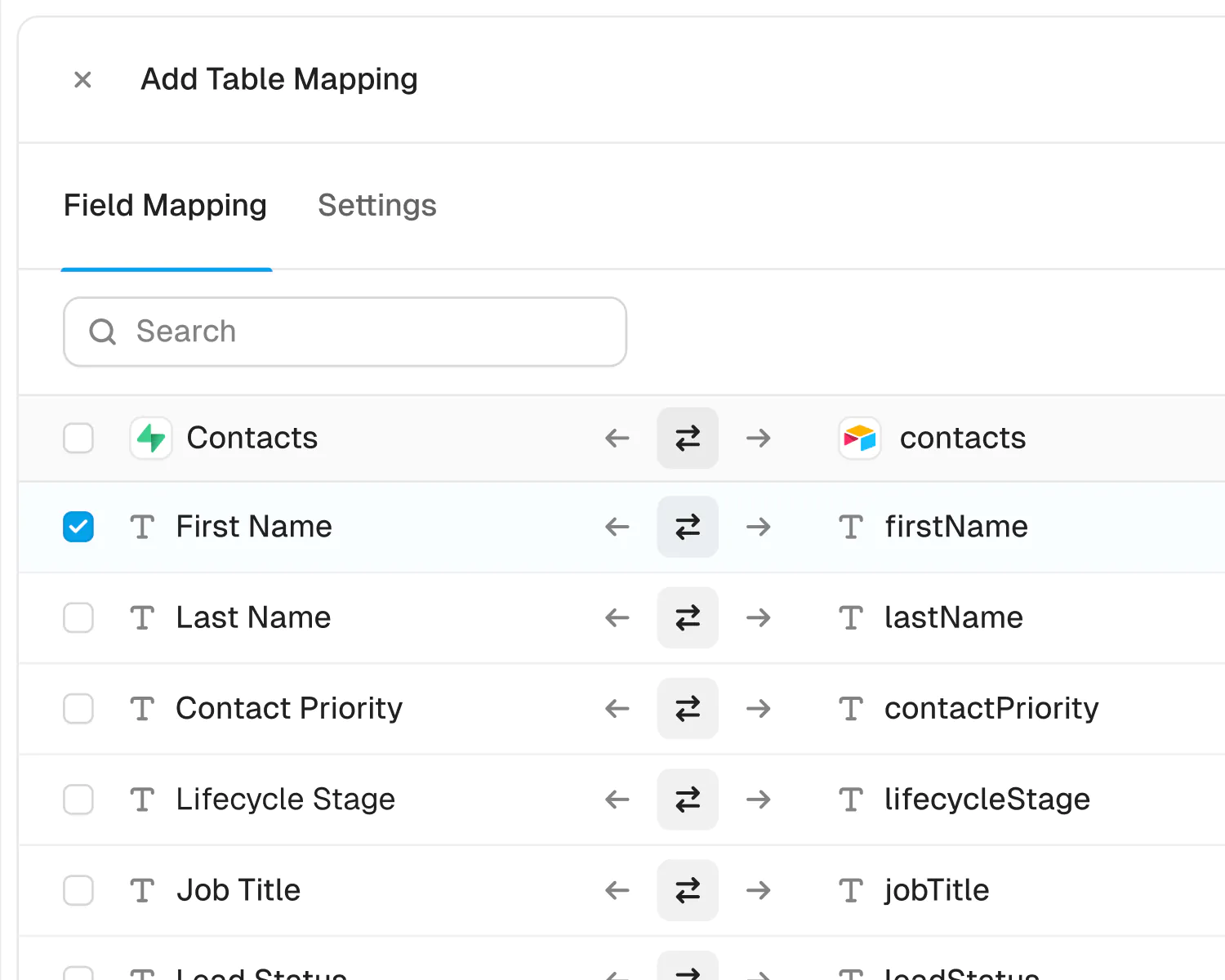
Choose the Notion tables you want to sync to WordPress.
Map your fields
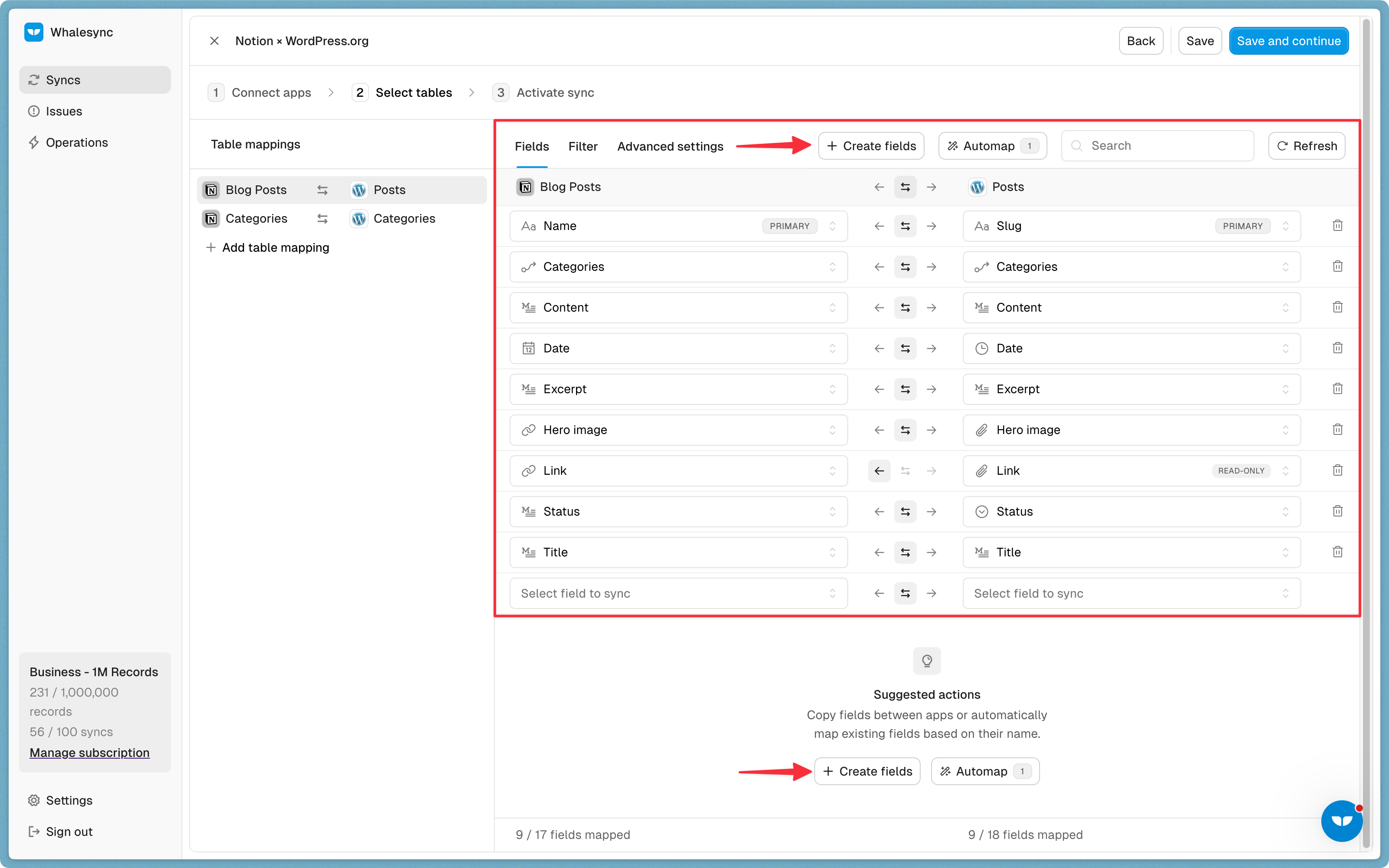
Select the fields you want to manage from Notion. You can choose to one-way or two-way sync them.
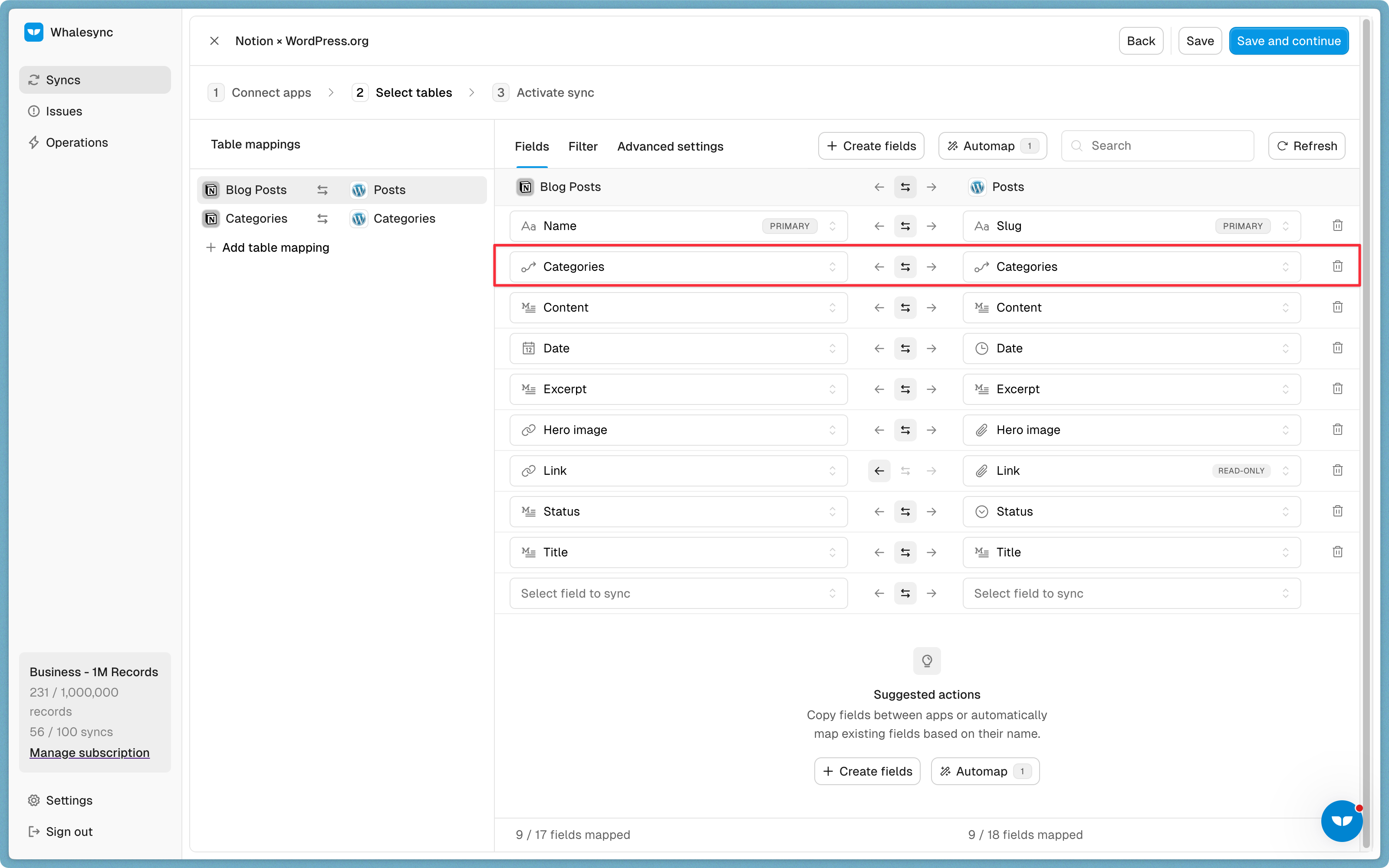
You can also auto-create fields directly in Whalesync’s UI.
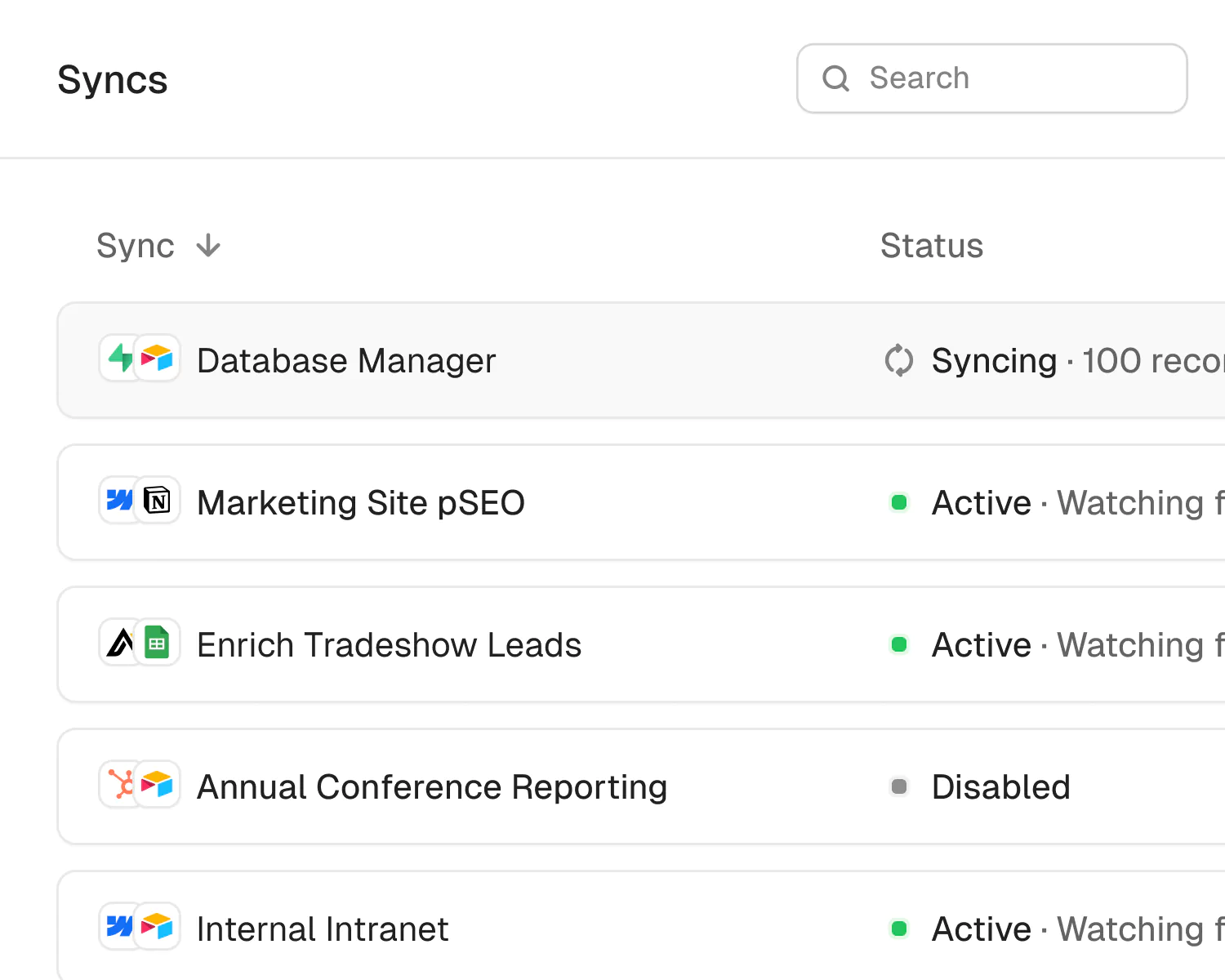
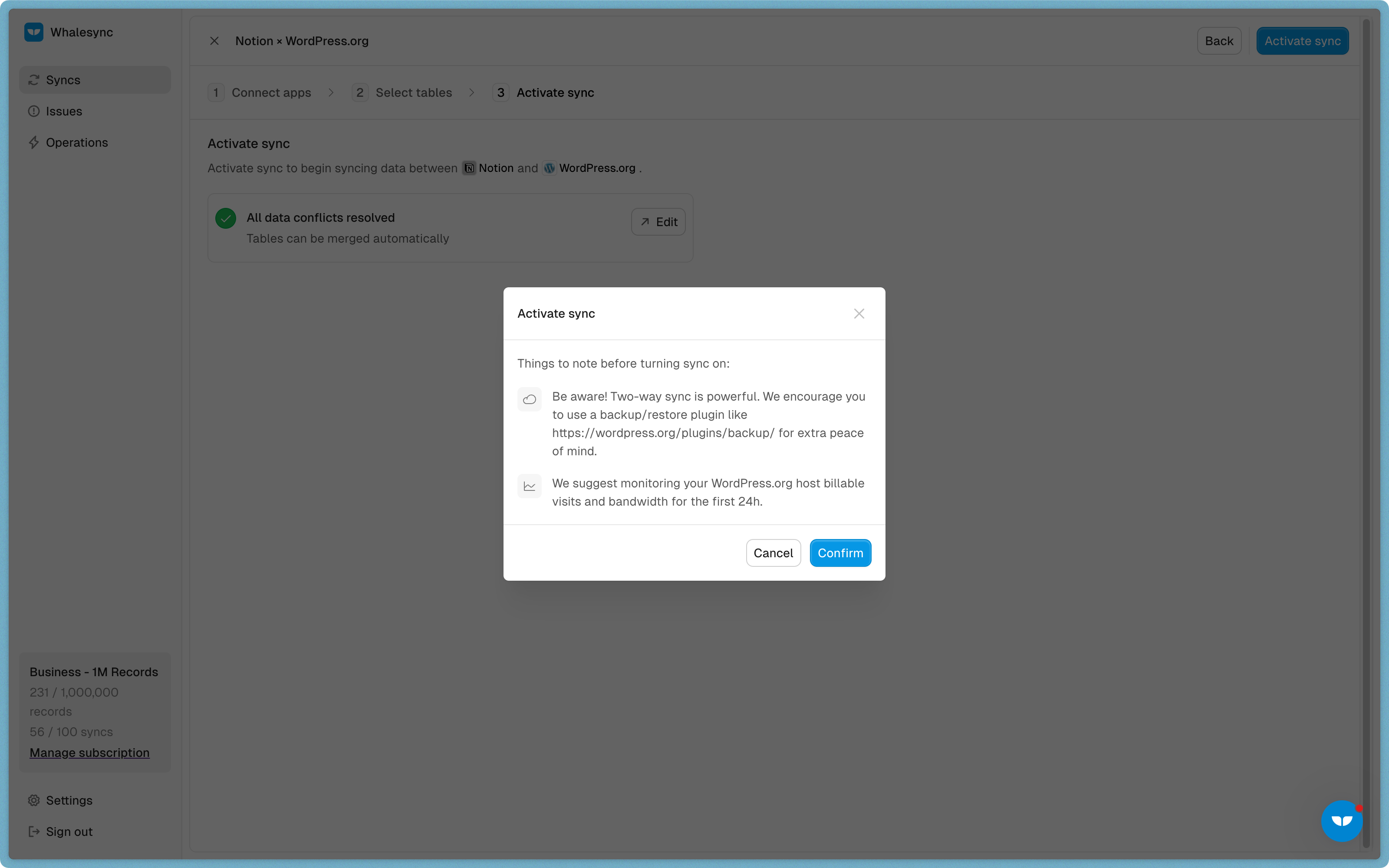
Activate sync 🎉
Now, Notion and WordPress are synced! You can start authoring blog posts in Notion and they will sync to WordPress.
Connect and sync Notion and WordPress today
It’s easier than ever for teams, creators, and businesses to manage content. Try it today.
Frequently asked questions (FAQs)
How can I sync Airtable and WordPress?
You can connect your Airtable base to your WordPress site in minutes using Whalesync. Once you authorize both apps, you can map the fields from your Airtable base to the corresponding fields in WordPress, such as post content, title, and any custom fields. Turn on the sync, and any changes you make in Airtable will be instantly reflected on your live site, eliminating the need for manual CSV imports.
Can I use Notion as a CMS for WordPress?
Yes. To use Notion as a content management system for WordPress, use Whalesync to connect a Notion database directly to your WordPress posts or pages.
Is it possible to two-way sync WordPress and Google Sheets?
Yes, you can set up a real-time, two-way sync between WordPress and Google Sheets. This means you can manage your website’s content directly from a spreadsheet. For example, if you update a product price in Google Sheets, it instantly updates the product page on your WordPress site.
How can I bulk update WordPress pages?
For bulk updates, such as changing details across hundreds of product pages or updating event listings, you can manage all the data in a central tool like Airtable or Google Sheets. Perform the updates in the spreadsheet interface, and Whalesync will automatically sync those changes to every corresponding page on your live WordPress site. This saves hours of manual work and prevents errors.
How does the connector handle image syncing between WordPress and other tools?
Yes, the connector automates image syncing. You can add image files to an attachment field in Airtable or an image block in Notion. Whalesync will then automatically upload those images to your WordPress media library and link them to the correct posts or pages, saving you from having to download and re-upload images manually.
Next steps
Ready to connect your tools to WordPress? Here are a few ways to get started:
- Explore the connector: Learn more about the features and possibilities on the official WordPress Connector page.
- Watch a tutorial: See how easy it is to sync data between tools like Notion and Google Sheets by watching our two-way sync tutorial.
- Start building: Ready to dive in? Sign up for free and create your first WordPress sync today.
About Notion and WordPress
Notion
About
Whalesync's Notion connector lets you easily sync data into and out of Notion. Easily create a two-way sync between Notion and apps like Airtable, Google Sheets, or Webflow. With our Notion connector you can pull data into Notion to create live dashboards with data from your other apps. You can also use Notion to control data in the other tools you use.
Category
Supported Objects
-
All DatabasesSupported
WordPress
About
WordPress is the world's most popular open-source content management system (CMS), powering over 43% of all websites on the internet. Renowned for its versatility, it allows users to create everything from simple blogs to complex e-commerce stores and membership sites without needing to code. Its user-friendly interface makes managing digital content straightforward, while a massive ecosystem of themes and plugins offers nearly limitless customization and functionality. This combination of flexibility, ease of use, and a vast developer community makes WordPress a reliable and scalable choice for individuals and major brands alike.
Category
Supported Objects
-
CategoriesSupported
-
Custom PostsSupported
-
MediaSupported
-
PagesSupported
-
PostsSupported
-
TagsSupported
Powerful features, built for reliability
Get the power of an engineering-grade data sync with the simplicity of a no-code tool. Whalesync lets you build a robust, two-way, real-time sync between your apps in minutes, all through a simple visual interface.
Real-time & historical sync
Instantly sync new changes and bring over all your historical data. Your records will be up-to-date across apps from day one.
Efficient error handling
Instant email alerts for quick issue monitoring.
Automatic API handling
Forget about rate limits. Whalesync automatically manages API traffic and retries to ensure your sync runs smoothly without breaking.
Advanced filters
Precision filtering for targeted data sync.
Notion and WordPress guides
Built for Enterprise
Connect your data with top-grade security, role based access control, SSO, and audit logs.

Security
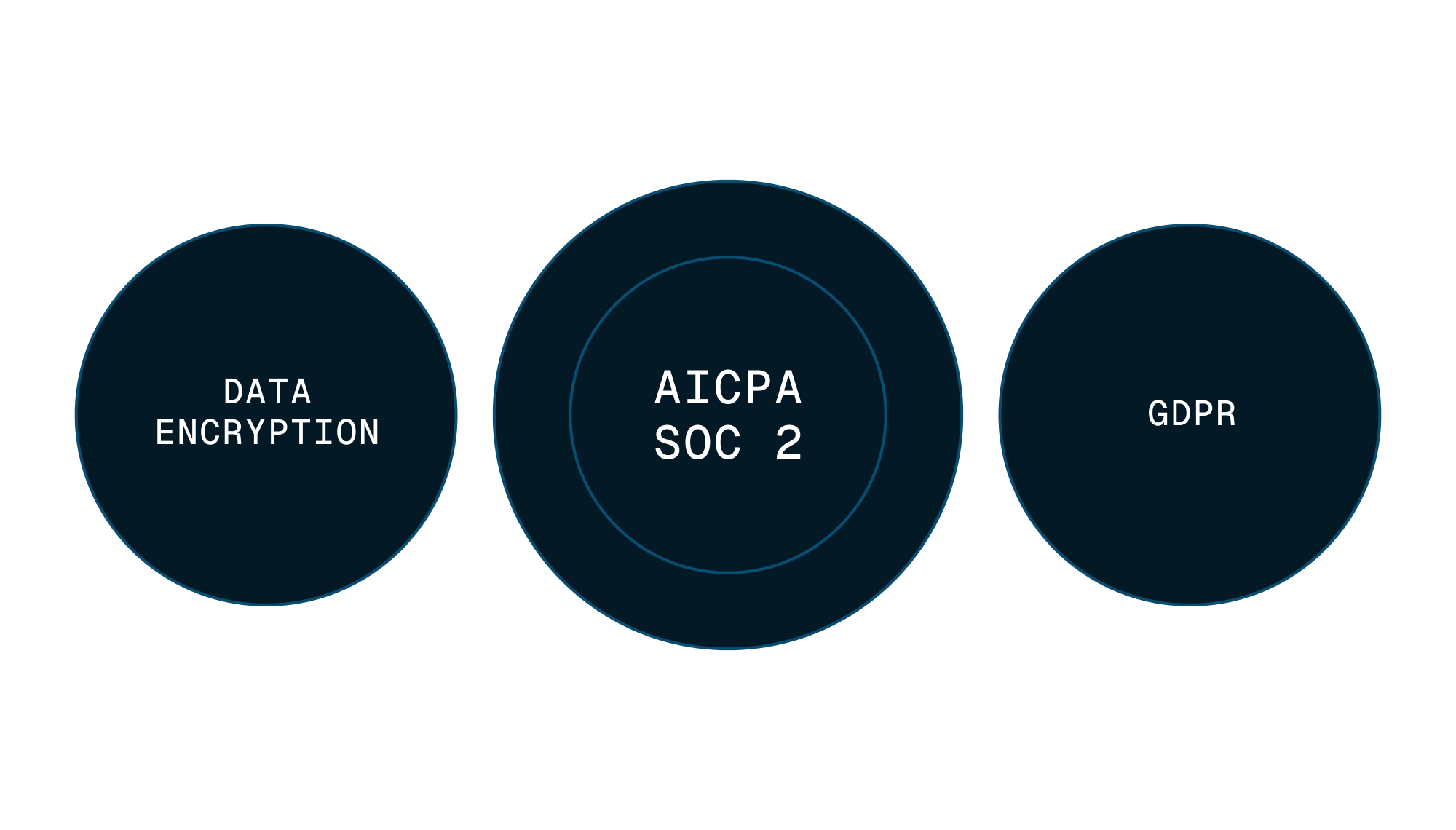
Enterprise-grade data safety with SOC 2 Type II, GDPR compliance, and encryption at rest monitored by Vanta.


Scale with support
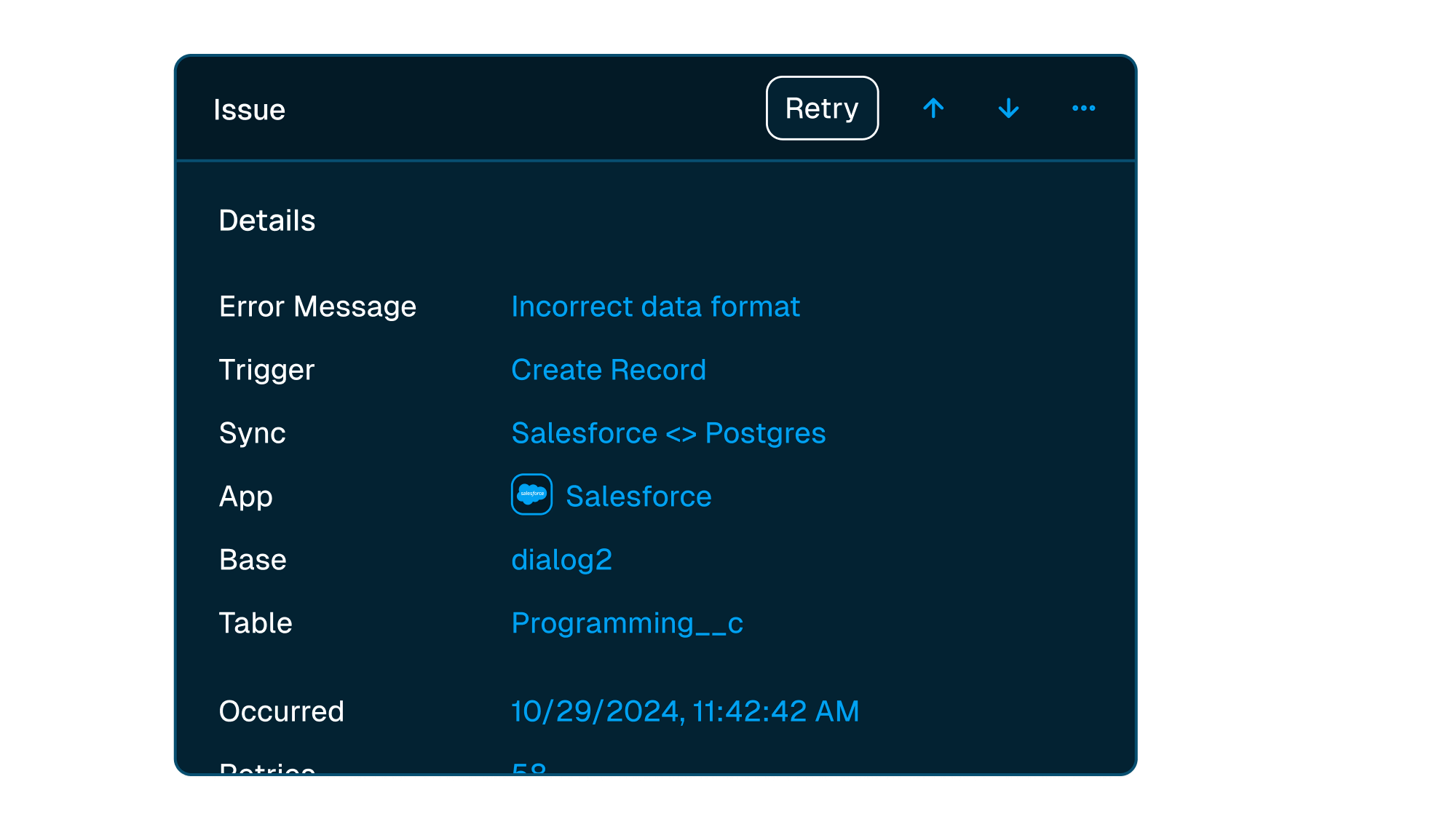
Easily manage issues at scale, while knowing you have a dedicated account manager on stand by to support.
Frequently asked questions
Is it really two-way sync?
Yes! Whalesync offers true two-way sync. Unlike most apps that offer one-way syncs in two directions, Whalesync actually keeps your data in sync bi-directionally. Update data in one app and see it instantly to sync to the other (or vice-versa).
What counts as a "record in sync"?
When a record syncs for the first time it becomes a record in sync. For example, if you sync 10 rows from Airtable to Webflow, you will have 10 records in sync. We do not "double-count" records across the two different apps.
Unlike other automation tools that count updates or tasks, Whalesync allows unlimited updates: those records can change as many times as you'd like.
What is a "sync"?
A sync is a connection between two different apps (e.g. Salesforce & Airtable). When you turn sync on, Whalesync will continuously sync data between your apps.
A single sync includes as many data tables and field as you'd like.
Does Whalesync support multi-reference fields? Rich text?
You bet! We've simplified all the annoying parts of setting up a sync with Zapier. We support multi-reference fields, rich text, and images. For a full list, see our supported fields docs.
What happens if my data has an error and can't be synced?
If data can't be synced (e.g. a required field is missing), Whalesync will alert you on the Issues page. This alert provides the exact error from your destination app and any other info that will help you fix the issue. In the meantime, Whalesync will continue to sync all data that doesn't have errors.
Do you offer a discount for nonprofits?
Absolutely! We love supporting organizations that are making the world a better place, so we're happy to offer a 20% discount to all nonprofits. To apply, just send us a note with proof of your nonprofit status (e.g. your 501(c)(3) determination letter) to support@whalesync.com and we'll get the discount applied to your account.






Connect your tools in minutes