The easiest way to sync Notion and Wix CMS
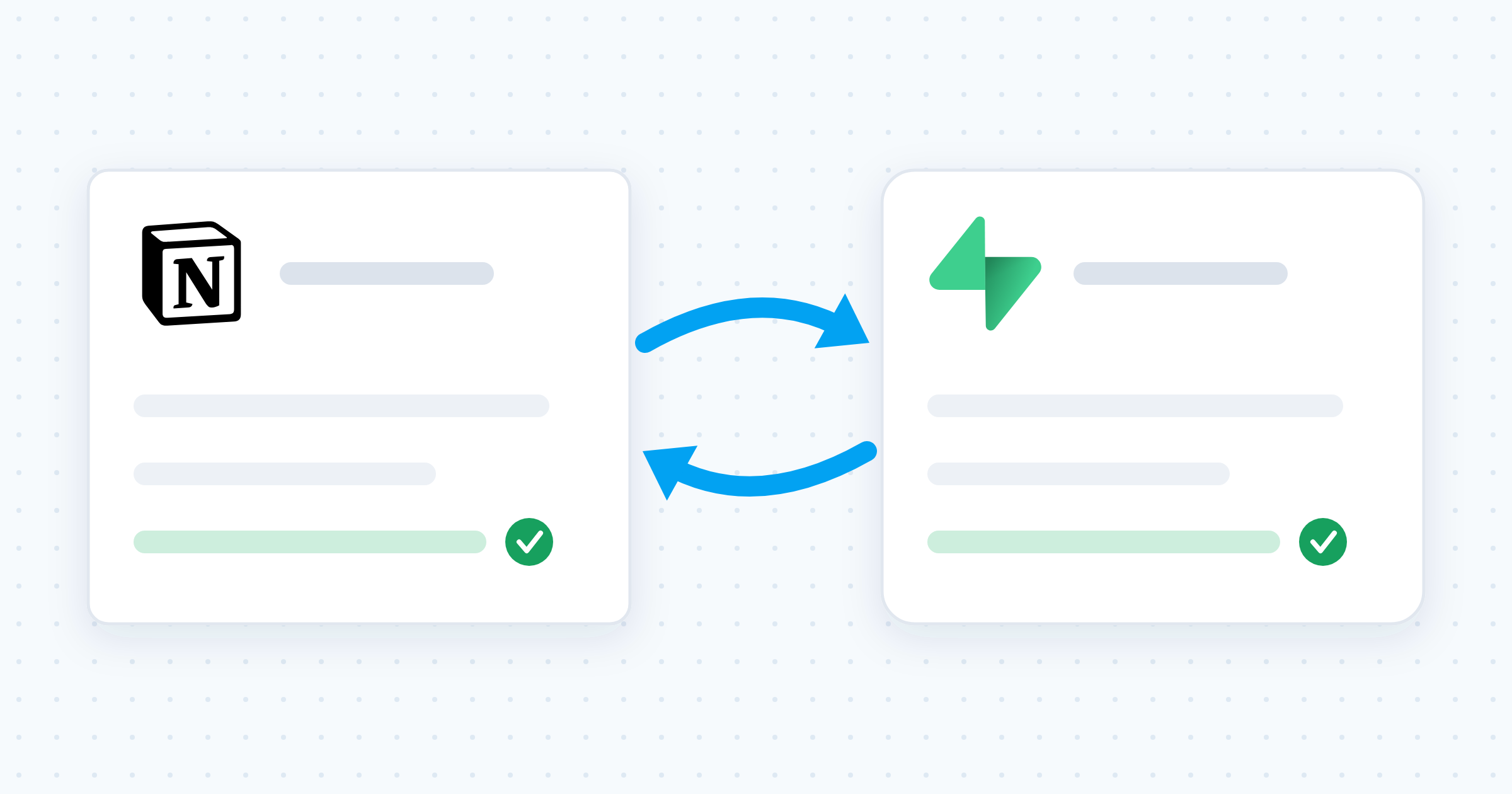
Get true, two-way sync between Notion and Wix CMS in minutes. Update data in one tool, and Whalesync mirrors it in the other.

Empowering top operators — From startups to enterprises
-
 Series C$350M
-
 Series C$330M
-
 Series C$100M
-

-
 Series B$72M
-
 Series C$30M
-
 Series A$50M
-
 Series B$86M
-
 Series B$65M
-
 Series B$100M
How to connect Notion and Wix CMS in 3 steps
Connect Notion and Wix CMS, map the fields you want, and turn sync on. From then on, a change in either app shows up in the other.
Connect your apps
Securely connect your Notion and Wix CMS accounts in seconds. Just authorize Whalesync with a few clicks and you're ready for the next step.
How to sync Notion to Wix CMS in 5 minutes
Notion is where many teams draft and collaborate on content. Wix CMS, on the other hand, is the structured content system inside Wix that powers dynamic pages like blogs, directory websites, and catalogs.
The challenge is that moving content from Notion into Wix CMS usually requires copy-paste, manual formatting, and constant updates. With Whalesync, you can connect Notion and Wix CMS in minutes. Once synced, your content written in Notion syncs directly into Wix CMS collections, making publishing fast, accurate, and scalable.
Why should you connect Notion and Wix CMS?
If you plan to produce a lot of content, whether you’re building a directory website, refreshing your blog content regularly, or even trying out pSEO, when you connect Notion and Wix CMS you can:
- Draft and edit content in Notion’s collaborative workspace
- Automatically publish updates to your Wix CMS collections
- Keep your website consistently updated without going into Wix CMS for every edit
- Free up time to focus on strategy and creativity instead of manual tasks
When should you connect Notion and Wix CMS?
If you already use Notion to plan and manage content, connecting it with Wix CMS saves hours and reduces errors. You should also connect Notion and Wix CMS if you:
- Draft most of your content in Notion but publish on Wix
- Work with multiple editors or contributors in Notion
- Need a faster way to update dynamic content like posts, listings, or product details
How to connect Notion and Wix CMS in 5 minutes
Here’s how to connect Notion and Wix CMS:
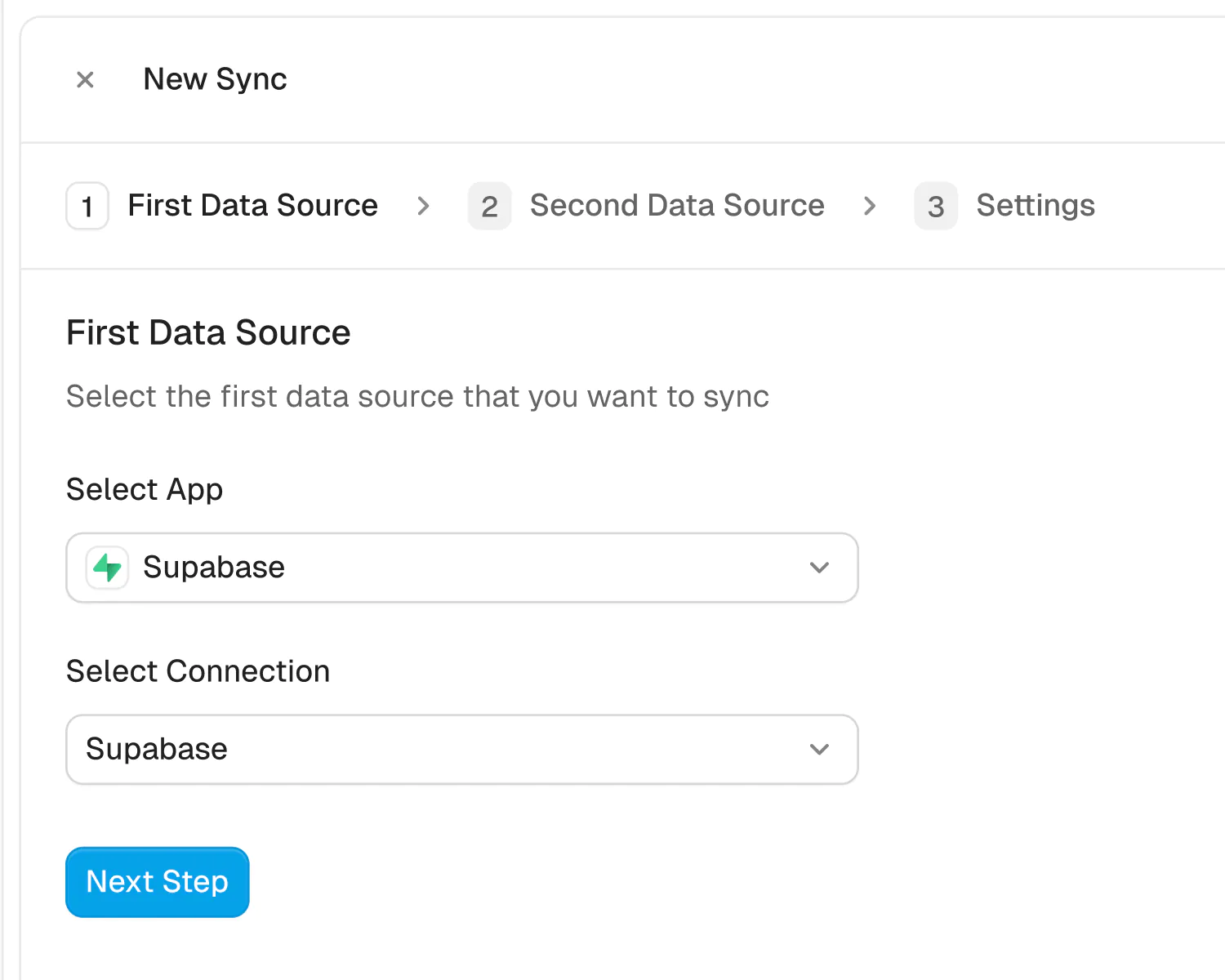
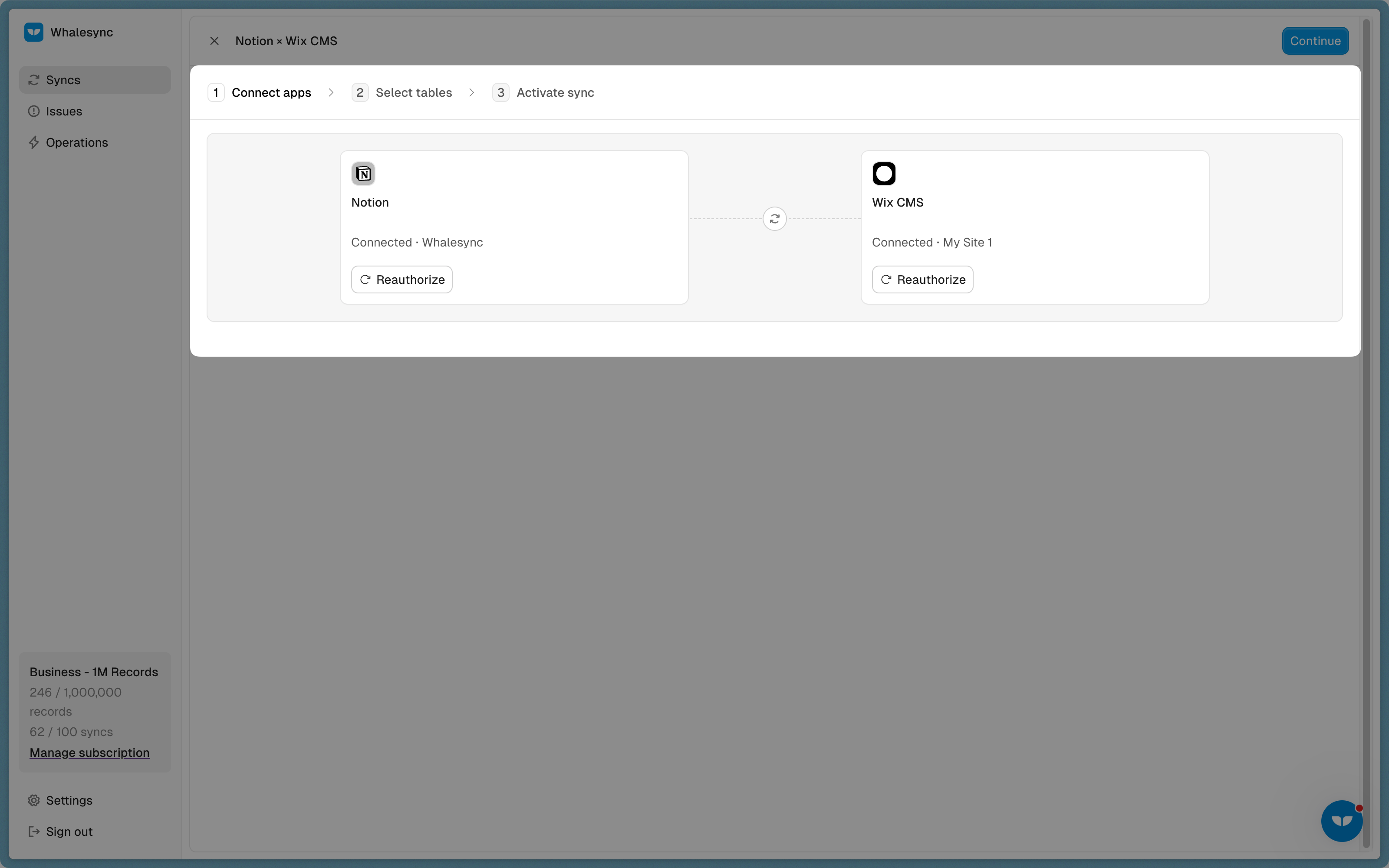
Select and authorize your apps
Select Notion and Wix CMS and authorize your apps.
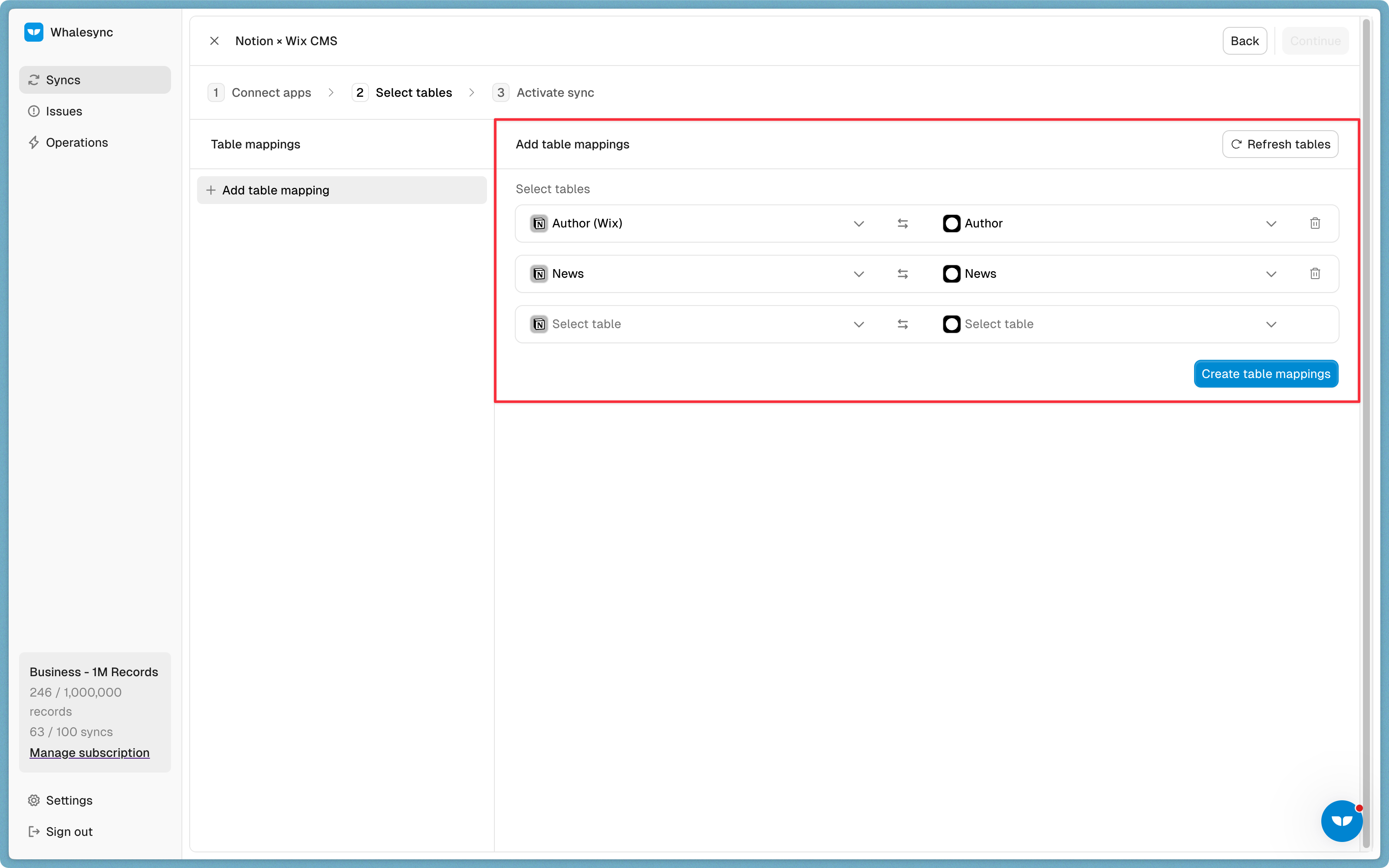
Map your tables
Choose the Notion tables you want to sync to Wix CMS
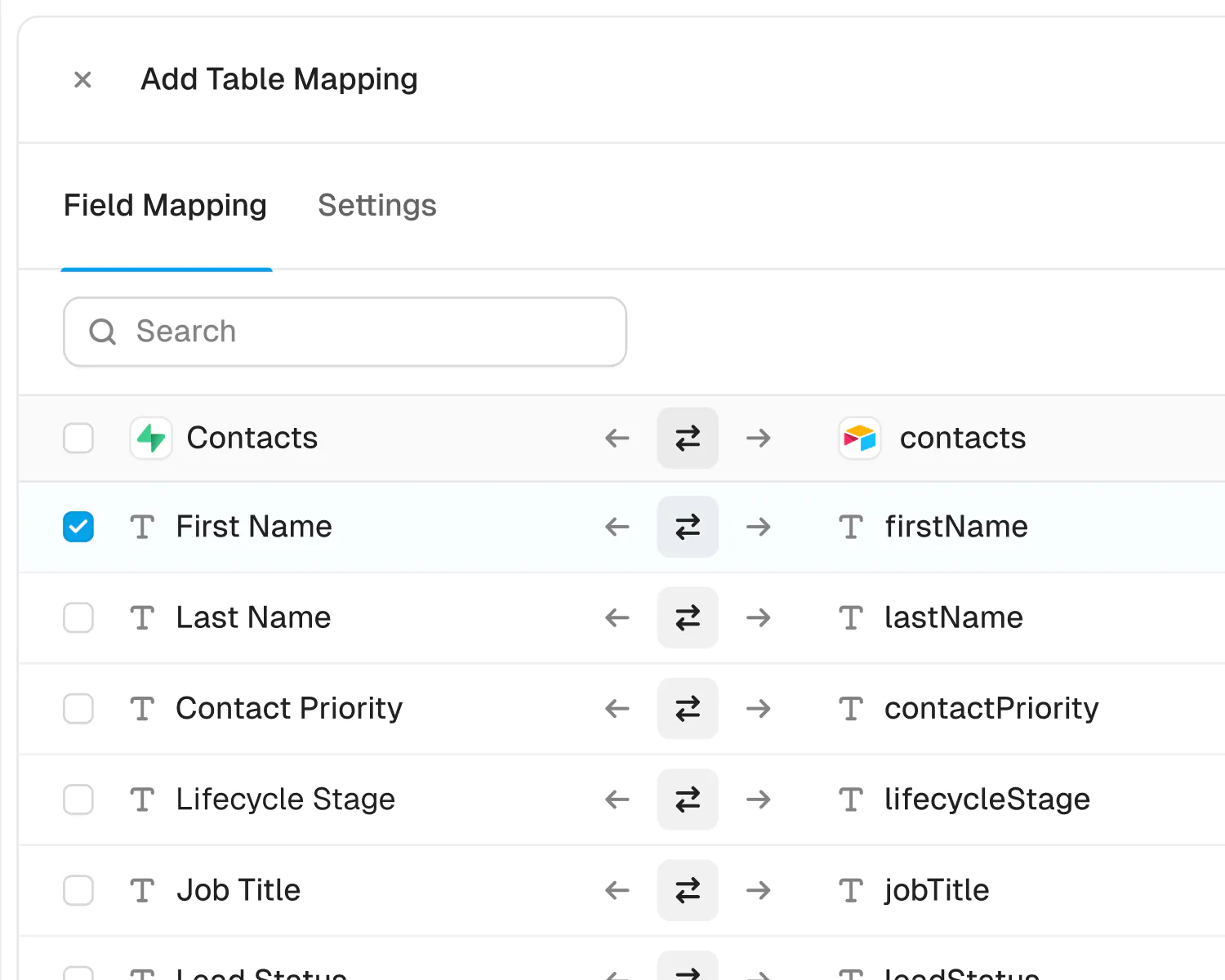
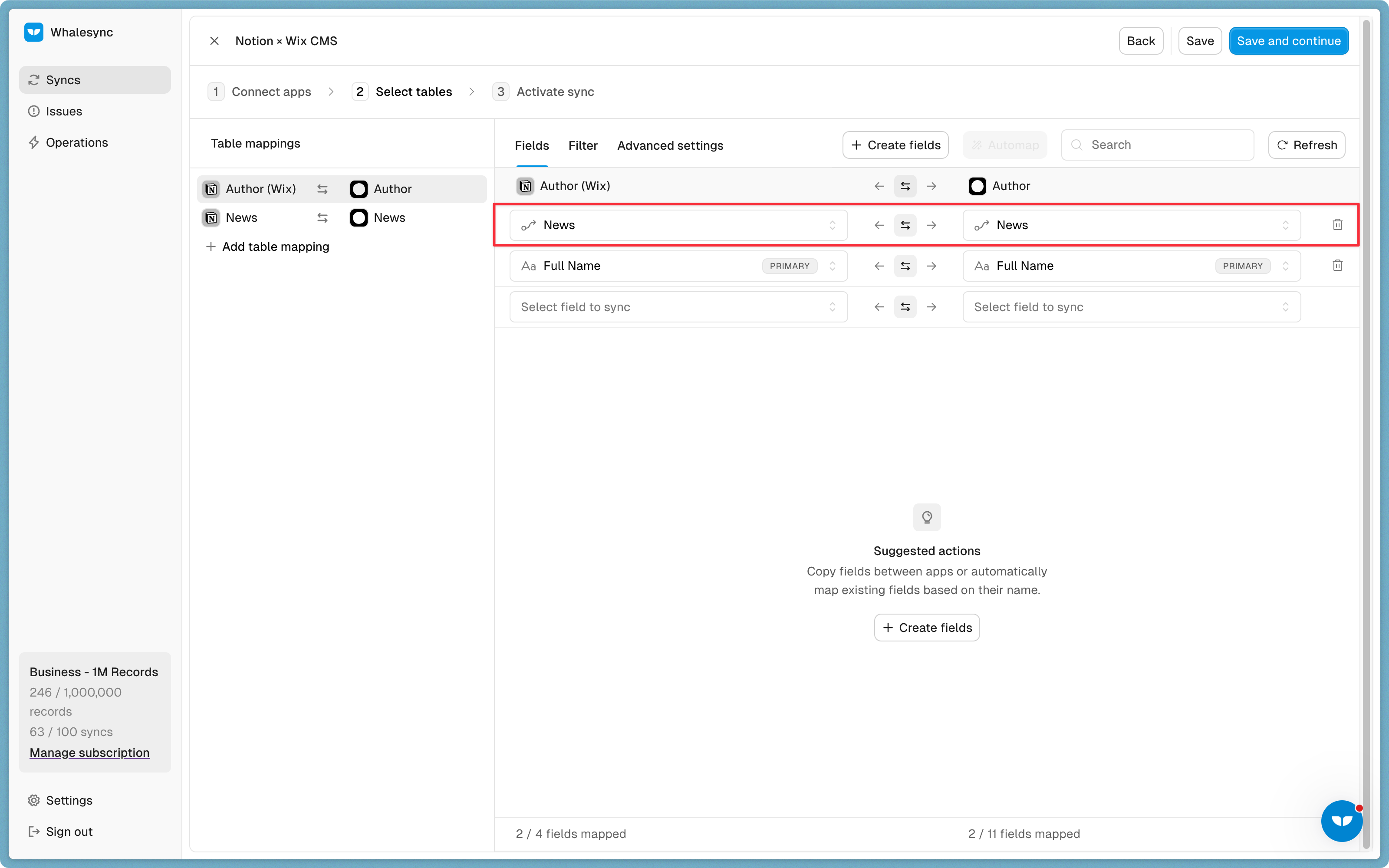
Map your fields
Select the fields you want to manage from Notion. You can choose to one-way or two-way sync them.
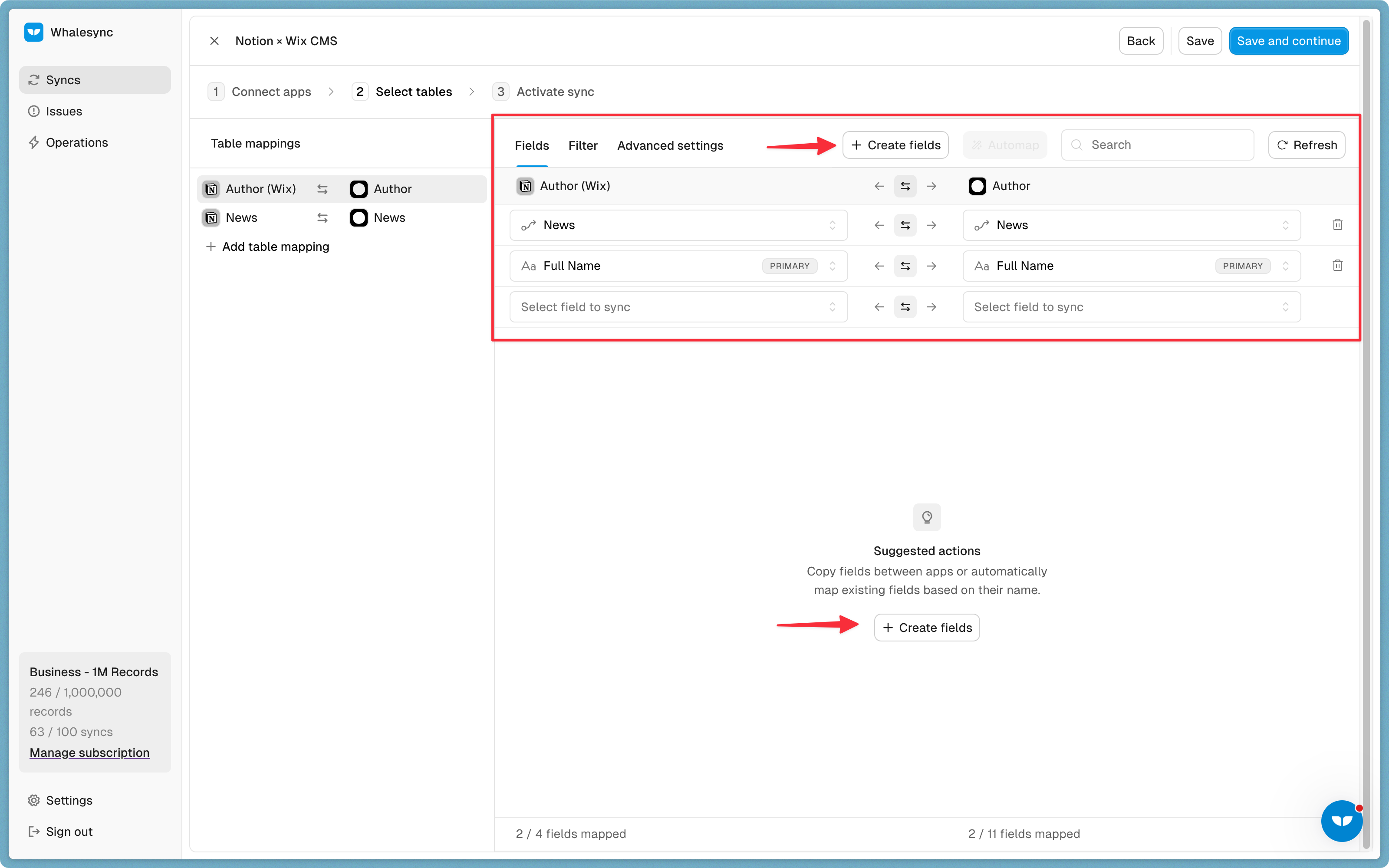
You can also auto-create fields directly in Whalesync’s UI.
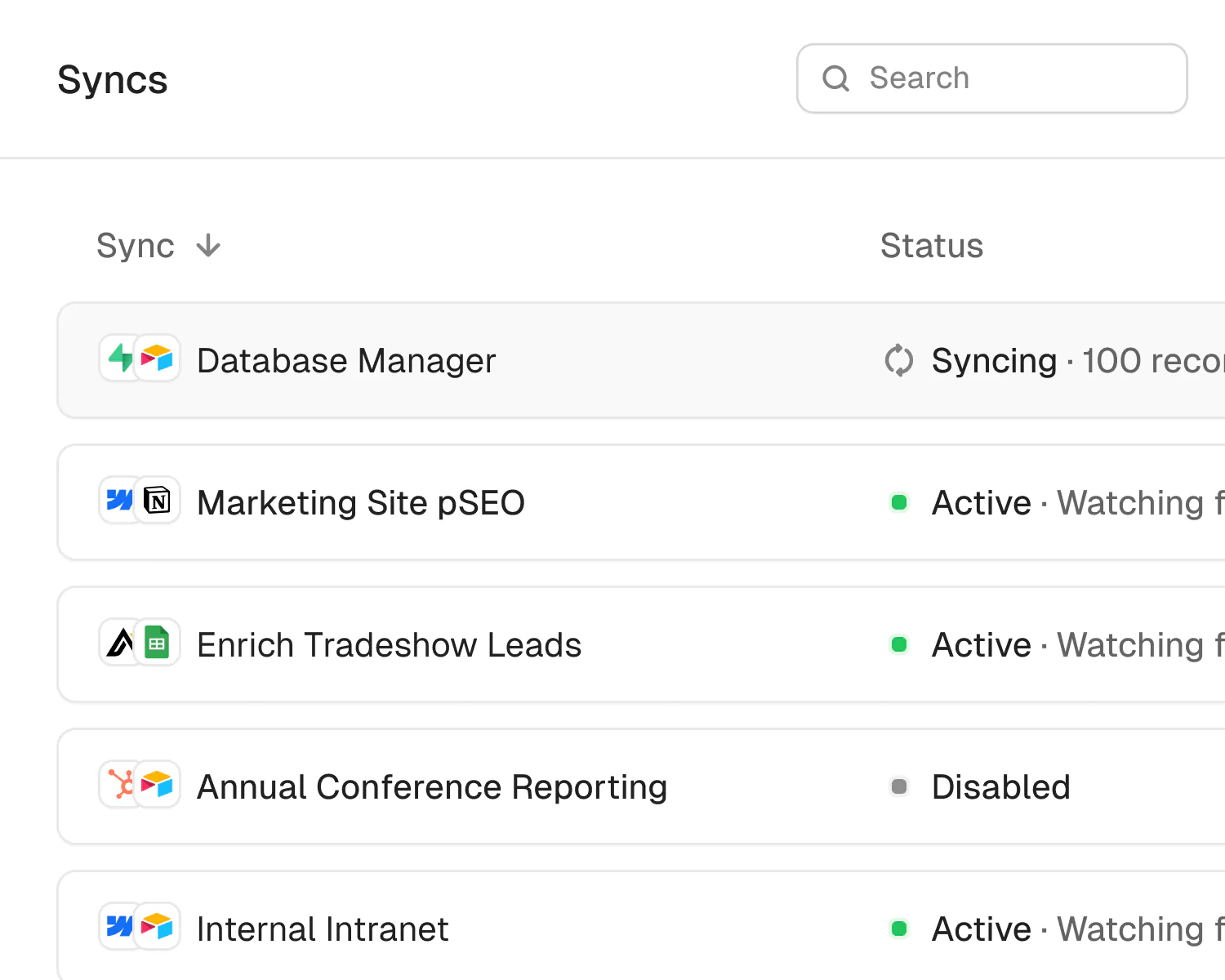
Activate sync 🎉
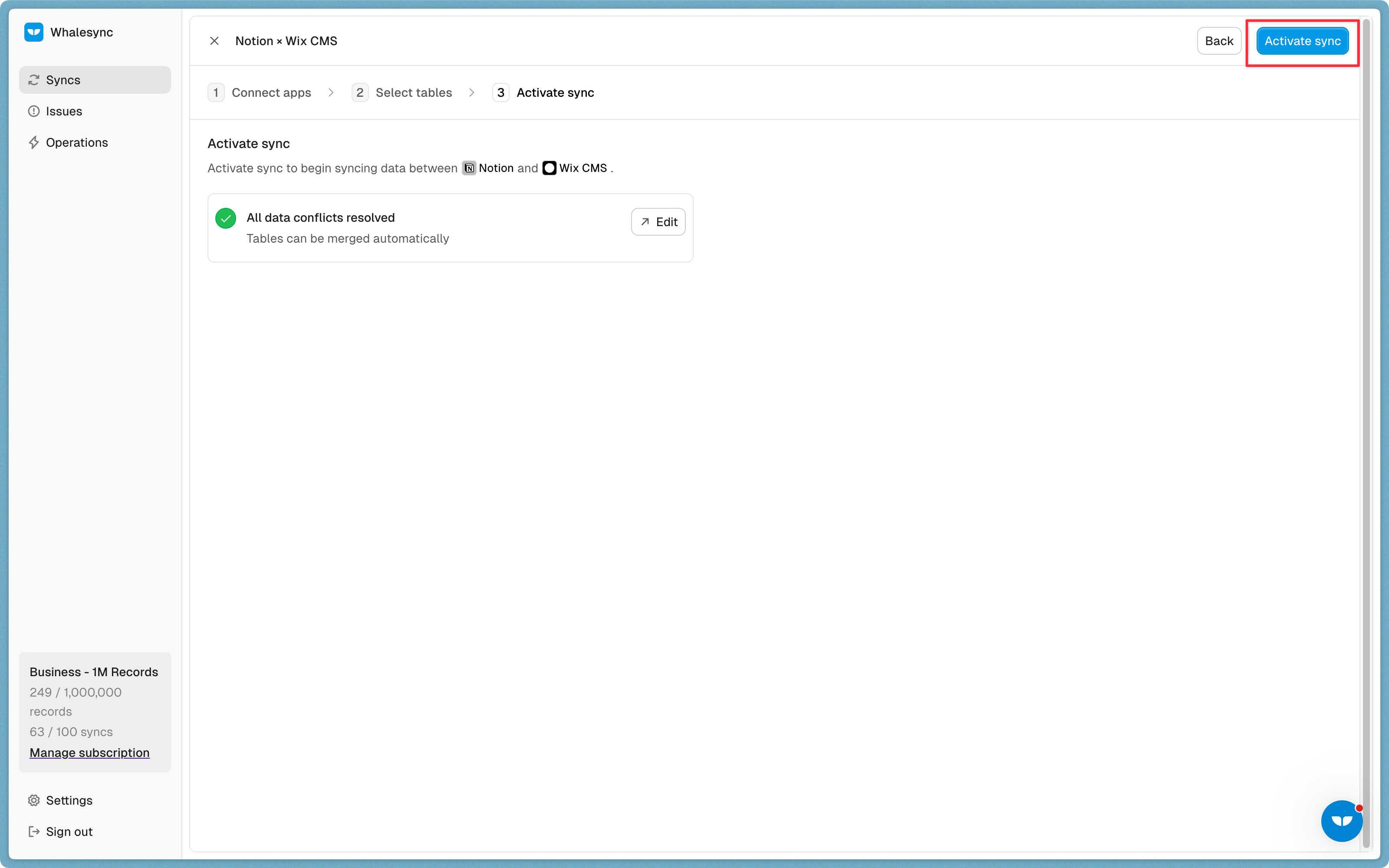
Now, Notion and Wix CMS are synced! Any content you create or update in Notion will automatically sync to Wix CMS.
Connect and sync Notion and Wix CMS today
It’s easier than ever for teams, creators, and businesses to manage content. Try it today.
Frequently asked questions (FAQs)
What’s the difference between Wix and Wix CMS?
Wix is a website builder for creating and managing your site. Wix CMS powers dynamic content like blogs, directories, and catalogs. Whalesync connects directly to Wix CMS collections and not static pages.
Can I use Notion as a CMS for Wix?
Yes. Notion becomes your workspace for drafting and organizing content, while Wix CMS handles publishing. Whalesync keeps the two in sync.
Is two-way sync possible between Notion and Wix CMS?
Yes. You can set up a two-way sync so that edits in Wix CMS flow back into Notion, ensuring both stay aligned.
How does image syncing work between Notion and Wix CMS?
Whalesync automatically handles images. Add them to a Notion page, and they’ll be uploaded to Wix CMS and linked to the right collection item.
Next steps
Ready to connect Notion and Wix CMS? Here’s how to begin:
- Explore the connector: Learn more on our Wix CMS Connector page.
- Start building: Ready to try it? Sign up for free and set up your first Notion and Wix CMS sync today
About Notion and Wix CMS
Notion
Notion is an all-in-one workspace for docs, wikis, and databases.
What syncs
All Databases
Wix CMS
Wix CMS manages structured content collections for your drag-and-drop website.
What syncs
All CMS Collections
Powerful features, built for reliability
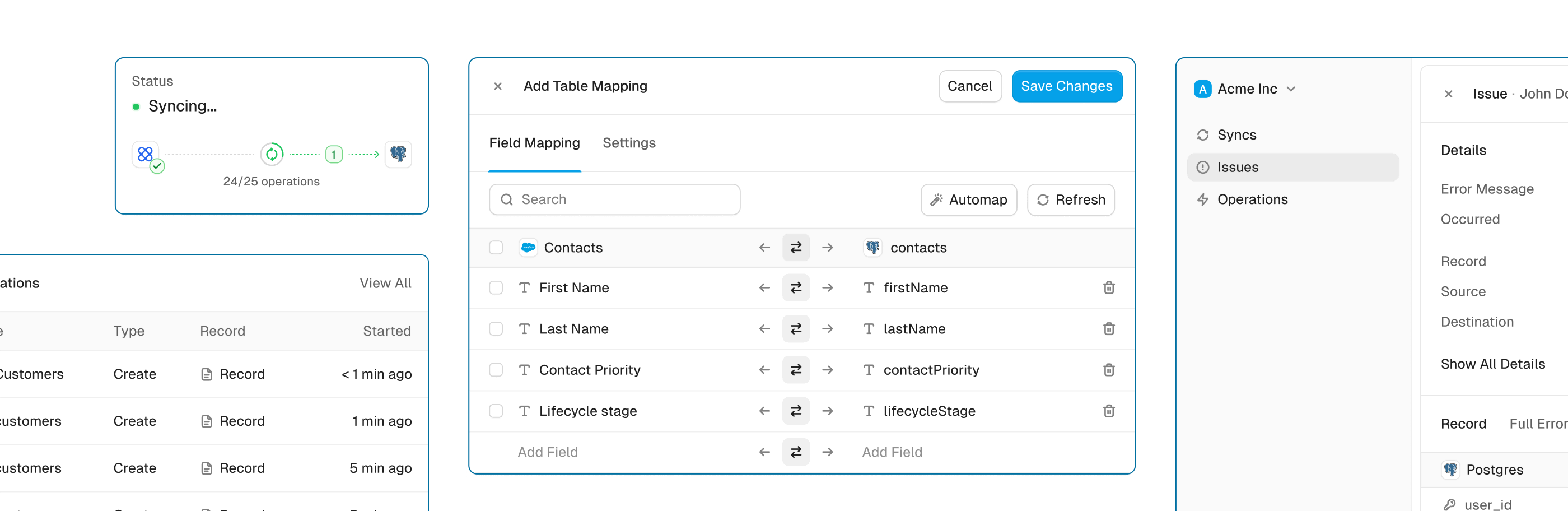
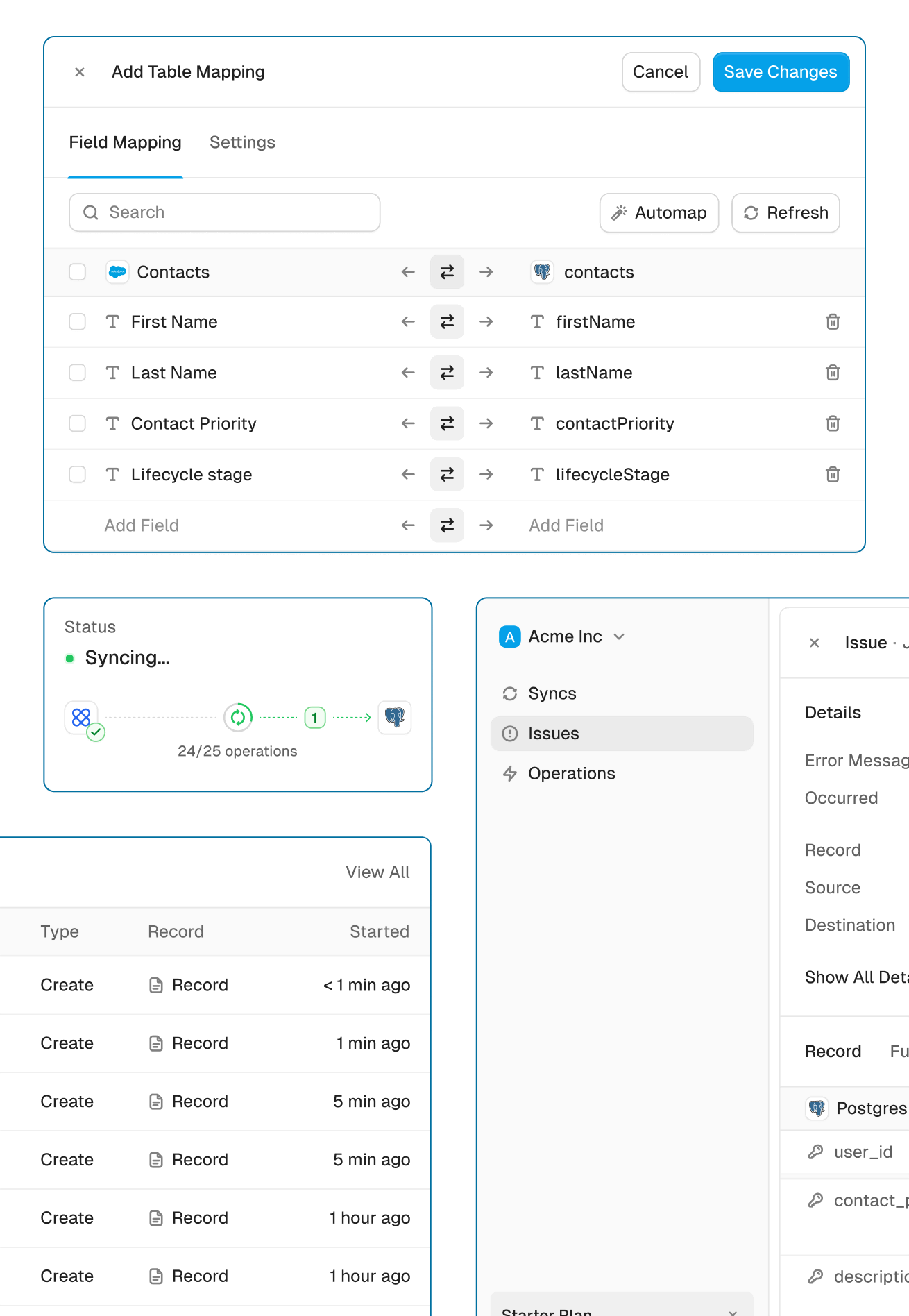
Get the power of an engineering-grade data sync with the simplicity of a no-code tool. Whalesync lets you build a robust, two-way, real-time sync between your apps in minutes, all through a simple visual interface.
Real-time & historical sync
Instantly sync new changes and bring over all your historical data. Your records will be up-to-date across apps from day one.
Efficient error handling
Instant email alerts for quick issue monitoring.
Automatic API handling
Forget about rate limits. Whalesync automatically manages API traffic and retries to ensure your sync runs smoothly without breaking.
Advanced filters
Precision filtering for targeted data sync.
Notion and Wix CMS guides

Built for Enterprise
Connect your data with top-grade security, role based access control, SSO, and audit logs.


Security
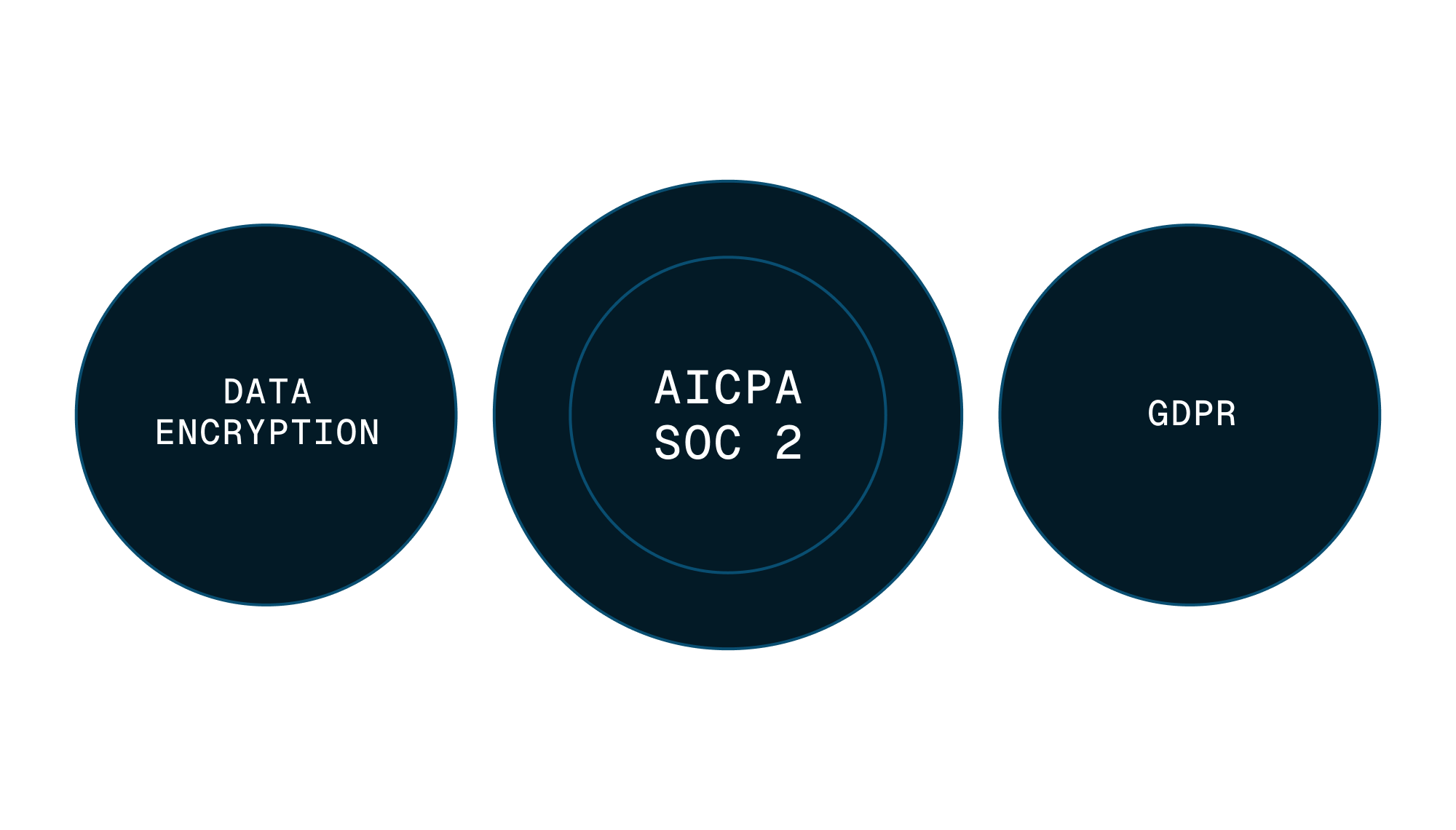
Enterprise-grade data safety with SOC 2 Type II, GDPR compliance, and encryption at rest monitored by Vanta.


Scale with support
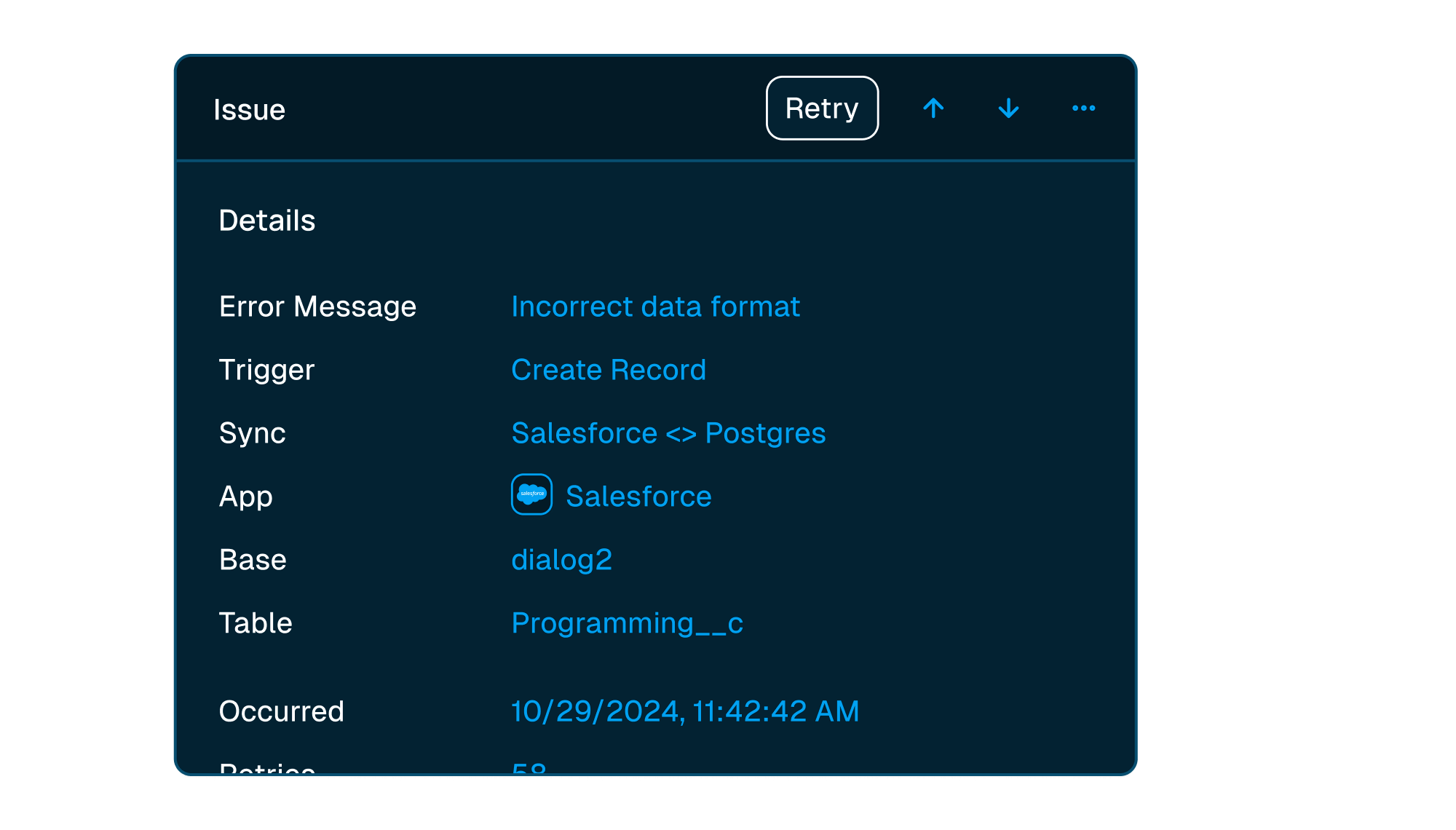
Easily manage issues at scale, while knowing you have a dedicated account manager on stand by to support.
Frequently asked questions
Is it really two-way sync?
Yes! Whalesync offers true two-way sync. Unlike most apps that offer one-way syncs in two directions, Whalesync actually keeps your data in sync bi-directionally. Update data in one app and see it instantly to sync to the other (or vice-versa).
What counts as a "record in sync"?
When a record syncs for the first time it becomes a record in sync. For example, if you sync 10 rows from Airtable to Webflow, you will have 10 records in sync. We do not "double-count" records across the two different apps.
Unlike other automation tools that count updates or tasks, Whalesync allows unlimited updates: those records can change as many times as you'd like.
What is a "sync"?
A sync is a connection between two different apps (e.g. Salesforce & Airtable). When you turn sync on, Whalesync will continuously sync data between your apps.
A single sync includes as many data tables and field as you'd like.
Does Whalesync support multi-reference fields? Rich text?
You bet! We've simplified all the annoying parts of setting up a sync with Zapier. We support multi-reference fields, rich text, and images. For a full list, see our supported fields docs.
What happens if my data has an error and can't be synced?
If data can't be synced (e.g. a required field is missing), Whalesync will alert you on the Issues page. This alert provides the exact error from your destination app and any other info that will help you fix the issue. In the meantime, Whalesync will continue to sync all data that doesn't have errors.
Do you offer a discount for nonprofits?
Absolutely! We love supporting organizations that are making the world a better place, so we're happy to offer a 20% discount to all nonprofits. To apply, just send us a note with proof of your nonprofit status (e.g. your 501(c)(3) determination letter) to support@whalesync.com and we'll get the discount applied to your account.






Connect your tools in minutes