How to Sync Webflow CMS to Salesforce in 5 Minutes
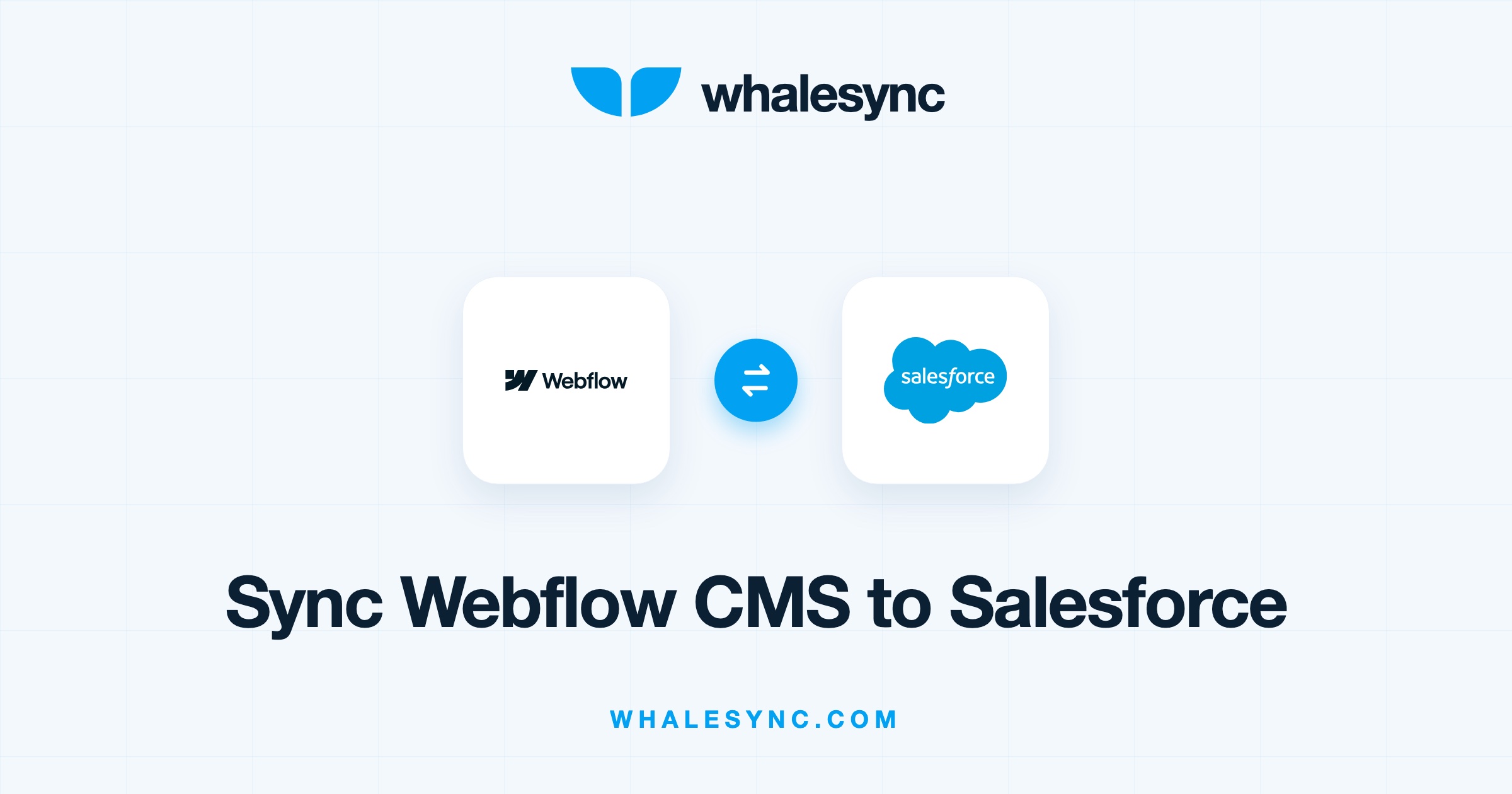
How to connect and sync Webflow CMS to Salesforce in 5 minutes.

Webflow CMS has become the way marketing teams ship structured content at speed: customer pages, resource hubs, location pages, and directories, all managed as collections instead of one-off builds. Salesforce sits at the other end of the business as the system of record for revenue, holding the accounts, contacts, leads, and opportunities your whole go-to-market motion depends on.
Both tools do their jobs well. The trouble starts in the space between them. Your website tells the world about your customers, partners, and locations, while Salesforce holds the authoritative data about those very same customers, partners, and locations. Kept apart, the two drift: the site shows a customer name that changed months ago, the directory misses last quarter's new partners, and someone on the web team spends every Friday copying records across by hand.
Syncing Webflow CMS to Salesforce closes that gap. Salesforce stays the source of truth, your Webflow site reflects it automatically, and because the sync runs both ways, edits made in Webflow flow straight back into Salesforce.
Here's how to connect and sync Webflow CMS to Salesforce in about five minutes with Whalesync, no code required.
Why two-way sync beats CSV exports and Zapier
CSV exports are the classic stopgap. Salesforce reports export cleanly enough, but the moment the file lands on your desktop it starts going stale. Keeping a website current this way means an endless loop of export, clean, import, and cross your fingers, with every pass introducing chances for mismatched columns, duplicates, and orphaned records that were deleted on one side but not the other.
Zapier and similar tools automate the copying but only in one direction, one record at a time. Triggers fire on new events, so your existing Salesforce records never make it over. There's no reconciliation when the same record is edited in both tools, and a silently failed zap just means a missing listing that nobody notices until a customer does.
Whalesync works differently. It establishes a two-way, real-time sync at the table level, treating a Webflow collection and a Salesforce object as one shared dataset. Change a record in either tool and the other follows within moments. Setup is entirely no-code, so you don't need an admin to write Apex or an engineer to babysit an integration.
How to sync Webflow CMS to Salesforce step by step
The setup takes about five minutes from start to finish.
- Create a Whalesync account. Sign up and start a new sync. The free trial lets you build and verify the whole thing before you commit.
- Connect Webflow. Select Webflow as your first app. The Webflow connector guides you through authorization and choosing the site whose collections you want to sync.
- Connect Salesforce. Select Salesforce as the second app and authorize it through the Salesforce connector, granting Whalesync access to the org you want to sync with.
- Map your tables and fields. Pair each Webflow collection with a Salesforce object, for example a customers collection with accounts. Then map fields. Whalesync's AI automapping proposes the field matches automatically, so your job is mostly to review, adjust, and confirm rather than wire up dozens of fields by hand.
- Turn on the sync. Whalesync previews how many records will be created in each tool before anything moves. Once you activate, the sync runs continuously, in both directions, in real time.
From here on out, there's nothing to maintain. New records, edits, and corrections travel on their own.
What syncs between Webflow CMS and Salesforce
On the Salesforce side, Whalesync supports accounts, contacts, leads, opportunities, and tasks, plus custom objects discovered directly from your Salesforce schema. That last part matters more than it sounds: if your org models partners, dealers, locations, or listings as custom objects, those sync into Webflow collections just like the standard objects do. On the Webflow side, any CMS collection can take part.
And since the sync is two-way, corrections made in Webflow don't vanish into the void. Fix a partner's description on the website and Salesforce gets the update too.
Three ways teams use a Webflow CMS to Salesforce sync
A customer page that maintains itself
Your accounts in Salesforce are already the definitive list of who you serve. Sync the relevant records into a Webflow collection and your customer wall, logo grid, or case study index updates the moment a deal closes, with no request queue between sales and the website.
Directories owned by the field, published by the site
Dealer locators, office pages, and agent directories usually live as Salesforce records that field teams keep current. Syncing those records into Webflow turns the website into a live view of that data: when an address or territory changes in Salesforce, the public listing follows automatically.
A partner program without the copy-paste
If partners are tracked as Salesforce custom objects, syncing them into a Webflow directory removes the manual publishing step entirely. Partnerships works in the CRM they already use, and the site stays complete and current on its own.
Start syncing today
Webflow CMS makes your website fast to build and easy to evolve. Salesforce keeps your revenue data structured and trustworthy. Connect them with two-way syncing between Webflow and Salesforce and the website stops being a copy of your CRM data and starts being a live window into it.
Ready to connect Webflow CMS and Salesforce? Start your free Whalesync trial and you can have the first records flowing in about five minutes.

Subscribe for more
Stay up to date with the latest no-code data news, strategies, and insights sent straight to your inbox!