How to Export Notion Pages to Markdown
Learn how to export Notion pages to Markdown.

If you’ve ever seen a GitHub repo before, you’ve probably seen a file called README.md. That “.md” stands for Markdown, a lightweight formatting language that makes text easy to read, write, and publish anywhere.
Notion actually uses Markdown, which makes exporting your pages into this format both quick and incredibly useful.
You might want to export your Notion content to Markdown if you’re migrating notes to an app like Obsidian, backing up important pages, publishing documentation to GitHub, or just need a clean, portable version of your work. Markdown keeps your content simple, structured, and compatible with almost any writing or development tool.
Here’s how to export Notion pages to Markdown.
What is Markdown?
Markdown is a lightweight markup language that lets you format plain text using simple symbols instead of code. For example:
#creates a heading*bold**makes text bold- creates a bullet point
When rendered, Markdown automatically converts to formatted text, making it the go-to choice for documentation, blogs, GitHub READMEs, and static sites.
It’s simple, human-readable, and widely supported, perfect for moving your Notion content anywhere.
Method 1: Export manually from Notion
Notion makes it easy to export pages in Markdown format directly from the interface.
Open the page you want to export.
Click the three dots (•••) in the top-right corner.
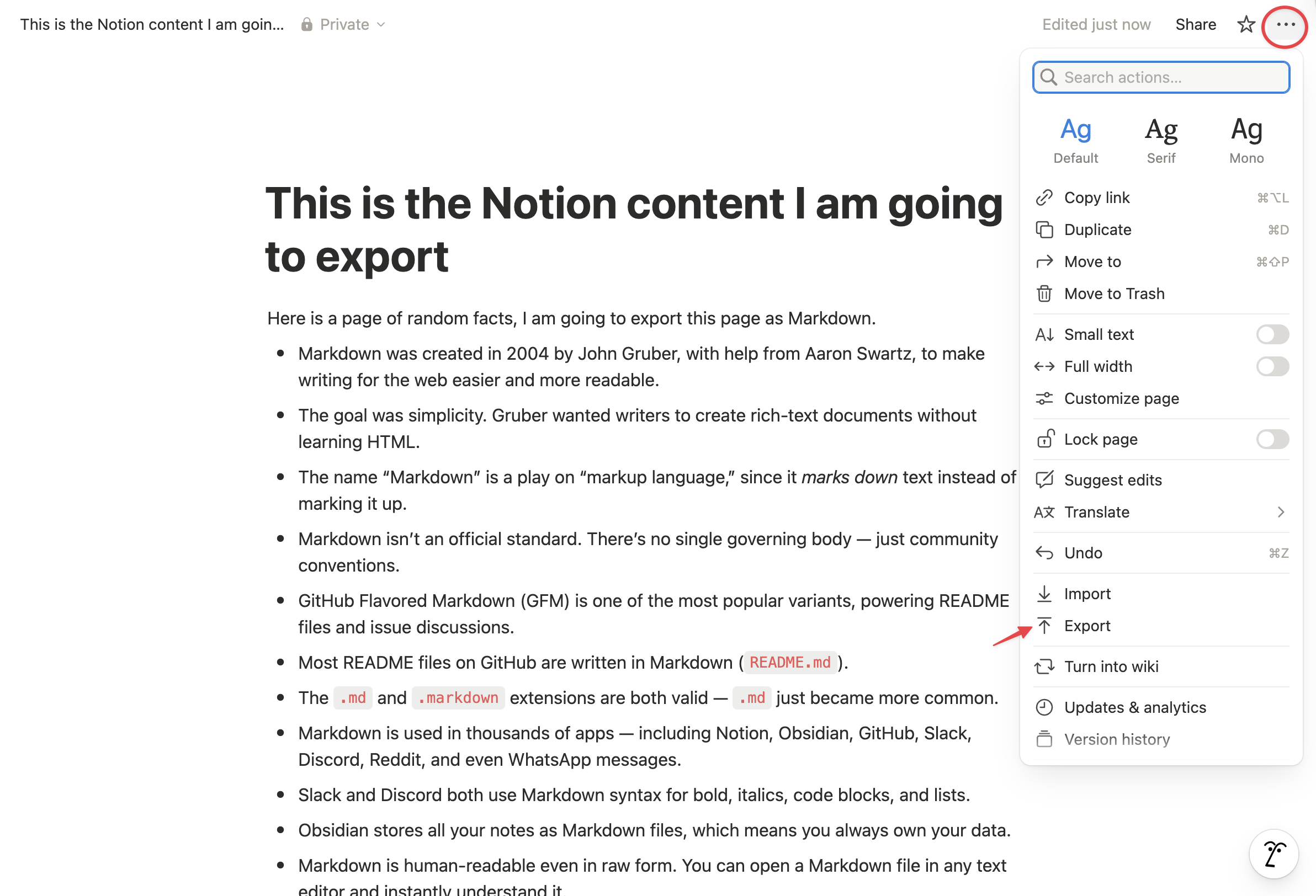
Select Export → Markdown & CSV
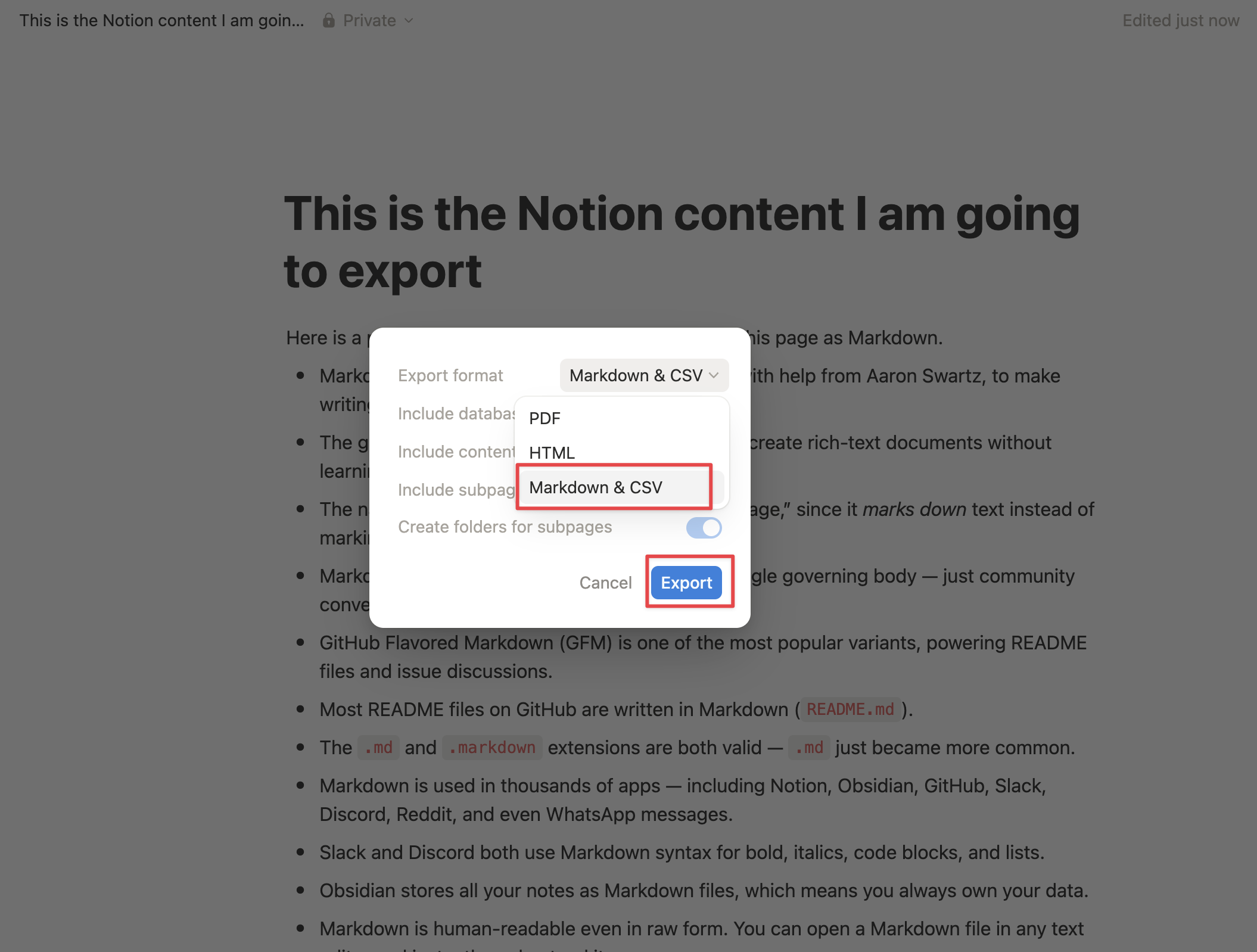
Toggle Include subpages if your page has nested content.
Click Export and download the .zip file.
Unzip it, you’ll find .md files and folders for subpages and images.
This method is ideal for one-time exports or smaller projects where you just need Markdown copies of a few pages.
Method 2: Use the notion-to-md Library
If you want a developer-friendly, automated approach, try the notion-to-md library. It’s a well-maintained open-source package with 40k+ weekly downloads and supports:
- Code blocks
- Nested blocks
- Lists, tables, and images
Example:
import { NotionToMarkdown } from "notion-to-md";
import { Client } from "@notionhq/client";

const notion = new Client({ auth: process.env.NOTION_TOKEN });
const n2m = new NotionToMarkdown({ notionClient: notion });

async function exportPage(pageId) {
  const mdBlocks = await n2m.pageToMarkdown(pageId);
  const mdString = n2m.toMarkdownString(mdBlocks);
  console.log(mdString);
}
This is great if you who want to integrate Markdown exports directly into their content pipelines or codebases.
Method 3: Import Notion Pages into Obsidian
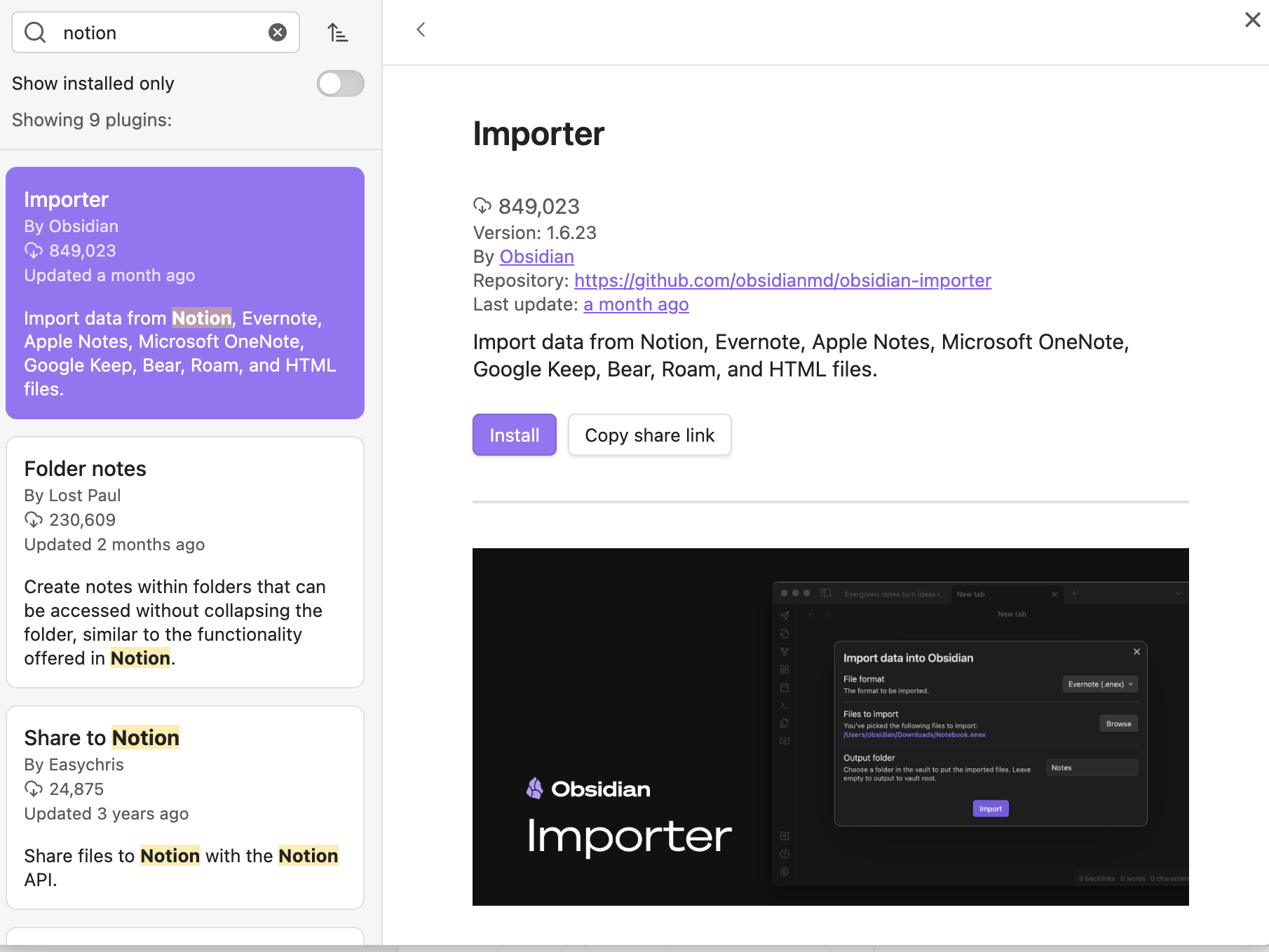
If you use Obsidian, a powerful Markdown-based note-taking app, you can bring your Notion workspace over using the Notion Importer plugin.
In Obsidian, go to Community Plugins → Browse.
Search for Notion Importer and install it.
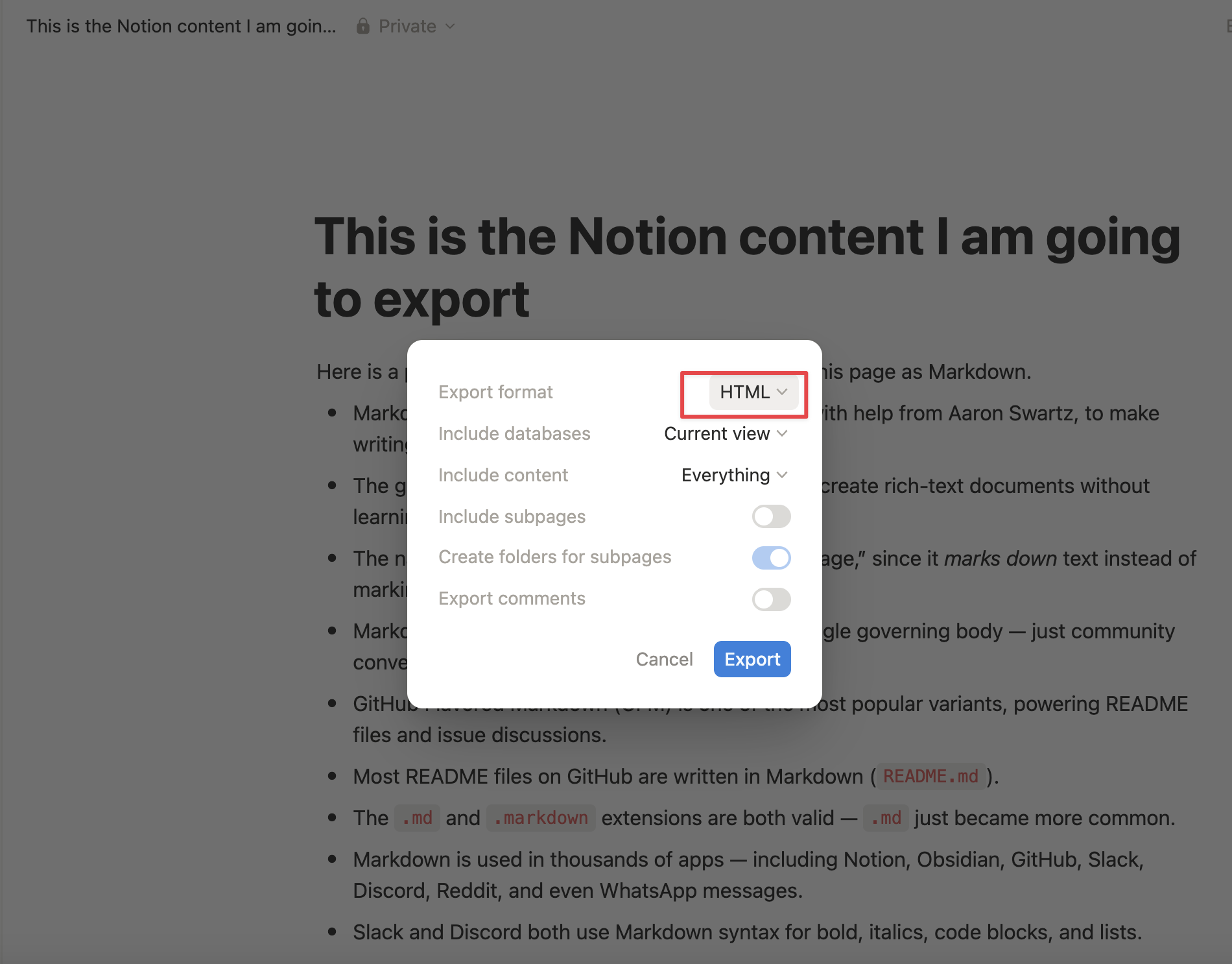
Go to Notion and export your Notion page as HTML
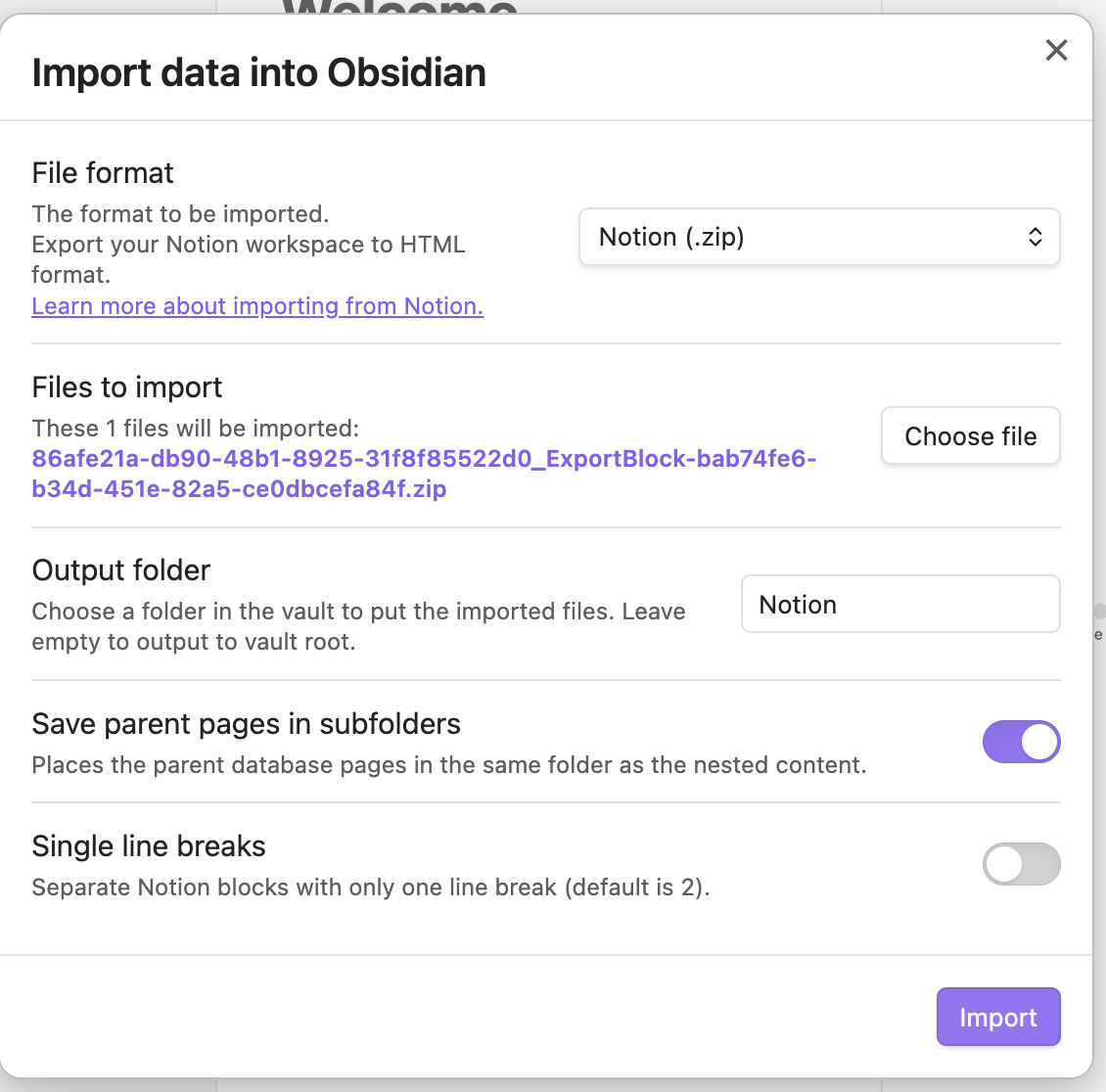
Export your data into Obsidian
You export your data by clicking the downloaded zip file from Notion. Then click Import.
Your Markdown is ready
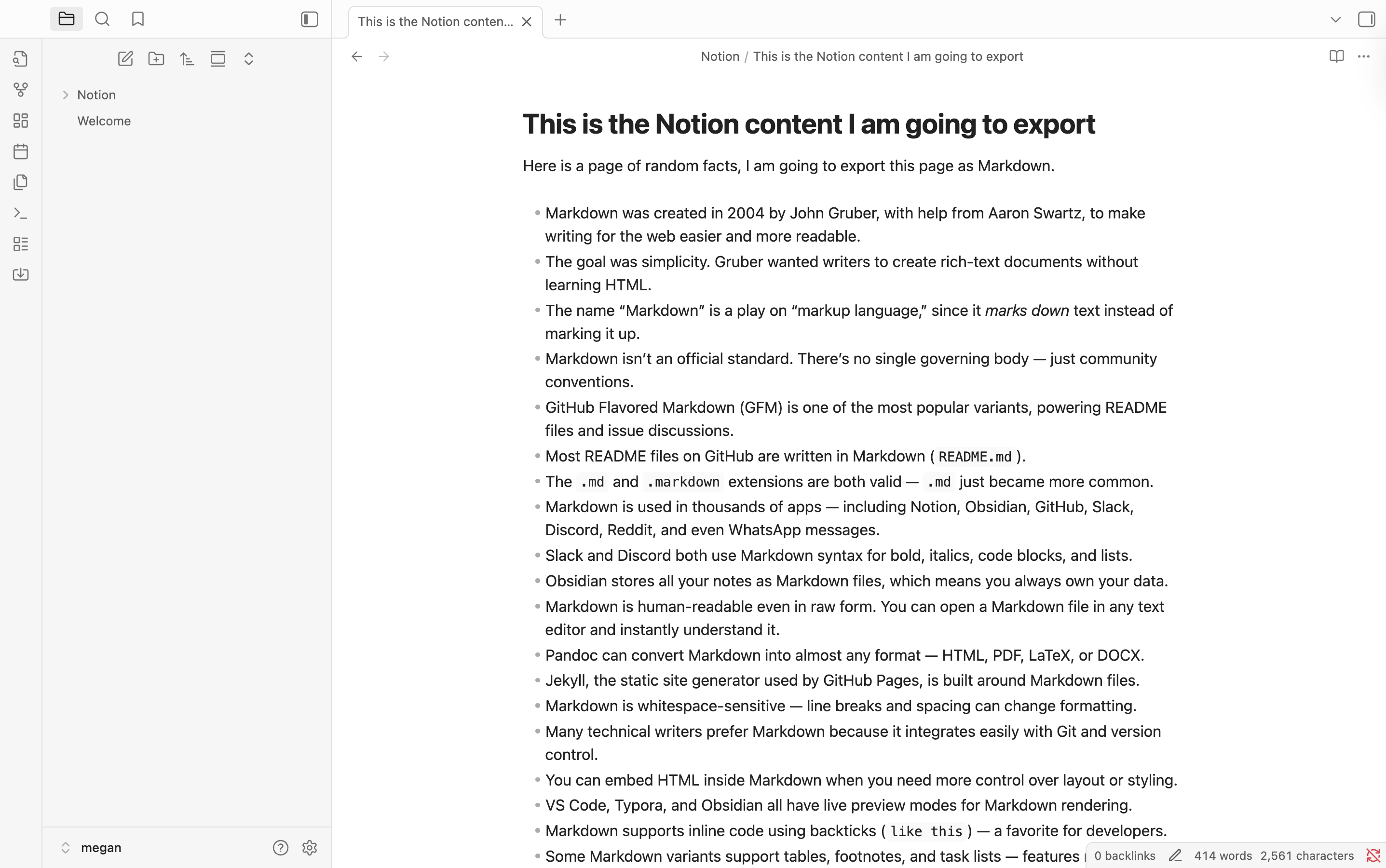
Why Export to Markdown?
Exporting Notion pages to Markdown gives you complete flexibility:
- Portability: move your content across tools and editors
- Version control: manage documentation in GitHub
- Automation: build workflows using APIs or scripts
- Compatibility: open your files in apps like Obsidian, VS Code, or any Markdown viewer
If you use Whalesync, you can go a step further. Whalesync syncs your Notion pages and databases directly with Airtable, Webflow, and Google Sheets, eliminating the need for manual exporting altogether.
Export your Notion pages today
Exporting Notion pages to Markdown keeps your content accessible and future-proof. You can start with Notion’s native export for quick tasks, use notion-to-md for automation, or explore tools like Obsidian Importer. If you’re managing structured data across platforms, Whalesync can keep your Notion content synced automatically, saving you time and ensuring consistency across your tools.
FAQs
1. Does Notion natively support Markdown exports?
Yes. You can export any Notion page or database to Markdown via the page menu (••• → Export → Markdown & CSV).
2. Will my images and embeds export correctly?
Yes. Notion includes linked images and files in a separate folder within the exported .zip.
3. What’s the best method for automation?
Use the notion-to-md library. It’s reliable, open-source, and perfect for integrating exports into your scripts or pipelines.
4. Can I import Notion data into Obsidian directly?
Yes. Use the Notion Importer plugin in Obsidian’s Community Plugins library.
Subscribe for more
Stay up to date with the latest no-code data news, strategies, and insights sent straight to your inbox!