How to Import a CSV to Wix CMS in Minutes

Learn how to import a CSV to Wix CMS manually or automatically.

How to import a CSV into Wix CMS
Wix is an excellent platform for managing dynamic content, from blog posts to product catalogs. If you’re migrating from another CMS or managing data at scale, importing content into Wix CMS can save you hours of manual work. There are two main ways to import your Wix CMS content:
1. Manually, by uploading a CSV file directly in Wix Studio.
2. Automatically, by syncing your content from tools like Airtable, Notion, or Google Sheets using Whalesync.
In this guide, we’ll walk you through both methods.
Option 1: Import manually via CSV in Wix Studio
If you already have a CSV file of your data, for example, exported from another platform, or you work from CSVs, you can import it straight into a Wix CMS collection. Here’s how:
Go to your Wix Studio
- Log in to your Wix account and open the site where you want to add your content.
- From the left-hand menu, go to CMS → Collections.
- Select or create the collection you want to import into, for example, Blog Posts or Products.
Click “Import from CSV”
- At the top right of the collection, click the ⋯ (More Actions) menu.
- Choose Import from CSV.
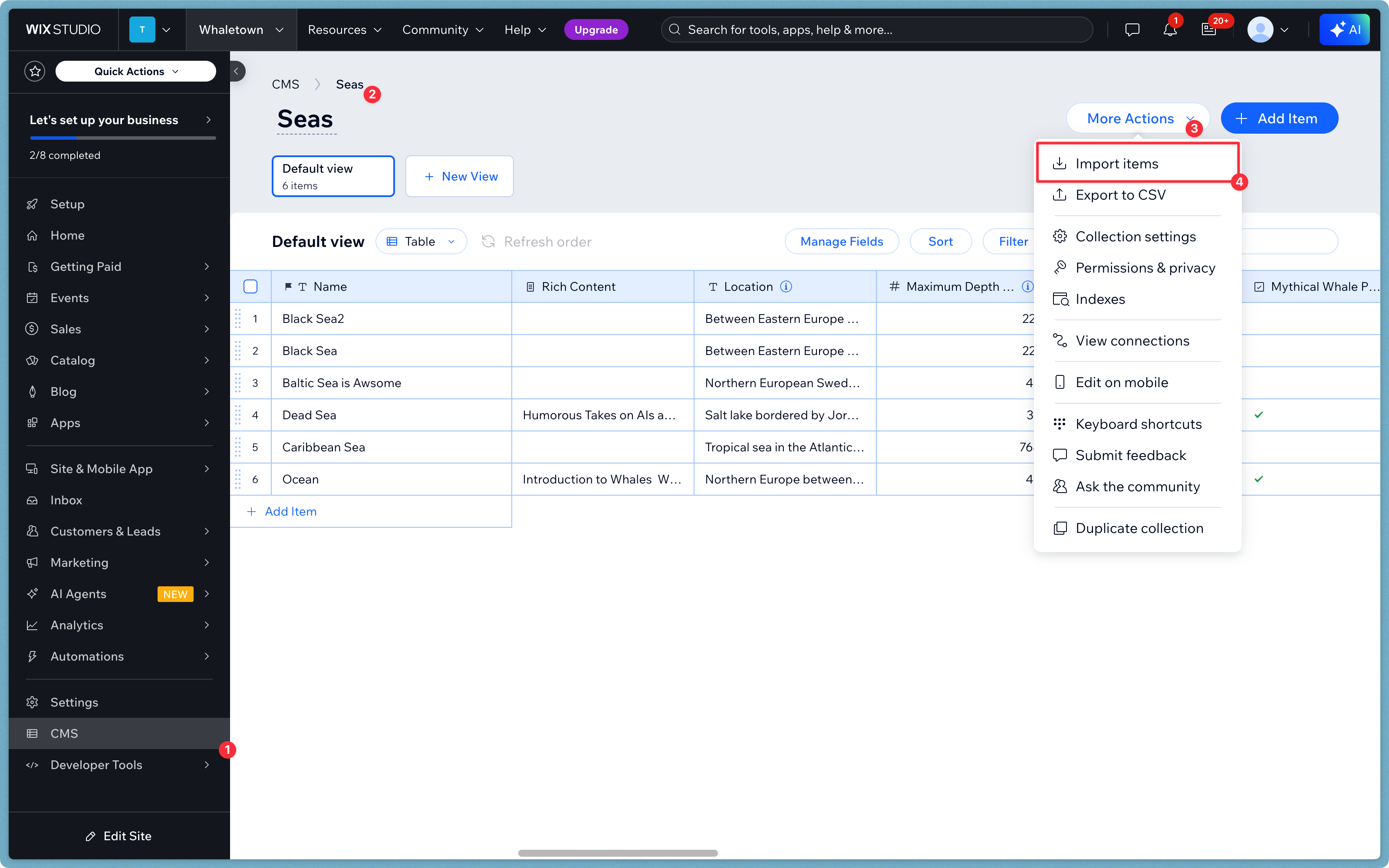
Upload your CSV file
- Select your CSV file and click Next.
- Match each column from your CSV file to the corresponding fields in your Wix collection (for example, Title → Title, Image URL → Image, etc.).
- Click Import. Once the import completes, Wix will automatically populate your CMS collection with all your records. You can edit, filter, or delete imported content directly in your collection after the upload.
Option 2: Import automatically using Whalesync
Manual CSV uploads work fine for one-off imports. But if you regularly update your content in Airtable, Notion, or Google Sheets, manually importing every time can become tedious.
With Whalesync, you can automatically sync your database to Wix CMS, so new items, edits, or deletions are reflected instantly, without ever touching a CSV.
In this example, we’re going to import from Notion to Wix.
Here’s how to set it up:
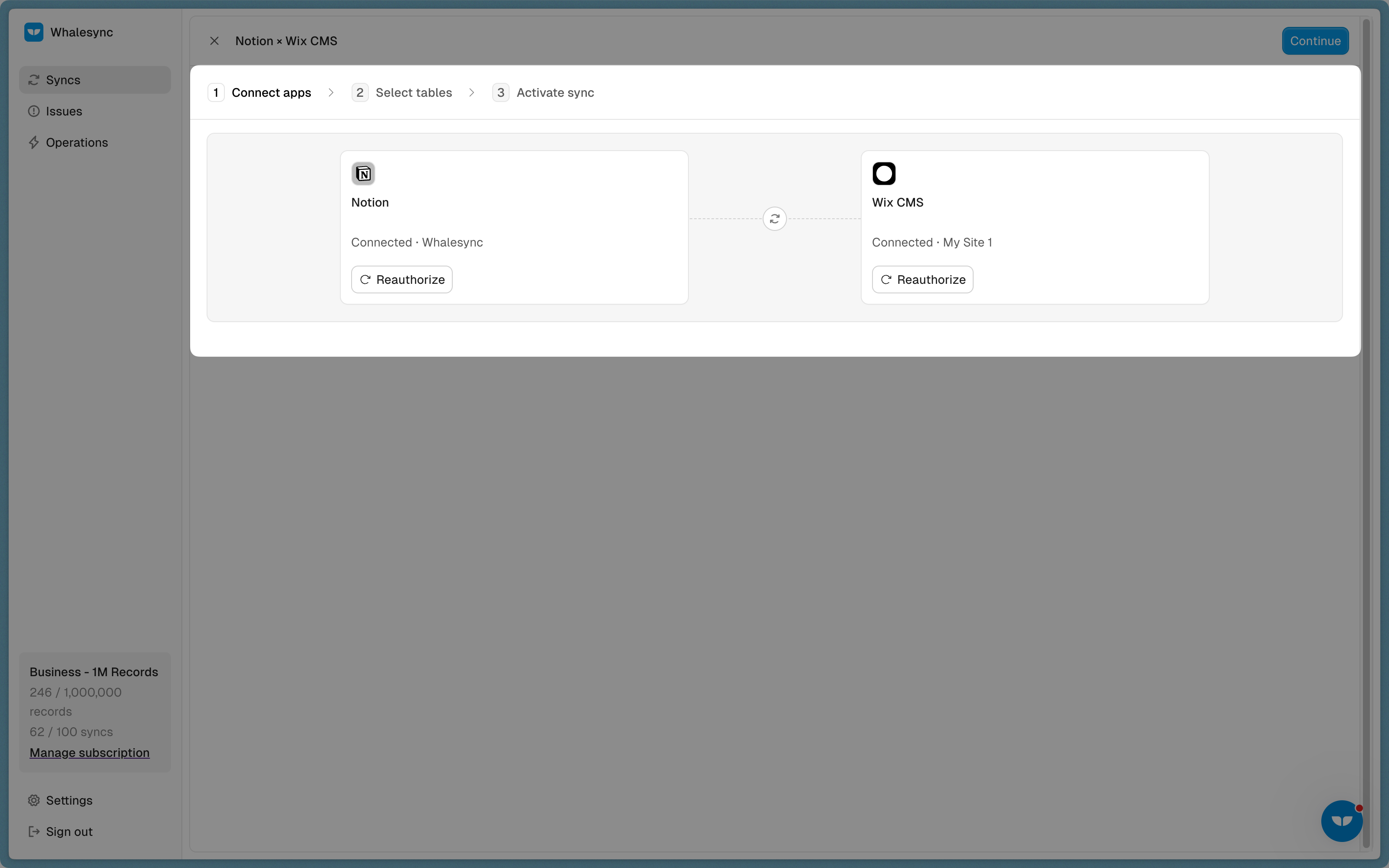
Select and authorize your apps
Select Notion and Wix CMS and authorize your apps.
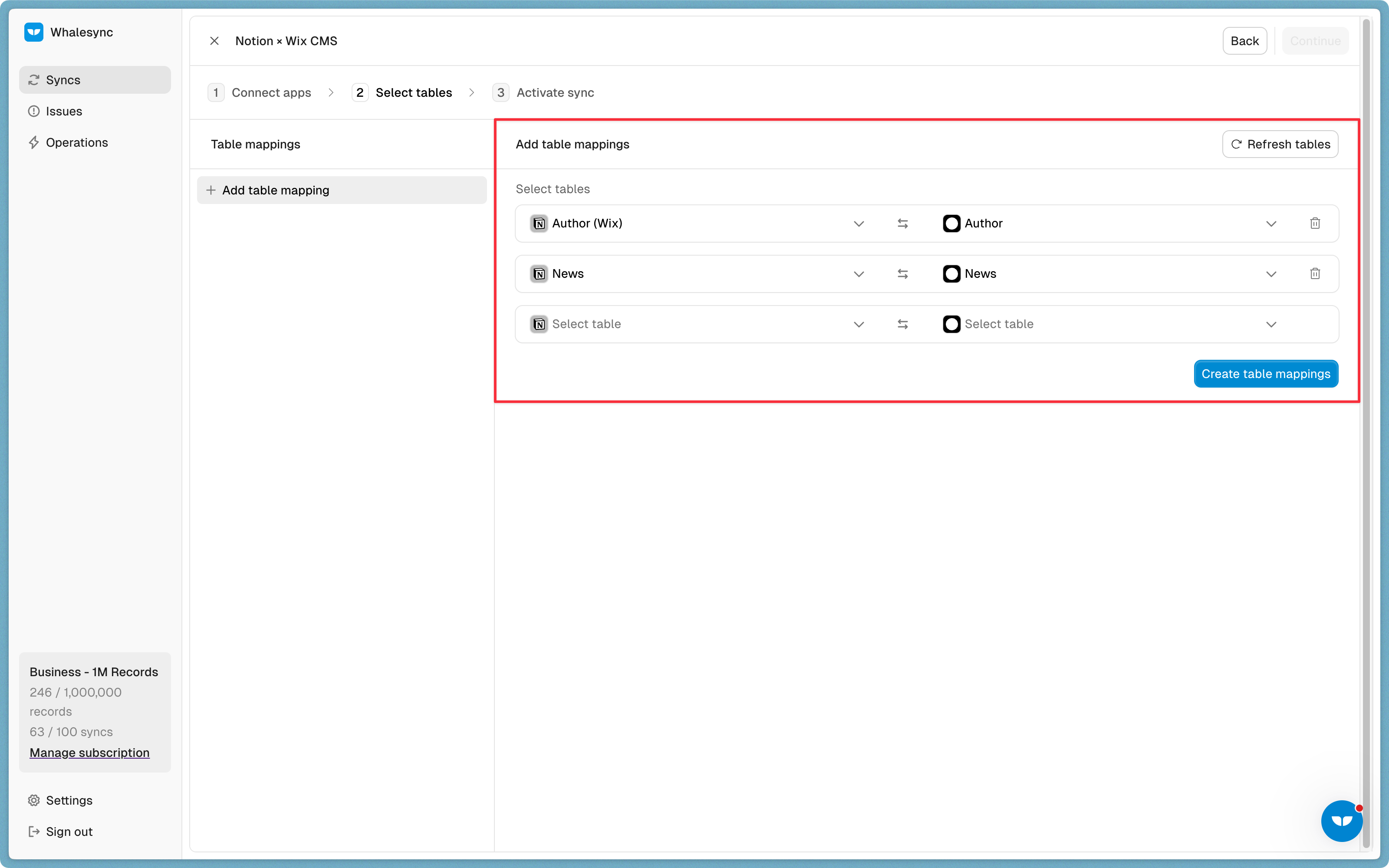
Map your tables
Choose the Notion tables you want to sync to Wix CMS
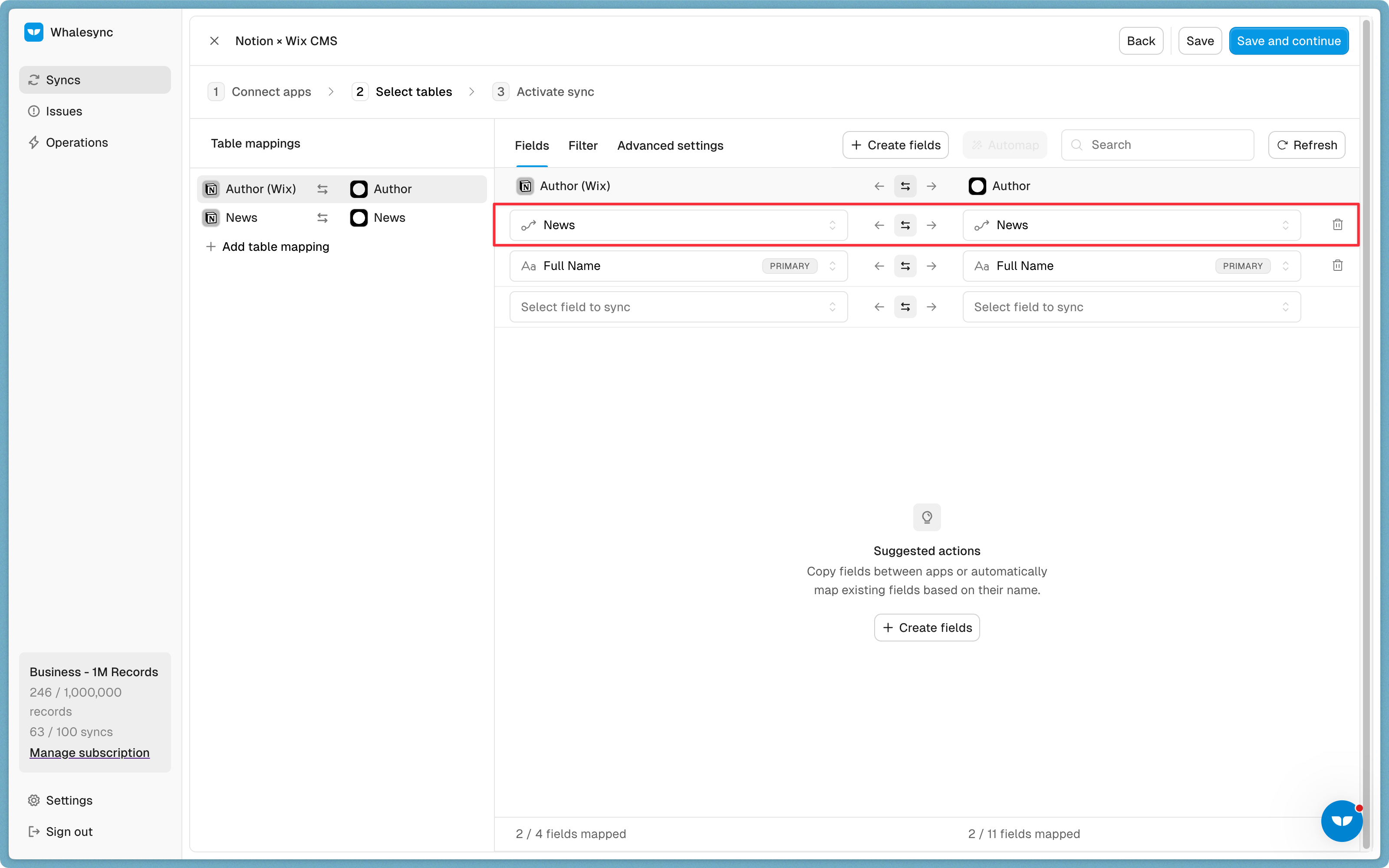
Map your fields
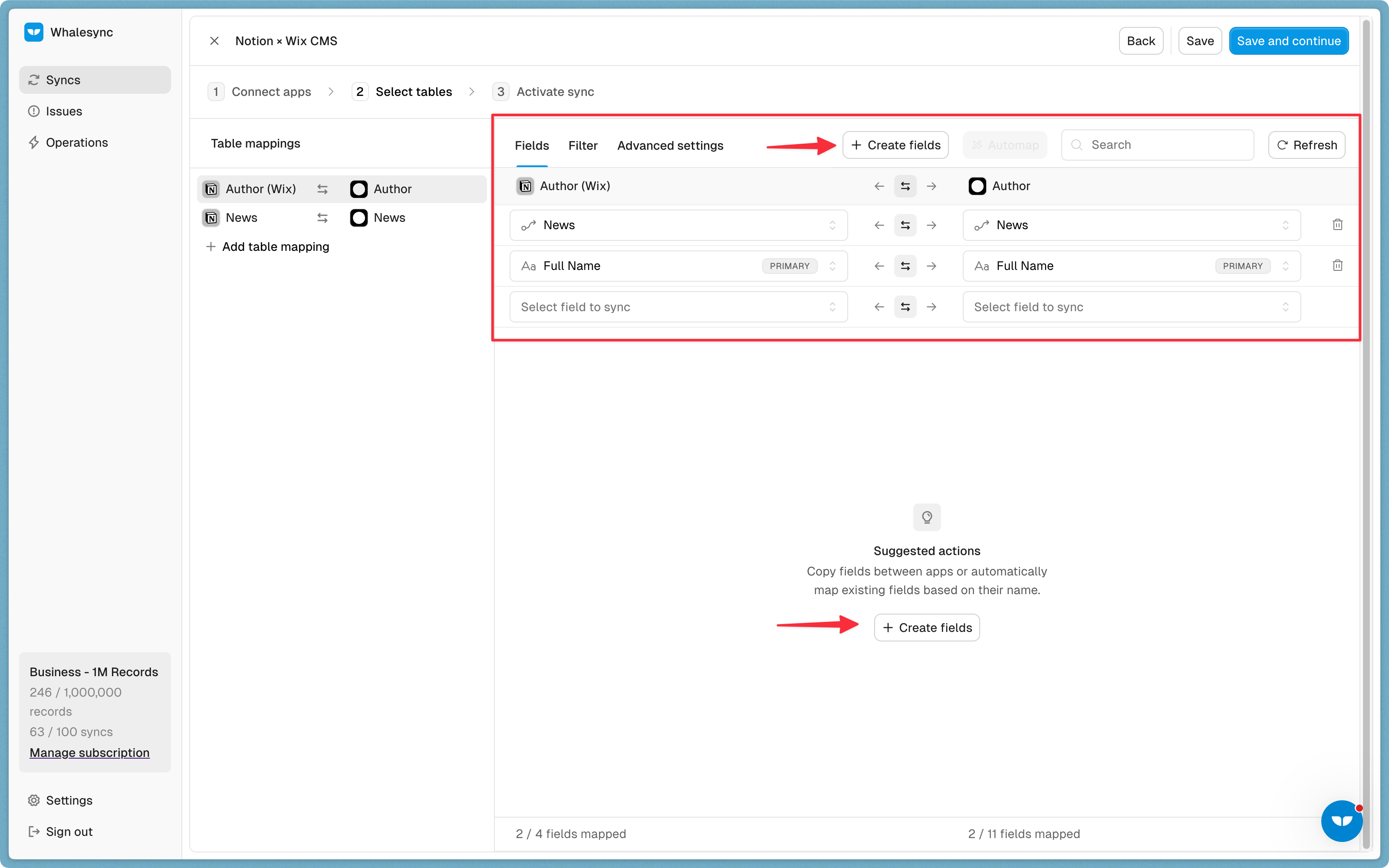
Select the fields you want to manage from Notion. You can choose to one-way or two-way sync them.
You can also auto-create fields directly in Whalesync’s UI.
Activate sync 🎉
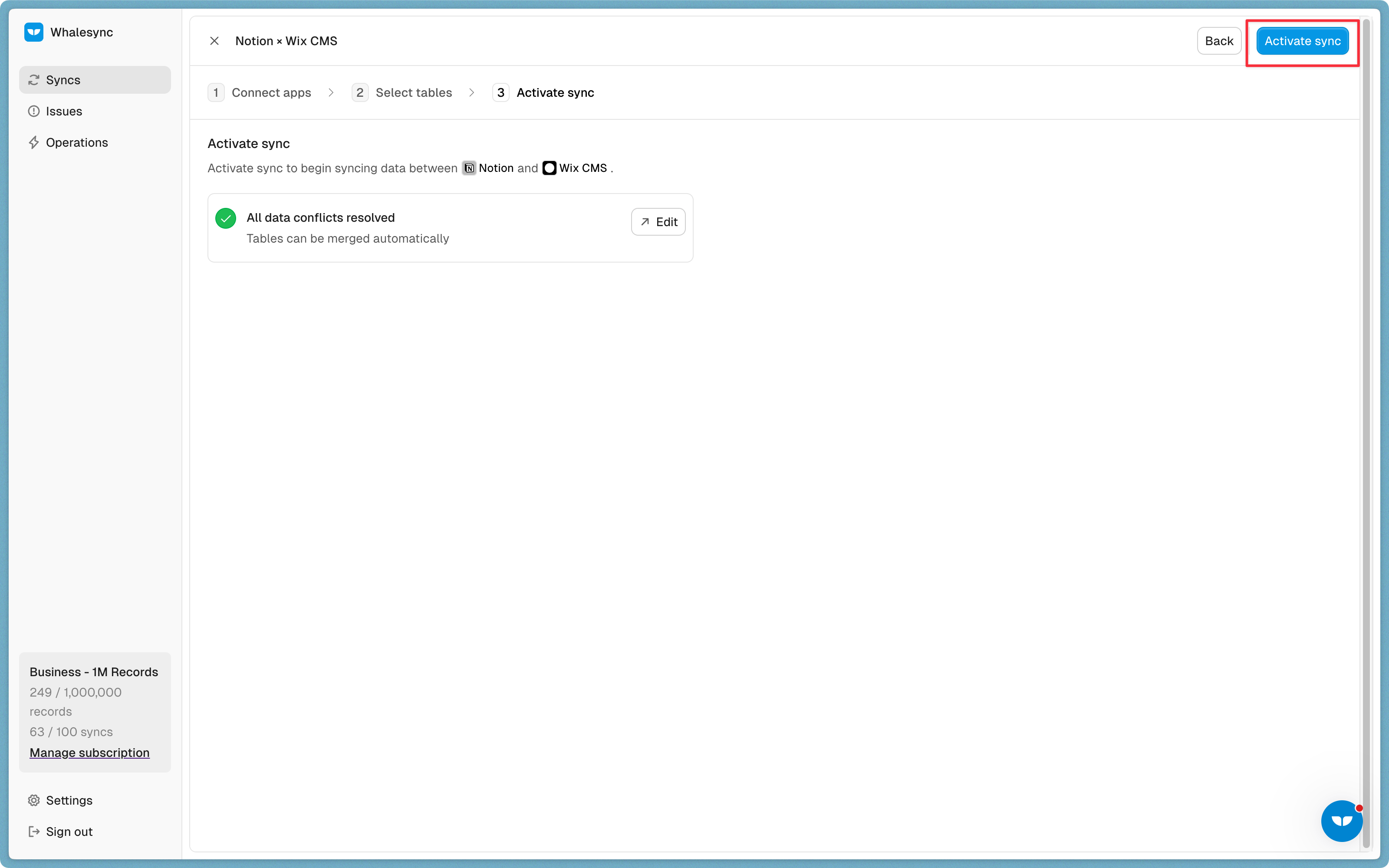
Now, Notion and Wix CMS are synced! Any content you create or update in Notion will automatically sync to Wix CMS.
Import Wix CMS content today
Importing content into Wix CMS gives you flexibility and saves hours of manual data entry. You can:
- Quickly migrate blog posts or product data from other platforms.
- Keep your CMS in sync with your team’s main content database.
- Maintain accurate, up-to-date website content with zero manual uploads.
If you manage content across multiple tools, Whalesync helps you automate imports, avoid duplicates, and keep your website always up to date.
Whether you’re running a content-heavy blog or managing hundreds of product pages, importing your CSV with Whalesync saves time and reduces manual work.
FAQs
Can I import any kind of data into Wix CMS?
Yes. You can import any structured data like blog posts, product listings, team bios, or service details, as long as your fields match your collection’s structure.
What format should my CSV be in?
Wix accepts all types of CSV files. Make sure your first row includes column headers, and use commas to separate values.
Can I import images with my data?
You can include image URLs in your CSV or connected table. Wix will automatically load those images into your collection once imported.
What’s the difference between importing manually and using Whalesync?
Manual import gives you a one-time upload. Whalesync keeps your Wix CMS automatically synced with your source, so updates, new entries, or deletions all reflect in real time.
Subscribe for more
Stay up to date with the latest no-code data news, strategies, and insights sent straight to your inbox!