Notion and Google Sheets integration
Whalesync syncs Notion and Google Sheets both ways. Each Notion database pairs with a tab, so a row changed in the spreadsheet updates its page, and new pages show up as new rows.


What you can do with Notion and Google Sheets
Reschedule the content calendar in bulk
Sync the Notion database your content calendar lives in to a tab. When a launch slips, fill a column of new publish dates down the sheet, or swap channels with find and replace. Each edited row updates its page in Notion on Whalesync's next pass, and the calendar view there moves with it.
Review project budgets in a spreadsheet
Project leads track budgets in Notion, beside the briefs and timelines. Finance works through the same projects in a synced sheet, filtered its own way, and sets each one's budget review there. The lead sees Approved or Pending on the project's page in Notion, without a meeting to pass it on.
Give each client a sheet of their own deliverables
Run every client's work from one Notion database, and sync each client a sheet with a filter on the table mapping, so it holds only their pages. Clients see due dates and stages as the team updates them, and the notes they type in the feedback column land on the page in Notion, where the team is already working.
Everything that syncs
Each card is something you can sync between Notion and Google Sheets.
-
All Databases
Two-way
-
All Tables
Two-way
How to sync Google Sheets to Notion in 5 minutes

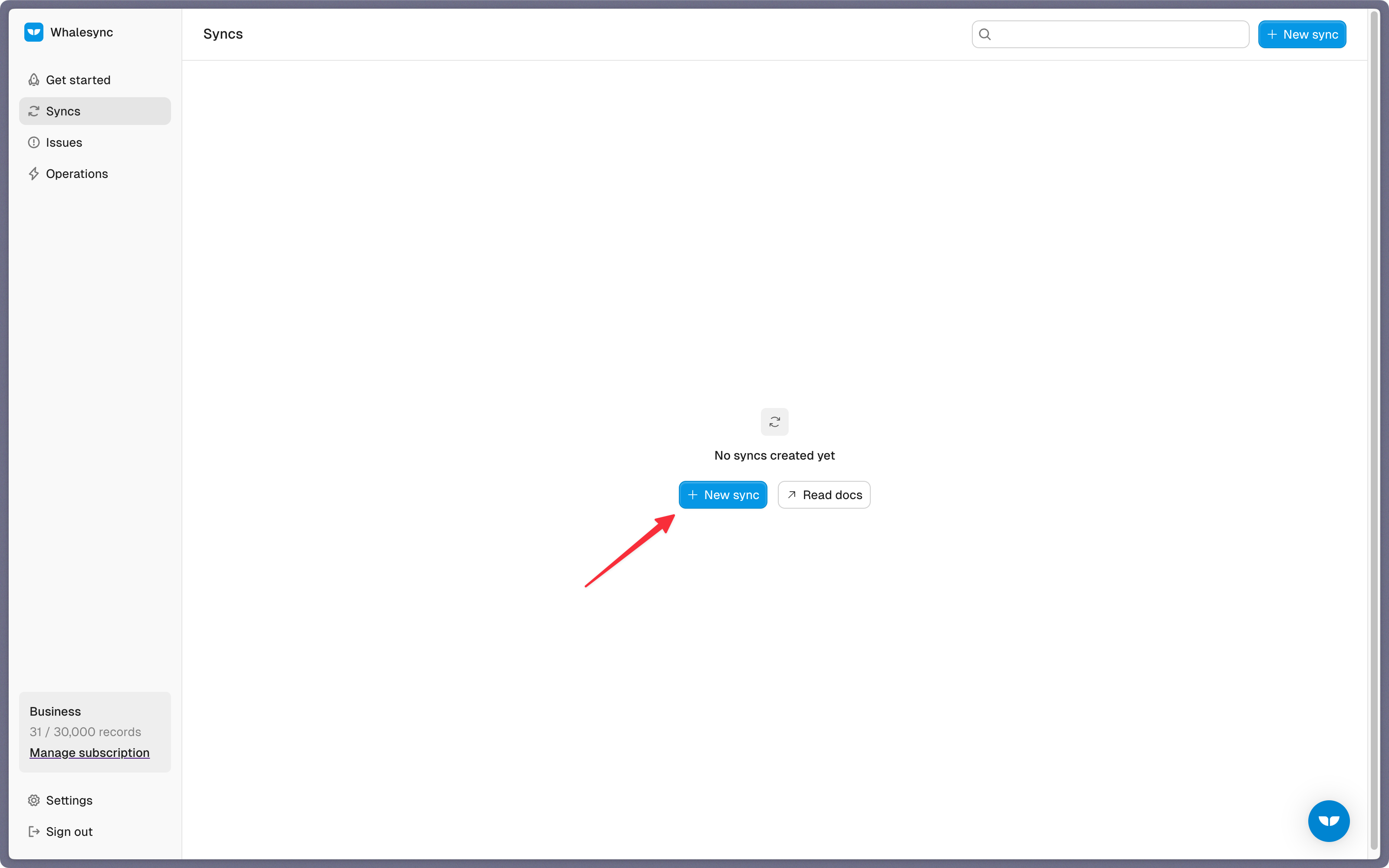
Step 1: Create a new sync
Open Whalesync, click New sync, and choose Google Sheets and Notion.
Step 2: Authorize your apps
Connect each app in turn, and continue once both cards read Connected.
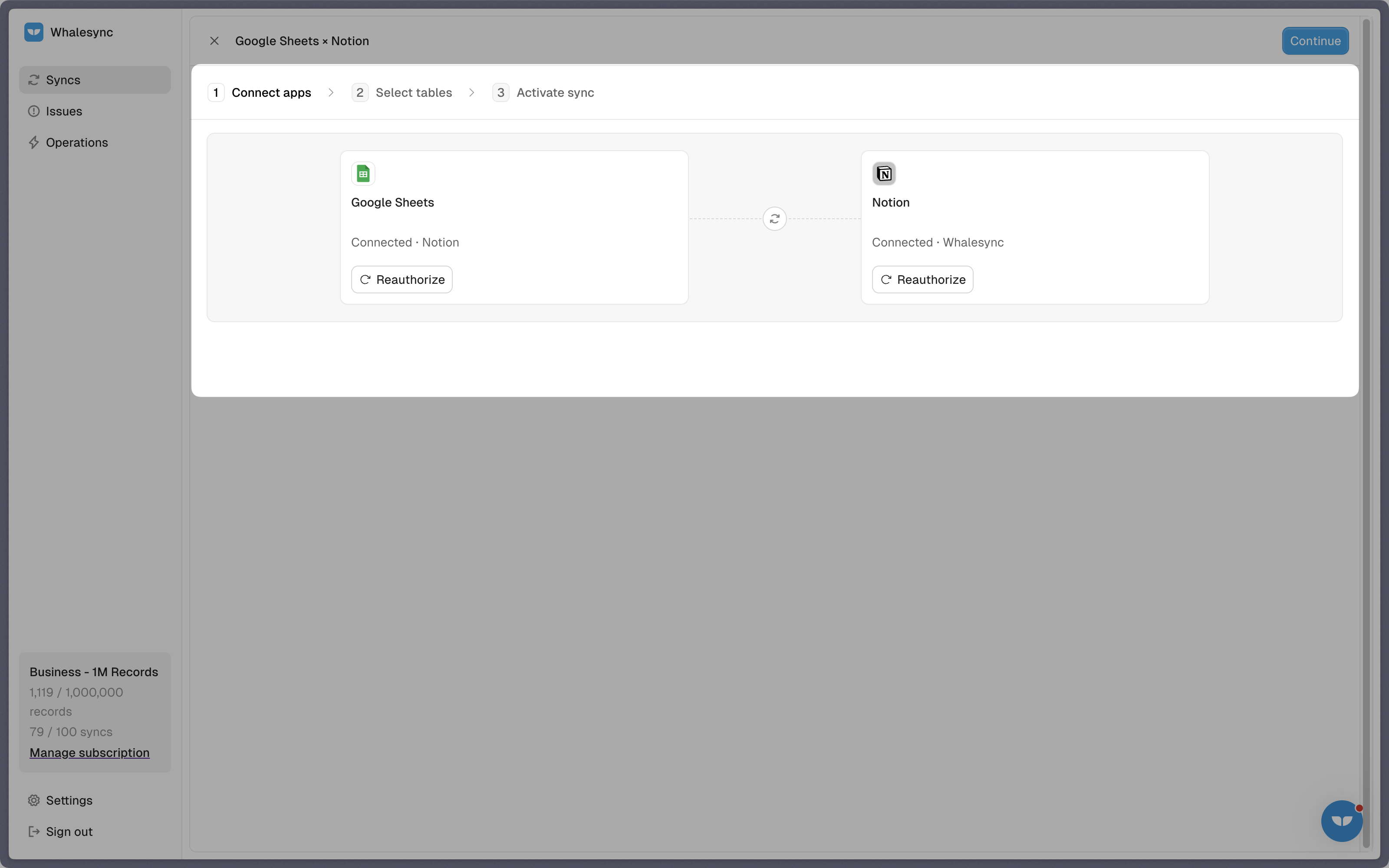
When you connect Notion, Notion asks which workspace to use and which pages and databases to share. Select every database you plan to sync and any database their relations point to. To let Whalesync create databases for you, share a parent page as well. Whalesync can't see anything you leave out.
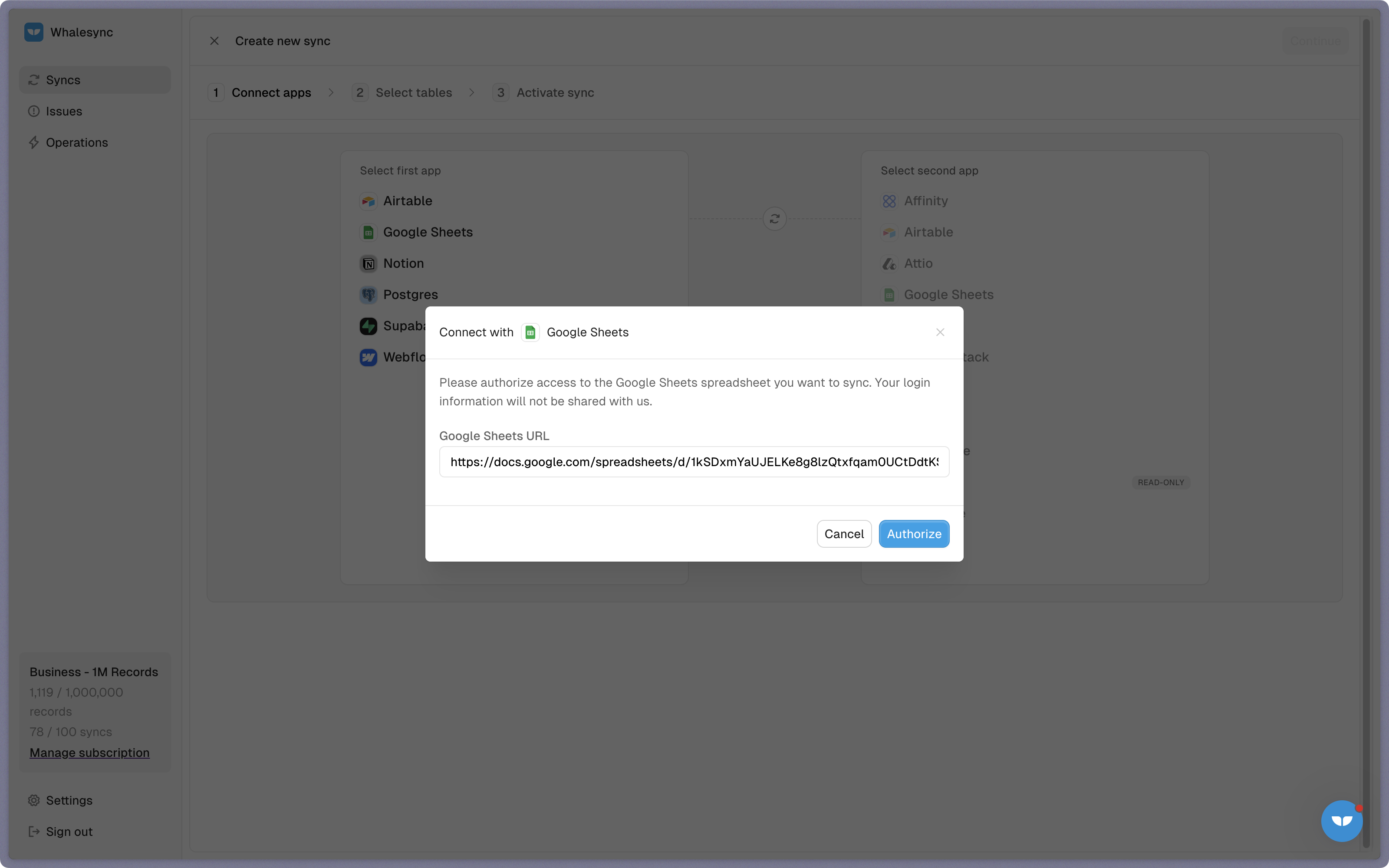
For Google Sheets, paste the spreadsheet's link into the box, click Authorize, and sign in with a Google account that can edit the file.
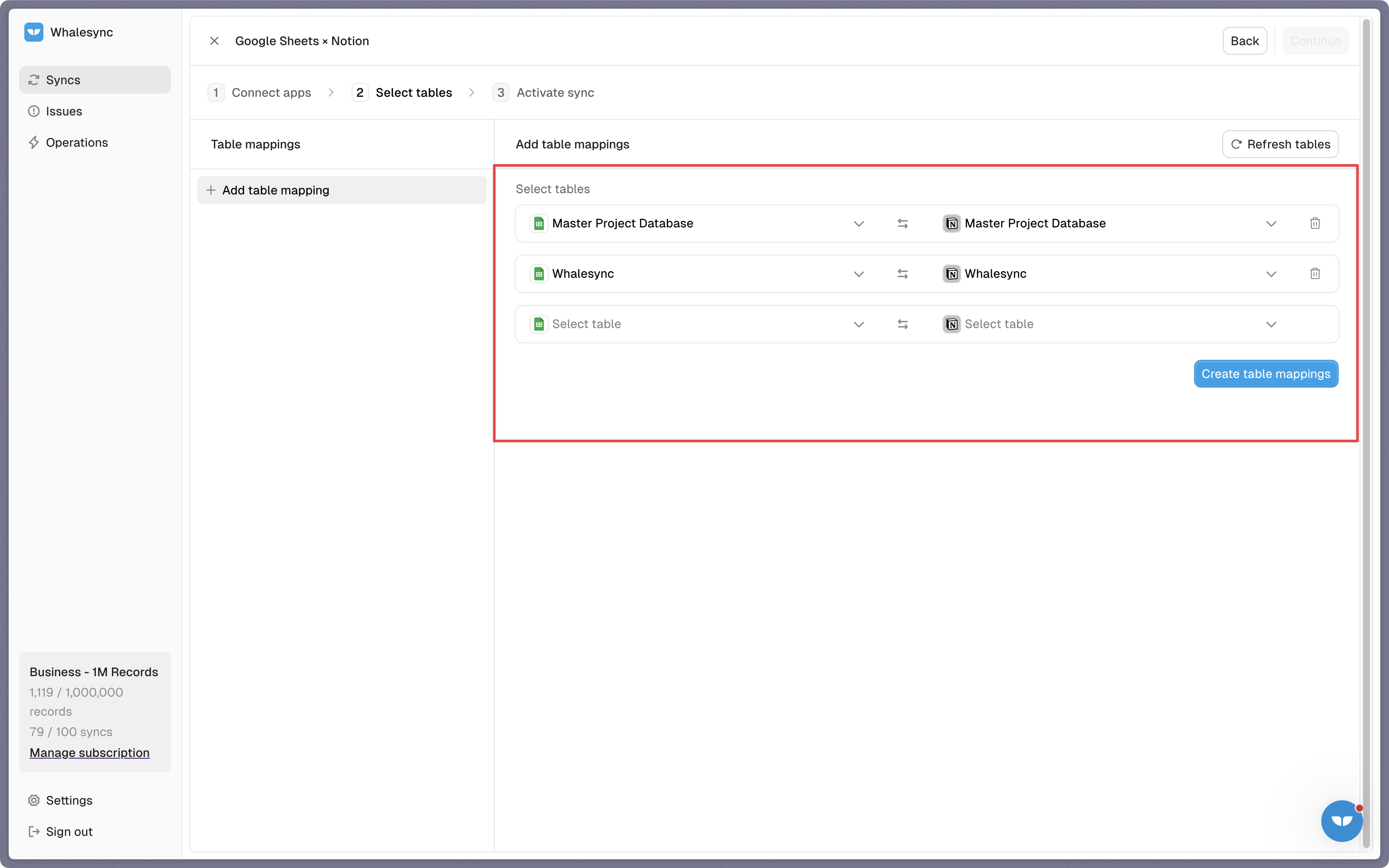
Step 3: Map your tables
Pair each tab with the Notion database it should match. Either side can be made from here: Create new table adds a tab to the spreadsheet, or a database under the parent page you shared. To give a sheet only some of a database's pages, add a filter to that table mapping.
Step 4: Map your fields
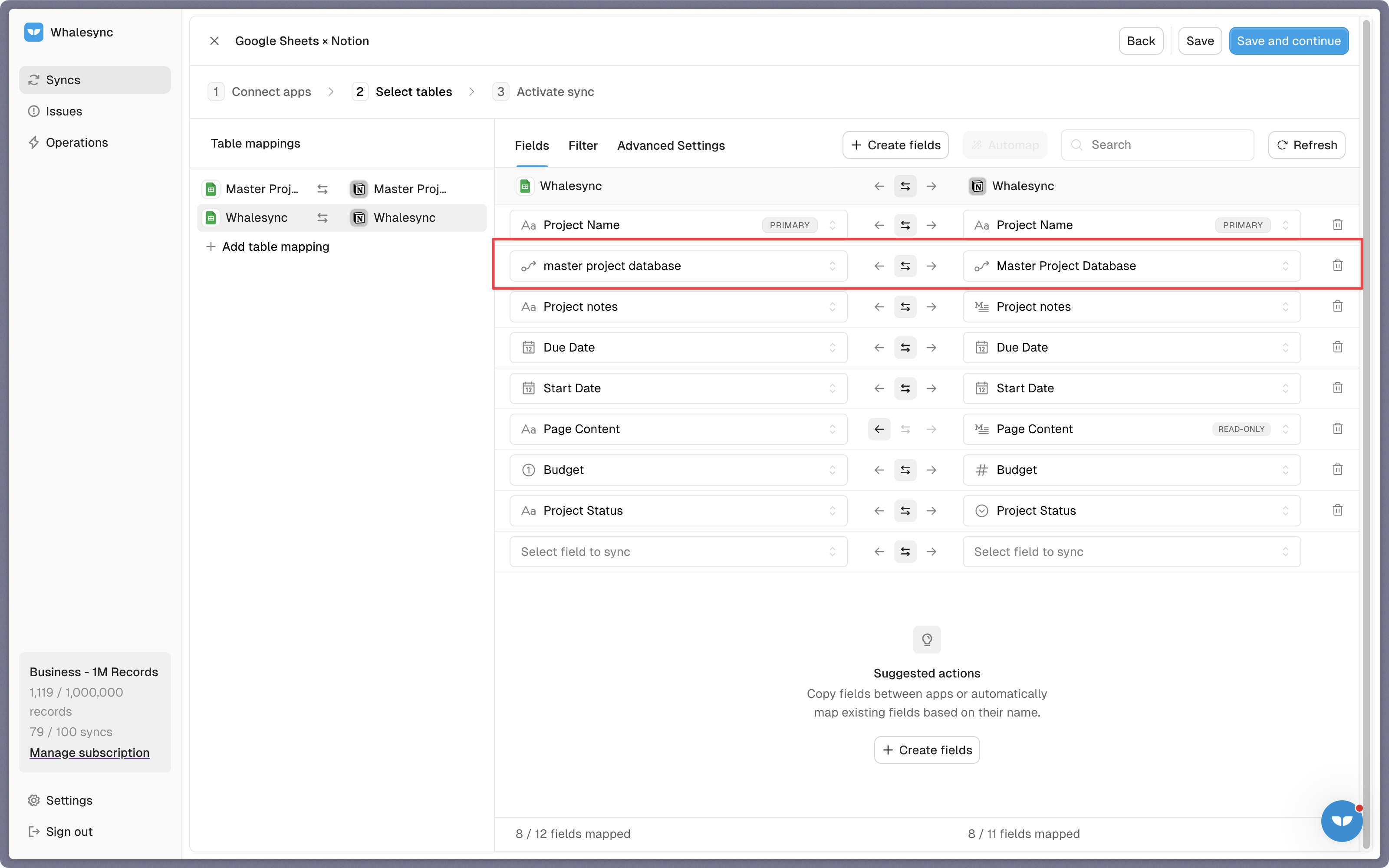
Automap asks an AI model to match the properties to the sheet's columns from their names and types, without reading any pages. Go through its suggestions and map the rest yourself. A relation maps to a link column in the sheet, like the one highlighted here, as long as the database it points to is paired with a tab too.
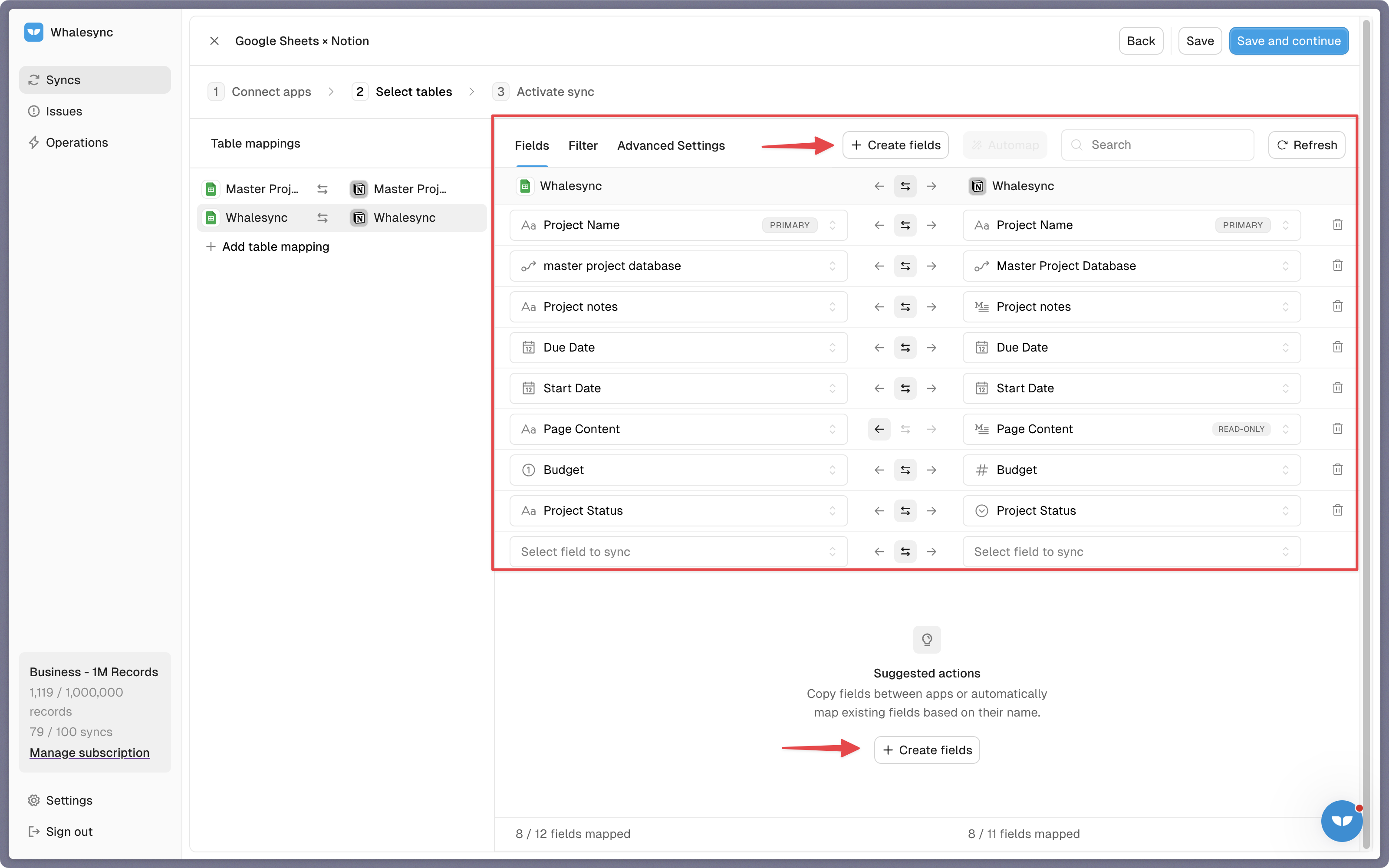
Use Create fields for any property the sheet doesn't have a column for yet. Formulas, people, and created or edited times can't be written in Notion, so they sync into the sheet one way. For dates and numbers, format the sheet's column as that type, header cell included.
Step 5: Activate sync
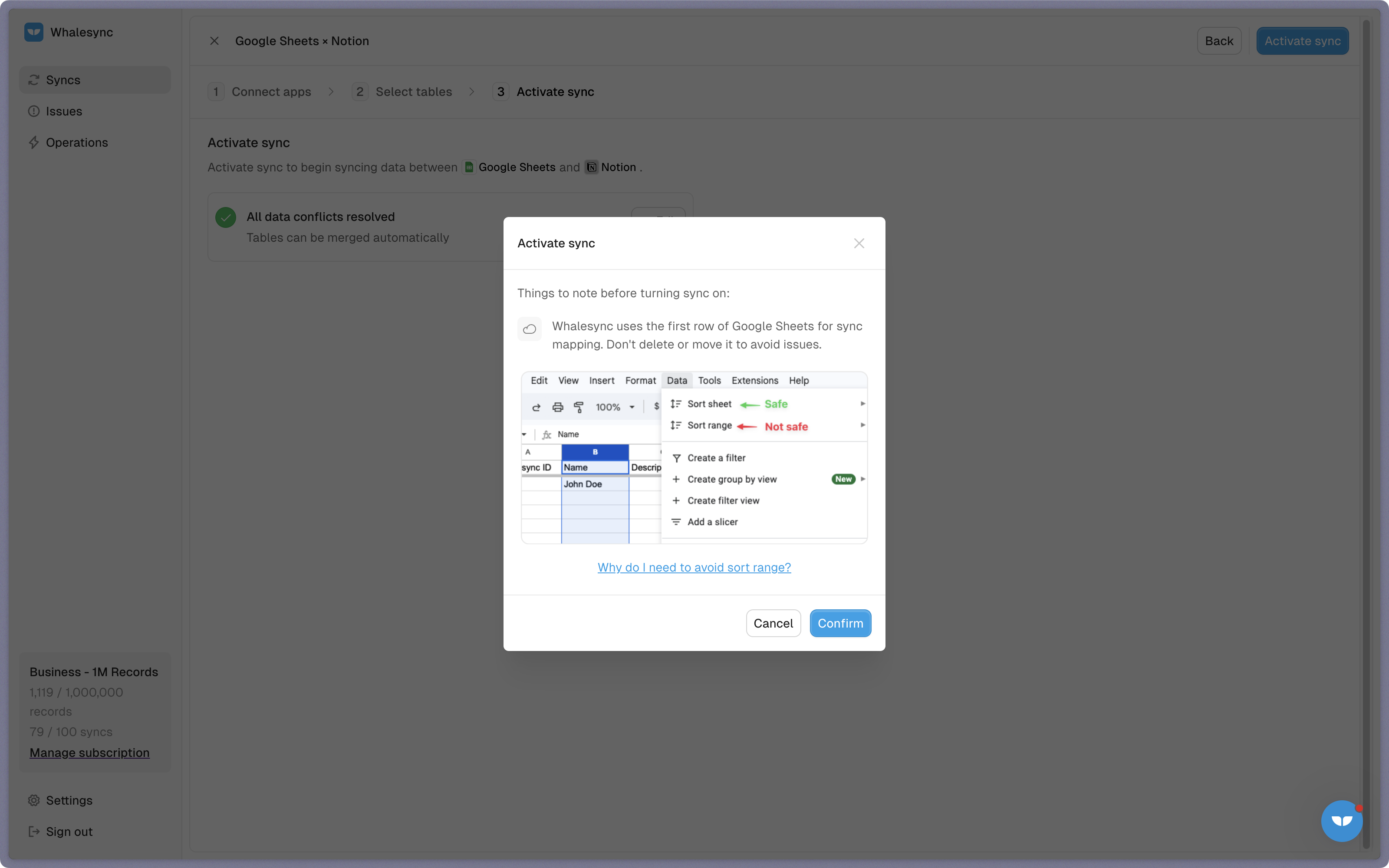
If the database and the tab both have rows already, match them first on a value that's unique and the same in both, such as a project code. Rows left unmatched are created as new pages, and pages as new rows. The last screen reminds you to leave the sheet's first row where it is and to sort with Sort sheet, never Sort range. Click Confirm, and Whalesync starts syncing.
3 ways to connect Notion and Google Sheets
-
Notion's Google Drive embed and CSV import
Best when you want a sheet shown on a Notion page, or rows moved into a database once.
-
Zapier
Best when a one-way step is enough, like a Notion page for each new spreadsheet row.
- The free plan runs one trigger and one action per Zap (Zapier)
- Each action a Zap completes uses one of the plan's tasks
- Two Zaps facing each other aren't a sync: Zapier has no two-way syncing
-
Whalesync
Best when the database and the sheet are both edited, and they have to agree.
- Pages and rows created, edited, or deleted on either side reach the other
- Filter a table mapping to sync only the pages a sheet should hold
- Priced by records in sync, so editing a thousand rows at once costs nothing extra
Notion's Google Drive embed and CSV import and Zapier checked against their own pages in November 2026.
Frequently asked questions
Can you sync Notion with Google Sheets?
Yes. Notion can embed a sheet on a page and import a CSV into a database, but neither keeps the two in step. Whalesync syncs a Notion database and a spreadsheet tab both ways, so pages added or edited in Notion and rows changed in the sheet reach each other.
How do I export a Notion database to Google Sheets automatically?
Notion's own export downloads a database as a CSV file, one time, from the database's ••• menu. To keep a sheet current instead, sync the database to a tab with Whalesync: each page becomes a row that changes when the page does, and edits made in the sheet go back to Notion.
Is the Notion Google Sheets sync two-way?
Yes, for every property Notion lets an app write: titles, text, numbers, selects, status, dates, URLs, emails, and relations. Formulas, people, and created or edited times are read-only in Notion, so they sync into the sheet one way, with people as email addresses. For a date range, only the start date syncs.
Is the Notion to Google Sheets sync real-time?
Not instantly, but within minutes. Neither app tells Whalesync when something changes, so Whalesync checks each Notion database for edited pages about once a minute and rereads the sheet every few minutes. A Notion database that syncs a formula or rollup is read in full on each pass instead, which takes longer on a large one.
Will a Google Sheets dropdown sync to a Notion select?
Yes. A dropdown cell syncs as its text, and Whalesync writes that text to the Notion select by option name. A name the select doesn't have yet is added as a new option, but a status property only takes the names it already has, so match those in the sheet.
Other apps to connect


Connect your tools in minutes