Salesforce and Google Sheets integration
Whalesync syncs Salesforce and Google Sheets both ways. Opportunities, leads, accounts, and custom objects become tabs you can report on, and edits in the sheet update Salesforce.


What you can do with Salesforce and Google Sheets
Report on the pipeline from a tab that stays current
Sync Salesforce opportunities into a tab, one row per deal, and build pivot tables and charts on a second tab that reads from it. When a deal changes stage or amount in Salesforce, its row changes on Whalesync's next pass and the charts follow, with no export to rerun. Keep formulas off the synced tab itself, since Whalesync writes values into it.
Collect event leads in a sheet, work them in Salesforce
Staff at the booth add each visitor as a row in a shared sheet, and Whalesync creates a Salesforce lead from it. Salesforce asks every lead for a last name and a company, so a row missing either is reported as a sync issue rather than created. As reps work the leads, Lead Status comes back to the sheet, and the events team can see who has been called without asking for a report.
Clean up account data in bulk
Sync Salesforce accounts into a tab and fix them the way spreadsheets make easy: find and replace, fill down, or paste a column from a data vendor's file. Each changed cell goes back to its account in Salesforce. A value for a picklist such as Industry has to be one Salesforce already has, or Whalesync reports the row instead of sending it.
Everything that syncs
Each card is something you can sync between Salesforce and Google Sheets.
-
Accounts
Two-way
-
Contacts
Two-way
-
Leads
Two-way
-
Opportunities
Two-way
-
Tasks
Two-way
-
Campaigns
Two-way
-
Campaign Members
Two-way
-
Cases
Two-way
-
Users
Two-way
-
Profiles
Two-way
-
Record Types
Two-way
-
Custom Objects
Two-way
-
All Tables
Two-way
How to sync Google Sheets to Salesforce in 5 minutes
Step 1: Create a new sync
Log in to Whalesync, click New sync, and pick Google Sheets and Salesforce as the two apps.
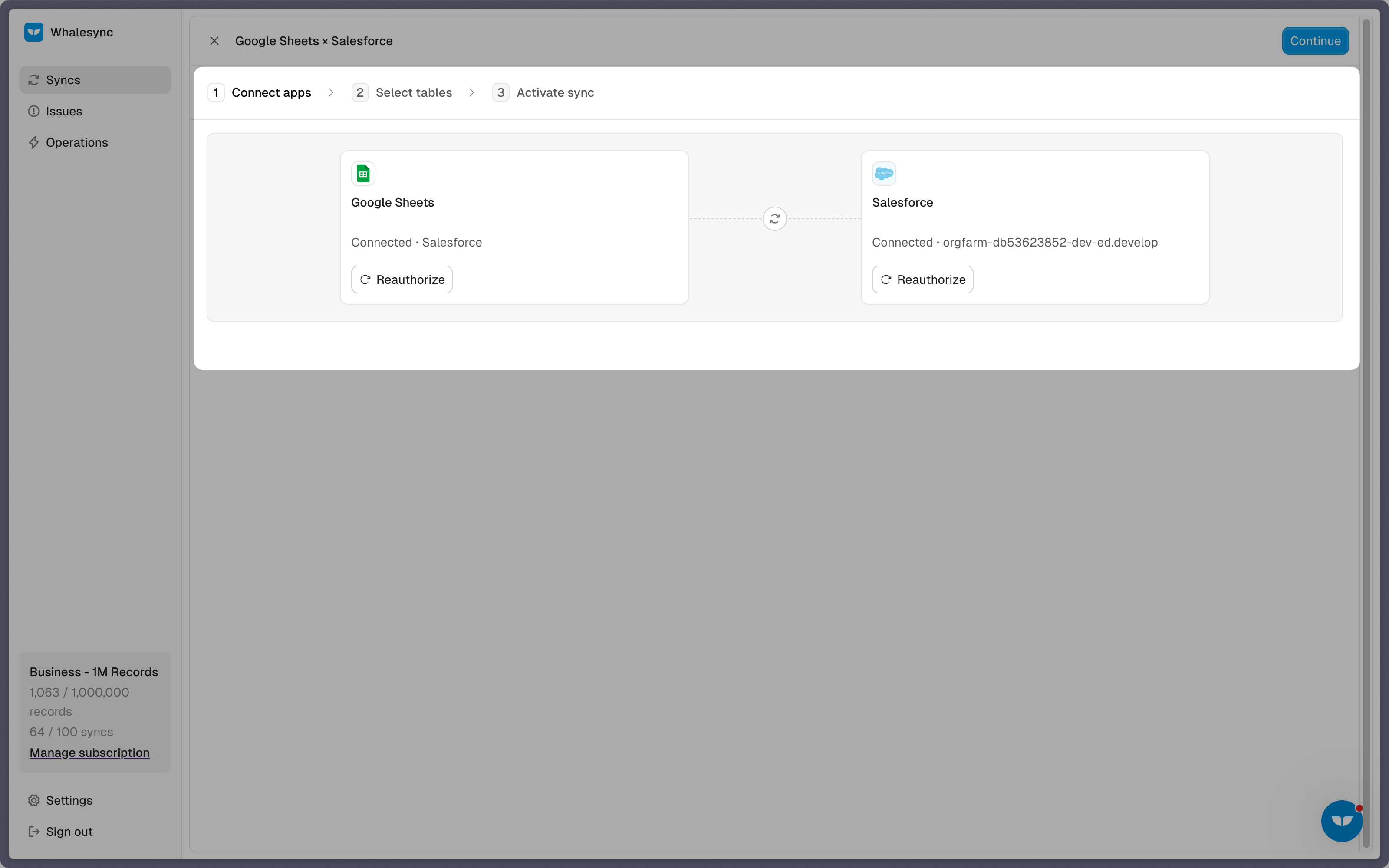
Step 2: Authorize your apps
For Google Sheets, paste the spreadsheet's URL and sign in with a Google account that can edit it. That one spreadsheet is the connection, with each tab as a table, and it shouldn't be part of a second sync.
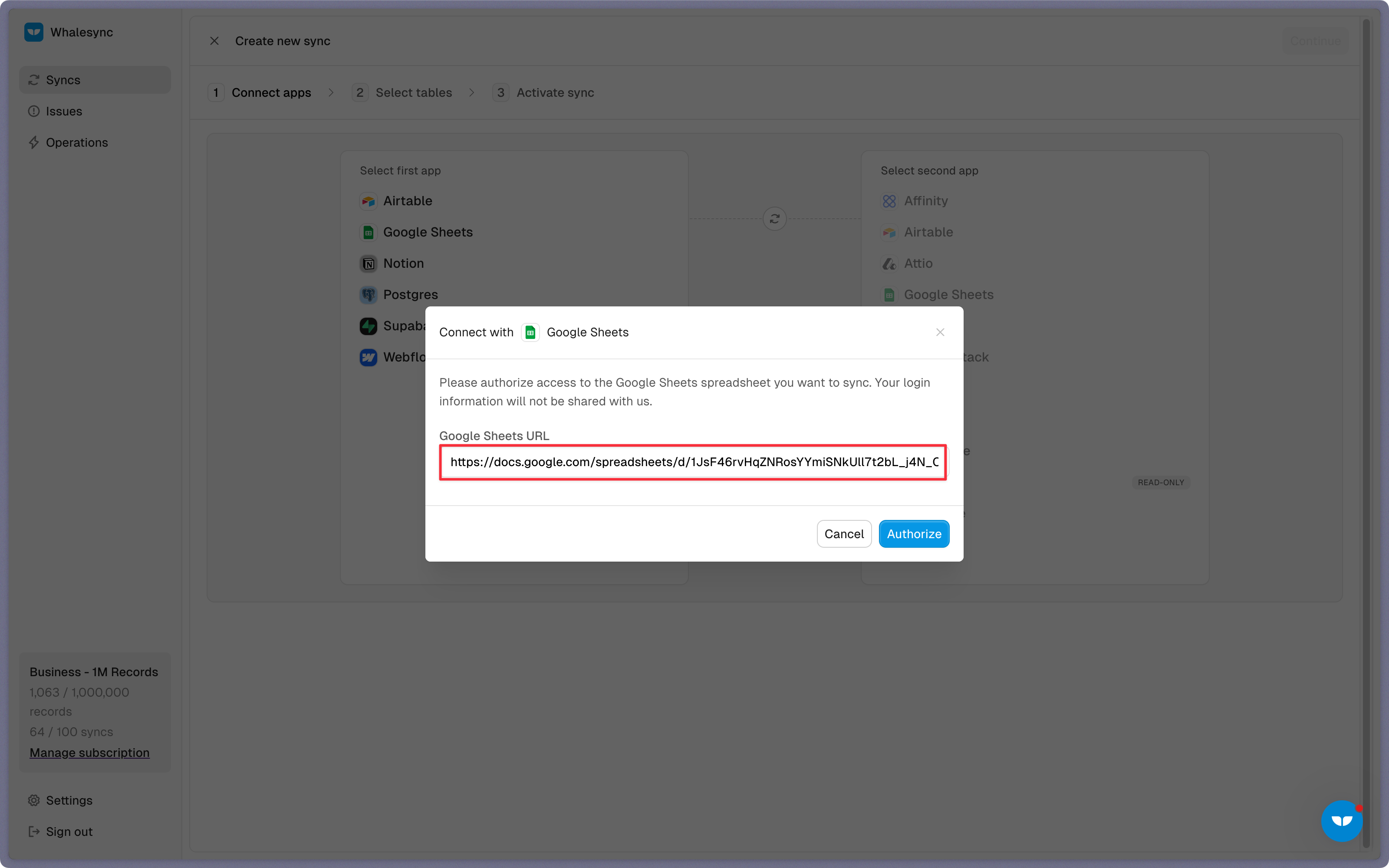
For Salesforce, sign in as a user who can see every object you plan to sync, ideally an admin. Tick Use sandbox to start against a sandbox org rather than production.
Step 3: Map your tables
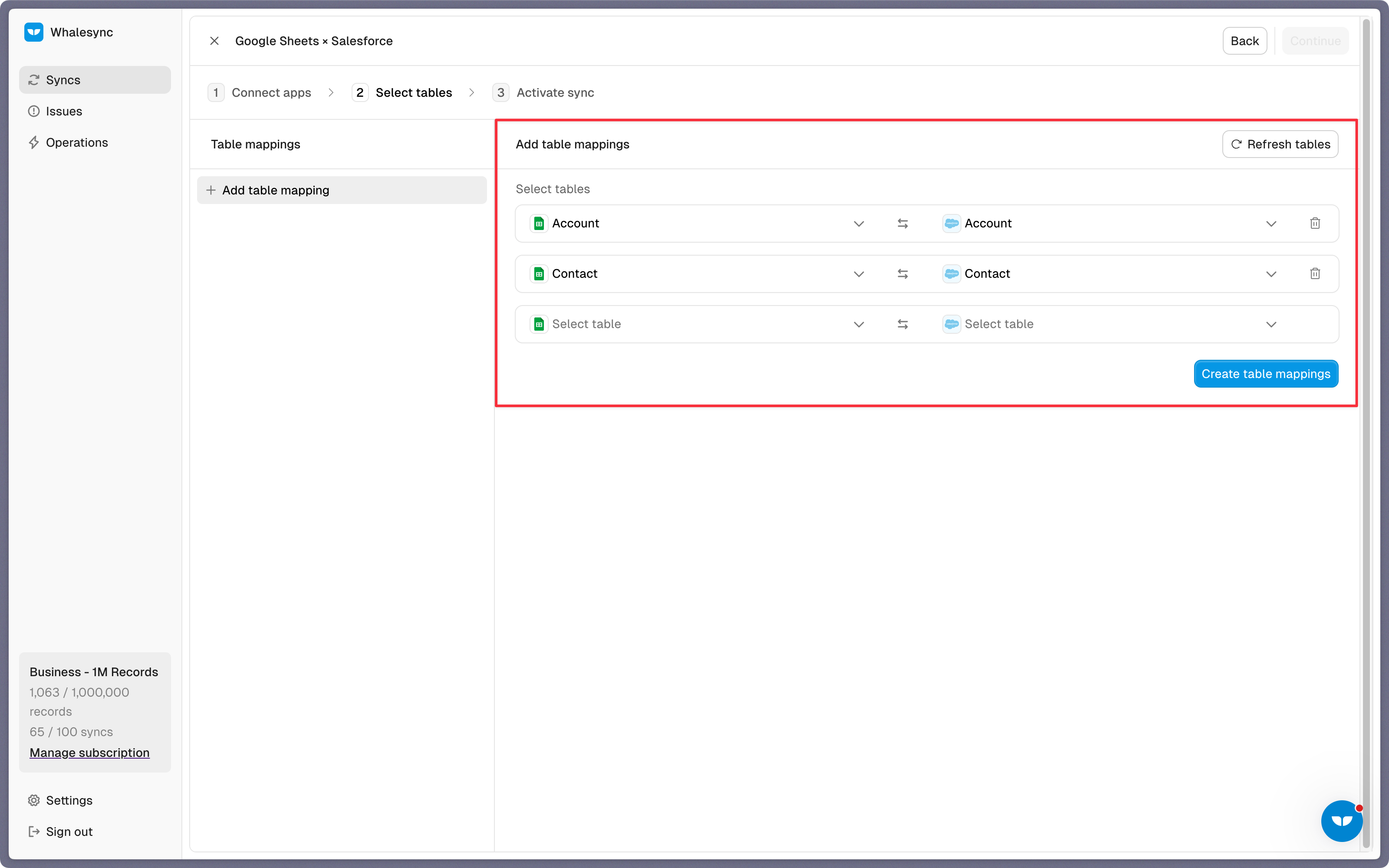
Pair each tab with a Salesforce object, such as an Account tab with Account and a Contact tab with Contact, and add a tab from here if it doesn't exist yet. Whalesync inserts a Whalesync ID column as column A of each synced tab and freezes row 1, which has to be a single header row with no merged cells.
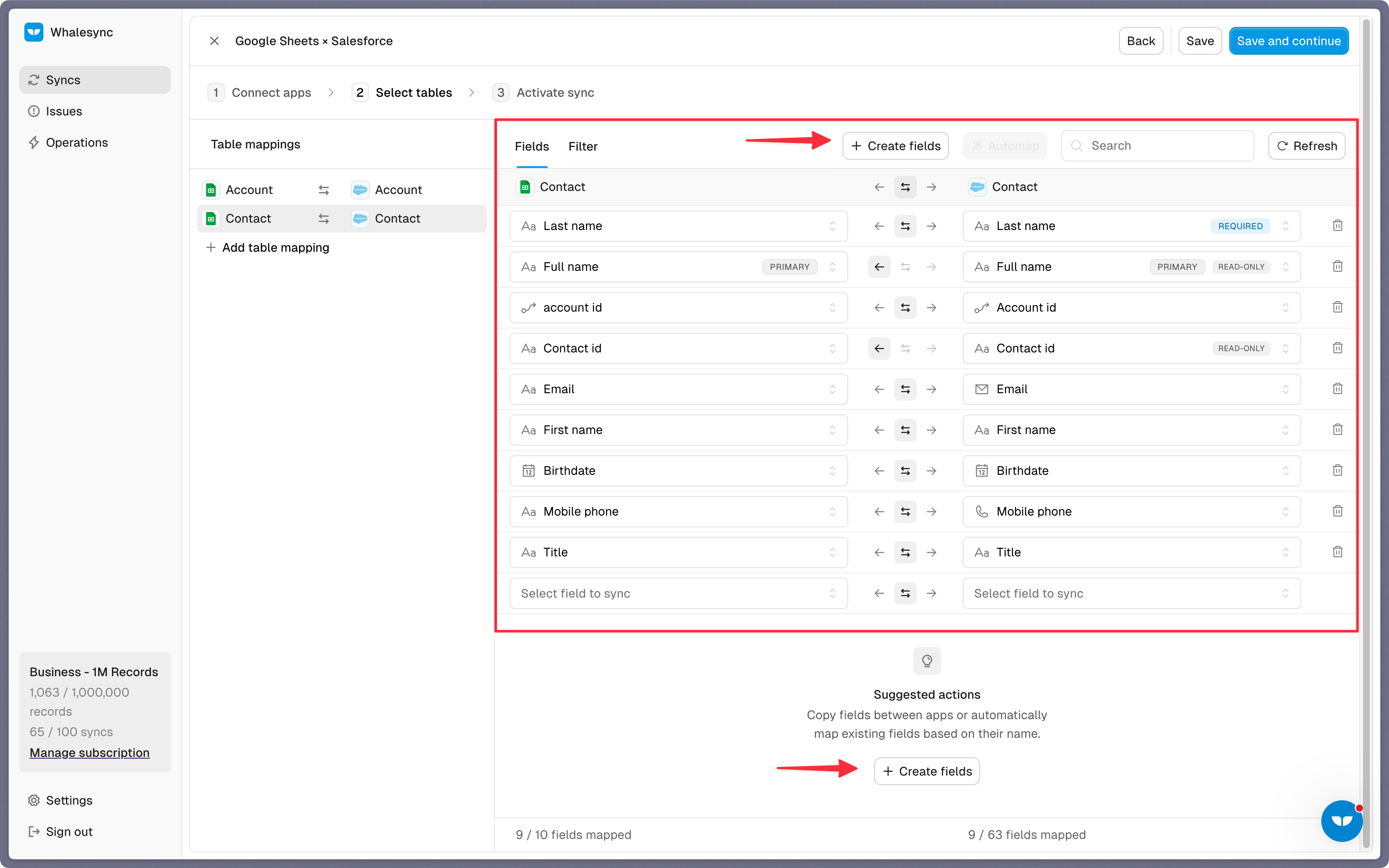
Step 4: Map your fields
Automap starts when a mapping opens: an AI model pairs columns with Salesforce fields by name and type, without reading any rows, and you check its pairs and map the rest. Fields Salesforce computes, such as a contact's full name and ID, sync one way, into the sheet. A lookup like a contact's Account ID maps to a link column pointing at rows in the Account tab, so that tab has to be in the sync too.
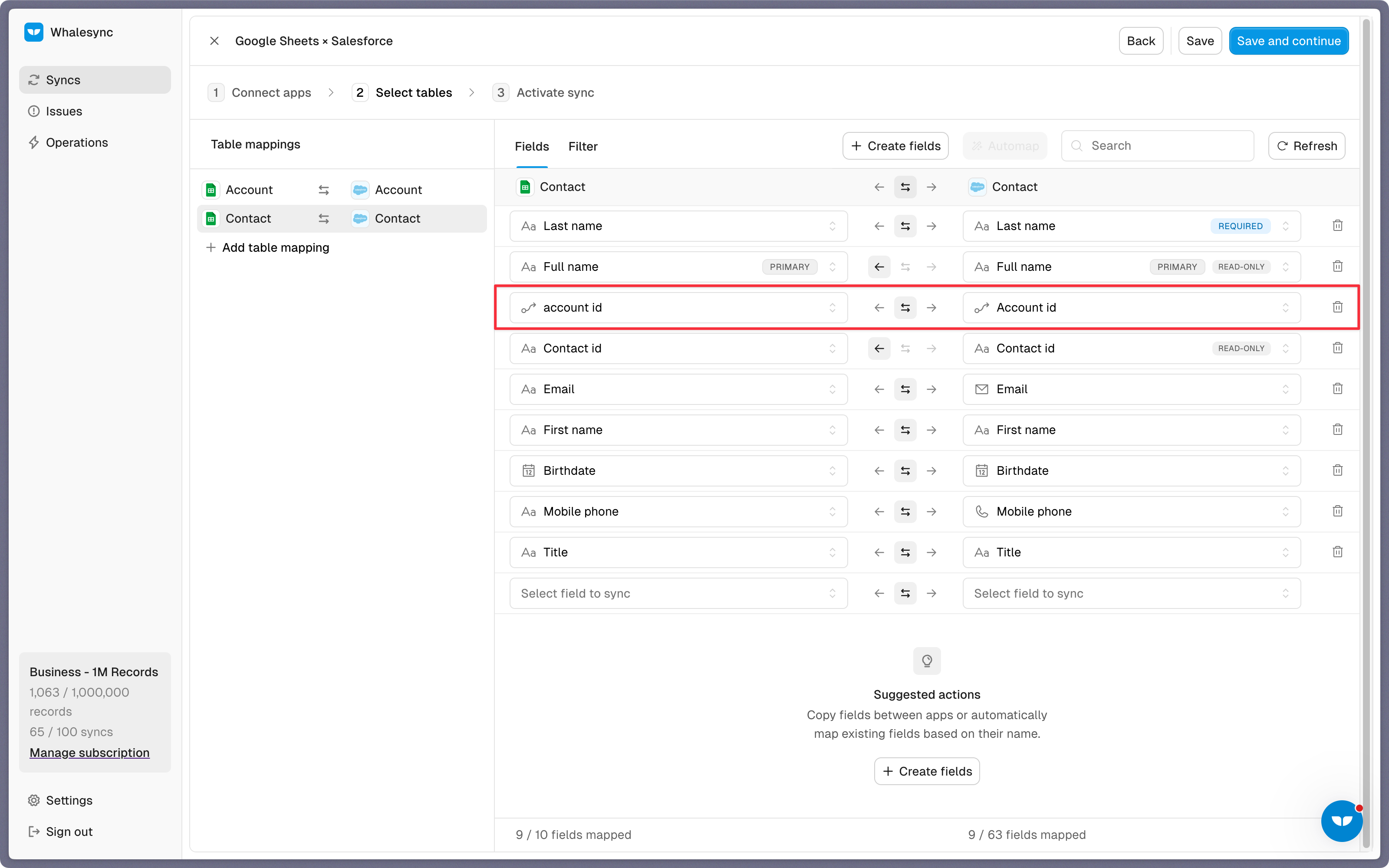
If a Salesforce field has no column yet, create fields adds one to the sheet. Whalesync can't add fields to Salesforce, so create custom fields there first.
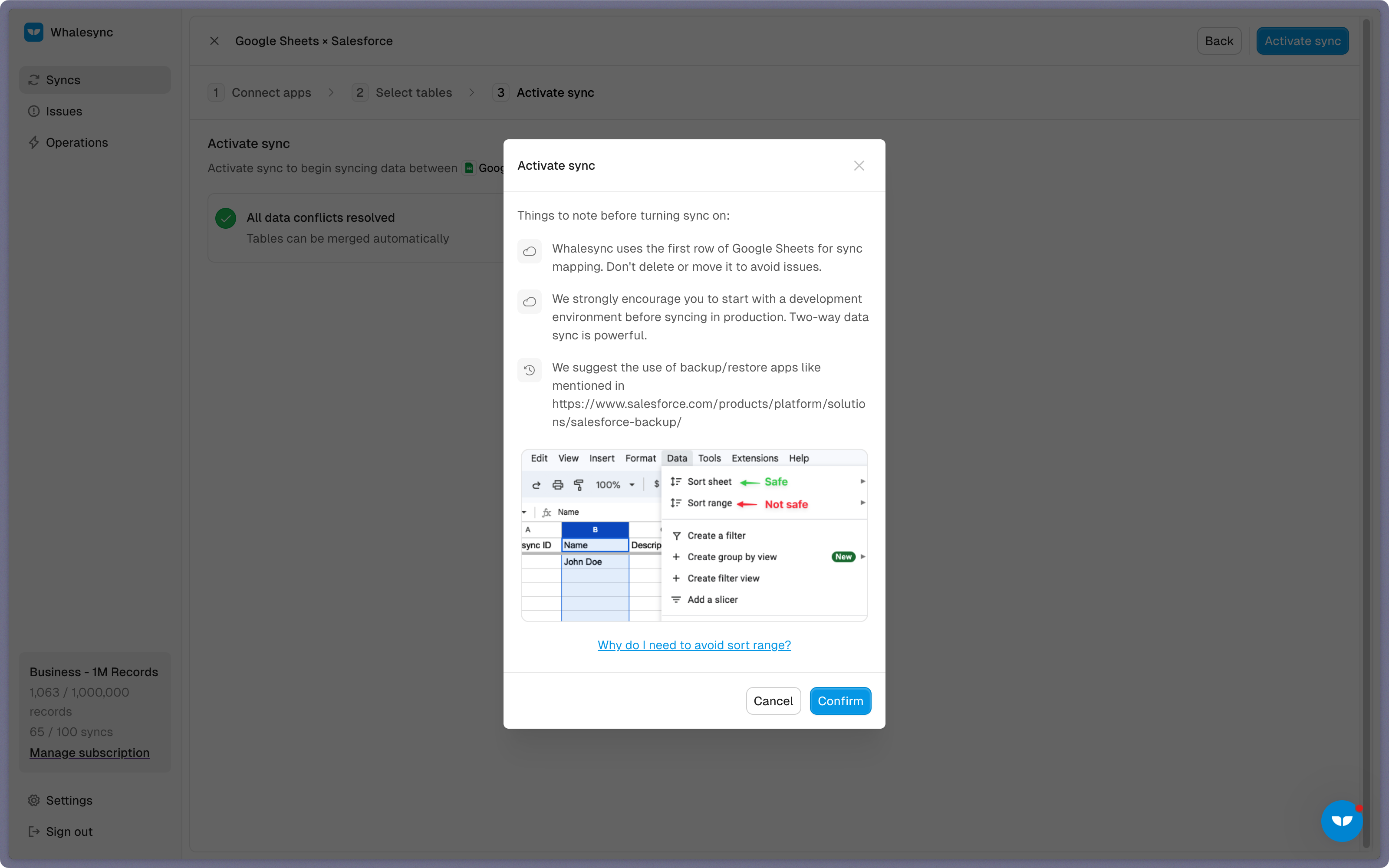
Step 5: Activate sync
Before the first sync, Whalesync lists what to keep in mind: don't delete or move row 1, try the sync on a sandbox first, and keep a backup of your Salesforce data. Sort sheet is safe on a synced tab, but Sort range is not. If rows in the sheet already match Salesforce records, link them on a column both share, such as email or a stored Salesforce Record ID, so they aren't created twice. Then activate.
3 ways to connect Salesforce and Google Sheets
-
Data connector for Salesforce
Best when you want a Salesforce report in a sheet as Salesforce runs it, and a refresh every few hours is enough.
- Built by Google, and free (Google Workspace Marketplace)
- Imports a report or a query, and refreshes imported reports by hand or every 4, 8, or 24 hours (Google)
- Sends sheet edits to Salesforce when you run Insert or Update, not on its own
-
Zapier
Best when you want a row added for each new Salesforce lead or record, with nothing coming back.
- Triggers on new or updated rows and Salesforce records, one direction per Zap
- Zapier has no two-way sync, so edits on both sides aren't reconciled
- Every completed action is billed as a task (Zapier)
-
Whalesync
Best when a tab has to stay current with Salesforce records, and edits in the sheet should reach Salesforce without a manual push.
- Any object, custom ones included, as its own tab
- Edits in either app sync on their own, each column one way or both
- Priced by records in sync, not by how many cells change
Data connector for Salesforce and Zapier checked against their own pages in November 2026.
Frequently asked questions
How do I get Salesforce data into Google Sheets automatically?
Google's free Data connector for Salesforce add-on imports a report or a query, and can refresh an imported report every 4, 8, or 24 hours. Whalesync keeps a tab synced with a Salesforce object instead, one row per record, and sends edits made in the sheet back. Zapier can add a row for each new Salesforce record.
Can I sync a Salesforce report to Google Sheets?
Whalesync syncs objects, not reports: each record is a row, and a pivot table or chart on another tab rebuilds the report from them. If you want the report exactly as Salesforce runs it, and a refresh every few hours is enough, Google's Data connector for Salesforce imports it directly.
Can I edit Salesforce records in Google Sheets?
Yes. Change a mapped cell and the record changes in Salesforce on the next pass, and a new row creates a new record. Formula and roll-up fields are read-only in Salesforce, so they sync into the sheet only, and a picklist cell has to hold one of the picklist's values.
Does the Google Sheets sync work with Salesforce custom objects?
Yes. Whalesync offers every custom object the connected Salesforce user can read, beside accounts, contacts, leads, opportunities, cases, tasks, and campaigns, and each one syncs with a tab of its own. Lookups between them become link columns, as long as both tabs are in the sync.
Is the Salesforce Google Sheets sync real-time?
Not instant, but it never stops. Neither app sends Whalesync change notifications, so it reads both in passes that run back to back, and an edit on either side lands on the next one. The more rows and records in the sync, the longer each pass takes.
Will Whalesync overwrite formulas in my sheet?
In the synced tab, it can: Whalesync writes values into the rows it syncs, so a formula in one of them can be replaced by its result when Salesforce sends a change. Keep formulas, pivot tables, and charts on their own tab, and avoid Sort range on the synced one, which can scramble its Whalesync IDs (docs).
Other apps to connect


Connect your tools in minutes