The easiest way to sync Salesforce and Supabase
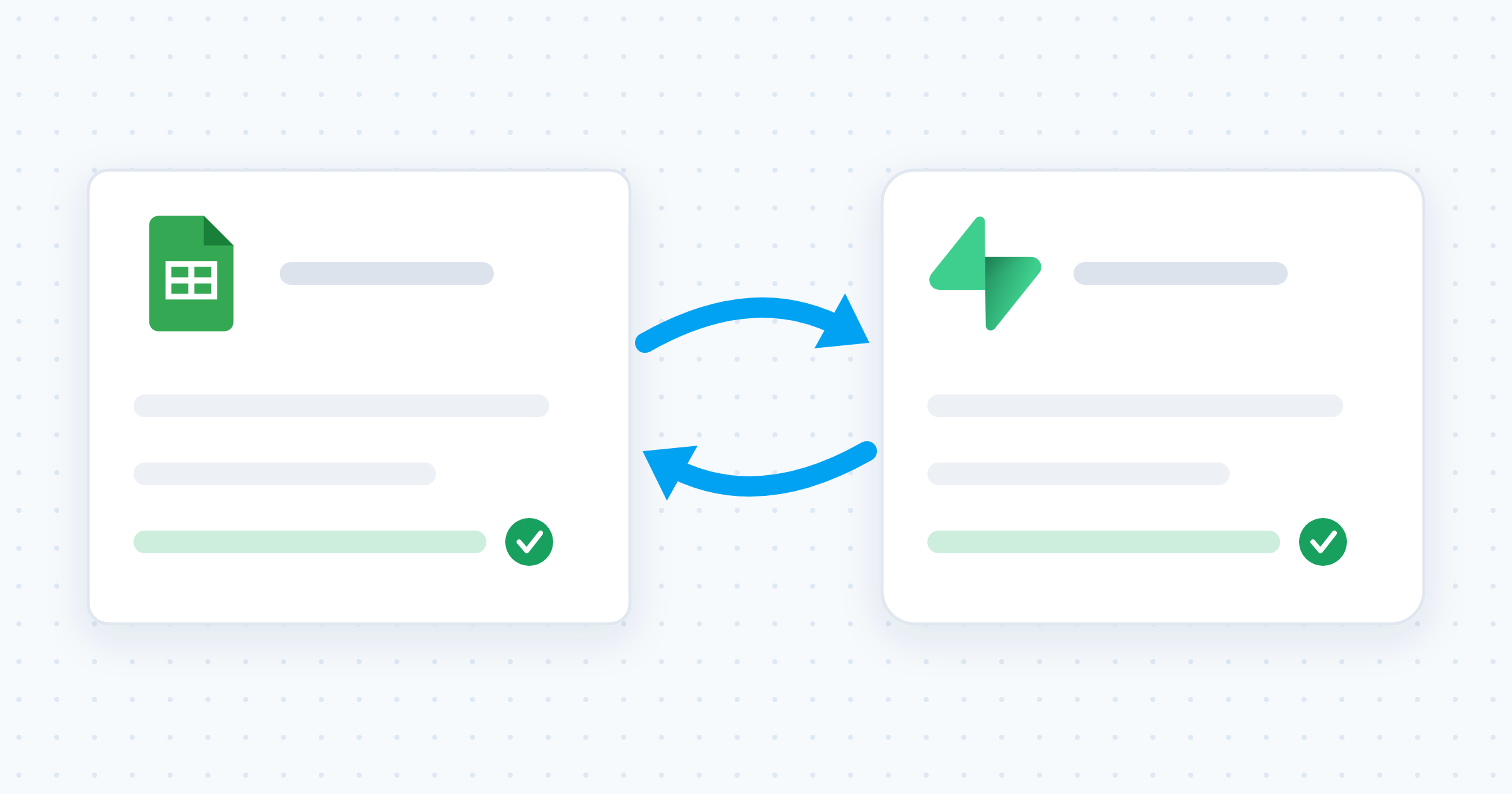
Get true, two-way sync between Salesforce and Supabase in minutes. Update data in one tool, and Whalesync mirrors it in the other.


Empowering top operators — From startups to enterprises
-
 Series C$350M
-
 Series C$330M
-
 Series C$100M
-

-
 Series B$72M
-
 Series C$30M
-
 Series A$50M
-
 Series B$86M
-
 Series B$65M
-
 Series B$100M
How to connect Salesforce and Supabase in 3 steps
Connect Salesforce and Supabase, map the fields you want, and turn sync on. From then on, a change in either app shows up in the other.
Connect your apps
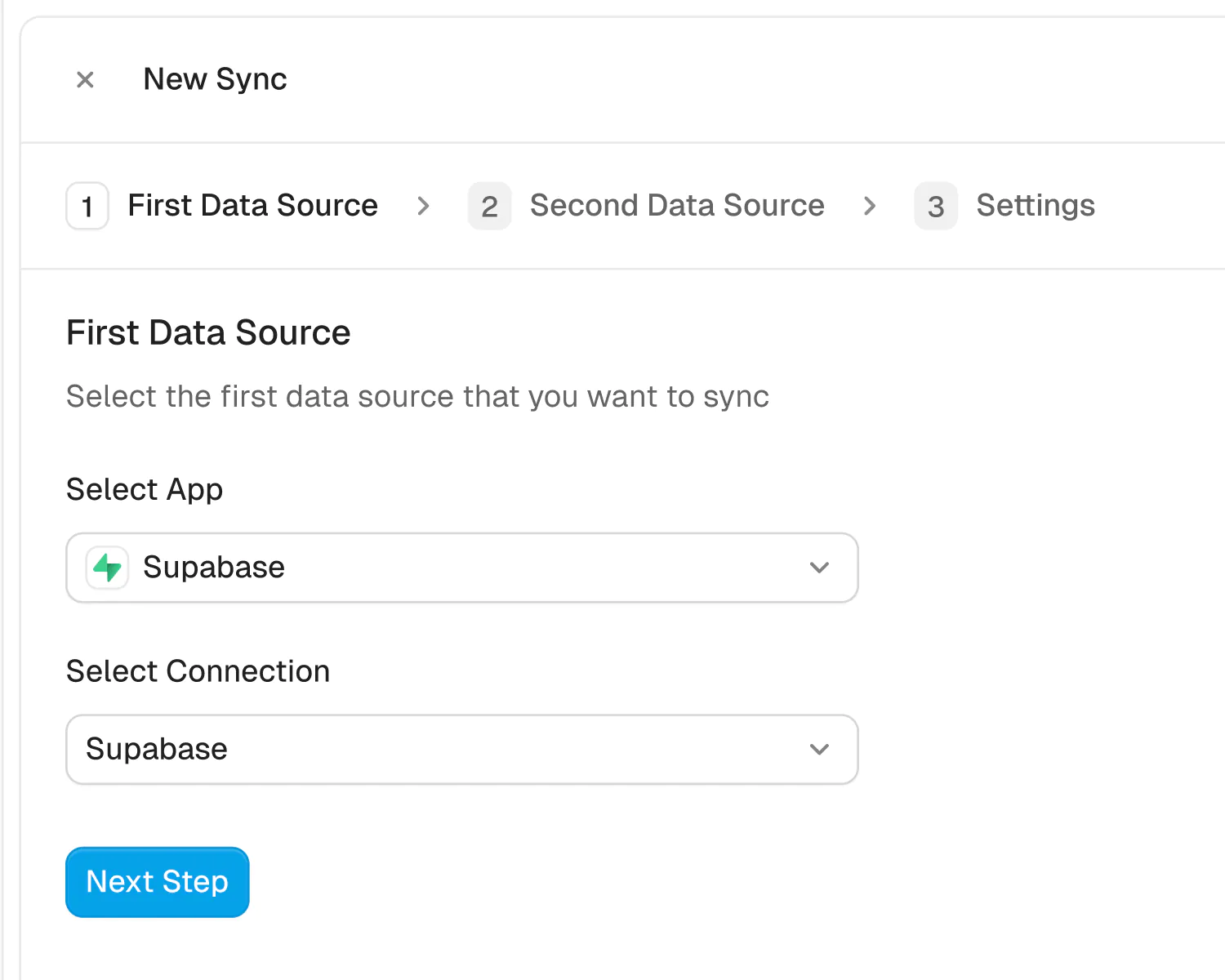
Securely connect your Salesforce and Supabase accounts in seconds. Just authorize Whalesync with a few clicks and you're ready for the next step.
How to sync Supabase to Salesforce in 5 minutes
If you use Supabase to store user or product data and Salesforce to manage your go-to-market activities, syncing the two ensures your backend and CRM stay aligned. With Whalesync, you can connect and sync Supabase to Salesforce in 5 minutes.
Let’s begin.
Why should you connect Supabase to Salesforce?
Syncing Supabase and Salesforce enables real-time updates between your backend and CRM. Any changes made in Supabase can instantly reflect in Salesforce, and updates made in Salesforce can sync back to Supabase. This is ideal for teams that want to keep customer data unified across engineering and sales, without relying on manual updates or custom-built integrations.
Sales teams get visibility into backend activity like signups or plan changes, while product and ops teams can stay informed when account statuses or user details are updated in Salesforce. Everyone works from the same data, automatically.
When should you connect Supabase and Salesforce?
Here are a few common scenarios where connecting the two makes sense:
- You want to sync new users or product data into Salesforce: Let sales and support teams see product activity and customer context directly in Salesforce.
- You want CRM updates to reflect in your backend: Automatically update Supabase records when account status or user information changes in Salesforce.
- You want to eliminate data silos between teams: Sales and product teams operate off the same data, reducing friction and misalignment.
How to sync Supabase and Salesforce
Here’s a step by step guide to sync Supabase and Salesforce.
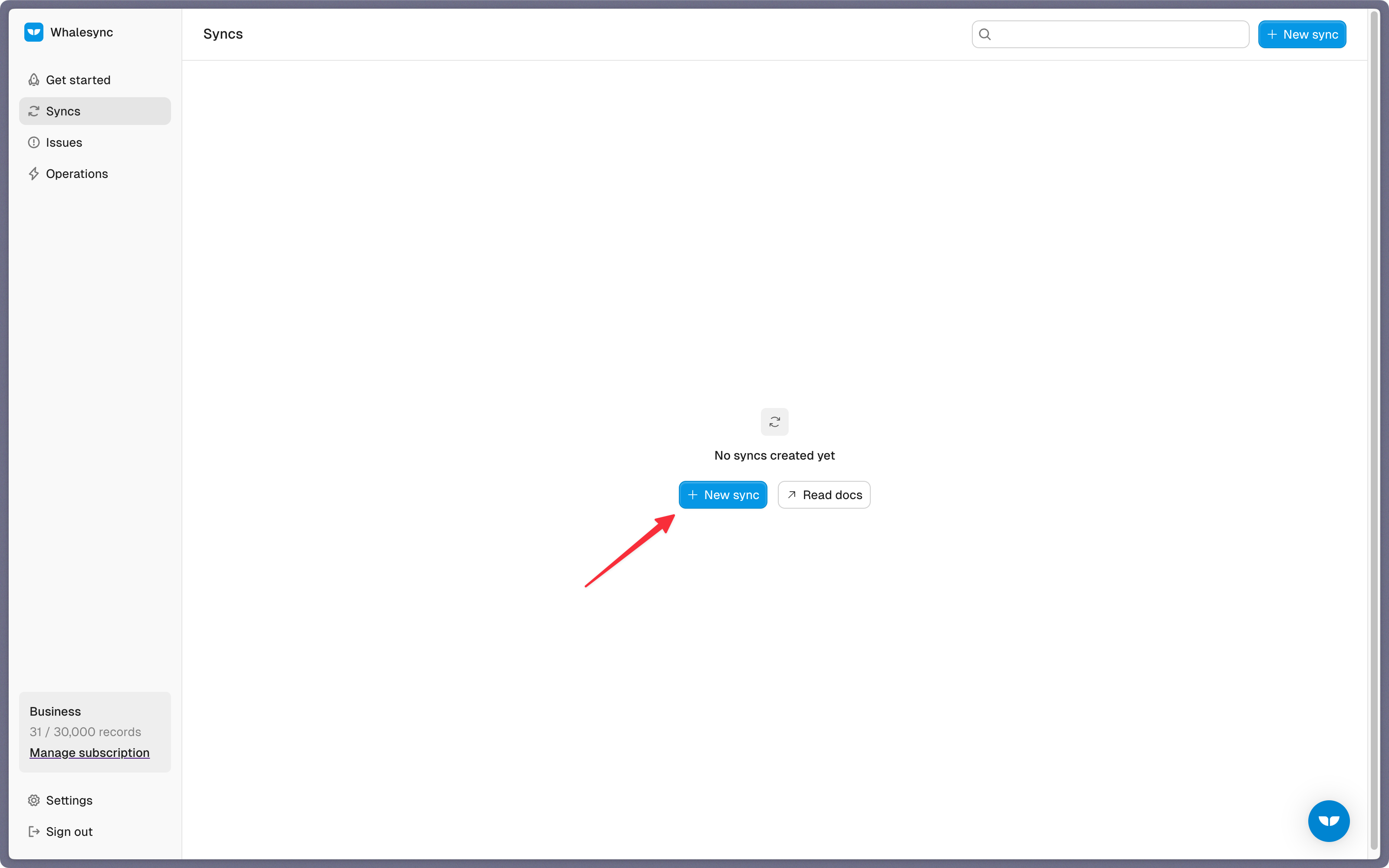
Step 1: Create a new sync
Log in to your Whalesync account and click ‘New sync’
Step 2: Authorize your apps
Select the apps you want to connect. In this case, it’s Supabase and Salesforce. Then, authorize these two apps. Authorizing the apps enables Whalesync to have access to your app data in order to complete the syncs.
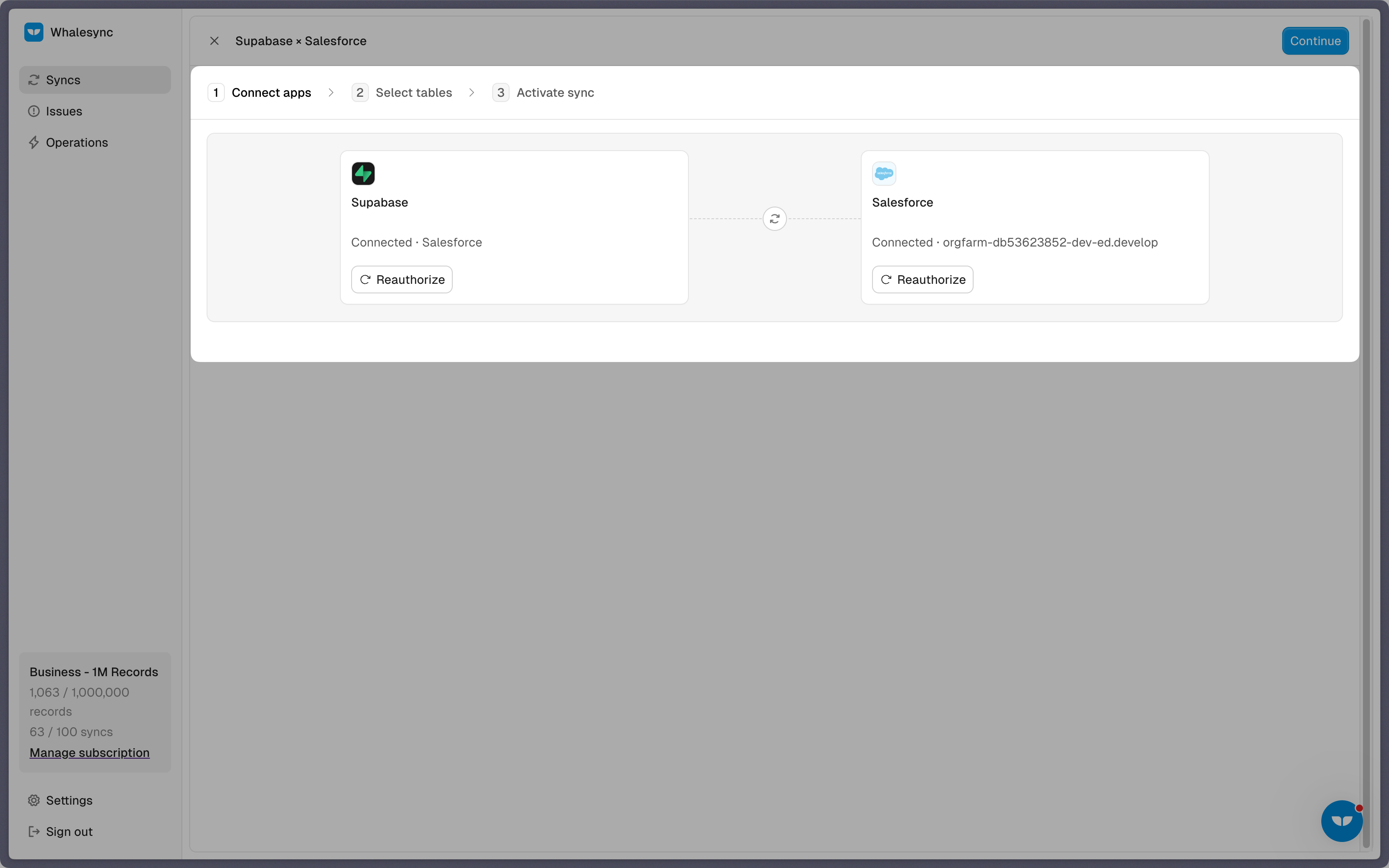
When you’re authorizing the apps, you need to select the Supabase table you want to sync the data from and the destination within your Salesforce organization where the data should be synced.
Step 3: Map your tables
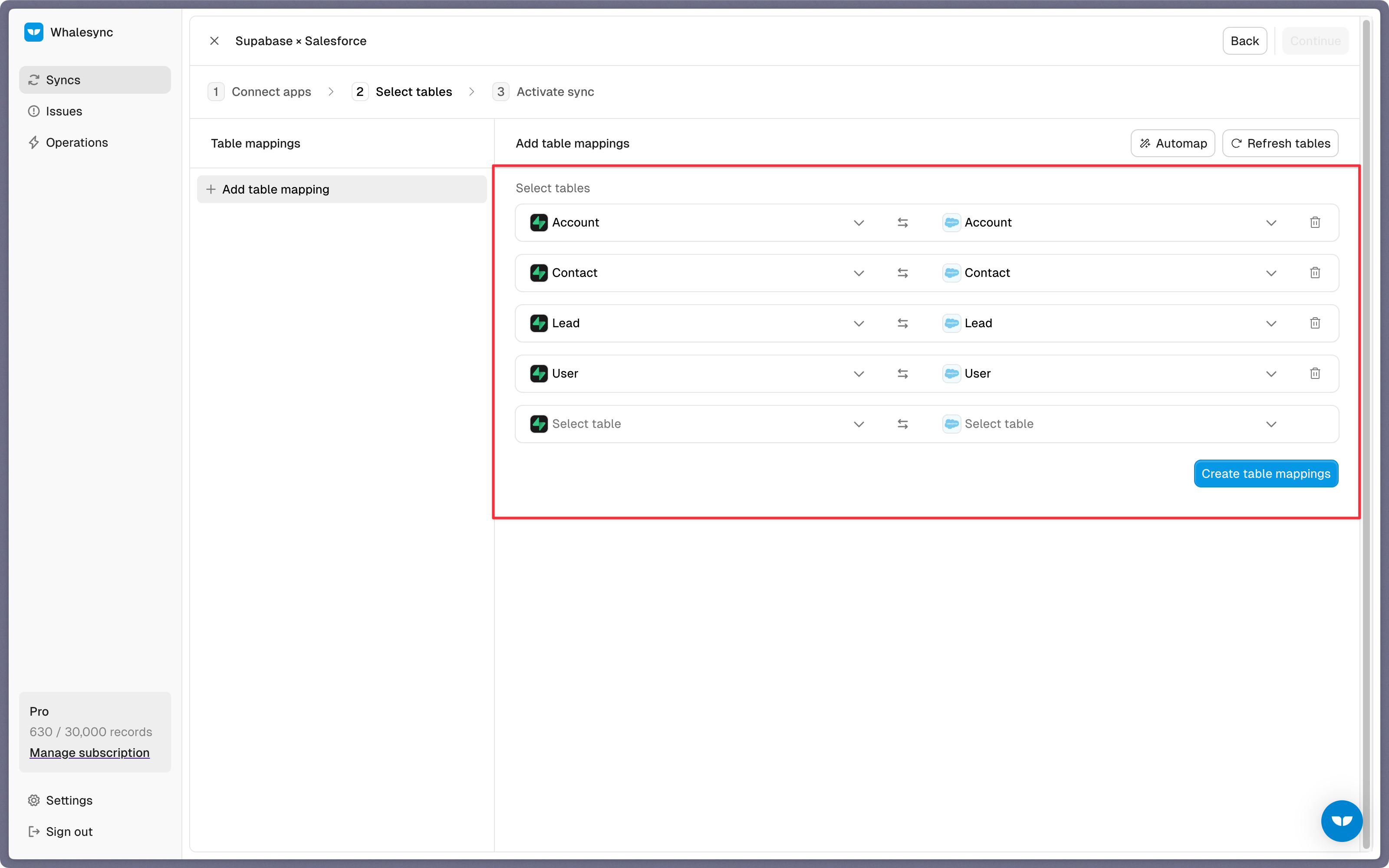
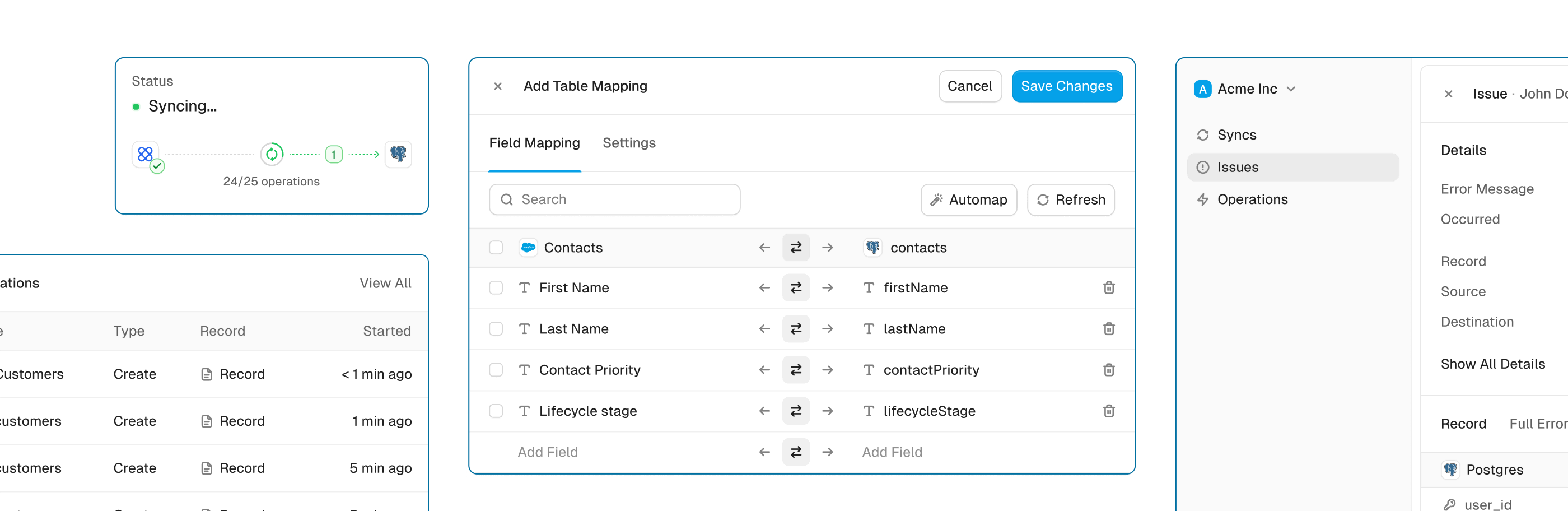
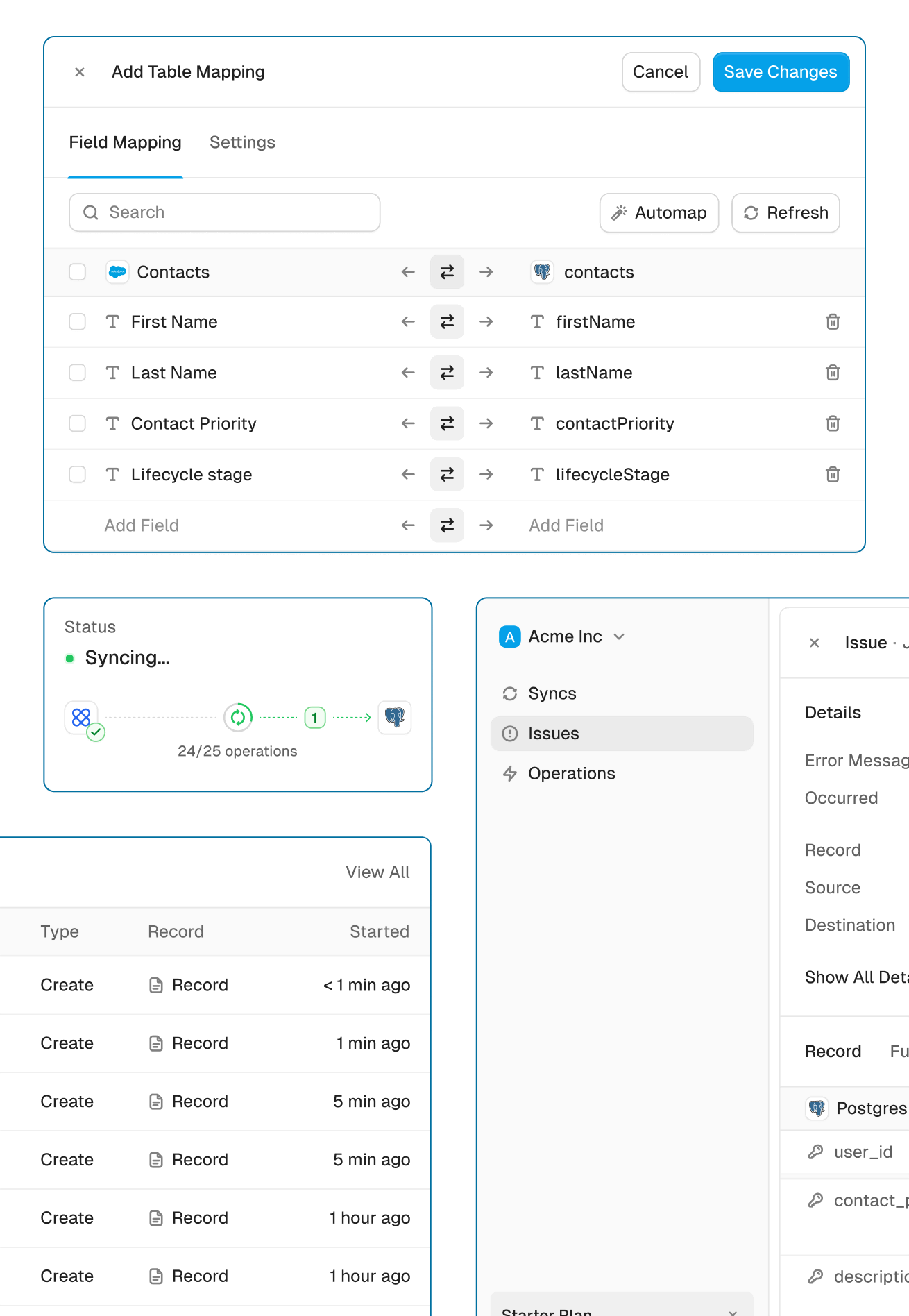
Choose the tables that you want to sync from Supabase to Salesforce. You can add multiple table mappings to a sync and related fields. You can also create the tables you want to map from Whalesync’s user interface, making it much faster to get started with your syncing.
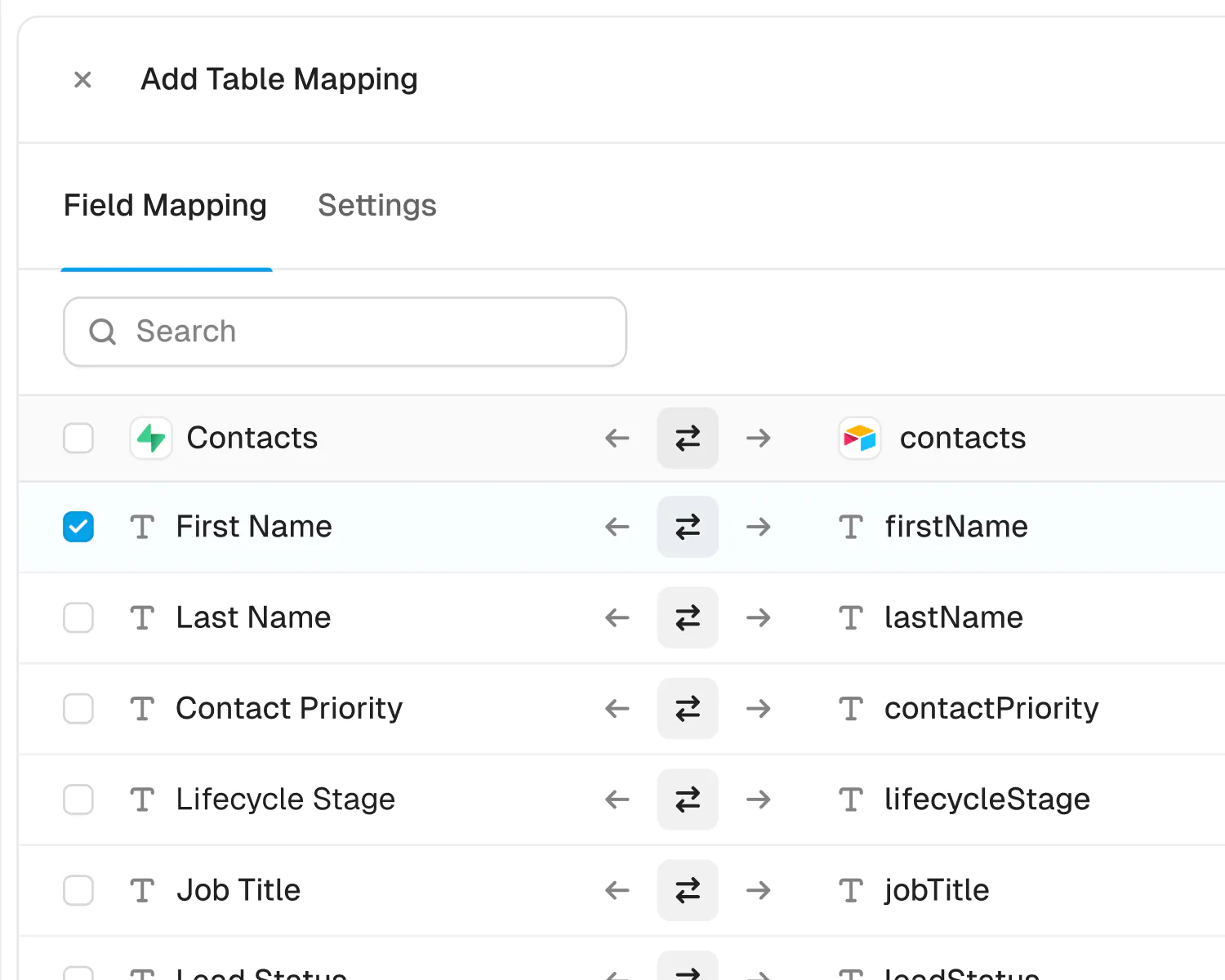
Step 4: Map your fields
You can choose how many fields you want to map, whether you want to map all of the fields or just a few.
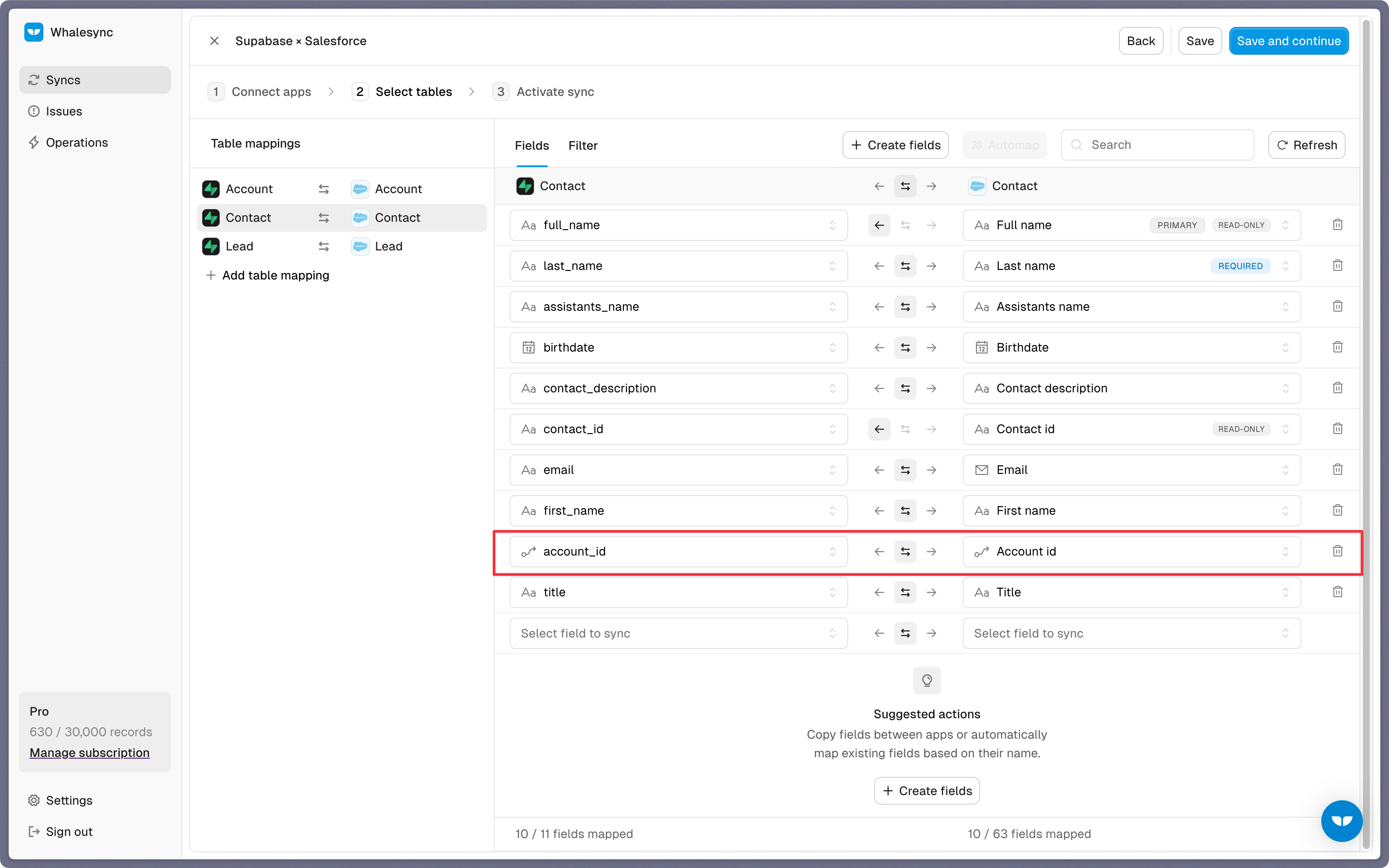
You can also create fields here.
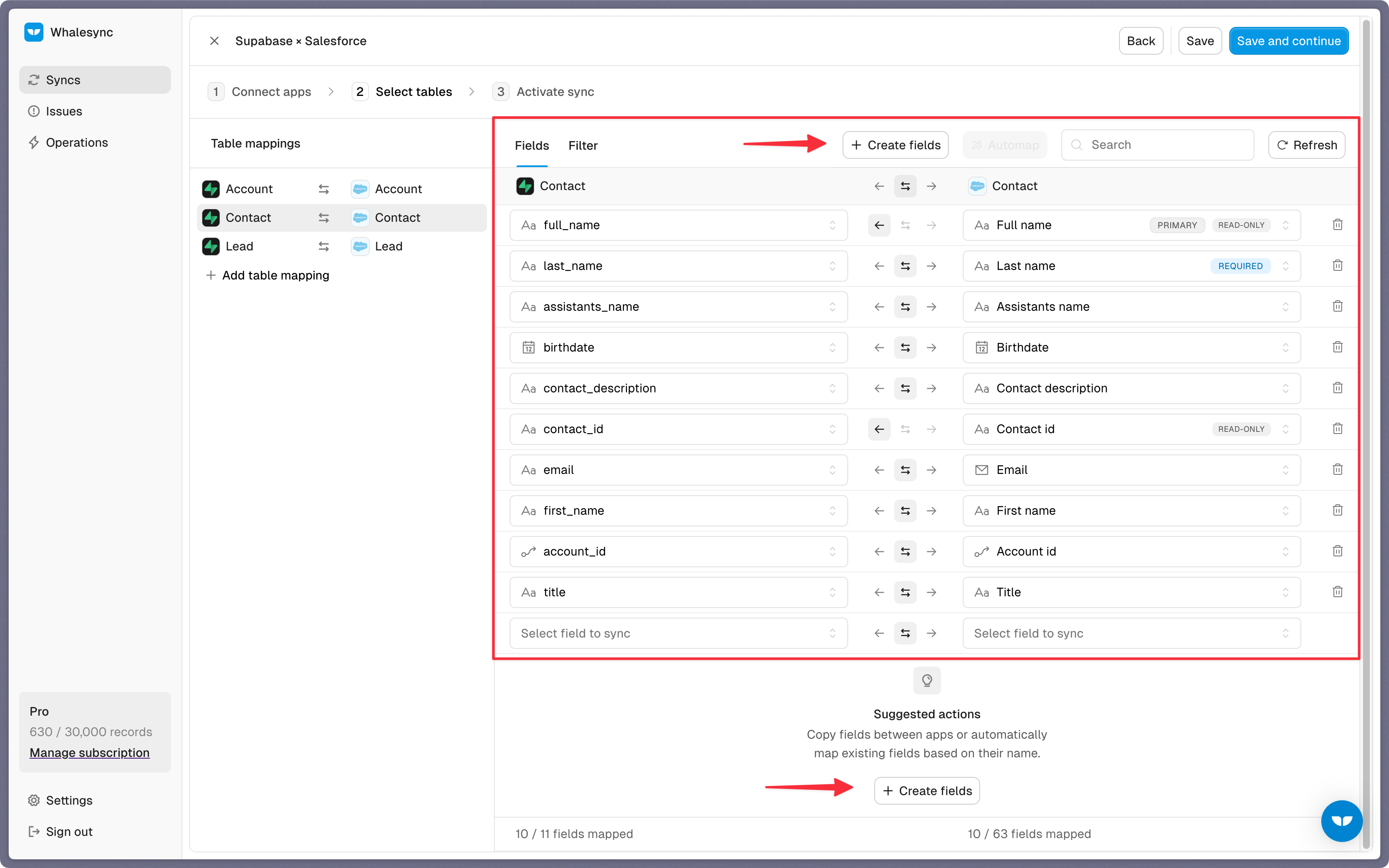
If you have existing data in your Supabase table, Whalesync will match the records according to the fields you mapped.
If you are starting from a new table that doesn’t have any data, once you start entering data into your Supabase table, the data will automatically sync to Salesforce.
Step 5: Activate sync
The final step is to activate your sync! Before you activate your sync, you’ll see a preview that shows you how many records will be added to each tool.
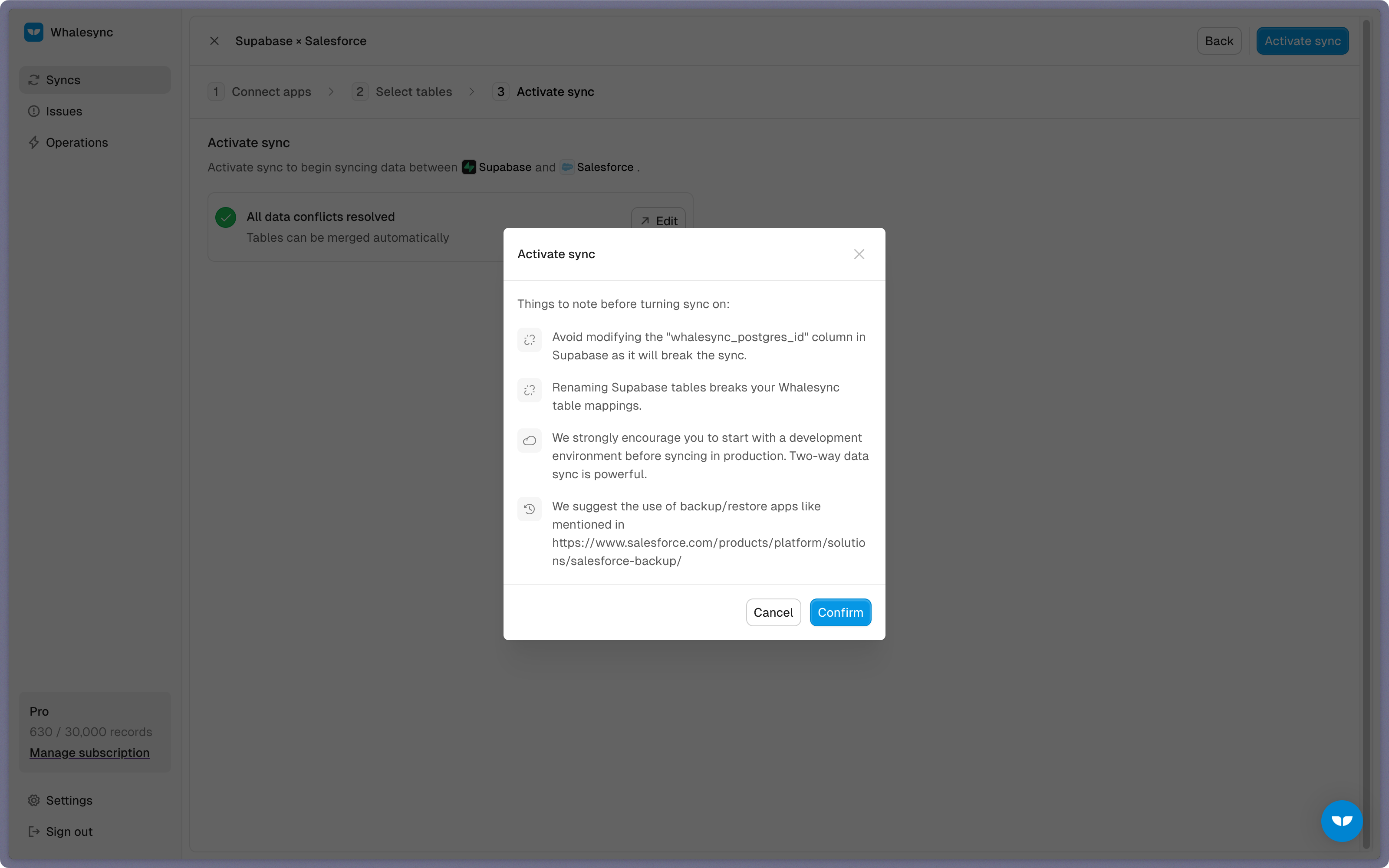
Done! Supabase and Salesforce is synced 🤝
Now it’s time to start adding to your Supabase table and view your data across both tools.
Start syncing today
You can connect Supabase and Salesforce in just a few minutes. Centralize your customer data, streamline operations, and keep everyone working with the same up-to-date information.
Ready to connect Supabase and Salesforce? Get syncing today
About Salesforce and Supabase
Salesforce
Salesforce is the world's most popular CRM for sales teams.
What syncs
Accounts, Contacts, Leads, Opportunities, Tasks, Campaigns, Campaign Members, Cases, Users, Profiles, Record Types, and Custom Objects
Supabase
Supabase is an open-source Firebase alternative built on Postgres.
What syncs
All Tables
Just need a copy of Salesforce in Supabase?
Live Export keeps a one-way copy of your Salesforce data in Supabase, on a schedule, for the reports, pivot tables, and dashboards that only read it. It's on every plan, with a record allowance of its own.
-
Two-way sync
Best when your team works in both apps, and an edit in either belongs in the other.
- Maps fields between tables you choose, in Salesforce and Supabase
- Picks changes up by itself, with no schedule to set
- Counts toward your plan's records in sync
-
Live Export
Best when you only read Salesforce data in Supabase, and nothing you change there should go back.
- Creates a table for each Salesforce table you pick, in the project you connect
- Runs daily, hourly, or every 10 minutes, depending on your plan, and whenever you click Run now
- Writes only what changed on each run, over any edits to what it copied
- Copies Accounts, Contacts, Leads, Opportunities, Opportunity Products, Campaigns, Campaign Members, Cases, Tasks, Events, Products, Price Books, Contracts, Orders, Quotes, Assets, your custom objects, and the other standard objects your org can query
Powerful features, built for reliability
Get the power of an engineering-grade data sync with the simplicity of a no-code tool. Whalesync lets you build a robust, two-way, real-time sync between your apps in minutes, all through a simple visual interface.
Real-time & historical sync
Instantly sync new changes and bring over all your historical data. Your records will be up-to-date across apps from day one.
Efficient error handling
Instant email alerts for quick issue monitoring.
Automatic API handling
Forget about rate limits. Whalesync automatically manages API traffic and retries to ensure your sync runs smoothly without breaking.
Advanced filters
Precision filtering for targeted data sync.
Salesforce and Supabase guides

Built for Enterprise
Connect your data with top-grade security, role based access control, SSO, and audit logs.


Security
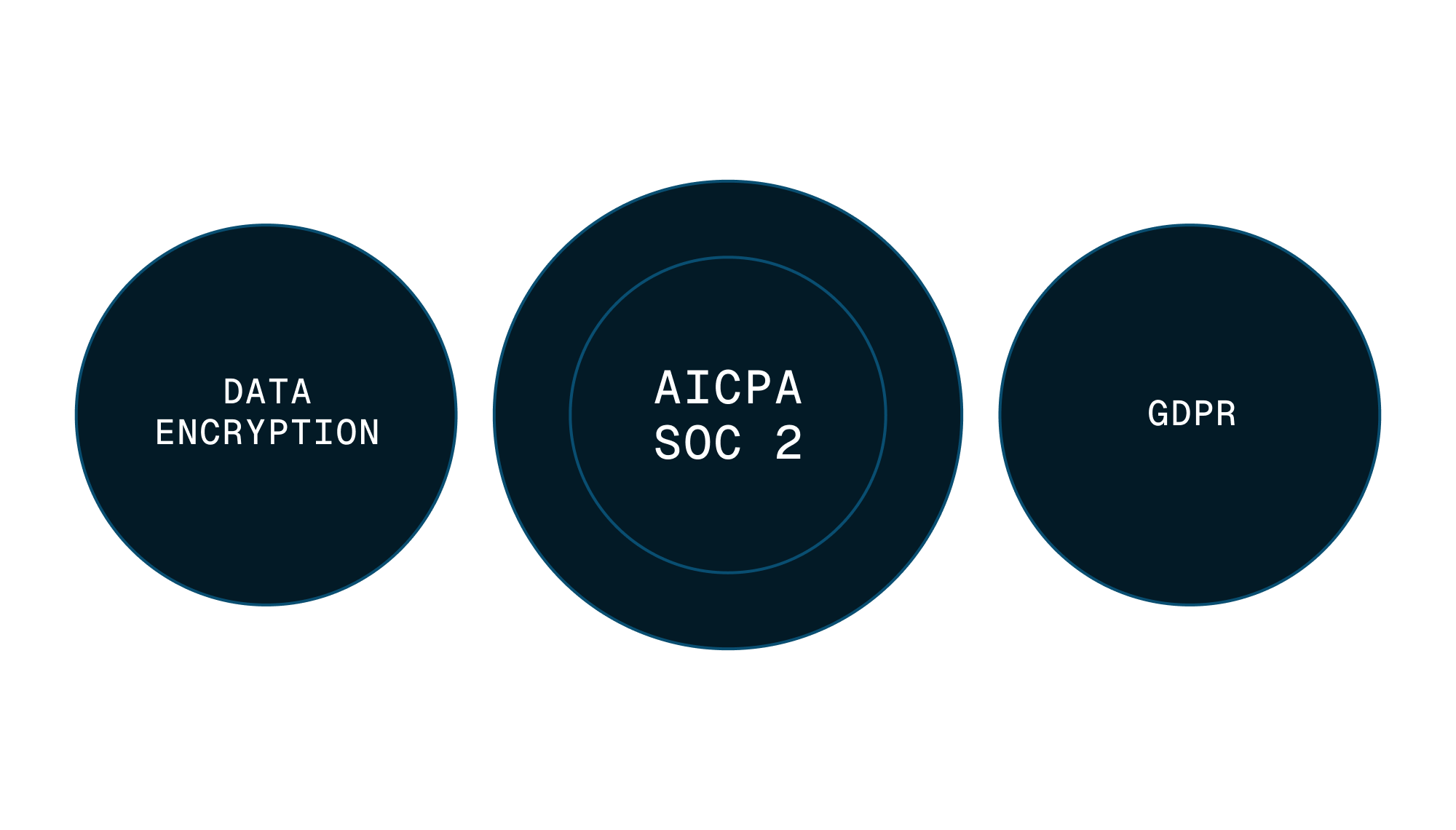
Enterprise-grade data safety with SOC 2 Type II, GDPR compliance, and encryption at rest monitored by Vanta.


Scale with support
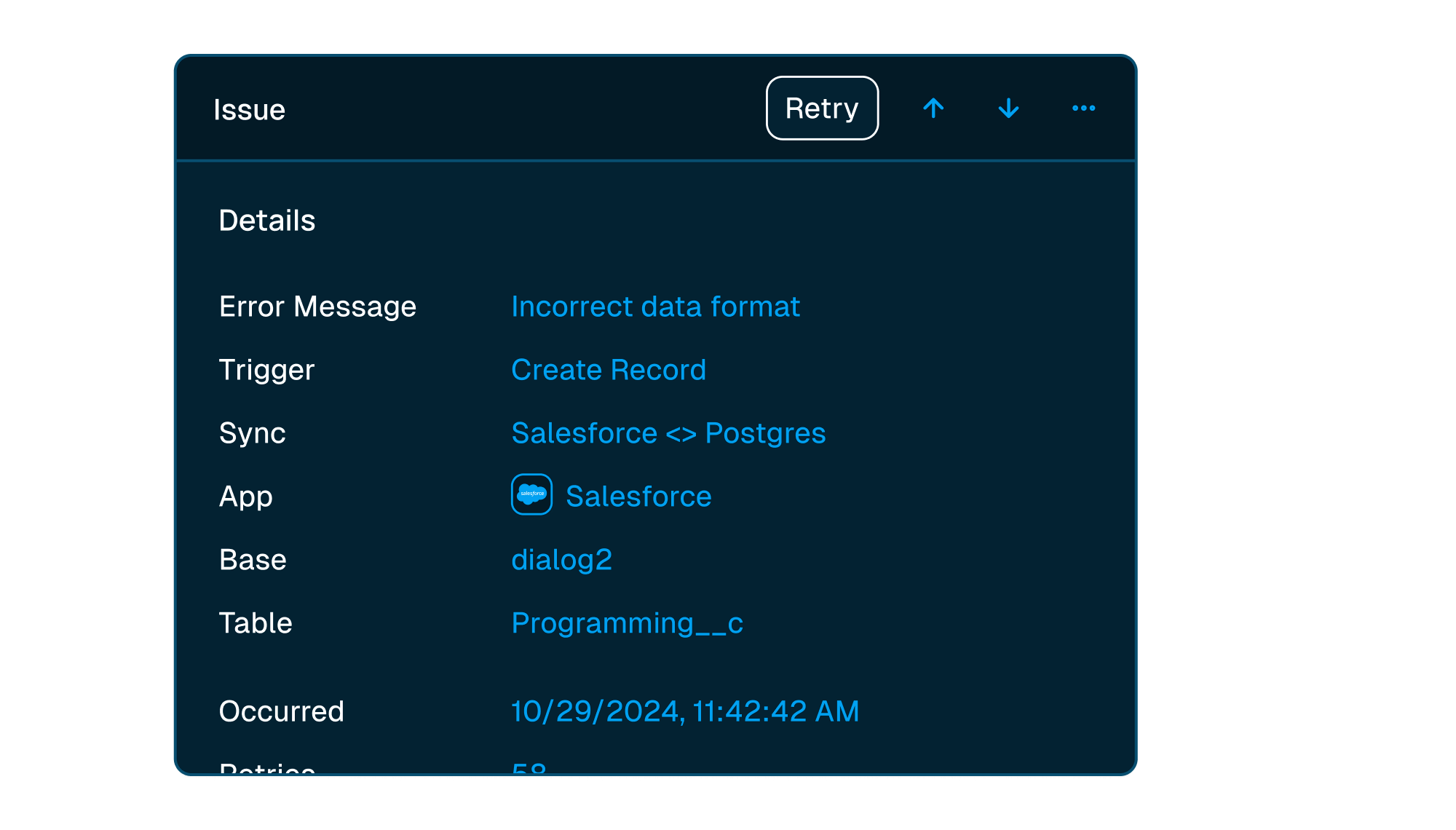
Easily manage issues at scale, while knowing you have a dedicated account manager on stand by to support.
Frequently asked questions
Is it really two-way sync?
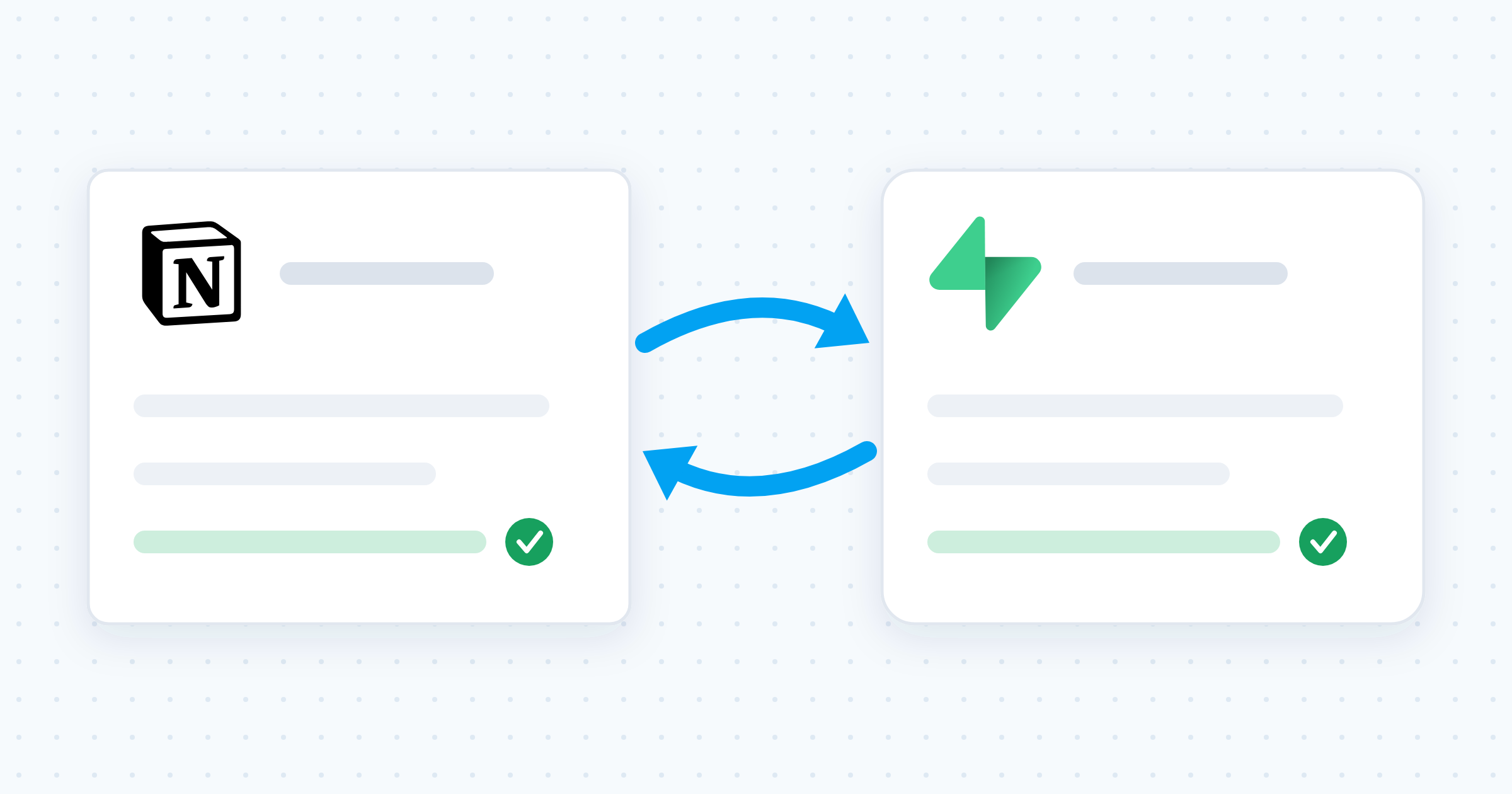
Yes! Whalesync offers true two-way sync. Unlike most apps that offer one-way syncs in two directions, Whalesync actually keeps your data in sync bi-directionally. Update data in one app and see it instantly to sync to the other (or vice-versa).
Can I export Salesforce to Supabase on a schedule instead?
Yes, with Live Export. It keeps a one-way copy of your Salesforce data in Supabase, refreshed daily, hourly, or every 10 minutes depending on your plan, and copies Accounts, Contacts, Leads, Opportunities, Opportunity Products, Campaigns, Campaign Members, Cases, Tasks, Events, Products, Price Books, Contracts, Orders, Quotes, Assets, your custom objects, and the other standard objects your org can query. Nothing you change in Supabase goes back to Salesforce.
What counts as a "record in sync"?
When a record syncs for the first time it becomes a record in sync. For example, if you sync 10 rows from Airtable to Webflow, you will have 10 records in sync. We do not "double-count" records across the two different apps.
Unlike other automation tools that count updates or tasks, Whalesync allows unlimited updates: those records can change as many times as you'd like.
What is a "sync"?
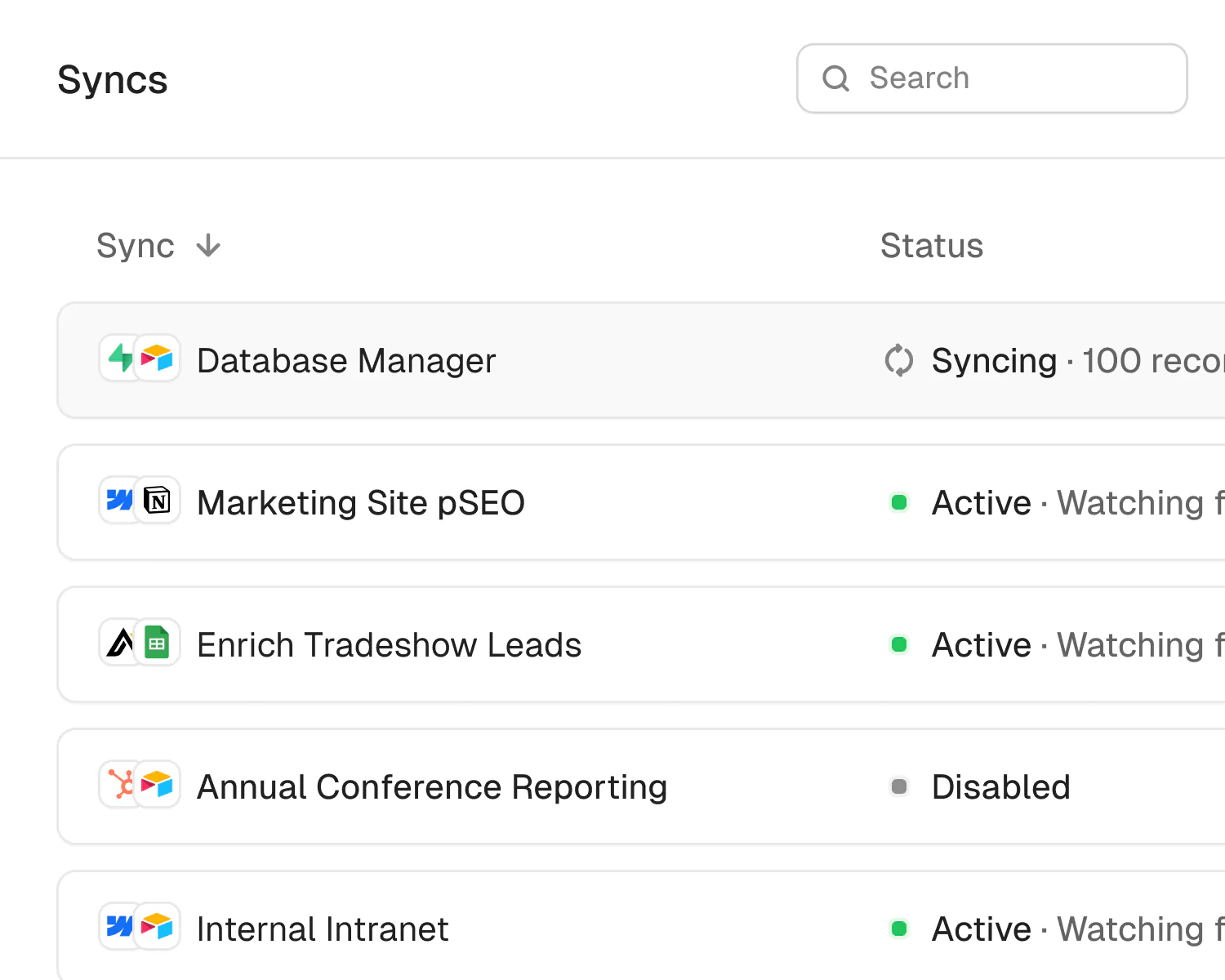
A sync is a connection between two different apps (e.g. Salesforce & Airtable). When you turn sync on, Whalesync will continuously sync data between your apps.
A single sync includes as many data tables and field as you'd like.
Does Whalesync support multi-reference fields? Rich text?
You bet! We've simplified all the annoying parts of setting up a sync with Zapier. We support multi-reference fields, rich text, and images. For a full list, see our supported fields docs.
What happens if my data has an error and can't be synced?
If data can't be synced (e.g. a required field is missing), Whalesync will alert you on the Issues page. This alert provides the exact error from your destination app and any other info that will help you fix the issue. In the meantime, Whalesync will continue to sync all data that doesn't have errors.
Do you offer a discount for nonprofits?
Absolutely! We love supporting organizations that are making the world a better place, so we're happy to offer a 20% discount to all nonprofits. To apply, just send us a note with proof of your nonprofit status (e.g. your 501(c)(3) determination letter) to support@whalesync.com and we'll get the discount applied to your account.





Connect your tools in minutes