How to Sync Google Sheets and Supabase: 5 Methods Compared
Every way to connect Google Sheets and Supabase, compared: CSV, the table editor, Apps Script, one-way automations, and real-time two-way sync.

How to Sync Google Sheets and Supabase: 5 Methods Compared
Your product data lives in Supabase. Your team lives in spreadsheets. So someone exports a CSV, pastes it into a sheet, and by the next morning the numbers are stale.
The quick answer
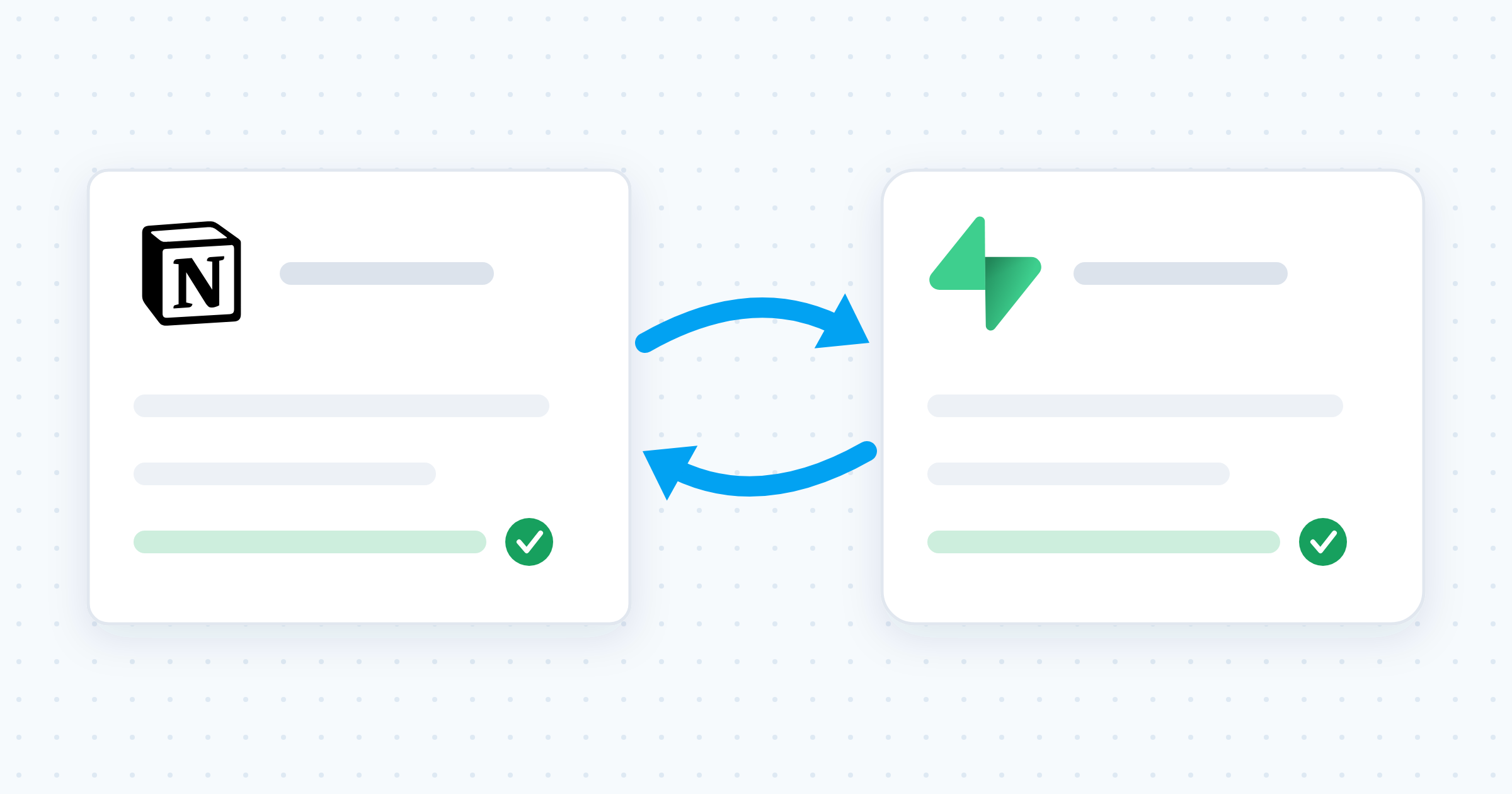
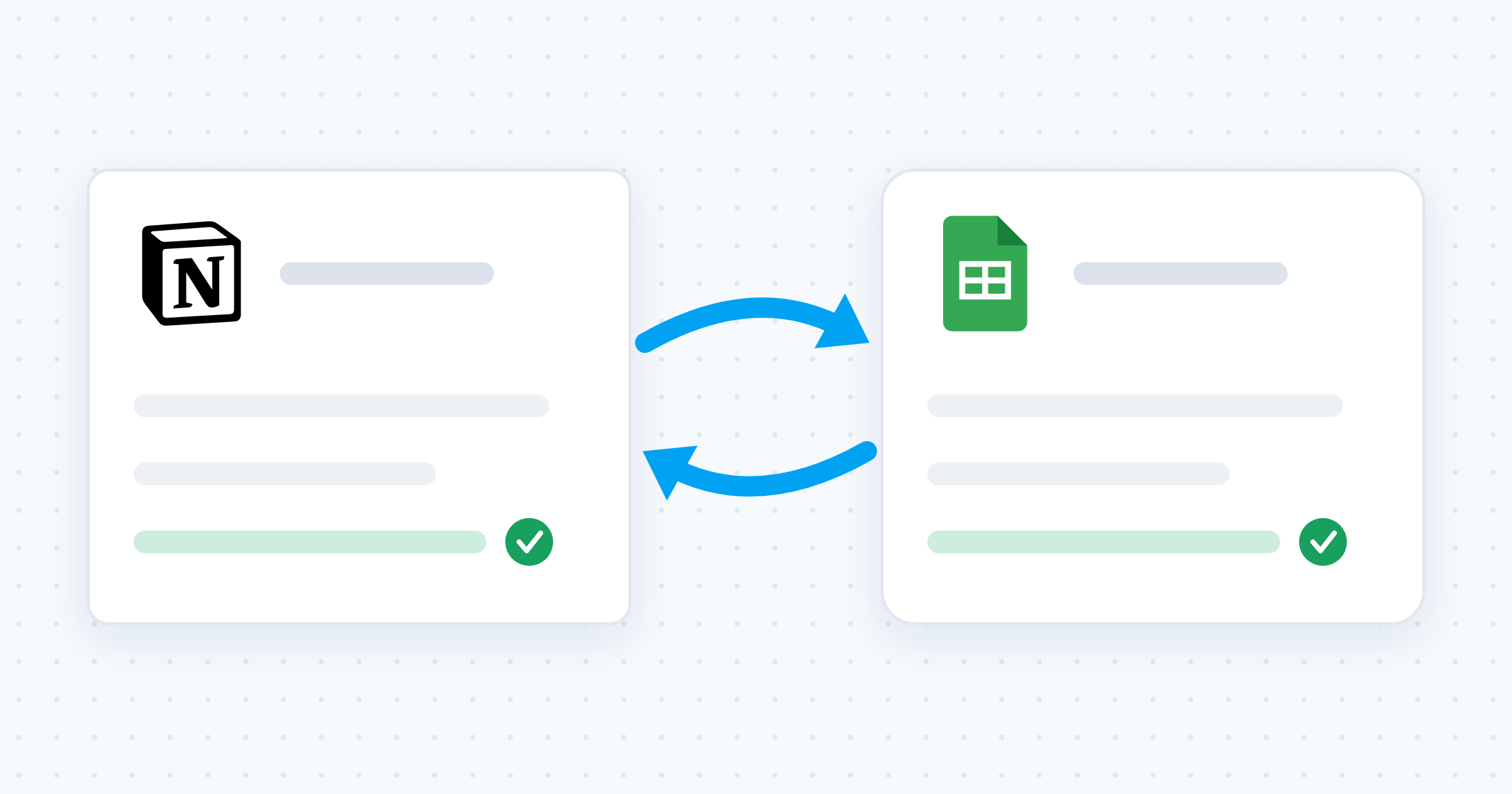
Supabase has no native Google Sheets integration. You have five options: a one-time CSV export, the Supabase table editor, a Google Apps Script that calls the Supabase API, a one-way automation tool (Zapier, Make, n8n), or a dedicated two-way sync tool. If people need to edit in either tool and see the same data in both, only two-way sync does the job. Whalesync gives you two-way sync between Google Sheets and Supabase with no code: connect both apps, map your fields, turn the sync on.
The five methods, compared
| Method | Direction | Setup effort | Best for |
|---|---|---|---|
| CSV export and import | One-time copy | 5 minutes | Migrations and one-off analysis |
| Supabase table editor | Edits in Supabase only | None | Quick fixes by technical users |
| Google Apps Script | One-way, or fragile two-way | Hours, plus upkeep | Developers who want full control |
| Zapier, Make, or n8n | One-way, per automation | 30 to 60 minutes | New-row handoffs and alerts |
| Whalesync | Two-way, real time | Minutes, no code | Teams editing in both tools daily |
1. CSV export and import
Supabase exports any table to CSV, and Google Sheets opens a CSV in two clicks. Going the other way, download the sheet as CSV and load it into Supabase. We wrote a step-by-step guide on how to import a CSV to Supabase.
The limit: a CSV is a snapshot, not a sync. The moment either side changes, your copy is wrong, and re-importing creates duplicate rows unless you match on a primary key. Use CSV for one-time migrations, not for daily operations.
2. The Supabase table editor
Supabase ships a table editor that looks like a lightweight spreadsheet, and it handles quick fixes well. If Supabase is new to you, start with our no-coder’s guide to Supabase.
The limit: no formulas, no pivot tables, no charts. Every teammate who needs to look at the data needs their own access to your production database. Giving the whole ops team edit rights to production is a risk most founders want to avoid.
3. Google Apps Script and the Supabase API
This is the free, do-it-yourself route, and the one the Supabase community recommends most often. In your sheet, open Extensions > Apps Script and use UrlFetchApp to call Supabase’s REST API.
- Create the Supabase table with columns that match your sheet headers.
- Copy your project URL and API key from the Supabase dashboard.
- Write a pull function that reads rows from the REST API and writes them into the sheet.
- Write a push function that reads sheet rows and posts them back to Supabase.
- In the Apps Script editor, add a time-driven trigger to run the pull on a schedule, and an onEdit trigger to push edits.
The limits are real, and they bite later:
- Google Sheets has no webhooks, so the pull side is polling on a timer, not real time.
- The onEdit trigger does not fire on programmatic or bulk changes, so imports and formula updates skip the push silently.
- Apps Script executions cap out at 6 minutes, so large tables time out mid-run.
- You hand-roll conflict handling, type mapping, retries, and every future schema change.
- A service-role key bypasses Row Level Security, so the script reads every row no matter what your policies say.
4. One-way automation tools (Zapier, Make, n8n)
Zapier, Make, n8n, and Pipedream all connect the two apps without code. A new sheet row can create a Supabase record, and a new Supabase record can append a sheet row. That part works well.
The limit: these tools are one-way and trigger-based.
- You build a separate automation for each event (created, updated, deleted) in each direction.
- Updates and deletions are the fragile ones, so records drift apart over time.
- Pointing two automations at each other to fake two-way sync can start a loop, where each write triggers the other.
- Per-task pricing climbs fast on tables with thousands of rows.
5. Real-time two-way sync
The job is not "copy rows from A to B." The job is to view and edit the same data from both tools. That takes changes flowing in both directions, continuously, including updates and deletes.
With two-way sync, Google Sheets and Supabase become two live views of one dataset. Nobody exports, and nobody asks which version is right.
How to sync Google Sheets and Supabase with Whalesync
Whalesync gives you real-time, two-way sync between Google Sheets and Supabase with no code. Setup takes minutes.
Step 1: Create a new sync. Sign in to Whalesync, create a sync, and choose Google Sheets and Supabase as your two apps.
Step 2: Authorize both apps. Connect your Google account and your Supabase project. Whalesync manages the API details, including rate limits and retries, for you.
Step 3: Map your tables and fields. Pick which sheet pairs with which Supabase table, then match the columns you want to keep in sync. Visual field mapping gives you exact control over what flows where, so you can leave sensitive columns out.
Step 4: Activate the sync. Turn it on. Whalesync backfills your existing records, then keeps both sides current from there.
Step 5: Test it in both directions. Edit a row in the sheet and watch Supabase update. Change a record in Supabase and watch the sheet update. That is the whole setup.
Three decisions to make before you turn the sync on
Two-way sync is quick to set up and easy to set up badly. Settle these three first.
1. Pick the row identity. Every synced row needs a stable key on both sides, usually the Supabase primary key. Keep that column in the sheet and do not delete it. Row order is not identity: sorting a sheet moves rows around, and the sync follows the key, not the position.
2. Decide which side owns which field. The cleanest setup gives every field one owner. Your app owns status and timestamps; your ops team owns notes, priority, and owner. Map only the fields each side should control, and most conflicts never happen.
3. Check what your keys can see. Row Level Security protects your app’s users, not your spreadsheet. Any connection with a service-role key reads every row in the table. Sync only the tables and columns your team should see in a sheet, and restrict sharing on sheets that hold customer data.
What teams build with Google Sheets and Supabase in sync
A spreadsheet admin panel for your app. Your ops team updates customer records, inventory, or pricing in a familiar sheet, and each change is written back to Supabase. No SQL, no production database access, no developer in the loop.
Live reporting on production data. Mirror Supabase tables into Google Sheets and build formulas, pivot tables, and charts on data that stays current. If you push spreadsheets hard, read our guide on how to use Google Sheets as a database for patterns that scale.
A friendly front end for a scalable backend. Collect and clean data in Sheets, where your team already works, while Supabase gives your product a real Postgres database underneath.
Frequently asked questions
Does Supabase have a native Google Sheets integration?
No. There is no first-party Supabase connector for Google Sheets. The Supabase community discussions point to the same three routes: an Apps Script against the REST API, an automation tool, or a dedicated sync tool. Anything advertised as a native integration is a third-party product.
Can I sync Google Sheets and Supabase for free?
Yes, with Google Apps Script. Budget an hour or two to write the pull and push functions and set the triggers. Then budget for upkeep: the 6-minute execution cap, the missing webhooks, and every schema change land on you. It is free in dollars, not in time.
Can I edit in Google Sheets and write the change back to Supabase?
Yes, and that is the whole point of two-way sync. Whalesync watches both sides, so editing a synced cell updates the matching Supabase row, and a change in Supabase updates the sheet. One-way automations struggle here because they fire on triggers instead of tracking the state of every record.
What happens if the same row changes in both tools at once?
The later change wins. In practice this rarely bites, because most fields have one natural owner: your app writes some columns, your team writes the others. Decide the owners up front and use field mapping to sync only what each side should control.
Should I connect to Supabase on port 5432 or 6543?
Port 5432 is the direct Postgres connection and 6543 is the Supavisor connection pooler. If you are wiring up your own script or a database client, the pooler handles the many short-lived connections a sheet-driven sync creates. With Whalesync you do not choose: the connector handles the connection details for you.
Ready to stop copy-pasting? Create a free Whalesync account and set up your first Google Sheets and Supabase sync in minutes. Want to see what the connector supports first? Visit the Google Sheets and Supabase connect page.
Subscribe for more
Stay up to date with the latest no-code data news, strategies, and insights sent straight to your inbox!