Notion Google Sheets Two-Way Sync: The Complete Guide (2026)
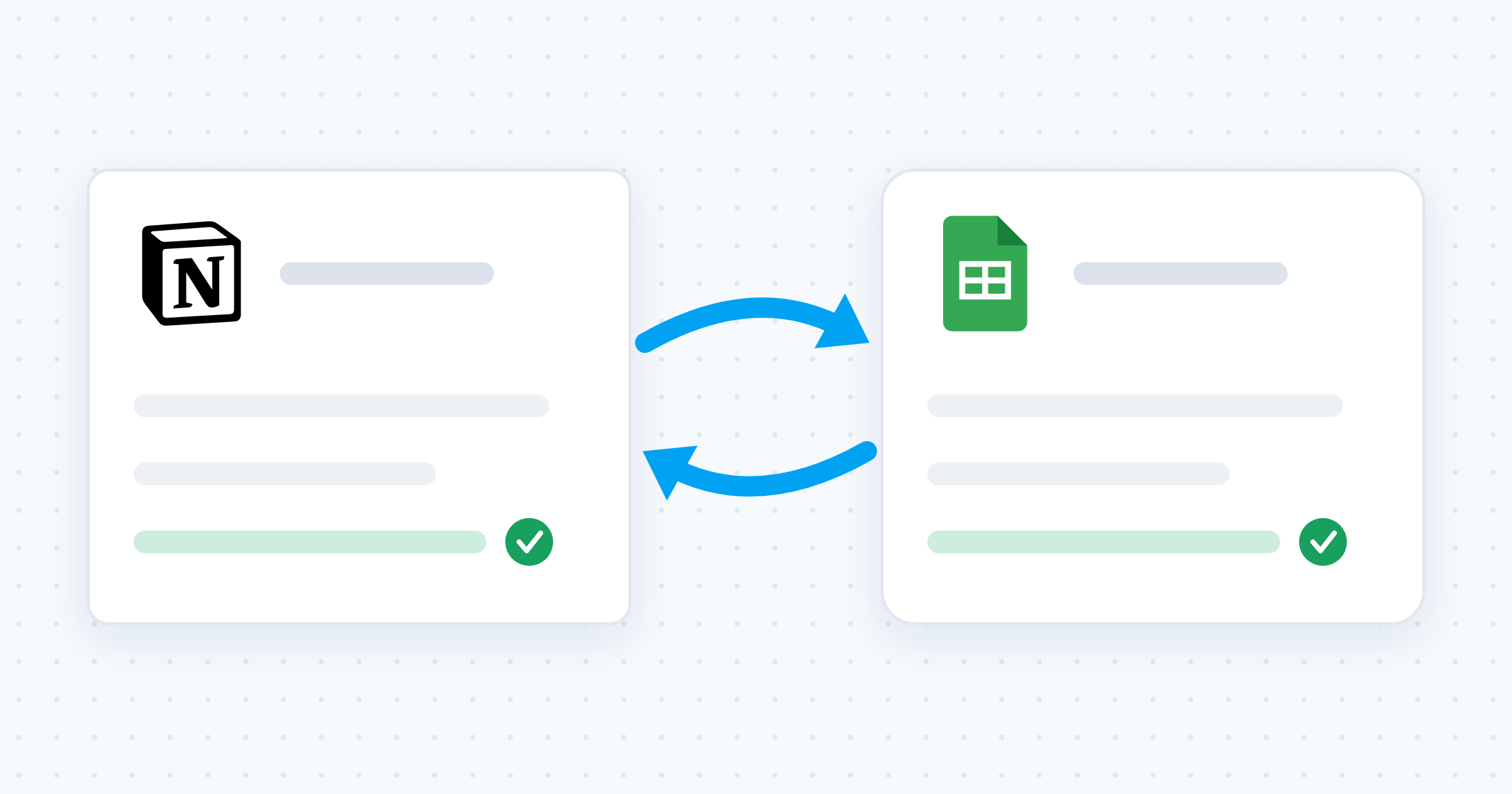
Every way to connect Notion and Google Sheets, compared, plus a five-step setup for real-time two-way sync.

Notion Google Sheets Two-Way Sync: The Complete Guide (2026)
Your team plans work in Notion. Your budgets and reports live in Google Sheets. The same data sits in both places, and someone copies it across by hand every week.
Quick answer: Notion has no built-in two-way integration with Google Sheets. The native embed is a read-only window into the spreadsheet, copy-paste and CSV are one-time snapshots, and Zapier or Make push in one direction only. To keep both tools live you need a dedicated sync tool. With Whalesync you connect the two accounts, map fields visually, and switch the sync on. Edits then flow both ways in real time, with no code.
Every way to connect Notion and Google Sheets, compared
| Method | Direction | Effort | Best for |
|---|---|---|---|
| Copy and paste | None. A snapshot | Low per run, repeats forever | Moving one small table once |
| CSV export and import | Either direction, manual | Medium, repeats forever | A clean one-time migration |
| Embed a Sheet in Notion | Sheets to Notion, view only | Low, one time | Showing a live sheet inside a doc |
| Zapier or Make | One direction per automation | Medium, one time | Append-only feeds like form entries |
| Two-way sync with Whalesync | Both directions, real time | Low, one time | Records both teams edit daily |
1. Copy and paste
Select rows in Sheets and paste them into a Notion database, or the reverse. This works for a one-time transfer of a small table.
The limits:
- No connection. The data goes stale the moment either side changes.
- Formatting breaks. Multi-select tags, dates, and people properties usually need cleanup after pasting.
- Errors hide. A skipped row or a shifted column can sit unnoticed for weeks.
2. CSV export and import
Export a Sheets tab as CSV, then import it into Notion. Notion exports CSV too, so the route runs both ways. Best for a clean one-time migration.
The limits:
- It is a snapshot. The file is outdated the moment you download it.
- Imports pile up. A CSV import creates a new database or appends rows. It does not update the records you already have.
- Repeat work. Staying current means re-exporting and re-importing on a schedule, forever.
3. Embed a Google Sheet in a Notion page
Paste a shared spreadsheet link into a Notion page and choose Embed. The sheet appears inside the page and reflects changes made in Sheets. This is the closest thing Notion offers natively, and it takes under a minute.
The limits:
- View only. You cannot edit cells from inside Notion.
- It is not Notion data. The embed is a window into the spreadsheet, so you cannot filter it, sort it, group it, roll it up, or reference it from a Notion formula.
- Sharing is required. If the spreadsheet access stays restricted, the embed loads blank.
- Awkward on mobile. An embedded frame is hard to scroll on a phone.
4. One-way automation with Zapier or Make
Zapier and Make watch for a trigger, such as a new row in Sheets, and push that record into Notion. This suits append-only workflows: form submissions, signups, simple logs.
The limits:
- One direction per automation. Running two opposite automations to fake a round trip risks a loop, where each update triggers the other side again.
- Edits slip through. Most triggers fire on new records. Changes to existing rows are harder to catch reliably.
- Cost scales with volume. Task-based pricing means one bulk update can burn a monthly quota fast.
5. Two-way sync with Whalesync
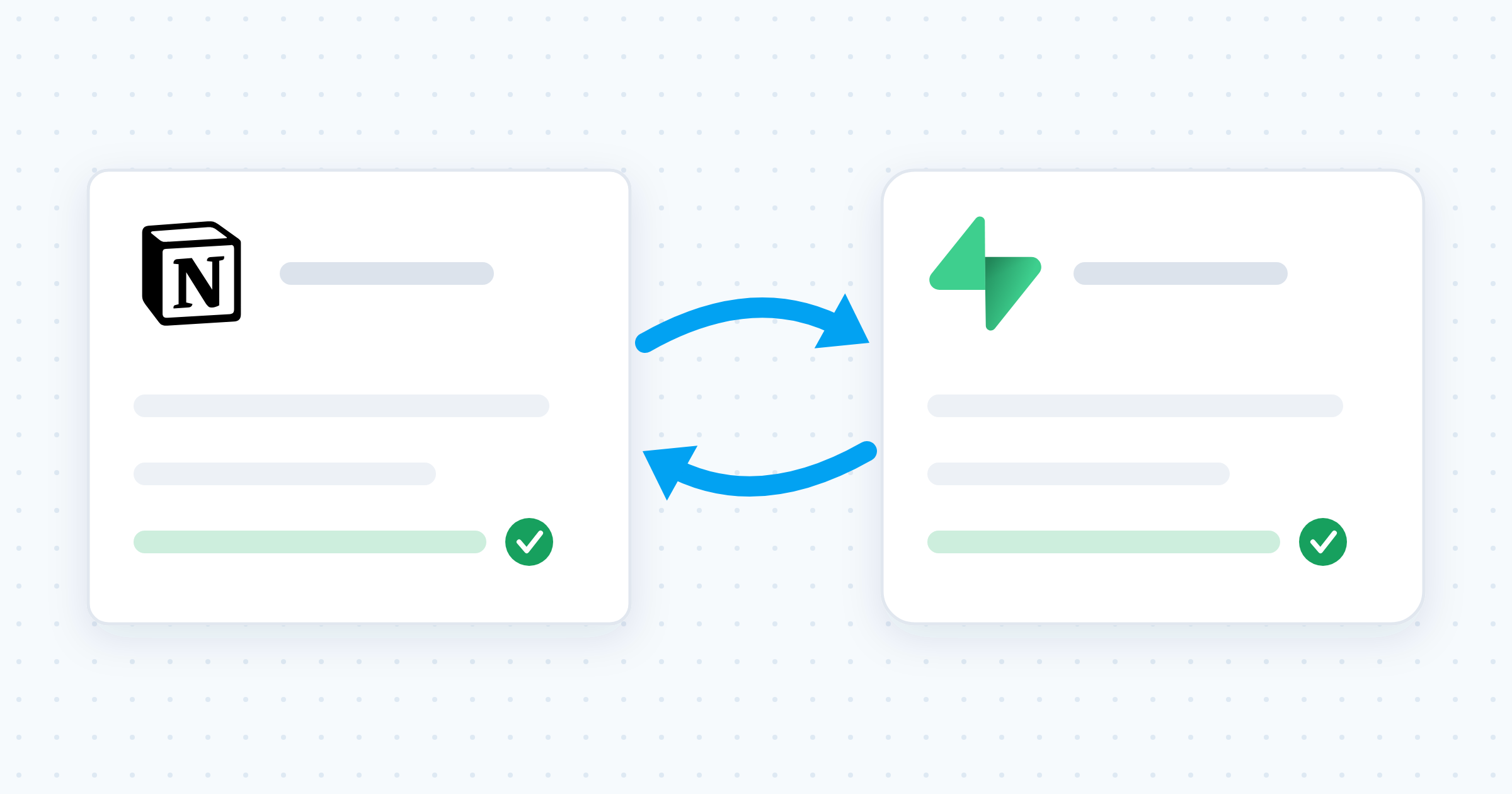
A dedicated sync tool treats your Notion database and your sheet tab as one shared dataset. Change a record on either side and the other side updates. Whalesync does this in real time, sets up with no code, and brings your existing records across when you activate the sync.
Why two-way sync beats one-way automation
One-way automation moves data. Two-way sync keeps data identical. The difference shows up in three places:
- Edits flow both ways. Update a budget line in Sheets or a status in Notion, and both tools show the change.
- Updates, not just new rows. A true sync mirrors edits to records that already exist, not only record creation.
- One source of truth. Nobody asks which tool holds the right number, because both do.
Each team then works where it moves fastest: project leads in Notion, analysts in Sheets.
How to set up Notion Google Sheets two-way sync with Whalesync
Before you start: prepare both sides
Five minutes of prep prevents most mapping problems.
- Give the sheet one clean header row. Row 1 holds the column names. No merged cells, no blank rows above it, no title banner.
- Make column names unique. Two columns called "Owner" turn field mapping into guesswork.
- Match the shapes. Every Notion property you want to sync needs a column waiting for it, and the reverse.
- Keep each calculation on one side. A sync moves the value a formula produces, not the formula. Let Sheets do the math and send the result.
Step 1: Create a sync. Sign in to Whalesync and create a new sync, choosing Notion and Google Sheets as your pair. A sync is the connection that links the two tools.
Step 2: Authorize both apps. Grant Whalesync access to your Notion workspace and choose the pages it can see. Then connect your Google account and select the spreadsheet you want to sync.
Step 3: Map your tables and fields. Match your Notion database to the right sheet tab, then map fields visually: the Name property to the Name column, Status to Status, and so on. You decide exactly which fields connect and which stay private to one tool.
Step 4: Activate the sync. Turn the sync on. Whalesync brings your existing records across and aligns both sides.
Step 5: Test it in both directions. Edit a cell in Sheets and watch the Notion record update. Edit a Notion property and watch the spreadsheet follow. Check one record each way before telling the team it is live.
What happens when both sides change at once
If someone edits a Notion property while a colleague edits the matching cell in Sheets, which edit survives? The fix is a convention, not a setting.
- One owner per field. Ops owns Status in Notion. Finance owns Cost in Sheets. Nothing collides.
- Split by column, not by row. Splitting by row ("finance edits rows 1 to 50") breaks the first time someone sorts the sheet.
- Do bulk edits in the owning tool. That keeps one clear direction of travel.
Three ways teams use a Notion Google Sheets sync
Budget and reporting dashboards. Finance builds the models in Sheets, where formulas and pivot tables live. Project leads read the same numbers in Notion, next to their docs. If your reporting layer already treats Google Sheets as a database, a sync gives the company a readable Notion view of it.
Project and content trackers. Notion is a comfortable home for a tracker, but its tables are not built for heavy calculation. Anyone who has tried to create a spreadsheet in Notion has felt that ceiling. Sync the tracker to Sheets, run the math there, and keep updating statuses in Notion.
Shared client and vendor lists. Account owners keep client details in Notion beside their meeting notes. Operations shares the same list externally through a Sheets link. Both views stay current without anyone re-copying rows.
Frequently asked questions
Does Notion have a built-in Google Sheets integration?
Not a two-way one. Notion can embed a shared Google Sheet in a page, which gives you a read-only view of the spreadsheet. You cannot edit cells from Notion, and the embedded sheet is not Notion data, so you cannot filter it, sort it, or reference it in a Notion formula. Editing in both tools requires a sync tool.
Can Zapier or Make do a true two-way sync?
Not reliably. Each Zap or scenario runs in one direction, and building two opposite automations to fake a round trip risks an update loop. Most triggers also fire on new rows rather than on edits, so the tools drift apart. Use them for append-only feeds, and a sync tool when both teams edit the same records.
Is there a free way to sync Notion and Google Sheets?
There are free ways to move data, not to keep it live. Copy-paste and CSV import cost nothing and cost you manual work every time. The Notion embed is free and stays current, but it is read only. Real-time two-way sync runs a service in the background, so those tools are usually paid, though some offer a limited free tier.
Do Google Sheets formulas and Notion formula properties sync?
A sync moves values, not formula logic. If a cell calculates margin, the number lands in Notion while the formula stays in Sheets. That is usually what you want. Keep any one calculation on a single side so two tools never fight over the same output.
Can I sync more than one Notion database to the same spreadsheet?
Yes. Pair each database with its own tab, and set up one sync per pair. One database per tab keeps field mapping obvious and lets you change a single pairing without touching the rest.
Start with one table
Sync the table your team argues about most, and leave the rest alone for a week. Want a shorter walkthrough first? Our tutorial on how to sync Notion and Google Sheets covers the basic setup in brief.
Ready to retire the copy-paste routine? Create your Whalesync account and set up your first sync in minutes, or see everything the pair supports on the Notion and Google Sheets connect page.
Subscribe for more
Stay up to date with the latest no-code data news, strategies, and insights sent straight to your inbox!