How to Sync HubSpot and Notion (5 Methods, Step by Step)
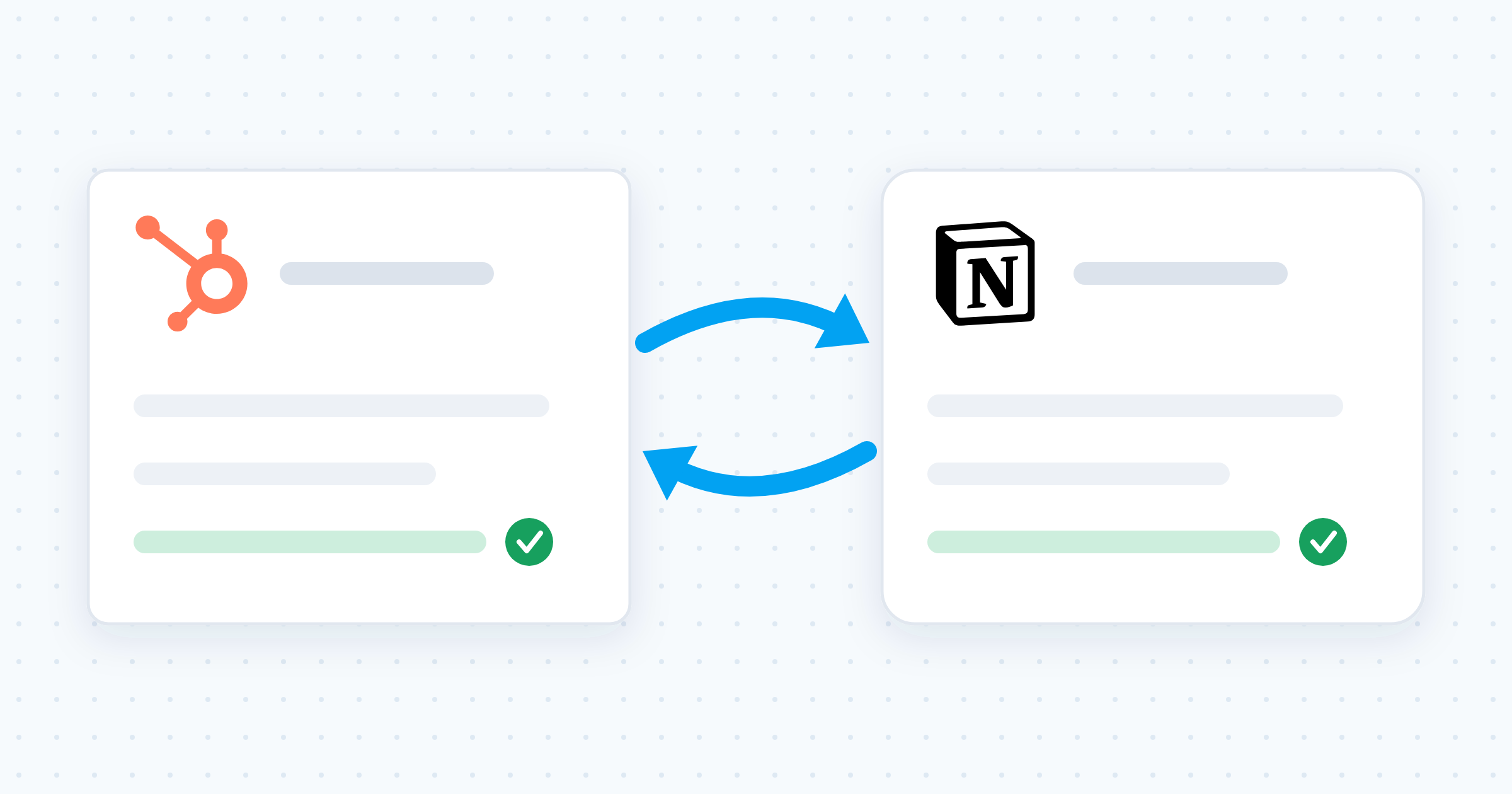
Five ways to sync HubSpot and Notion compared, with the limits of each, a five-step no-code setup for real-time two-way sync, and answers to the questions searchers ask.

How to Sync HubSpot and Notion (5 Methods, Step by Step)
Your customer data lives in HubSpot. Your account plans, meeting notes, and briefs live in Notion. Flipping between them costs time, and every pasted value goes stale the moment someone edits the CRM.
Quick answer: there is no native two-way integration between the two tools. HubSpot’s marketplace Notion app embeds a Notion page inside a HubSpot record, so CRM data never lands in your Notion databases. To put HubSpot records in Notion you pick one of five routes: copy and paste, a CSV export and import, a one-way automation in Zapier, Make, or n8n, or a real-time two-way sync tool such as Whalesync, which mirrors HubSpot objects into Notion databases and sends your Notion edits back. The Whalesync setup below takes minutes and no code.
What you need before you start
- Admin access in HubSpot, or a teammate who can approve the connection for you.
- A Notion workspace you can share. Notion integrations only reach the pages and databases you explicitly share with them, so decide which ones now.
- A scope decision. Start with one HubSpot object, contacts for example, and one Notion database.
- A safe target database. Use an empty Notion database, or a duplicate, for the first run. Never point a first sync at a database your team is already working in.
Five ways to connect HubSpot and Notion
Read the table, then the row that fits your situation.
| Method | Direction | Effort | Stays current | Best for |
|---|---|---|---|---|
| HubSpot’s Notion app | None (embed only) | Low | No data moves | Reading a Notion page without leaving HubSpot |
| Copy and paste | One way, manual | Manual, every record | No | A handful of records, once |
| CSV export and import | One way, manual | Manual, every refresh | No | A one-time bulk load |
| Automation tools (Zapier, Make, n8n) | One way per workflow | Build and maintain each workflow | Yes, per trigger | Firing an action when a record changes |
| Two-way sync (Whalesync) | Two way | Minutes, no code | Yes, in real time | Working on the same records from either tool |
1. HubSpot’s native Notion app
HubSpot’s marketplace includes a Notion app, and teams try it first. It embeds a Notion page inside a HubSpot record so a rep can read it without switching tabs. No data moves: your contacts, companies, and deals still do not appear as rows in Notion. For CRM data inside a Notion database, this is the wrong tool.
2. Copy and paste
Open HubSpot, copy the record, paste it into Notion. Fine for a handful of records, once.
- It never stays current. The pasted data is a snapshot. HubSpot moves on without it.
- It doesn’t scale. Ten contacts is tedious. A thousand is impossible.
3. CSV export and import
Export a CSV from HubSpot, then import it into a Notion database. Better for bulk than copy and paste, still a snapshot. To refresh it you repeat the whole cycle, and you clear the old rows first or Notion keeps both copies. Most teams import once, forget to repeat it, and plan against last quarter’s data.
4. One-way automation tools (Zapier, Make, n8n)
These platforms push HubSpot changes into Notion automatically. The raw coverage is good: Zapier alone lists more than 25 HubSpot triggers and more than 50 HubSpot actions. The model, not the coverage, is the limit:
- One direction per workflow. Edits you make in Notion never reach HubSpot unless you build a second workflow, and two workflows pointed at each other can trigger one another in a loop.
- Per-trigger setup. Each kind of change (new record, updated record, deleted record) needs its own automation, so maintenance grows with your workflow.
- Usage-based pricing. Every synced change consumes a task or operation from your monthly quota. A busy CRM burns through it fast.
- No backfill. Automations fire on new events, so records that already exist stay behind.
5. Two-way sync (Whalesync)
Whalesync connects HubSpot and Notion at the table level with real-time, two-way sync. Your Notion databases mirror your HubSpot records, edits flow in both directions, and setup is no-code with visual field mapping. Supported HubSpot objects include contacts, companies, deals, leads, tickets, tasks, notes, calls, meetings, products, line items, quotes, and custom objects. The rest of this guide walks through the setup.
Why two-way sync beats one-way
A one-way push treats Notion as a display. A two-way sync treats it as a workspace.
With one-way automation, every edit you make in Notion is a dead end. You fix an outdated phone number in an account plan and HubSpot never hears about it. Now the two tools disagree, and the CRM is the one that is wrong.
With two-way sync, either tool is a safe place to work. Update a record in Notion and Whalesync mirrors the change in HubSpot. Update it in HubSpot and Notion follows. One set of records, editable from both sides.
How to sync HubSpot and Notion with Whalesync
Here is the setup, start to finish. It takes minutes, and you never touch code.
Step 1: Create a new sync
Sign up for Whalesync and click Create sync. Choose HubSpot and Notion. A sync is the connection that keeps a HubSpot object and a Notion database aligned.
Step 2: Authorize both apps
Connect your HubSpot account, then your Notion workspace. Whalesync walks you through each authorization screen. In Notion, share the pages and databases you want Whalesync to reach. Anything you don’t share stays out of scope.
Step 3: Map your tables and fields
Pick which HubSpot object syncs with which Notion database, contacts to a Contacts database for example. Then map fields visually: HubSpot properties on one side, Notion properties on the other. Start with the fields you actually read (name, email, owner, stage, amount), and check each pair uses a compatible Notion property type, such as a date property for a close date.
Step 4: Activate the sync
Review the mapping and click Activate. Whalesync runs the first sync and brings your existing records across, so you get a backfill rather than only future changes.
Step 5: Check both directions
Open the Notion database. Your HubSpot records appear as rows, and new changes sync in real time. Before you tell the team, run one test each way: edit a field in Notion and confirm HubSpot updates, then edit a field in HubSpot and confirm Notion updates.
Three ways to use a HubSpot and Notion sync
Once connected, a few workflows open up immediately.
Account plans with live CRM context. Give each key customer a Notion page backed by a synced database of CRM records. Open the plan before a call and the data is current, not a paste from last quarter. See the HubSpot and Notion connect page for what the pair supports.
Meeting notes that update the CRM. Take notes in Notion the way you already do, and edit the synced record fields right there. The changes flow back to HubSpot, so you skip the data-entry pass after every call.
Content planning against real customer data. Plan campaigns in Notion with synced CRM records beside the briefs, so target accounts stay visible while you write. For more patterns, see our guide to two-way sync for Notion databases.
Four mistakes to avoid
- Syncing into a database your team already uses. Start with an empty database or a duplicate, confirm the result, then move the team over.
- Mapping every object on day one. One object and a few fields first. Wide mappings are hard to debug.
- Renaming a synced property on one side. Update the mapping whenever you rename a field.
- Faking two-way sync with two one-way automations. Opposing automations can trigger each other and loop. If you need both directions, use a tool built for both.
Frequently asked questions
Does Notion have a native HubSpot integration?
Not for CRM data. HubSpot’s marketplace lists a Notion app, but it embeds Notion pages inside HubSpot records rather than pushing contacts or deals into Notion databases. To see HubSpot records as rows in a Notion database you need a sync tool or an automation platform.
Can HubSpot and Notion sync in both directions?
Yes, with a tool built for it. Whalesync keeps a HubSpot object and a Notion database aligned in both directions in real time, so an edit in either tool reaches the other. Automation platforms such as Zapier, Make, and n8n move data one direction per workflow, and pointing two workflows at each other risks an update loop.
Which HubSpot objects can I sync to Notion?
Whalesync supports contacts, companies, deals, leads, tickets, tasks, notes, calls, meetings, products, line items, quotes, and custom objects. Each maps to its own Notion database. Start with the object your team reads most, usually contacts or deals.
Do I need the HubSpot API or a developer?
No. Whalesync connects through standard authorization screens and visual field mapping, with no code. API-based routes ask for more: Note API Connector, for example, has you create a HubSpot private app, set read scopes, and copy an access token before any data moves.
How long does the setup take?
The configuration takes minutes. The first sync then copies your existing records across, and how long that runs depends on your record volume. Syncing one object first keeps that run short enough to check properly.
Want the broader picture of the integration, beyond the setup steps? Read our HubSpot and Notion integration guide.
Ready to put live HubSpot records inside Notion? Start a free Whalesync trial and set up your first sync in minutes, or explore the HubSpot to Notion sync in more detail first.
Subscribe for more
Stay up to date with the latest no-code data news, strategies, and insights sent straight to your inbox!