Syncing Airtable Multi-Select Fields with Webflow

A quick tutorial on how to sync Webflow multi-reference fields with Airtable.
1 min read
Mar 28, 2025

One question we get frequently from Webflow users is:
“How do I sync Airtable multi-select fields with Webflow?”
The tricky answer is that Webflow doesn’t have a concept of “multi-select” the way that Airtable does. For this reason, it’s actually impossible to sync Airtable multi-selects with Webflow. BUT… you can sync Airtable linked record fields with Webflow.
In this quick tutorial, we’ll show you how to convert an Airtable multi-select into an Airtable linked record so you can sync it with Webflow.
How to sync Airtable multi-selects (by converting to linked records)
1. Add a new field
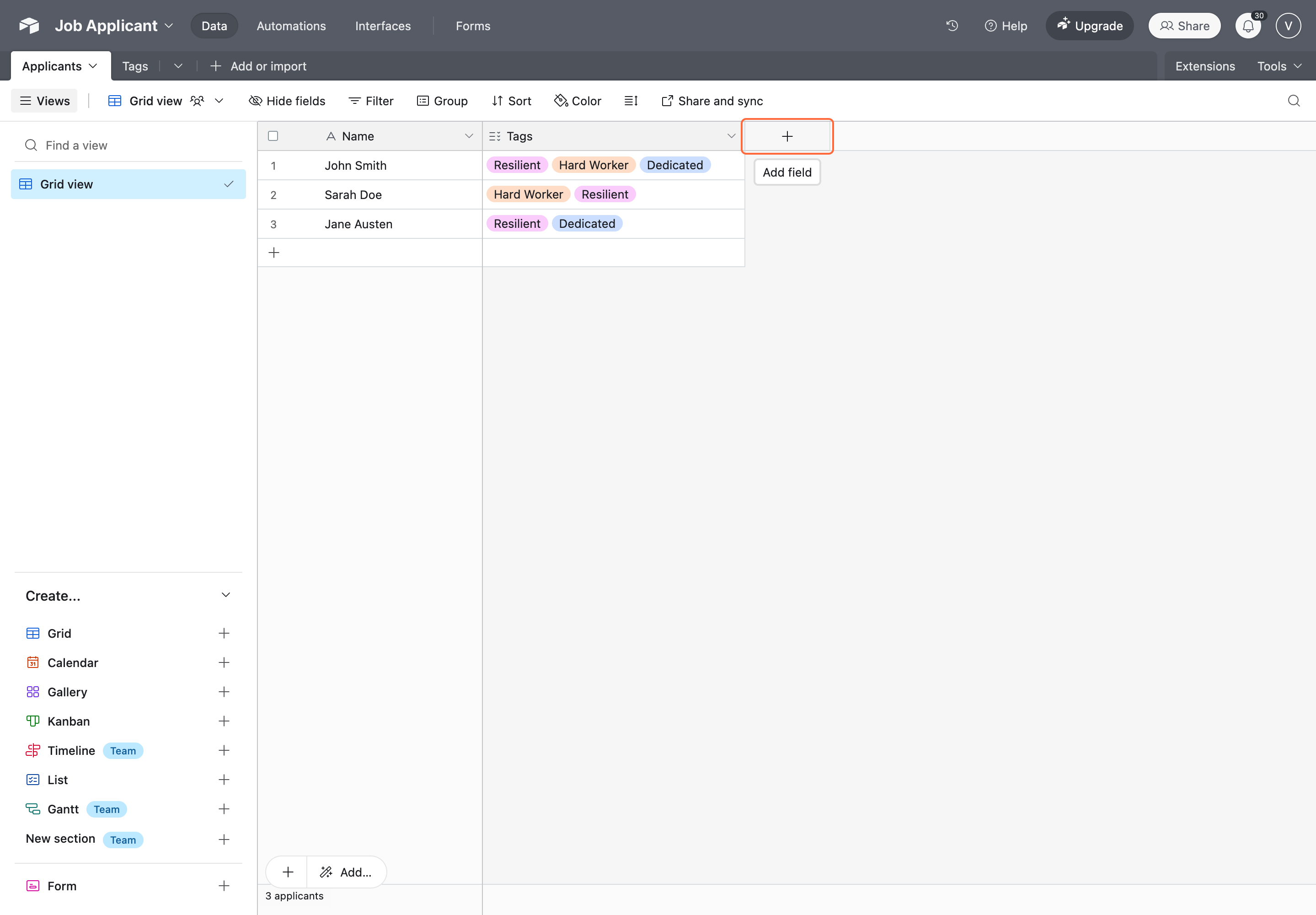
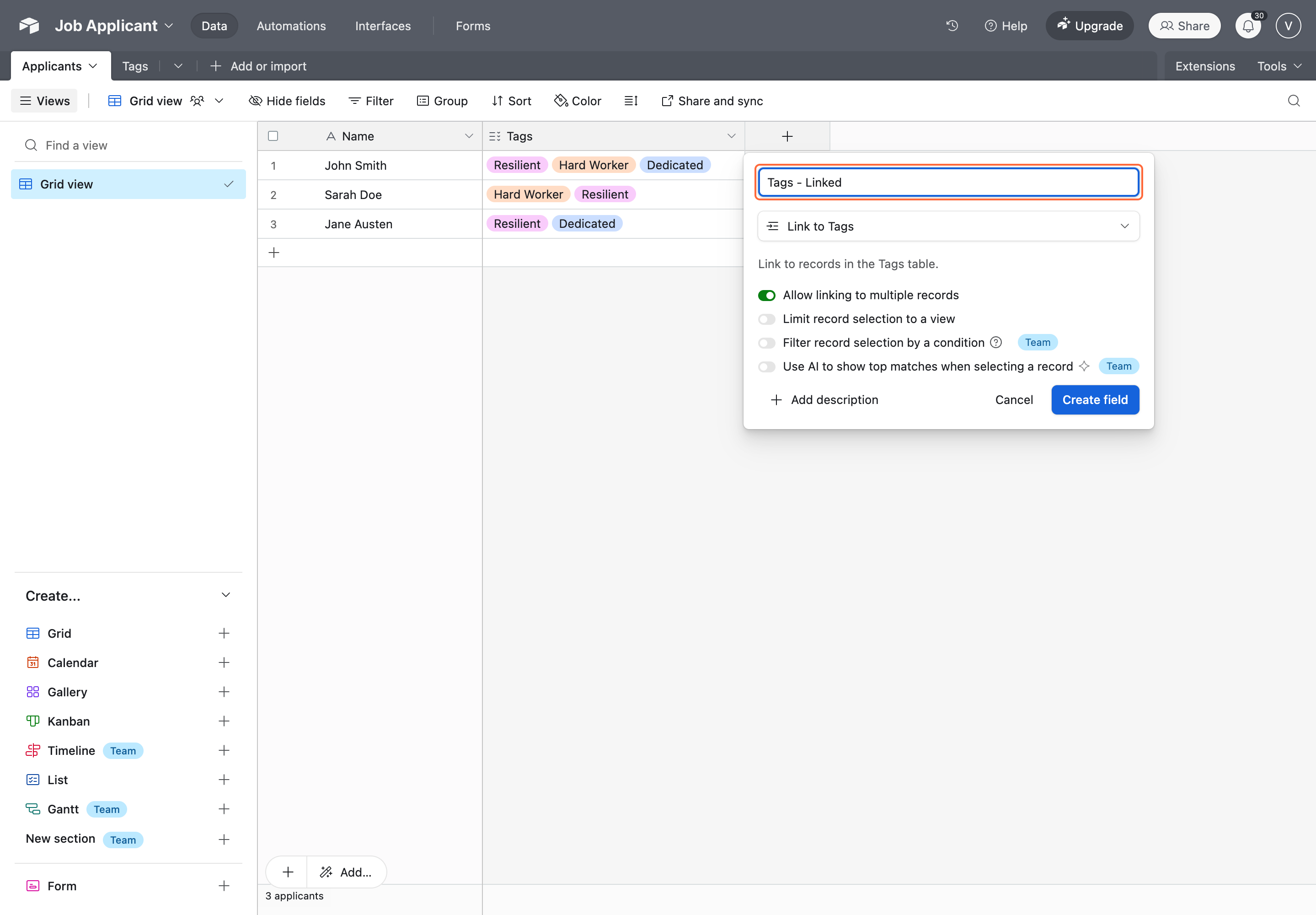
2. Add a linked record field in Airtable that is linked to your other table
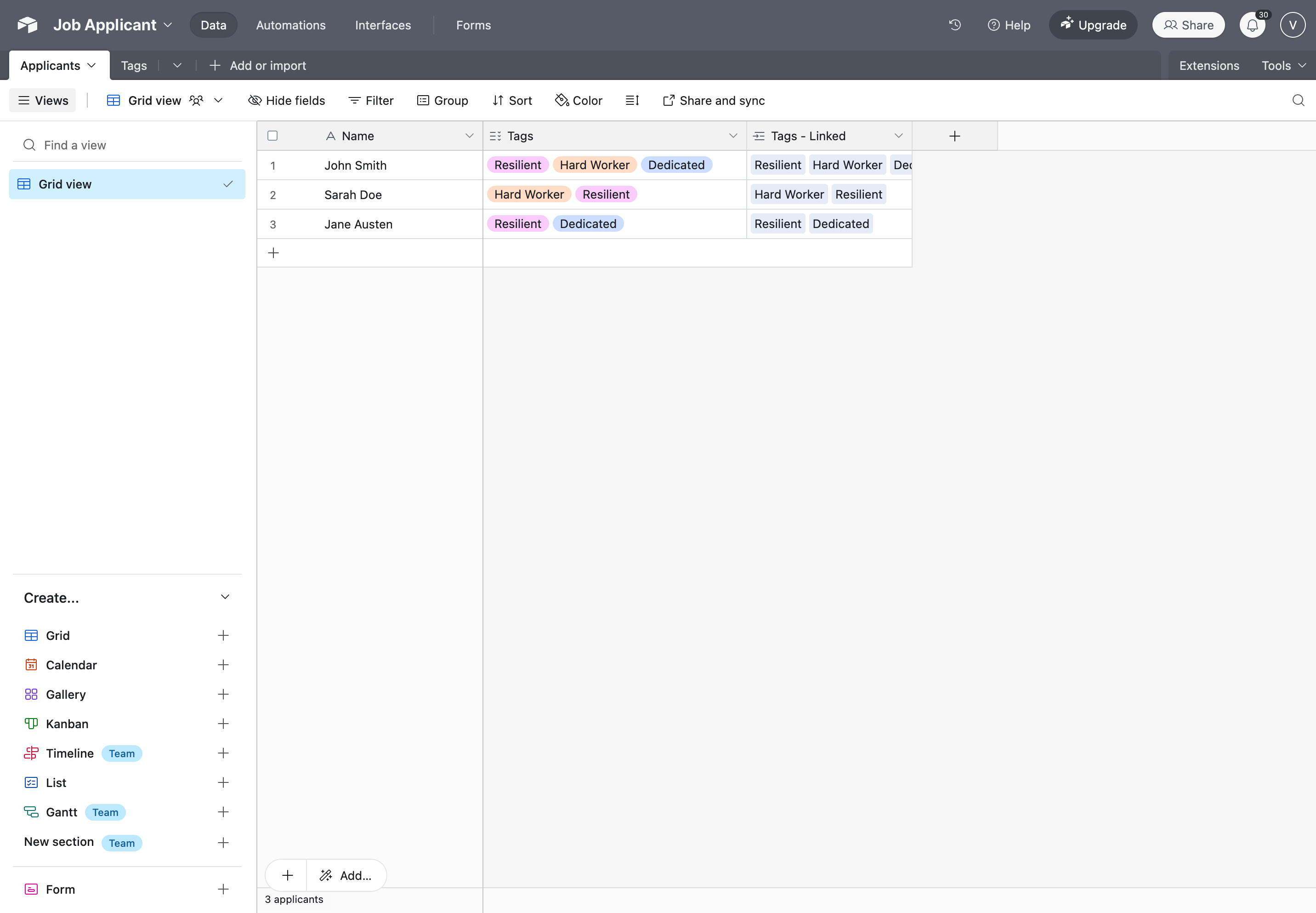
3. Copy over the records from your multi-select field to your multi-reference field
4. In Webflow, create your main collection
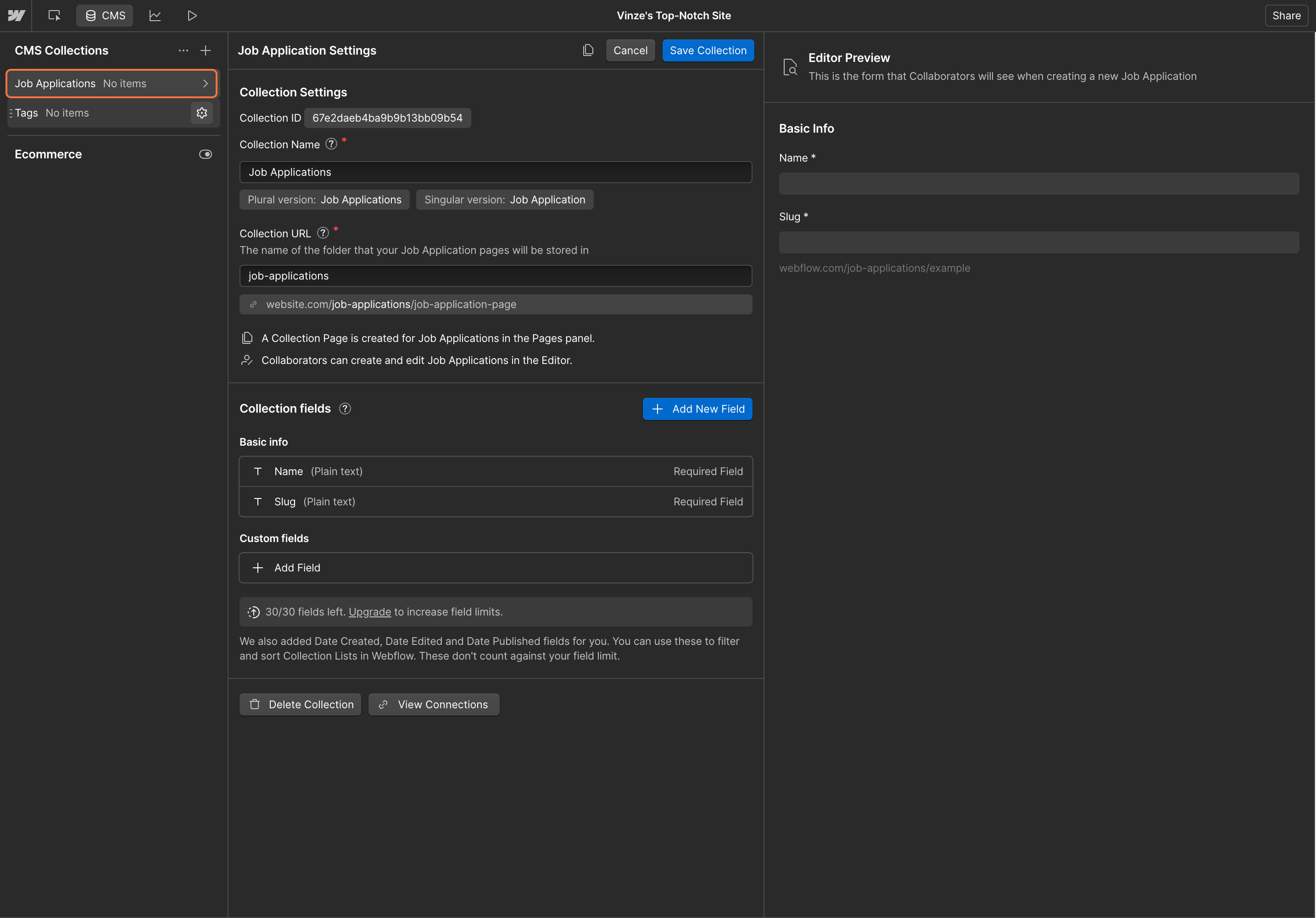
5. Also make sure you create a new collection to reference from
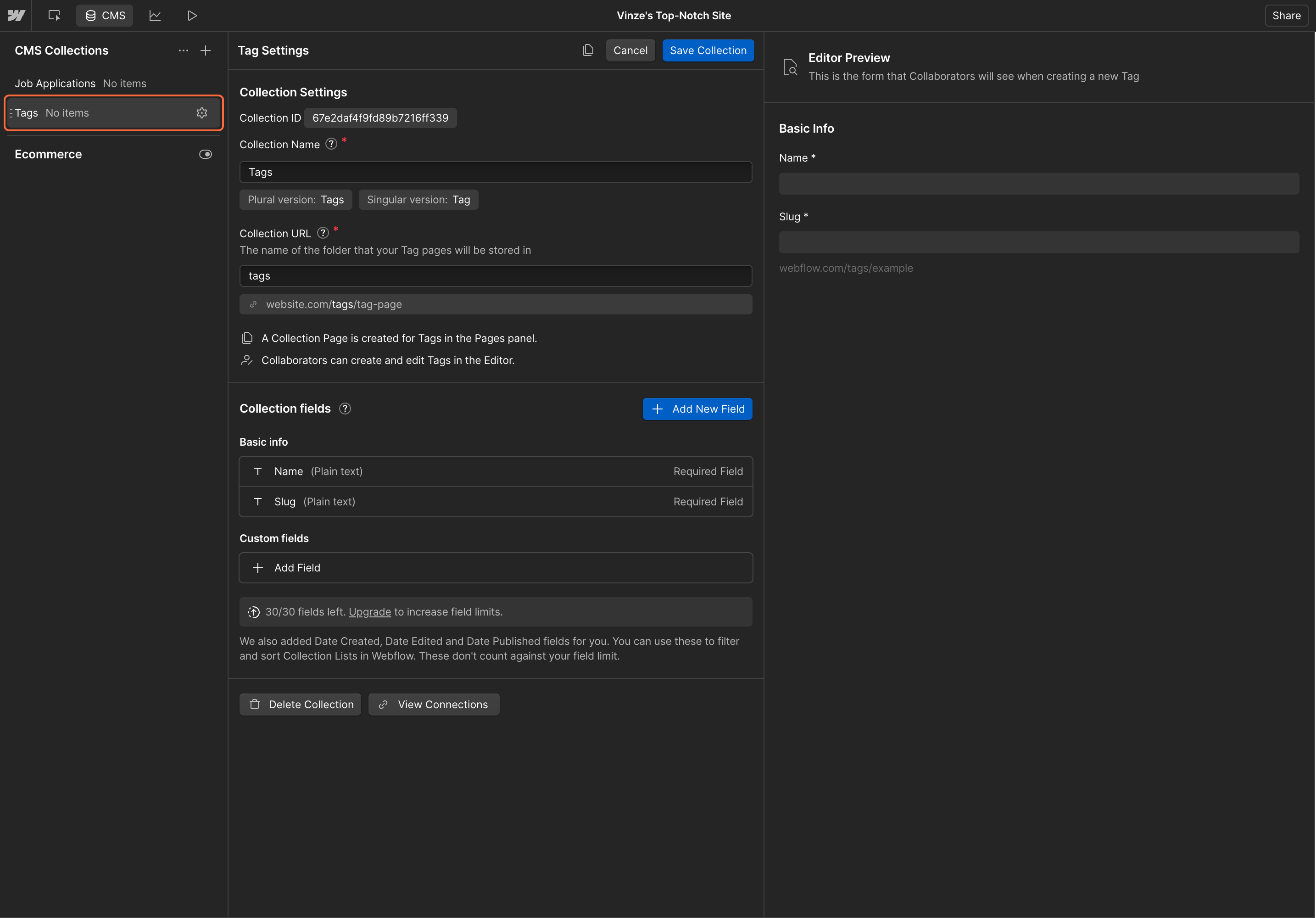
6. Go to your main collection’s settings
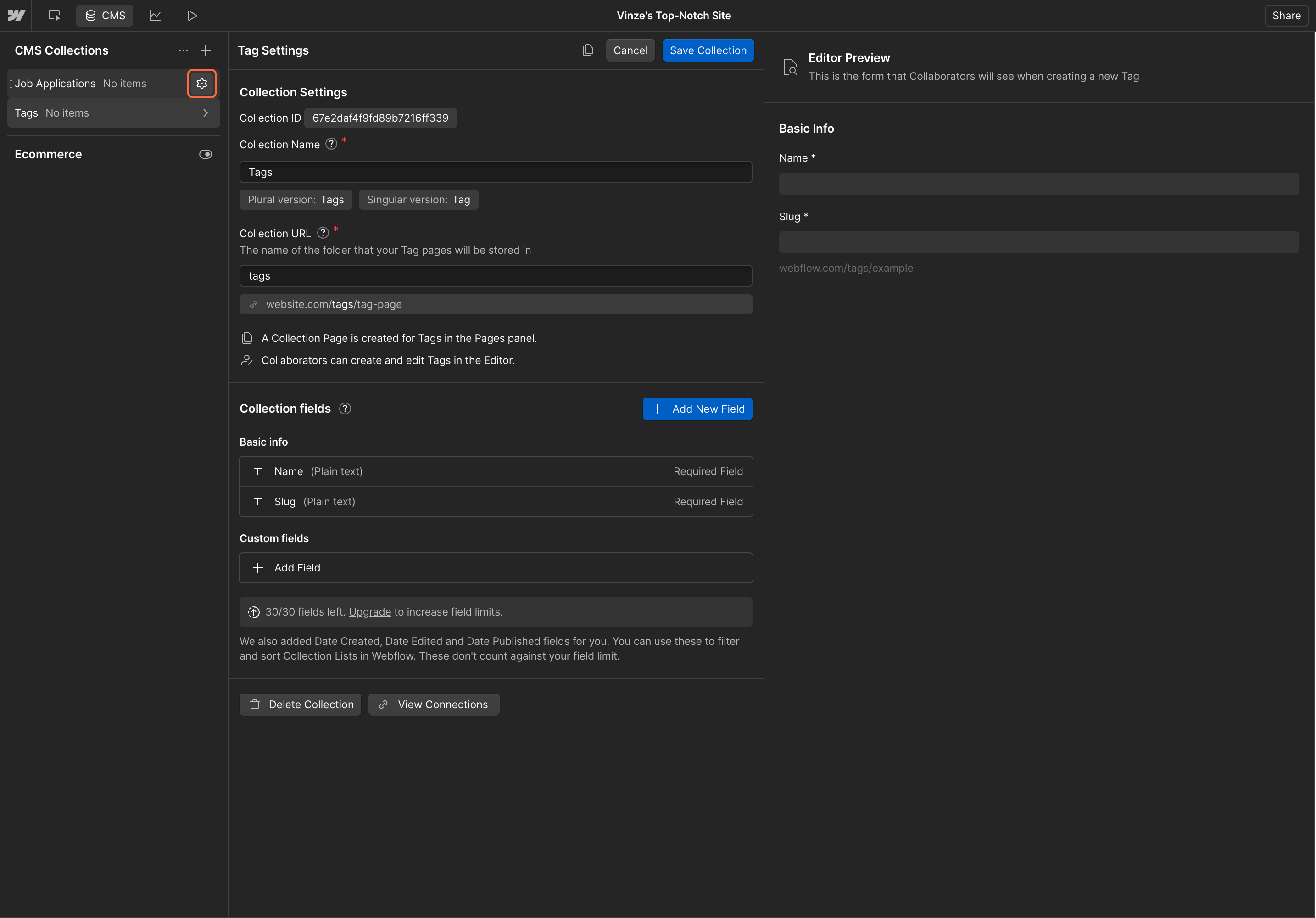
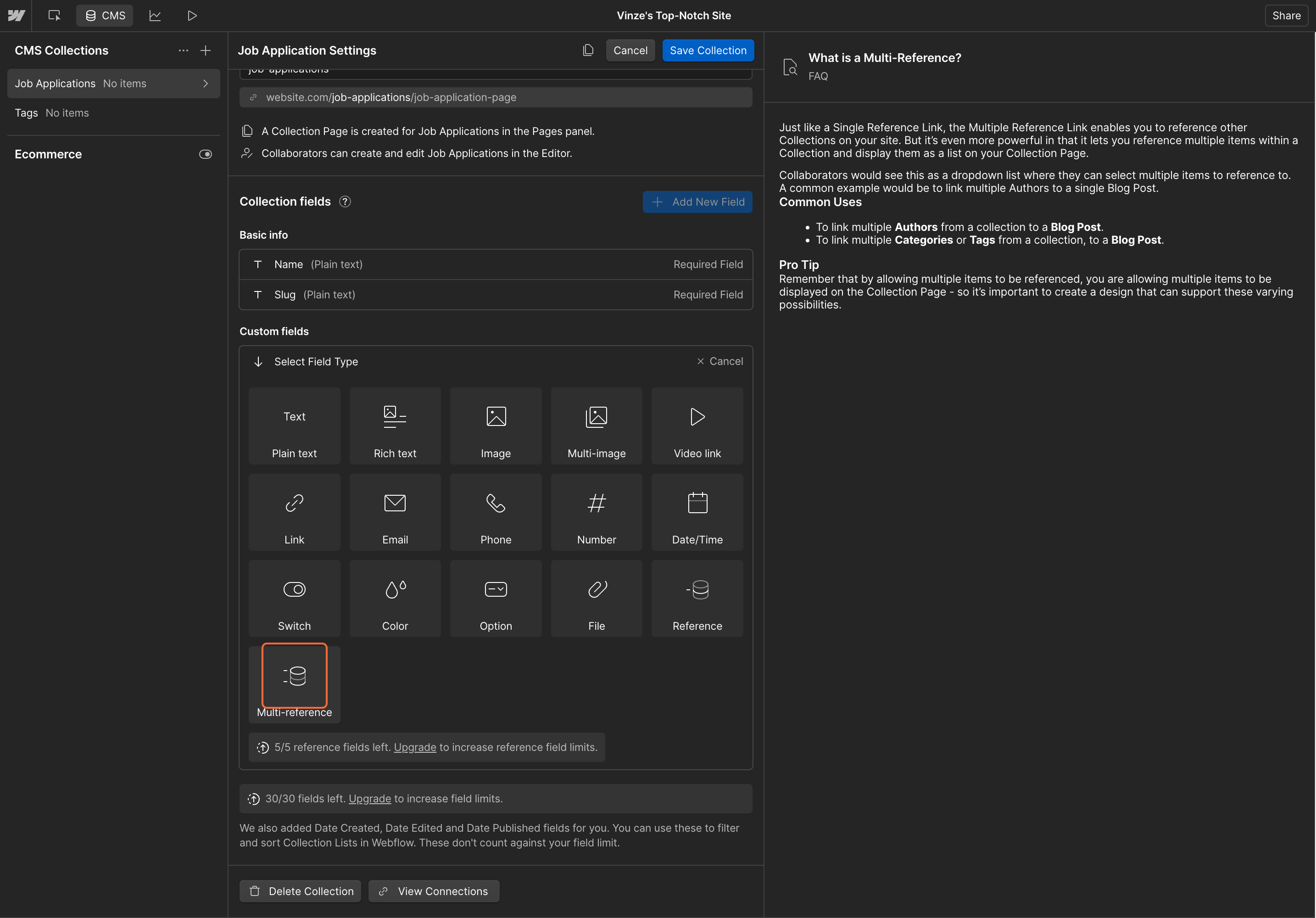
7. Add a new multi-reference field
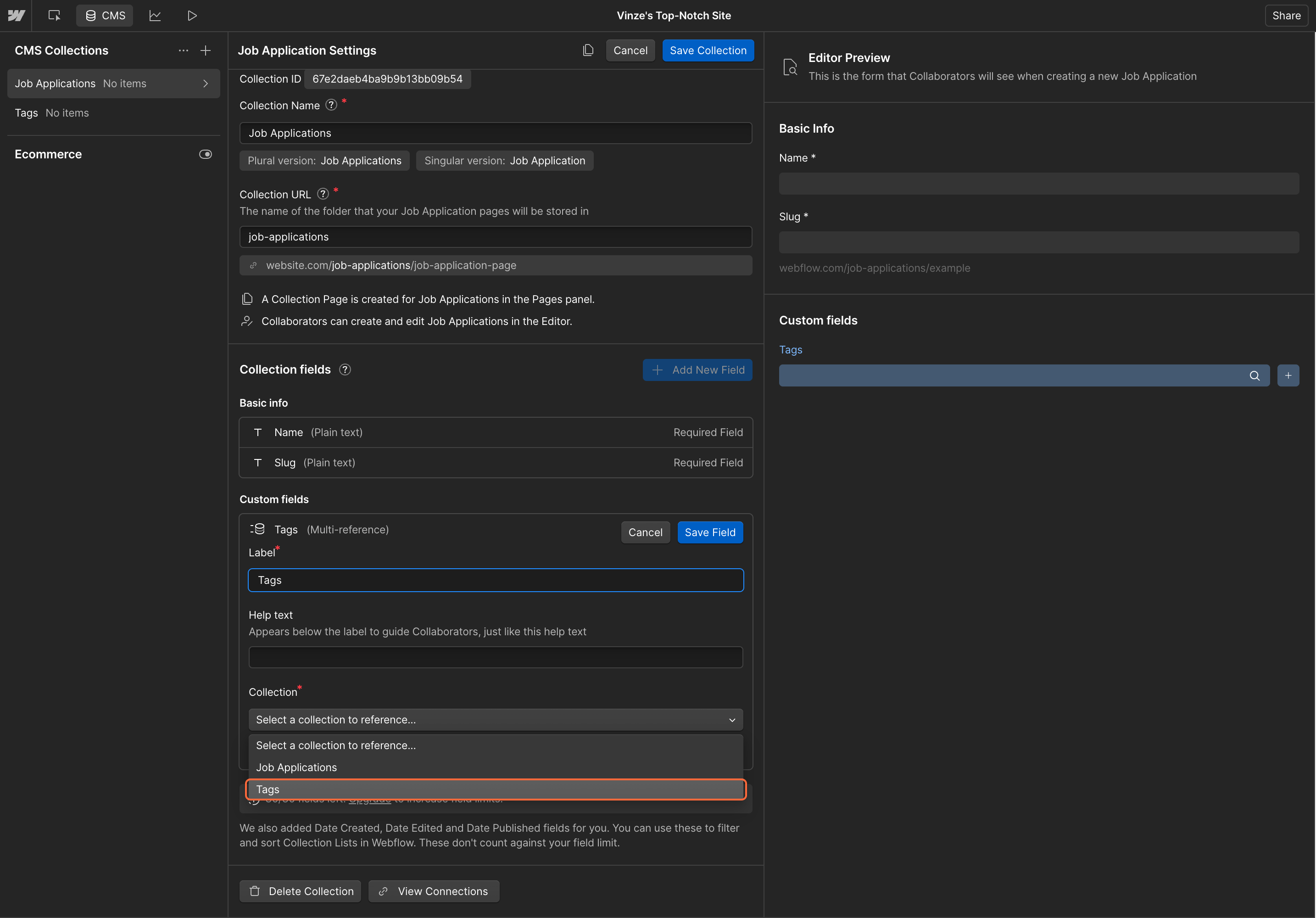
8. Choose the Tags table as the linked collection
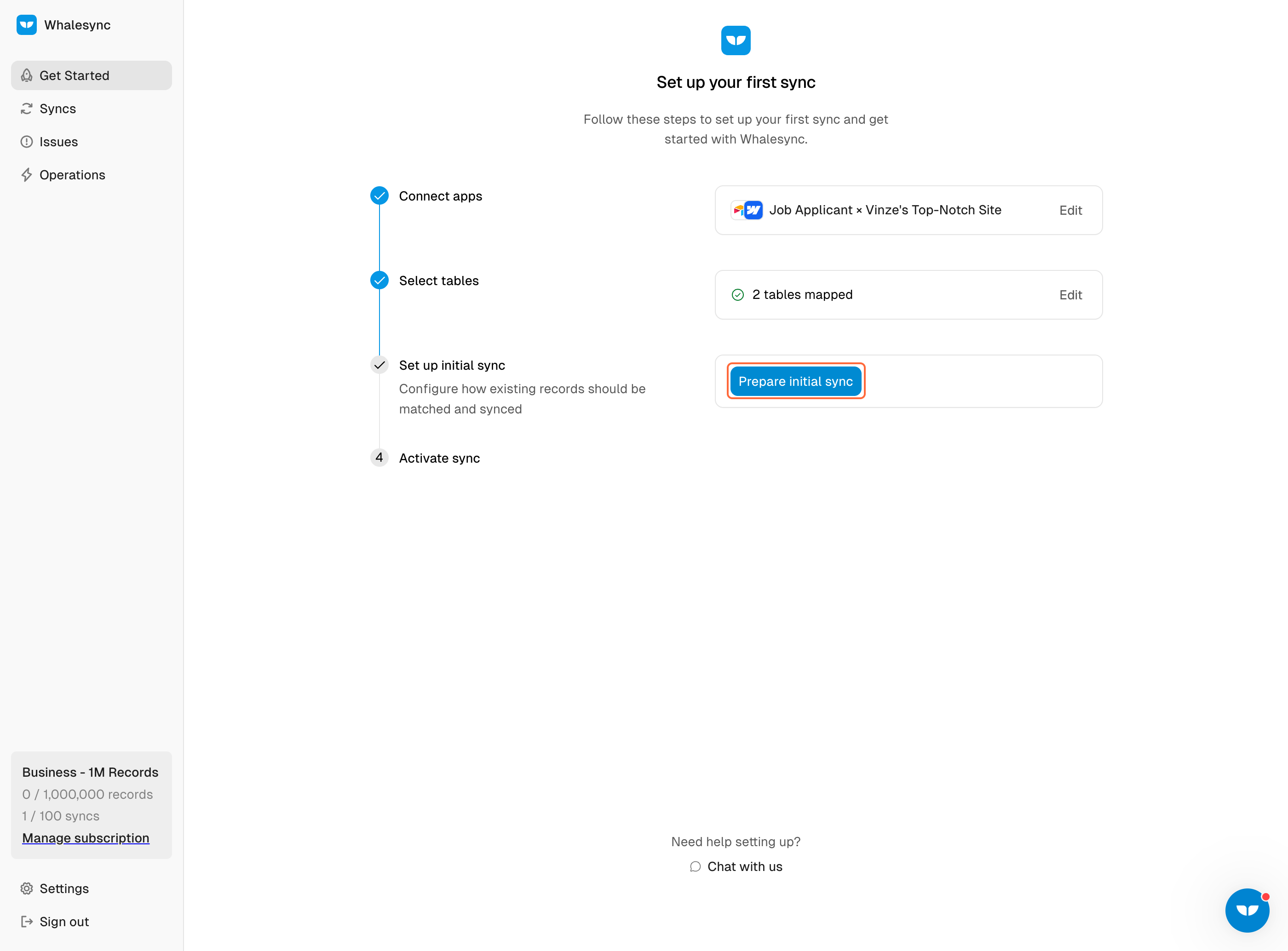
9. Go to Whalesync, create a new sync and authorize Airtable and Webflow
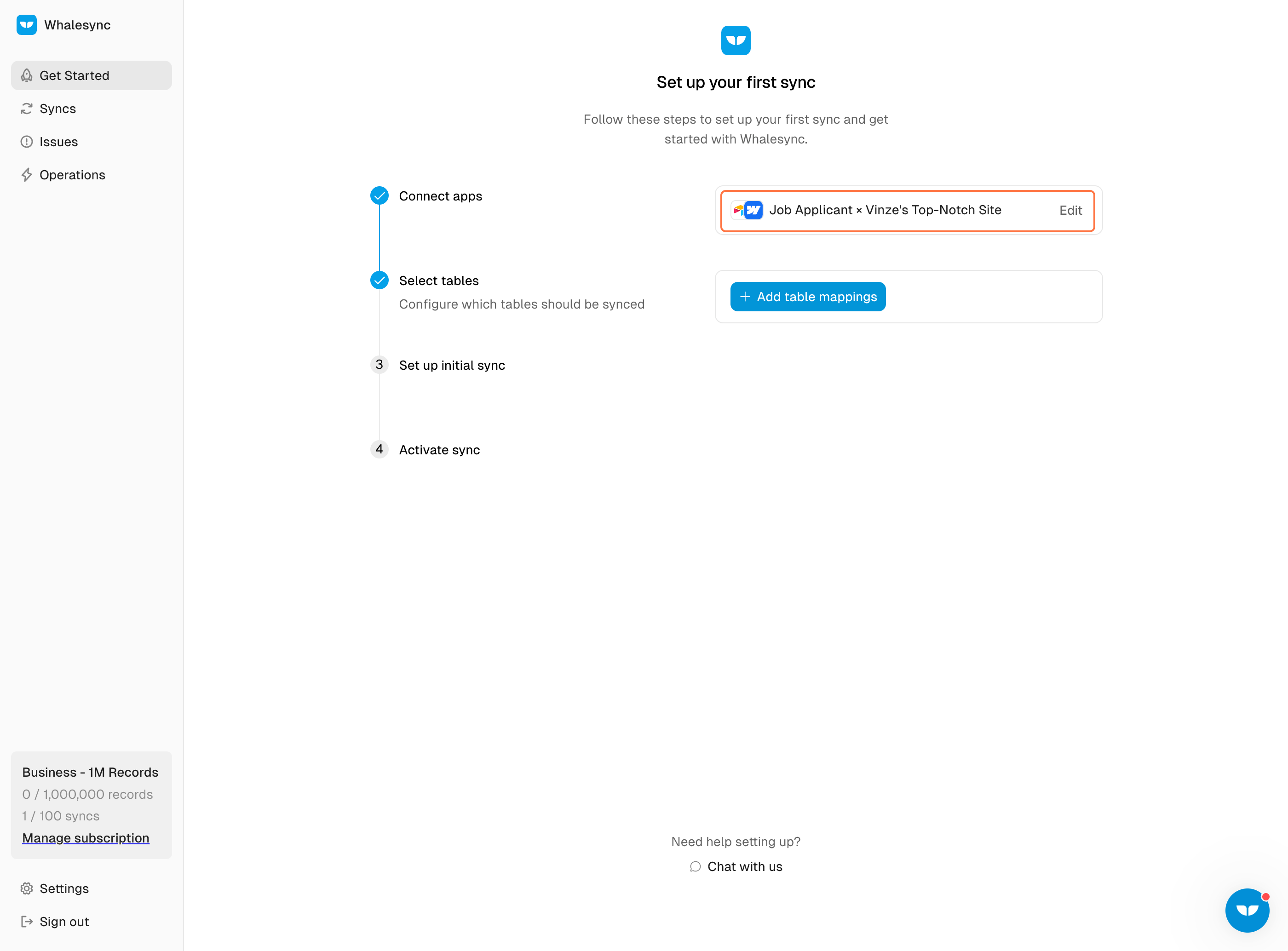
10. Map your tables and fields
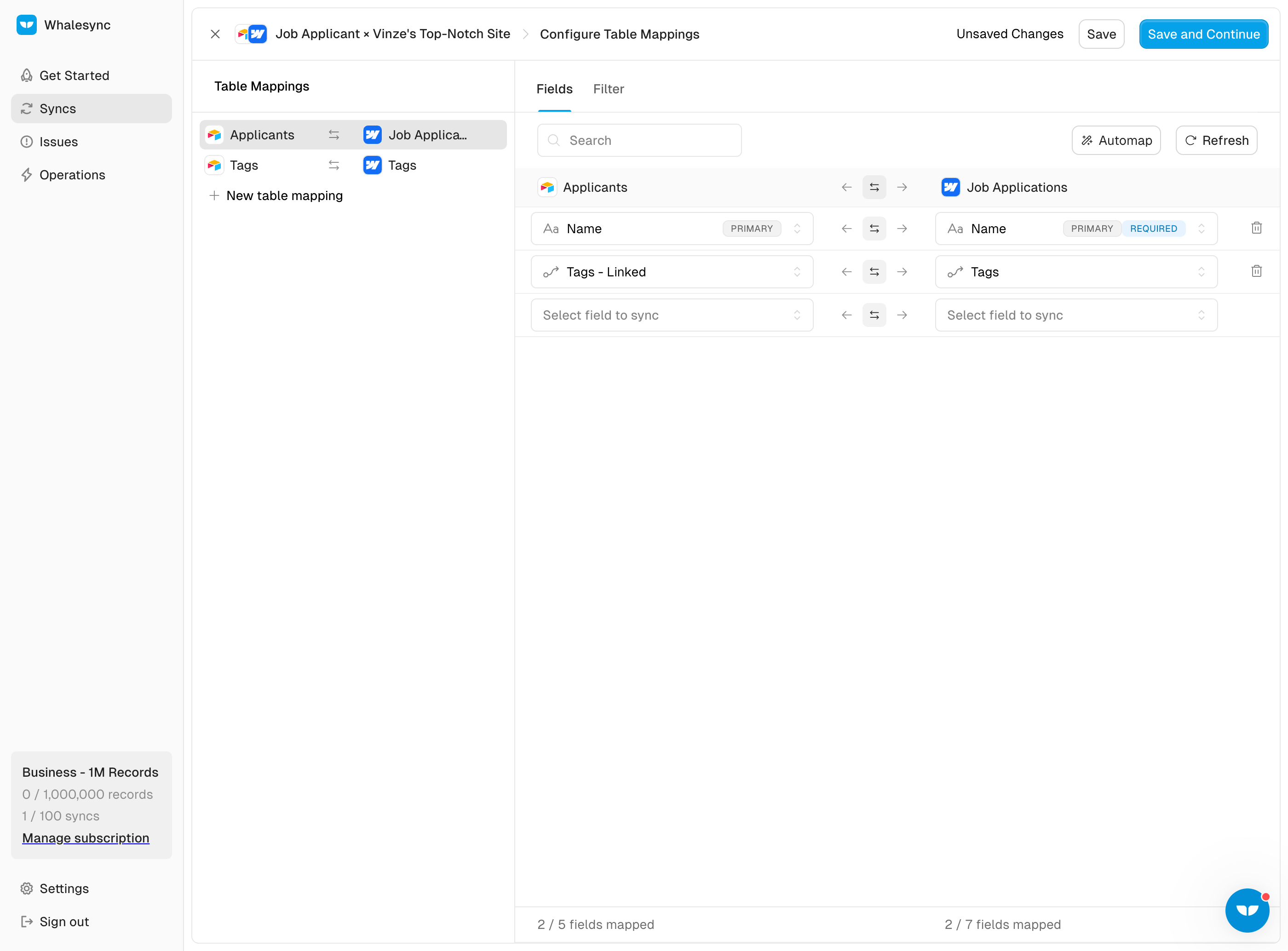
11. Map your multi-reference fields
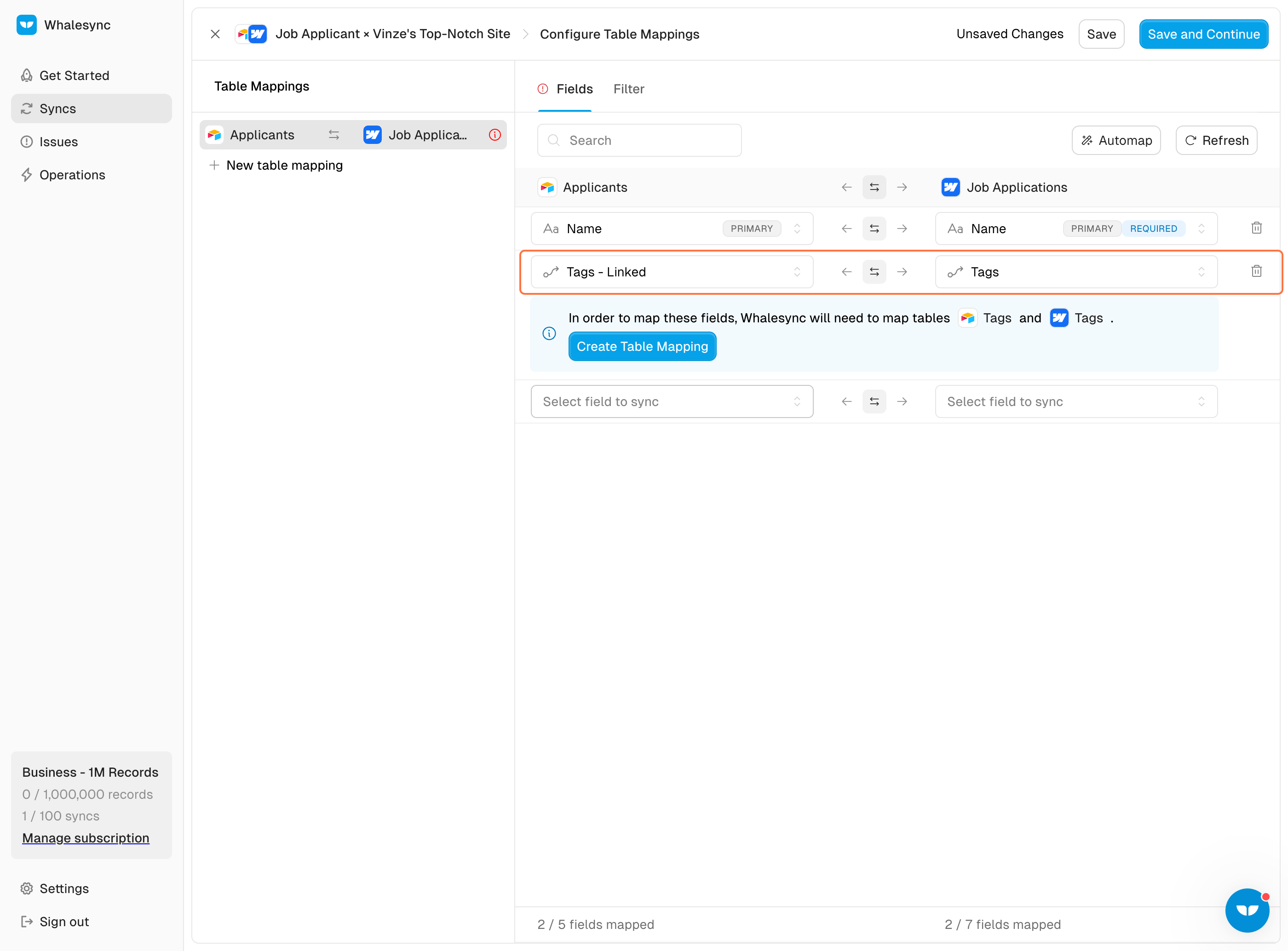
12. Map the other table you have in order to map your multi-reference field
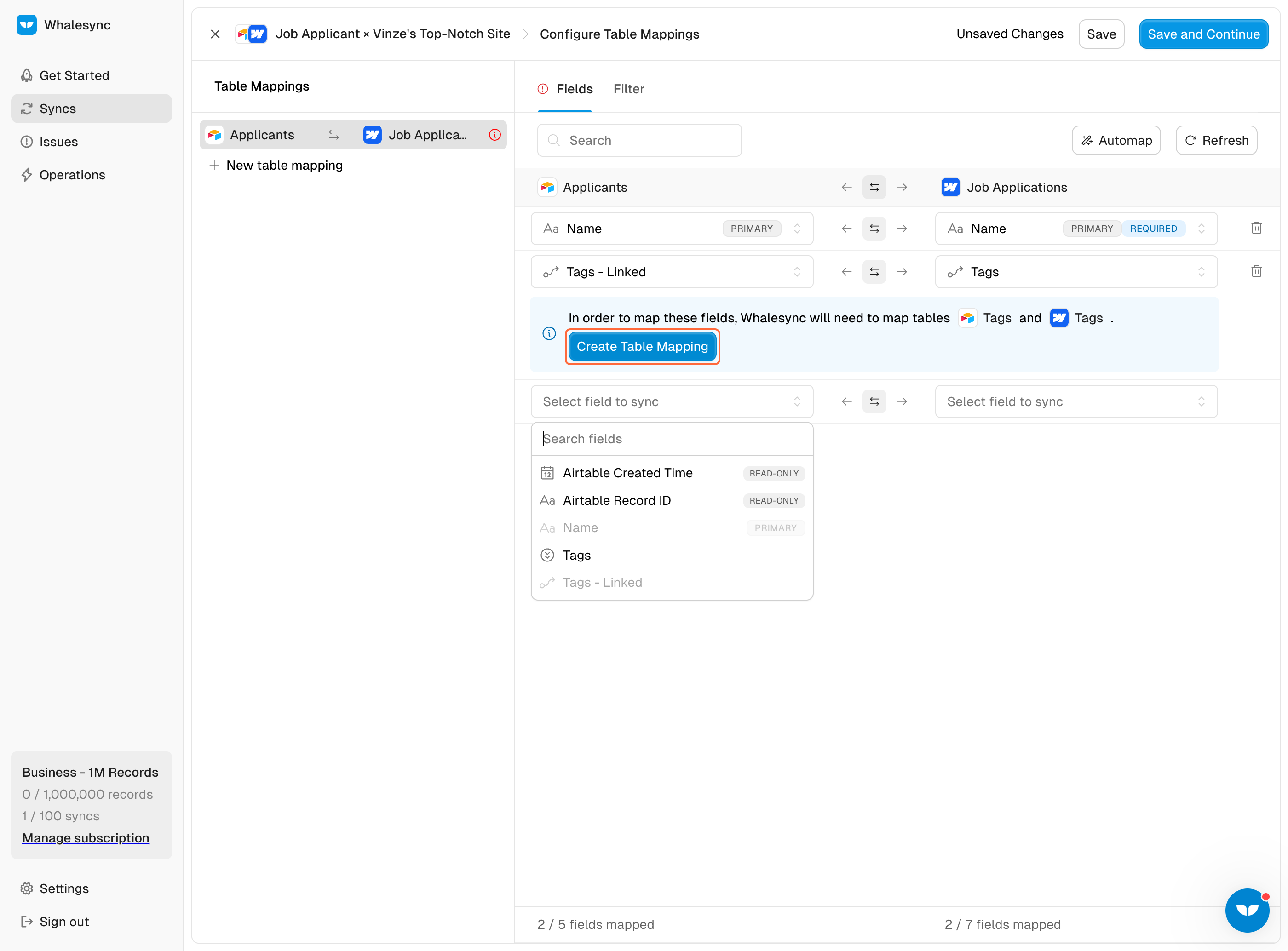
13. Start your sync!
Subscribe for more
Stay up to date with the latest no-code data news, strategies, and insights sent straight to your inbox!
Thank you for subscribing!
Oops! Something went wrong while submitting the form.
Keep reading