The easiest way to sync Google Sheets and Salesforce
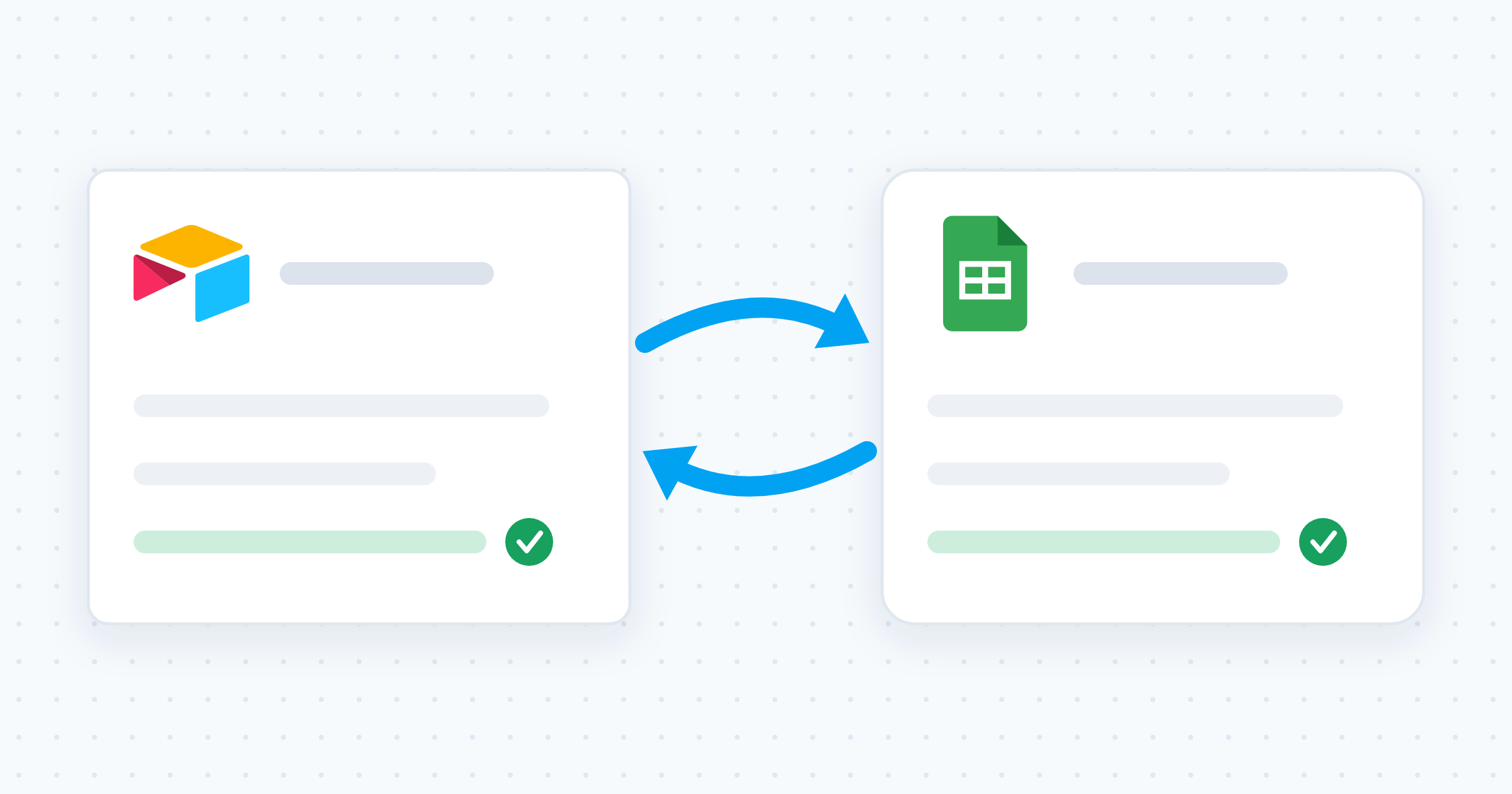
Get true, two-way sync between Google Sheets and Salesforce in minutes. Update data in one tool, and Whalesync mirrors it in the other.

Empowering top operators — From startups to enterprises
-
 Series C$350M
 -
 Series C$330M
 -
 Series C$100M
 -

-
 Series B$72M
 -
 Series C$30M
 -
 Series A$50M
 -
 Series B$86M
 -
 Series B$65M
 -
 Series B$100M
How to connect Google Sheets and Salesforce in 3 steps
Whalesync doesn't just connect Google Sheets and Salesforce; it syncs them. Simple connections are brittle. They only move data one way, creating data silos and requiring constant maintenance.
Whalesync was built on a different principle: true, two-way sync. This creates a single, reliable source of truth between your most important tools. And while it's powerful enough for engineers, it was designed for operators. You can build a rock-solid data integration in minutes.
Connect your apps
Securely connect your Google Sheets and Salesforce accounts in seconds. Just authorize Whalesync with a few clicks and you're ready for the next step.
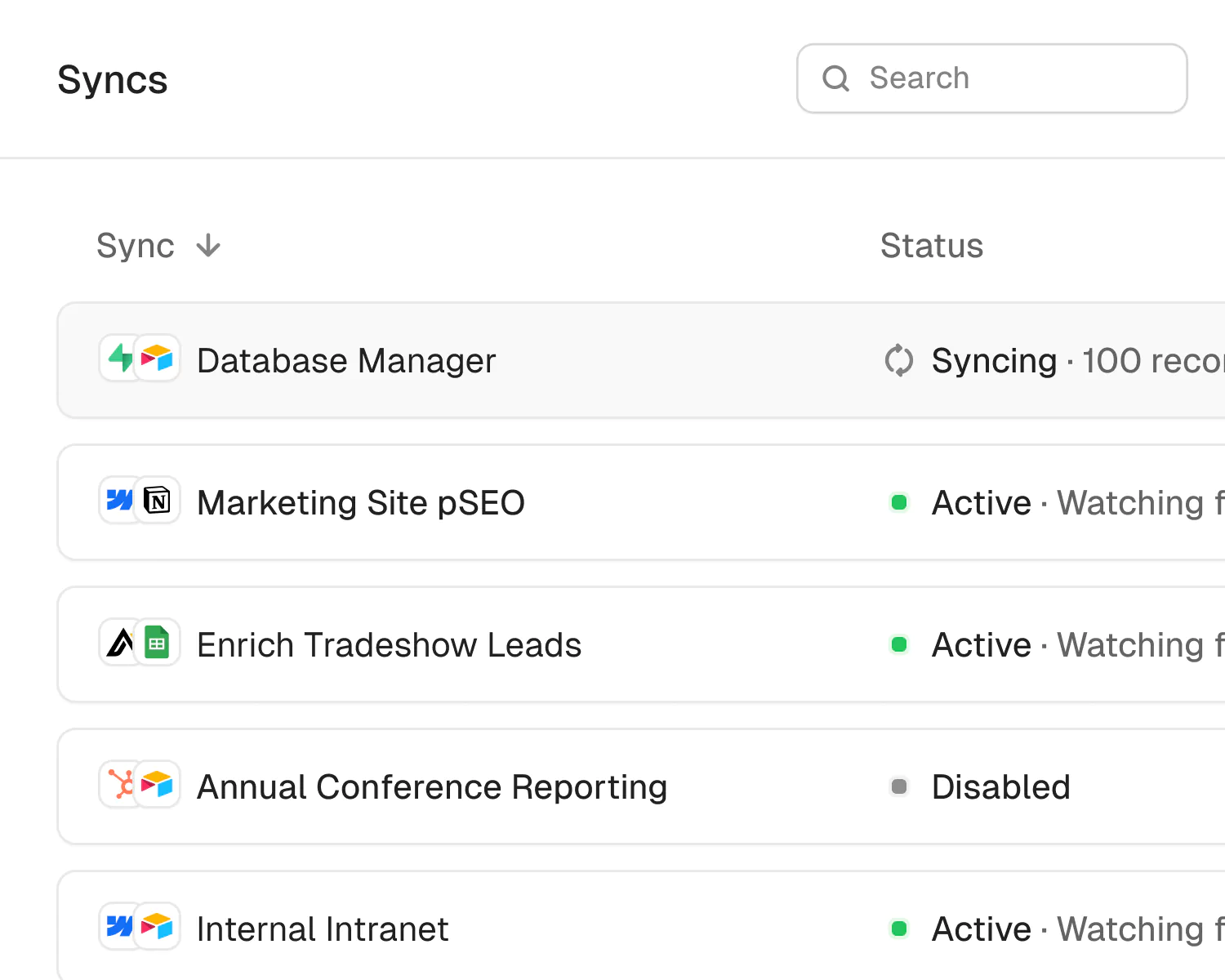
How to sync Google Sheets to Salesforce in 5 minutes
Google Sheets is one of the easiest ways to manage data, whether you're tracking leads, managing customer lists, or organizing operations. Salesforce is the go-to CRM for thousands of teams, helping them manage everything from pipelines to customer relationships.
If you use Google Sheets to store data and Salesforce to manage your sales or support processes, syncing the two keeps everyone aligned. Let’s connect and sync Google Sheets to Salesforce in 5 minutes.
Why should you connect Google Sheets to Salesforce?
Syncing Google Sheets and Salesforce lets you keep your spreadsheet data and CRM fully up to date. If a team member updates a lead in Salesforce, that change can sync back to your shared spreadsheet. And when someone updates the spreadsheet, Salesforce gets the latest info too.
Whether you’re managing a contact list, logging lead activity, or tracking internal workflows, syncing Sheets with Salesforce helps your team stay in sync without copying and pasting or requesting CRM access.
When should you connect Google Sheets and Salesforce?
Here are a few common scenarios where connecting the two makes sense:
- You manage lead or customer data in Google Sheets: Syncing ensures Salesforce is always updated with the latest info.
- Your team prefers working in Sheets: Sales or operations teams can manage data in the spreadsheet, while Salesforce stays updated in the background.
- You want to avoid manual exports and keep both tools in sync: No more duplicate data entry or miscommunication between teams.
How to sync Google Sheets and Salesforce
Here’s a step by step guide to sync Google Sheets and Salesforce.
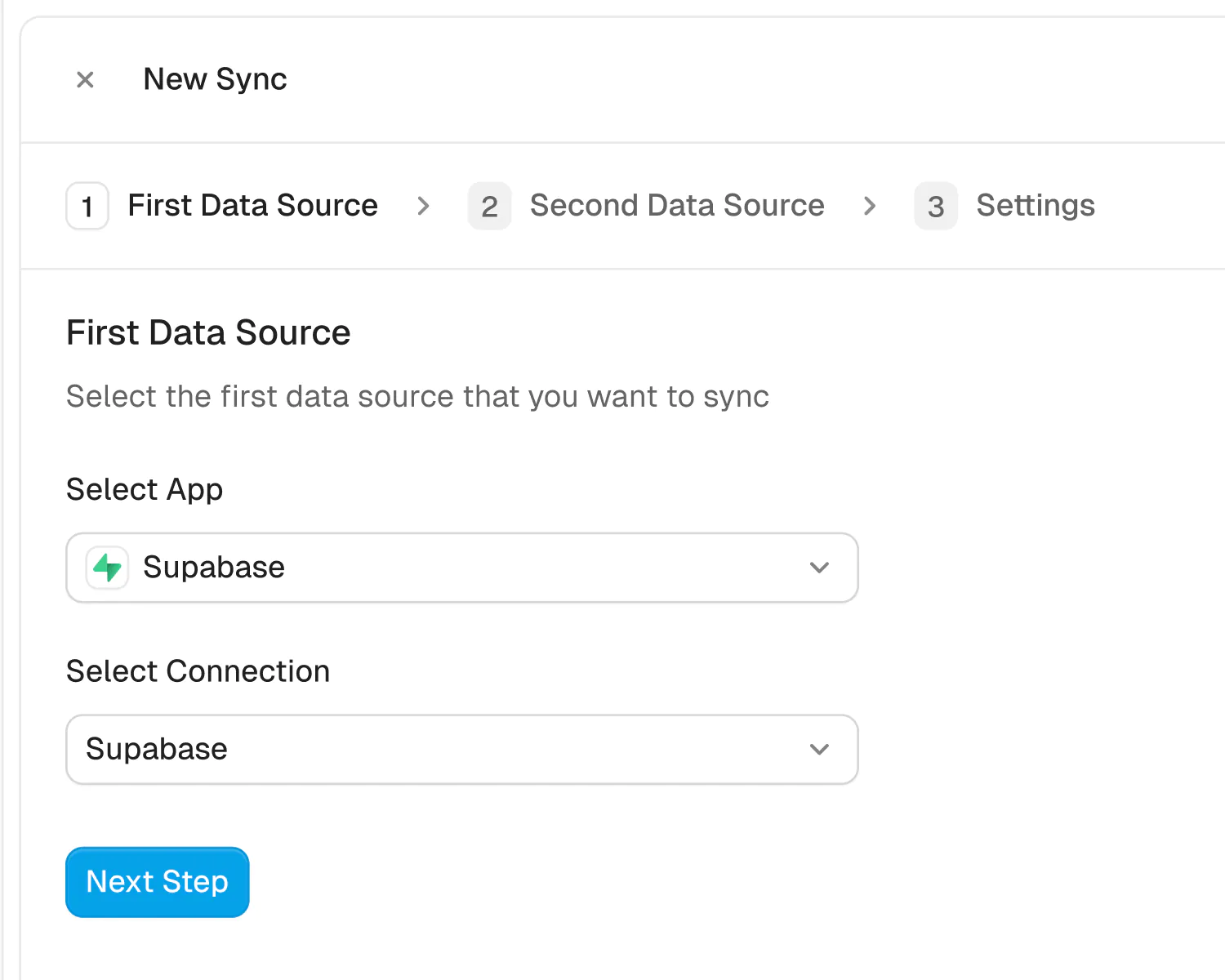
Step 1: Create a new sync
Log in to your Whalesync account and click ‘New sync’
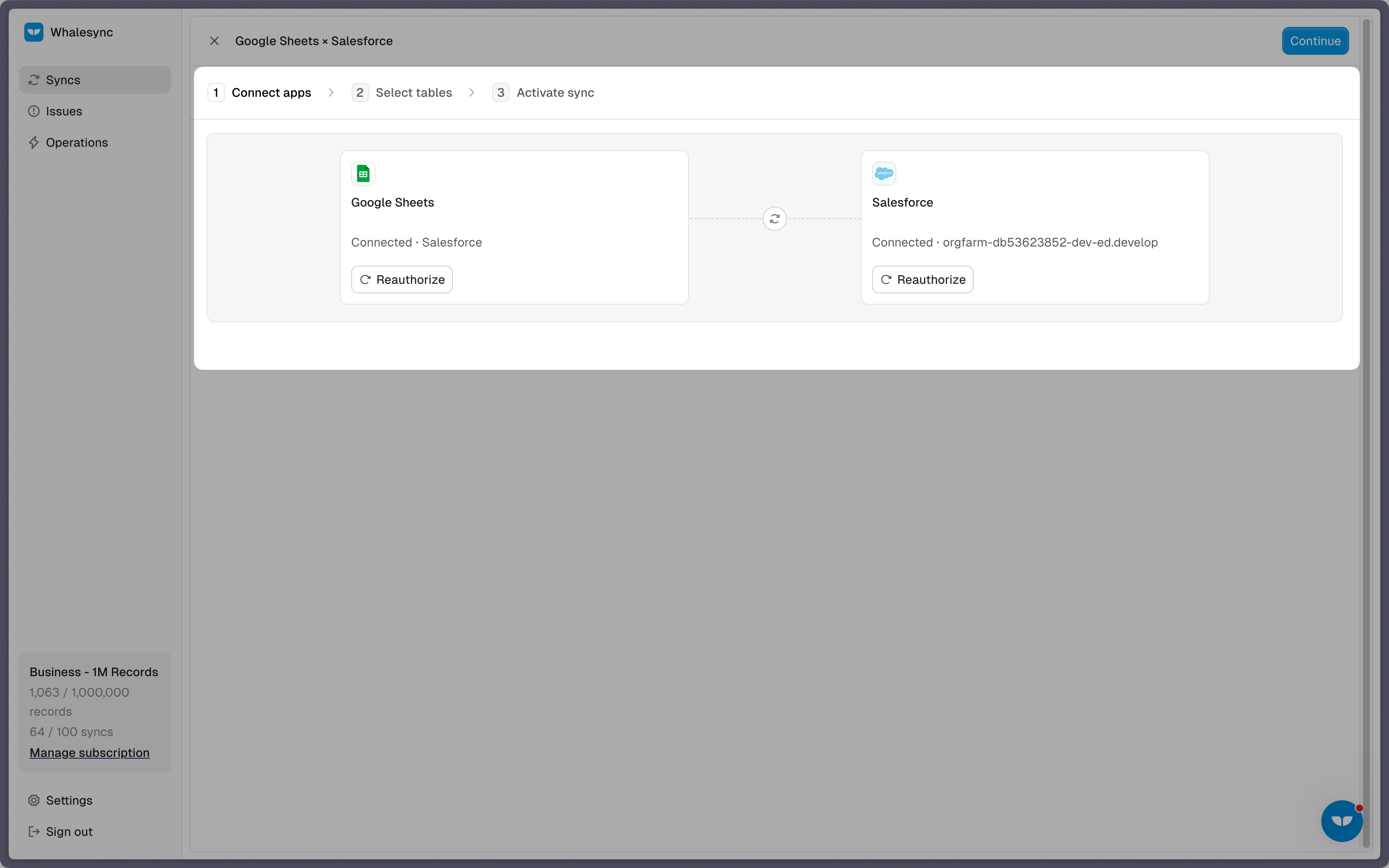
Step 2: Authorize your apps
Select the apps you want to connect. In this case, it’s Google Sheets and Salesforce. Then, authorize these two apps. Authorizing the apps enables Whalesync to have access to your app data in order to complete the syncs.
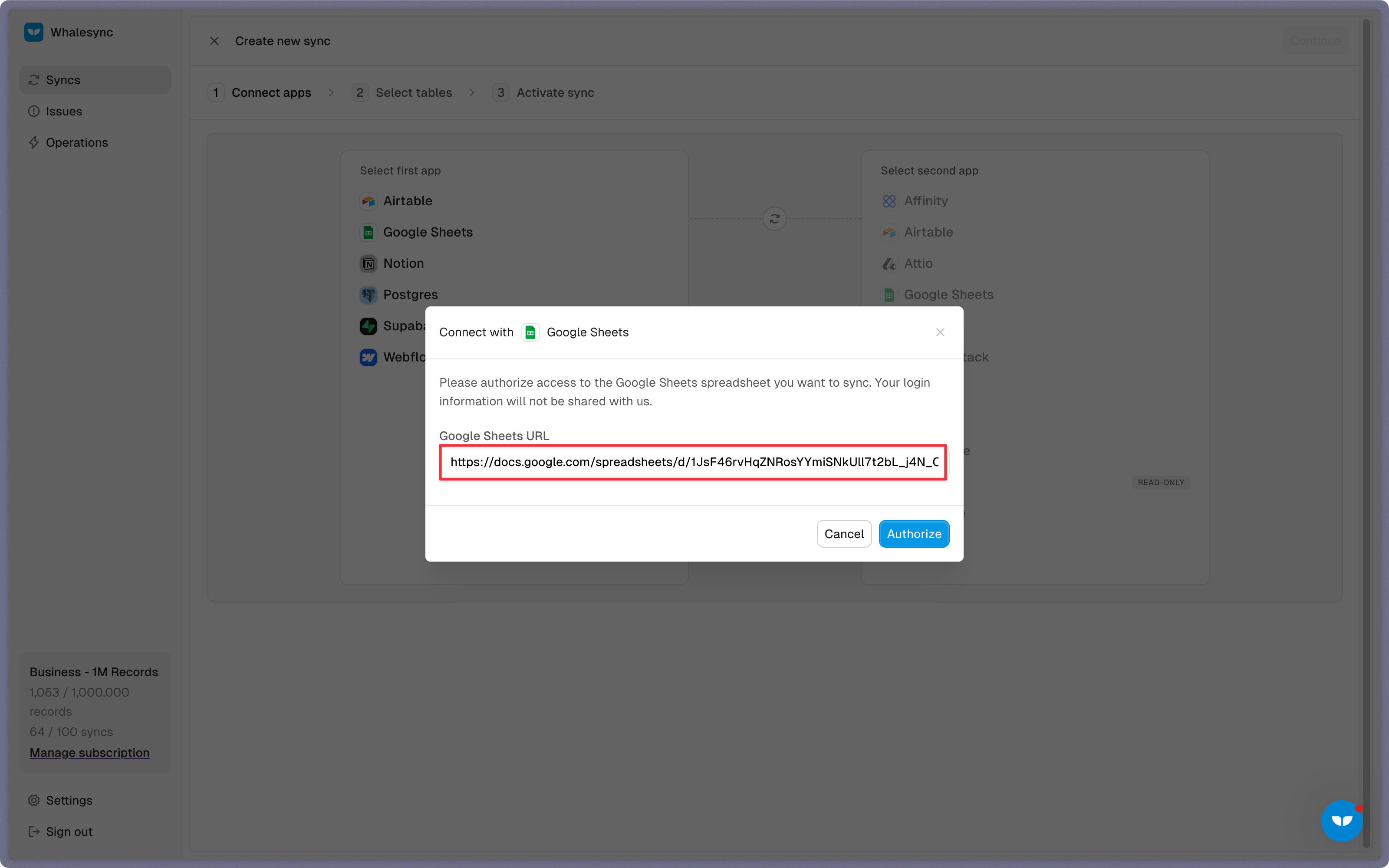
When you’re authorizing the apps, you need to select the Google Sheet you want to sync the data from and the destination within your Salesforce organization where the data should be synced.
Step 3: Map your tables
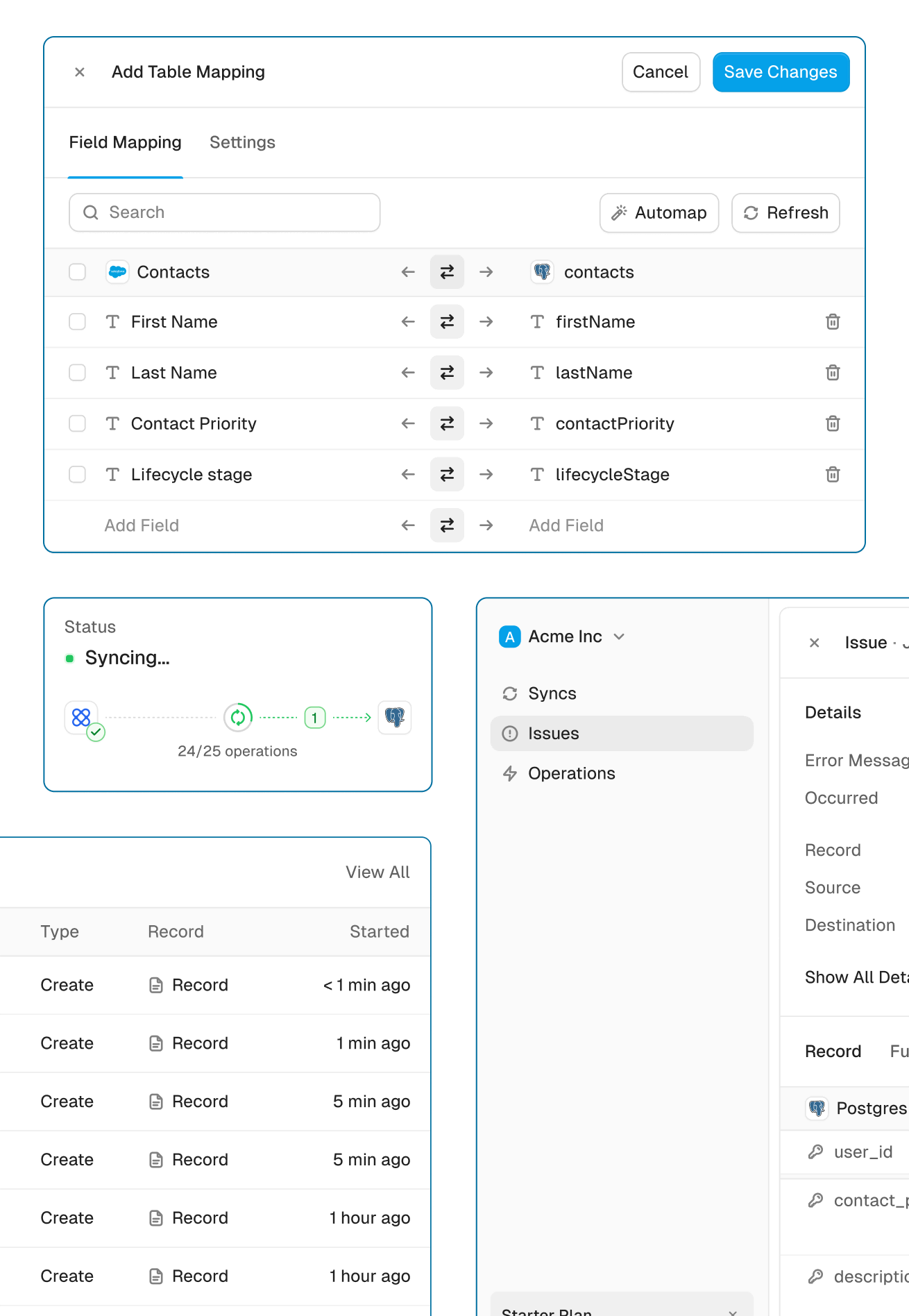
Choose the tables that you want to sync from Google Sheets to Salesforce. You can add multiple table mappings to a sync and related fields. You can also create the tables you want to map from Whalesync’s user interface, making it much faster to get started with your syncing.
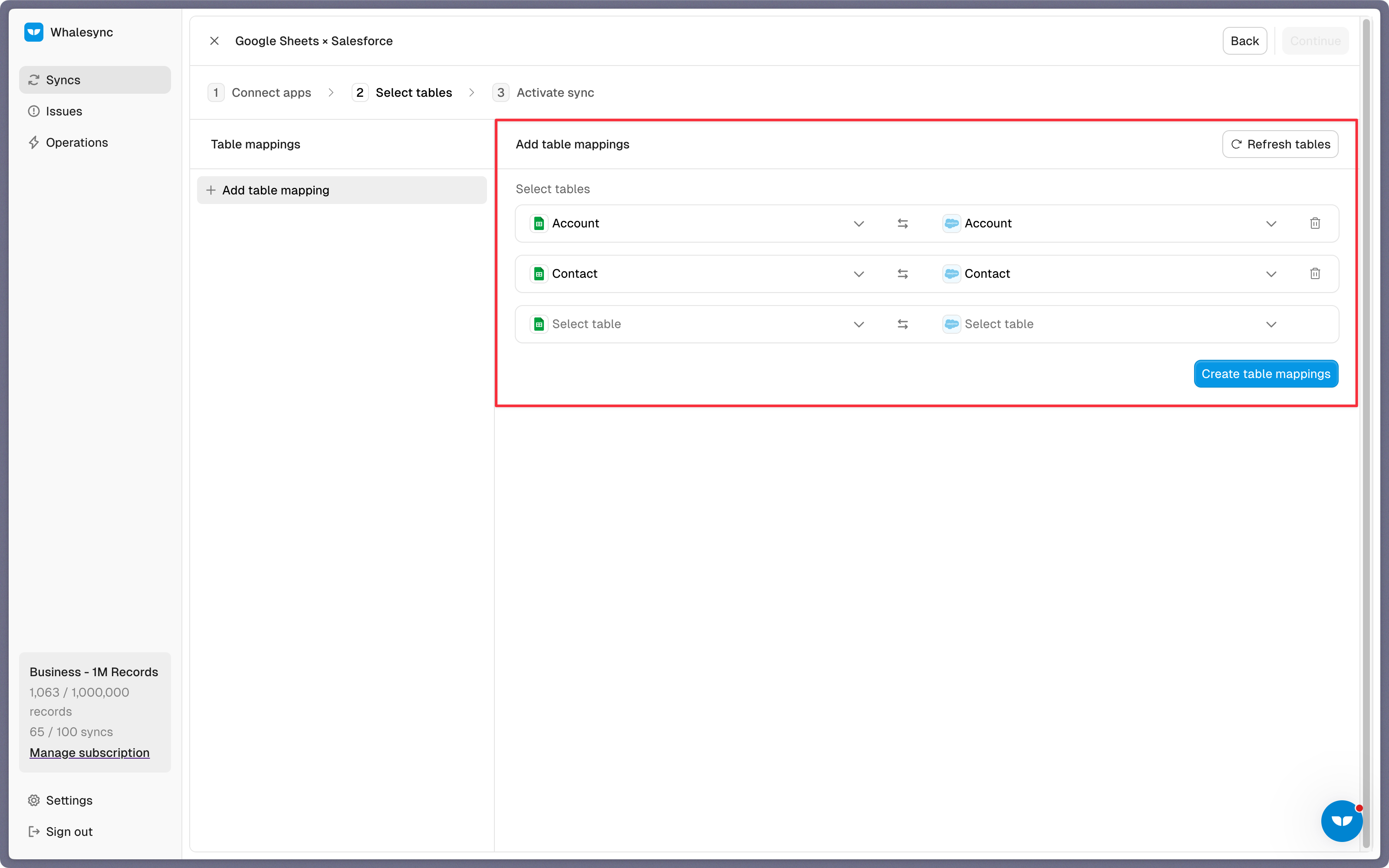
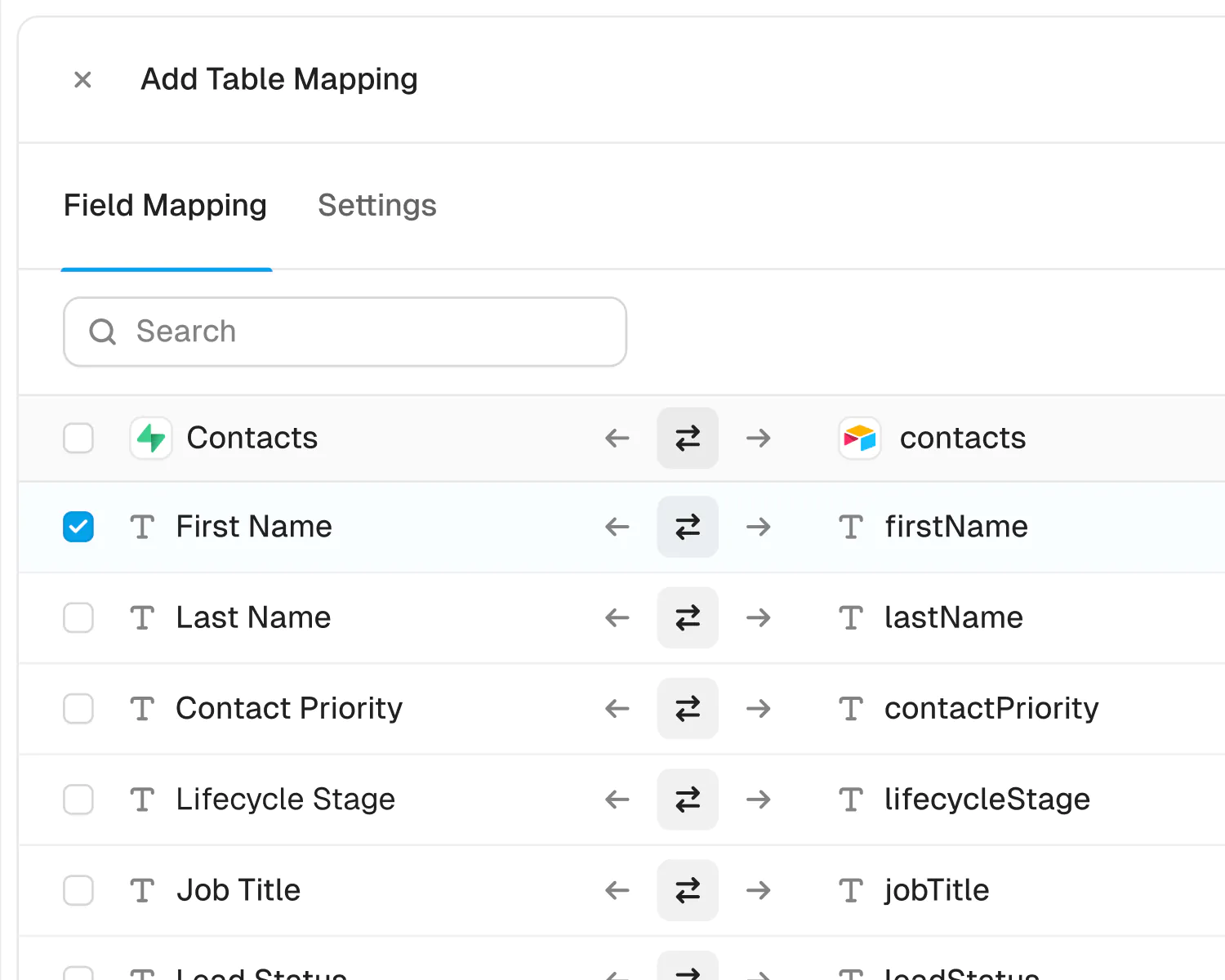
Step 4: Map your fields
You can choose how many fields you want to map, whether you want to map all of the fields or just a few.
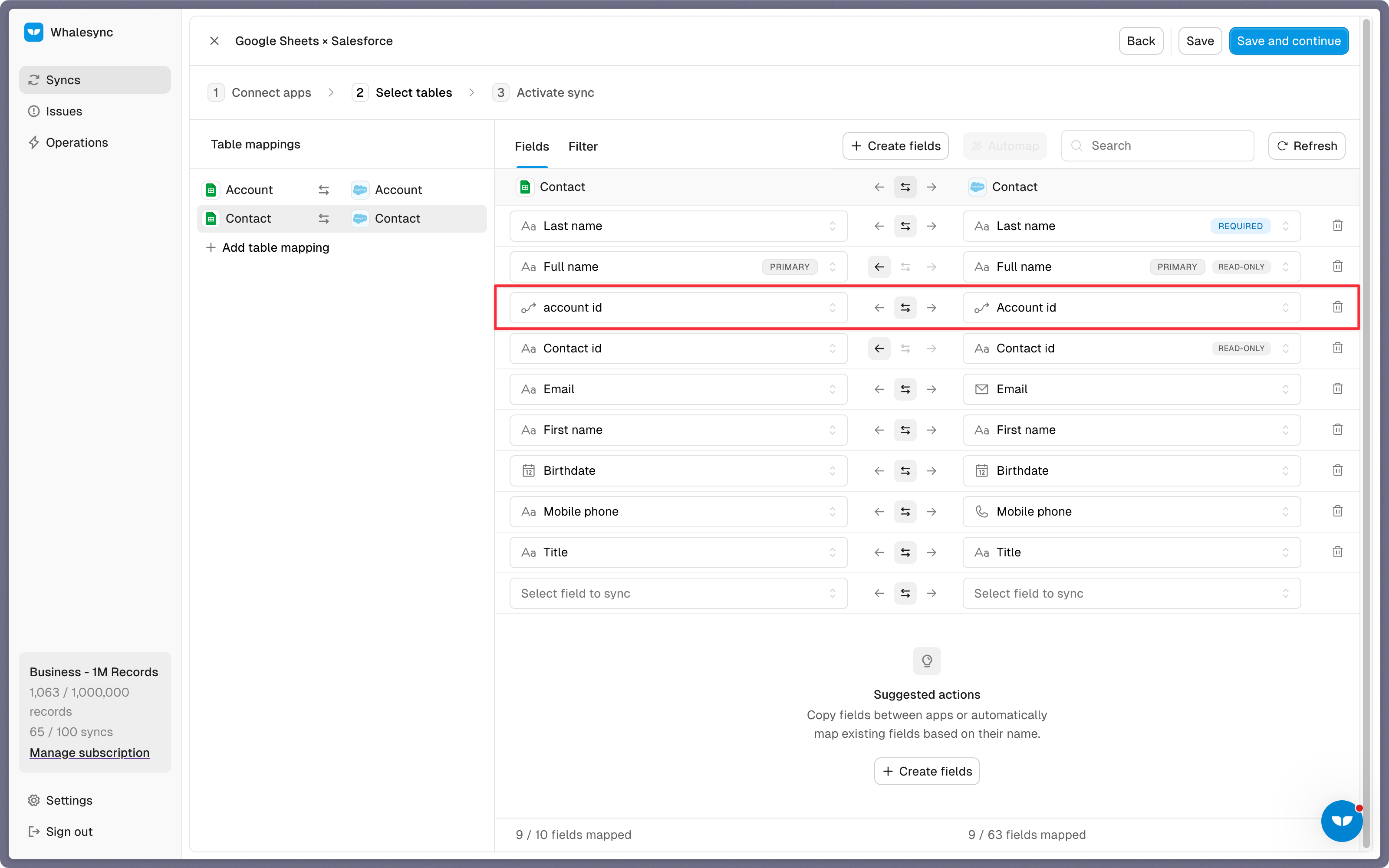
You can also create fields here.
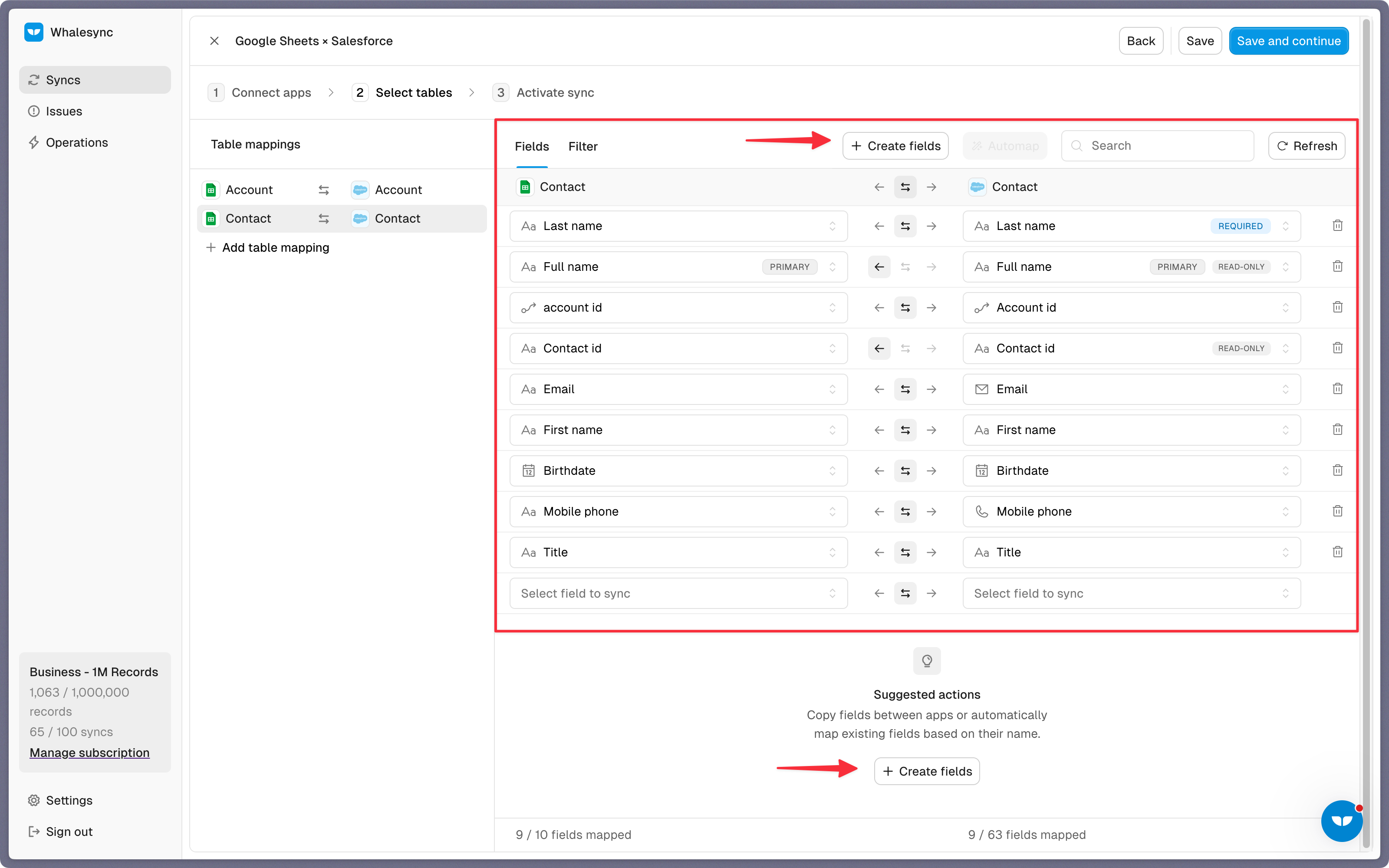
If you have existing data in your Google Sheet, Whalesync will match the records according to the fields you mapped.
If you are starting from a new sheet that doesn’t have any data, once you start entering data into your sheet, the data will automatically sync to Salesforce.
Step 5: Activate sync
The final step is to activate your sync! Before you activate your sync, you’ll see a preview that shows you how many records will be added to each tool.
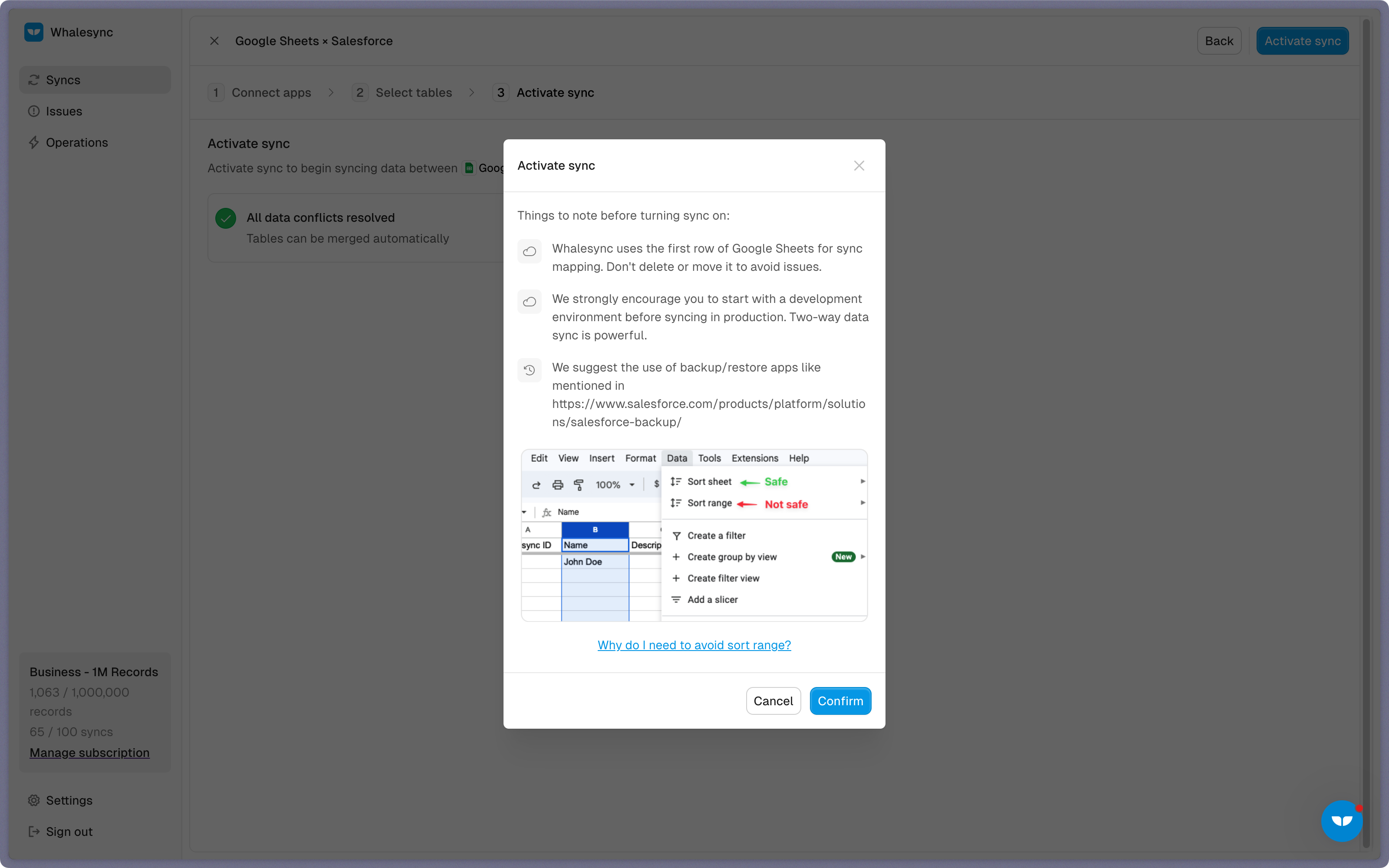
Done! Google Sheets and Salesforce is synced 🤝
Now it’s time to start adding to your Google Sheet and view your data across both tools.
Start syncing today
You can connect Google Sheets and Salesforce in just a few minutes. Whether your team lives in spreadsheets or your data starts in Salesforce, Whalesync makes sure both stay updated automatically.
Ready to connect Google Sheets and Salesforce? Get syncing today
About Google Sheets and Salesforce
Google Sheets
About
Google Sheets is the spreadsheet in Google Workspace, and for many teams it is where the real work happens. Whalesync's Google Sheets sync turns a spreadsheet into a live window into your other tools. Create a two-way sync between Google Sheets and Supabase, Airtable, Notion, or your CRM, then edit records in a familiar grid while Whalesync keeps every connected app up to date. Build reports on live data, clean records in bulk, and give non-technical teammates a safe way to update data without touching the source system.
Category
Supported Objects
-
All TablesSupported
Salesforce
About
Salesforce is the world's leading CRM platform, used by sales teams everywhere to manage interactions across the entire customer lifecycle. Whalesync's Salesforce connector gives you a real-time, two-way sync between Salesforce and your favorite productivity tools: accounts, contacts, leads, opportunities, tasks, and custom objects are discovered automatically from your Salesforce schema and kept in sync.
Teams use it to give everyone spreadsheet-simple access to Salesforce data: bulk-update records from Airtable, build custom views in Notion, or keep an operational database in Postgres up to date, all without writing code or waiting on exports.
Category
Supported Objects
-
AccountsSupported
-
ContactsSupported
-
Custom ObjectsSupported
-
LeadsSupported
-
OpportunitiesSupported
-
TasksSupported
Powerful features, built for reliability
Get the power of an engineering-grade data sync with the simplicity of a no-code tool. Whalesync lets you build a robust, two-way, real-time sync between your apps in minutes, all through a simple visual interface.
Real-time & historical sync
Instantly sync new changes and bring over all your historical data. Your records will be up-to-date across apps from day one.
Efficient error handling
Instant email alerts for quick issue monitoring.
Automatic API handling
Forget about rate limits. Whalesync automatically manages API traffic and retries to ensure your sync runs smoothly without breaking.
Advanced filters
Precision filtering for targeted data sync.
Google Sheets and Salesforce guides
Built for Enterprise
Connect your data with top-grade security, role based access control, SSO, and audit logs.

Security
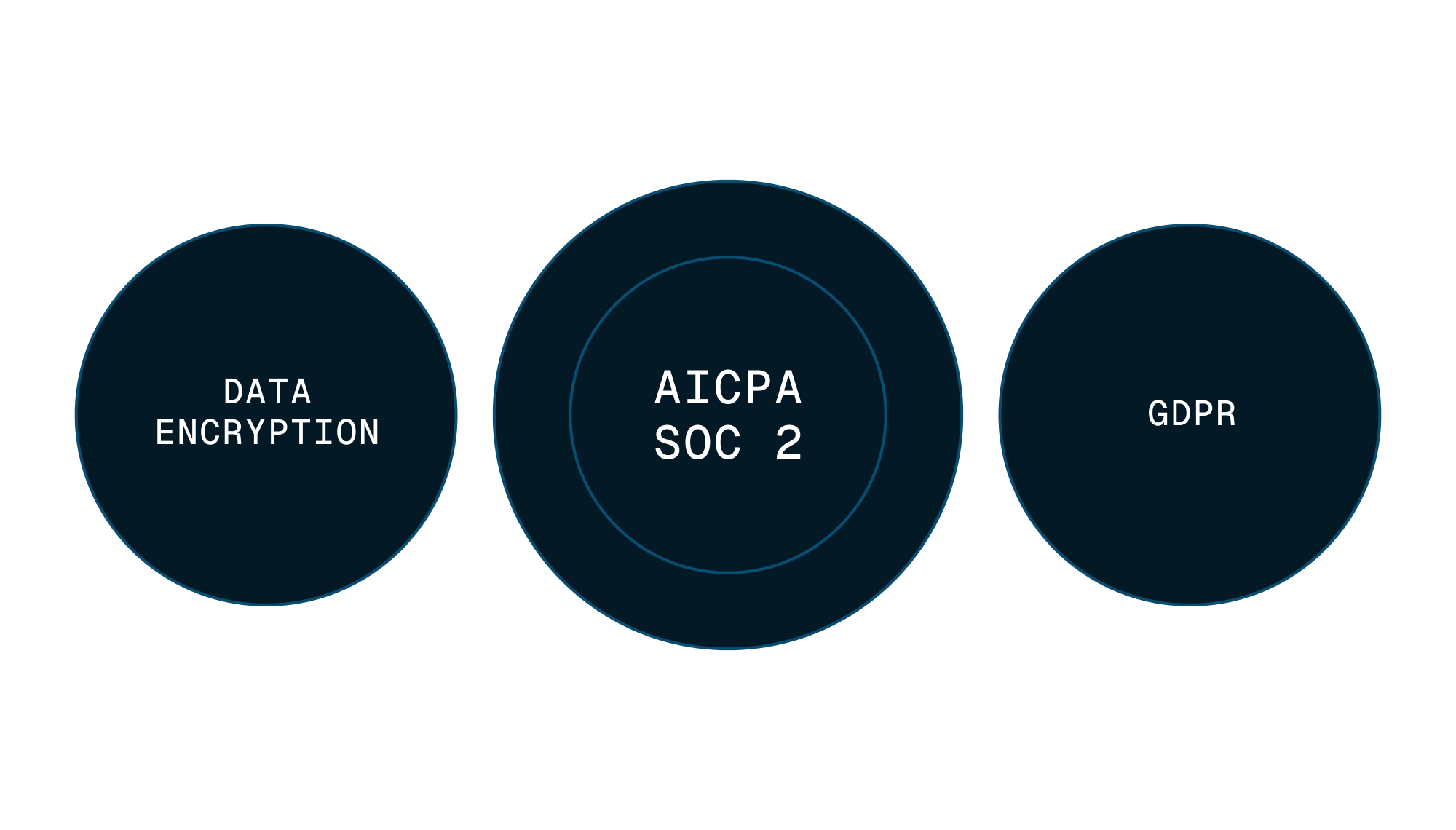
Enterprise-grade data safety with SOC 2 Type II, GDPR compliance, and encryption at rest monitored by Vanta.
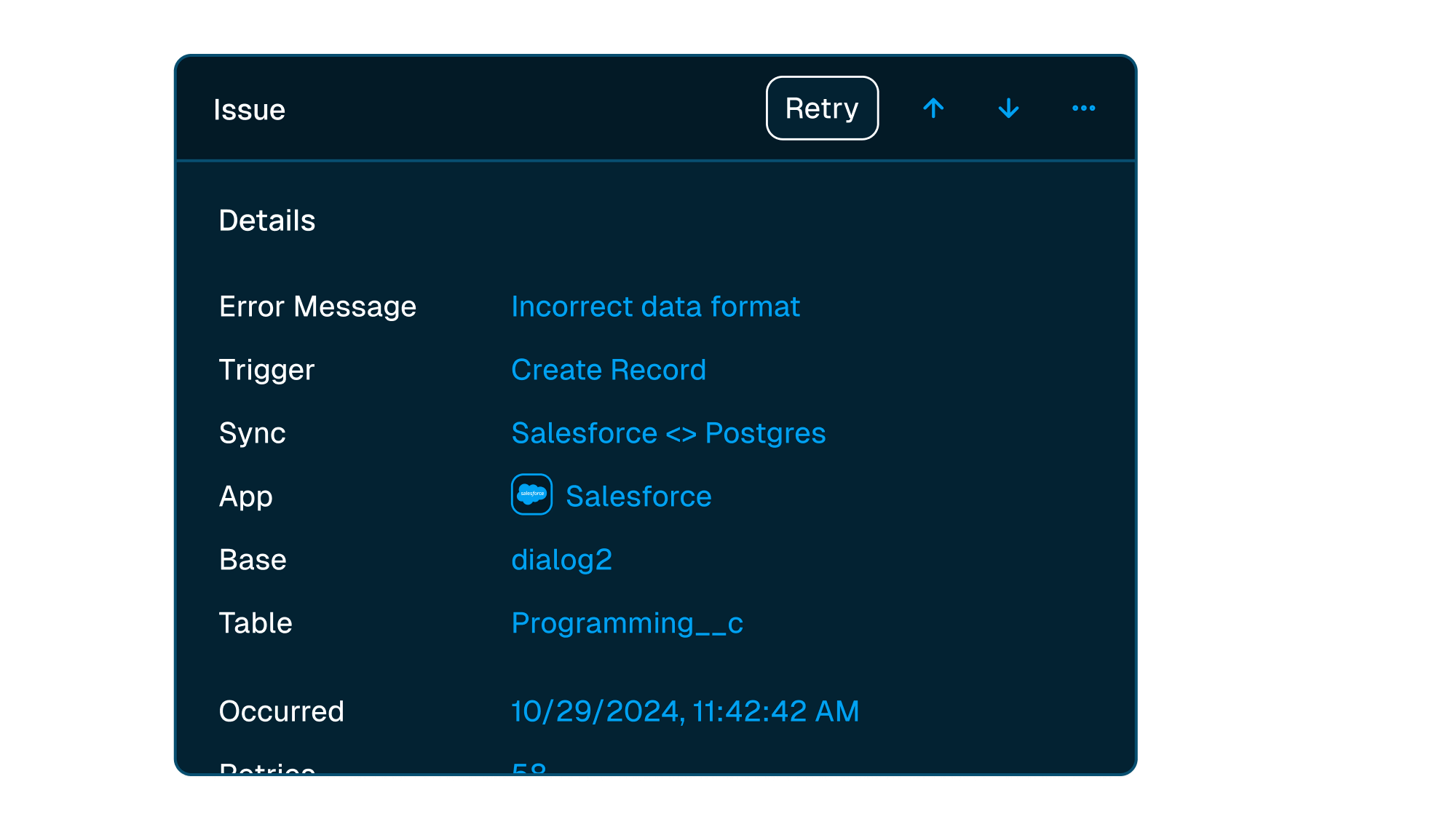


Scale with support
Easily manage issues at scale, while knowing you have a dedicated account manager on stand by to support.
Frequently asked questions
Is it really two-way sync?
Yes! Whalesync offers true two-way sync. Unlike most apps that offer one-way syncs in two directions, Whalesync actually keeps your data in sync bi-directionally. Update data in one app and see it instantly to sync to the other (or vice-versa).
What counts as a "record in sync"?
When a record syncs for the first time it becomes a record in sync. For example, if you sync 10 rows from Airtable to Webflow, you will have 10 records in sync. We do not "double-count" records across the two different apps.
Unlike other automation tools that count updates or tasks, Whalesync allows unlimited updates: those records can change as many times as you'd like.
What is a "sync"?
A sync is a connection between two different apps (e.g. Salesforce & Airtable). When you turn sync on, Whalesync will continuously sync data between your apps.
A single sync includes as many data tables and field as you'd like.
Does Whalesync support multi-reference fields? Rich text?
You bet! We've simplified all the annoying parts of setting up a sync with Zapier. We support multi-reference fields, rich text, and images. For a full list, see our supported fields docs.
What happens if my data has an error and can't be synced?
If data can't be synced (e.g. a required field is missing), Whalesync will alert you on the Issues page. This alert provides the exact error from your destination app and any other info that will help you fix the issue. In the meantime, Whalesync will continue to sync all data that doesn't have errors.
Do you offer a discount for nonprofits?
Absolutely! We love supporting organizations that are making the world a better place, so we're happy to offer a 20% discount to all nonprofits. To apply, just send us a note with proof of your nonprofit status (e.g. your 501(c)(3) determination letter) to support@whalesync.com and we'll get the discount applied to your account.
Other apps to connect






Connect your tools in minutes