The easiest way to sync Webflow and Attio
Get true, two-way sync between Webflow and Attio in minutes. Update data in one tool, and Whalesync mirrors it in the other.


Empowering top operators — From startups to enterprises
-
 Series C$350M
-
 Series C$330M
-
 Series C$100M
-

-
 Series B$72M
-
 Series C$30M
-
 Series A$50M
-
 Series B$86M
-
 Series B$65M
-
 Series B$100M
How to connect Webflow and Attio in 3 steps
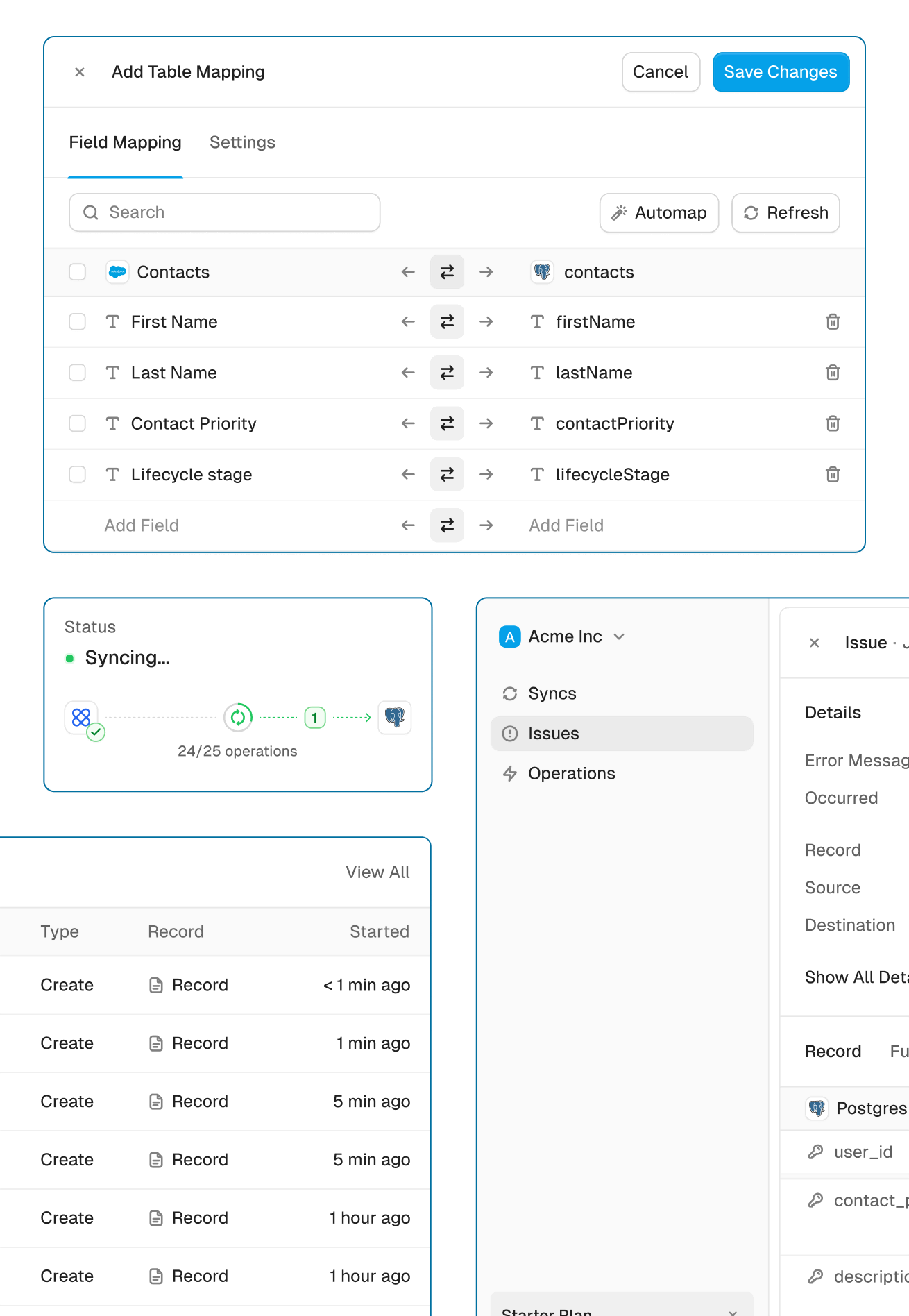
Connect Webflow and Attio, map the fields you want, and turn sync on. From then on, a change in either app shows up in the other.
Connect your apps
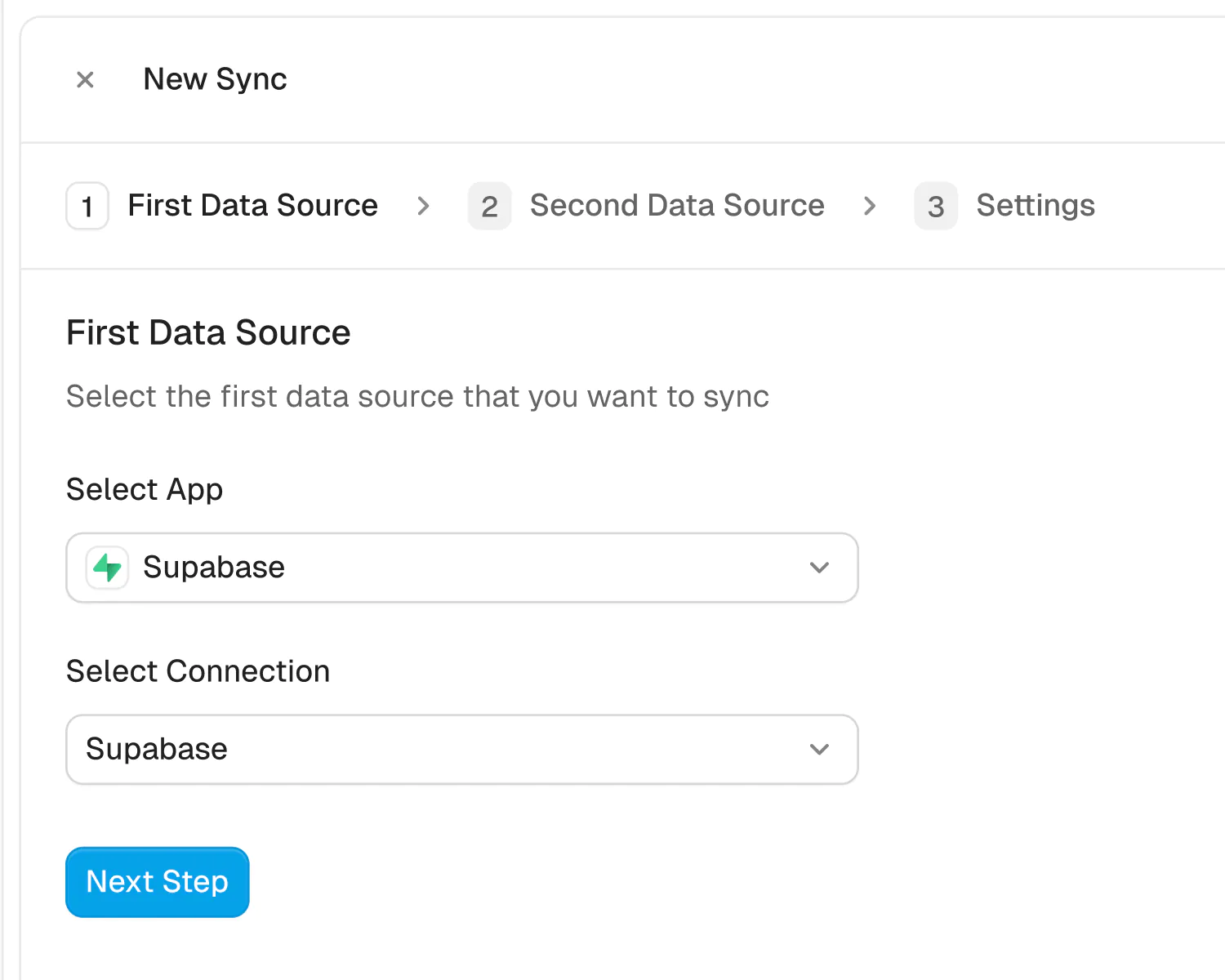
Securely connect your Webflow and Attio accounts in seconds. Just authorize Whalesync with a few clicks and you're ready for the next step.
How to sync Webflow CMS to Attio in 5 minutes
Webflow CMS powers the content side of your business. Customer stories, partner directories, integration pages, team profiles: the collections behind your marketing site are full of structured records that someone has to keep accurate. Attio is a next-gen CRM that brings structure, visibility, and automation to your customer relationships, organized around people, companies, and deals.
Look closely and you will notice something: a lot of what lives in your CMS is really CRM data wearing a different outfit. The customers featured on your website are companies in Attio. The partners listed in your directory are relationships someone on your team manages in the CRM. When the two systems are maintained separately, they drift. The website says one thing, the CRM says another, and reconciling them becomes a recurring manual chore that usually lands on marketing.
Whalesync connects the two with a no-code, real-time, two-way sync. Records in Attio and items in your Webflow collections stay matched automatically, so an update in either place shows up in the other. In this guide, we'll walk through how to connect and sync Webflow CMS to Attio in about five minutes.
Why two-way sync beats CSV exports and Zapier
Moving data between a CRM and a CMS by hand is so tedious that most teams do not even try. They retype it. A partner changes its name, someone updates Attio, and the Webflow item waits until a visitor or a teammate notices it is wrong. CSV exports do not help much here either: they are one-way snapshots that go stale immediately, and every import is another chance to duplicate items or overwrite good content.
Zapier-style automations can push a new record from one tool to the other, but they are one-way event triggers with no memory. They cannot backfill the collection items and CRM records you already have, they do not notice edits on the other side, and covering creates, updates, and deletes in both directions means wiring up and maintaining a tangle of separate automations.
Whalesync syncs tables, not events. It pairs Attio records with Webflow CMS items, keeps them matched, and moves changes both ways in real time. Because it is no-code, whoever owns the website or the CRM can set it up alone, and nobody has to babysit it afterward.
How to sync Webflow CMS to Attio, step by step
Here is the setup from start to finish.
Step 1: Create your Whalesync account
Sign up for Whalesync and log in. There is a free trial, so you can see your data flowing before you pay for anything. Click 'New sync' to begin.
Step 2: Connect Webflow
Choose Webflow as your first app and authorize your account. The Whalesync Webflow connector lets you pick the site you want to work with, and your CMS collections appear as tables ready to sync, with each collection field available for mapping.
Step 3: Connect Attio
Next, choose Attio and authorize your workspace. The Whalesync Attio connector pulls in your CRM objects, including people, companies, deals, and any custom objects your team has built. With both apps authorized, Whalesync can read and write on each side, which is what makes the sync two-way.
Step 4: Map your tables and fields
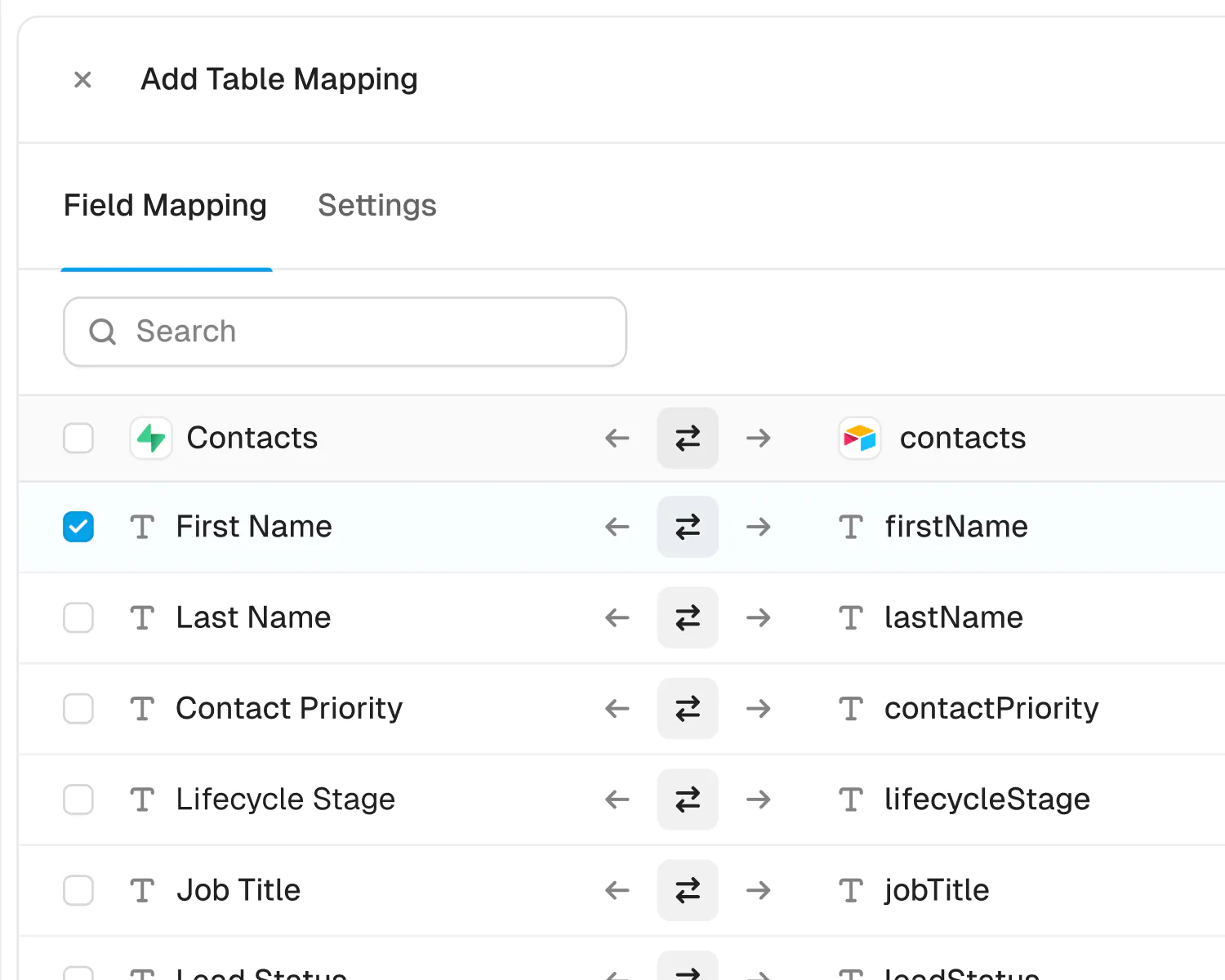
Decide which collection syncs with which object, for example a customers collection with Attio companies, or a partner directory with a custom partner object. Then map the fields. Whalesync's AI automapping suggests matches between your collection fields and Attio attributes, so most of the mapping confirms itself in a click or two. Map all the fields or only the ones the website needs, and add more table mappings whenever you like.
Step 5: Turn on the sync
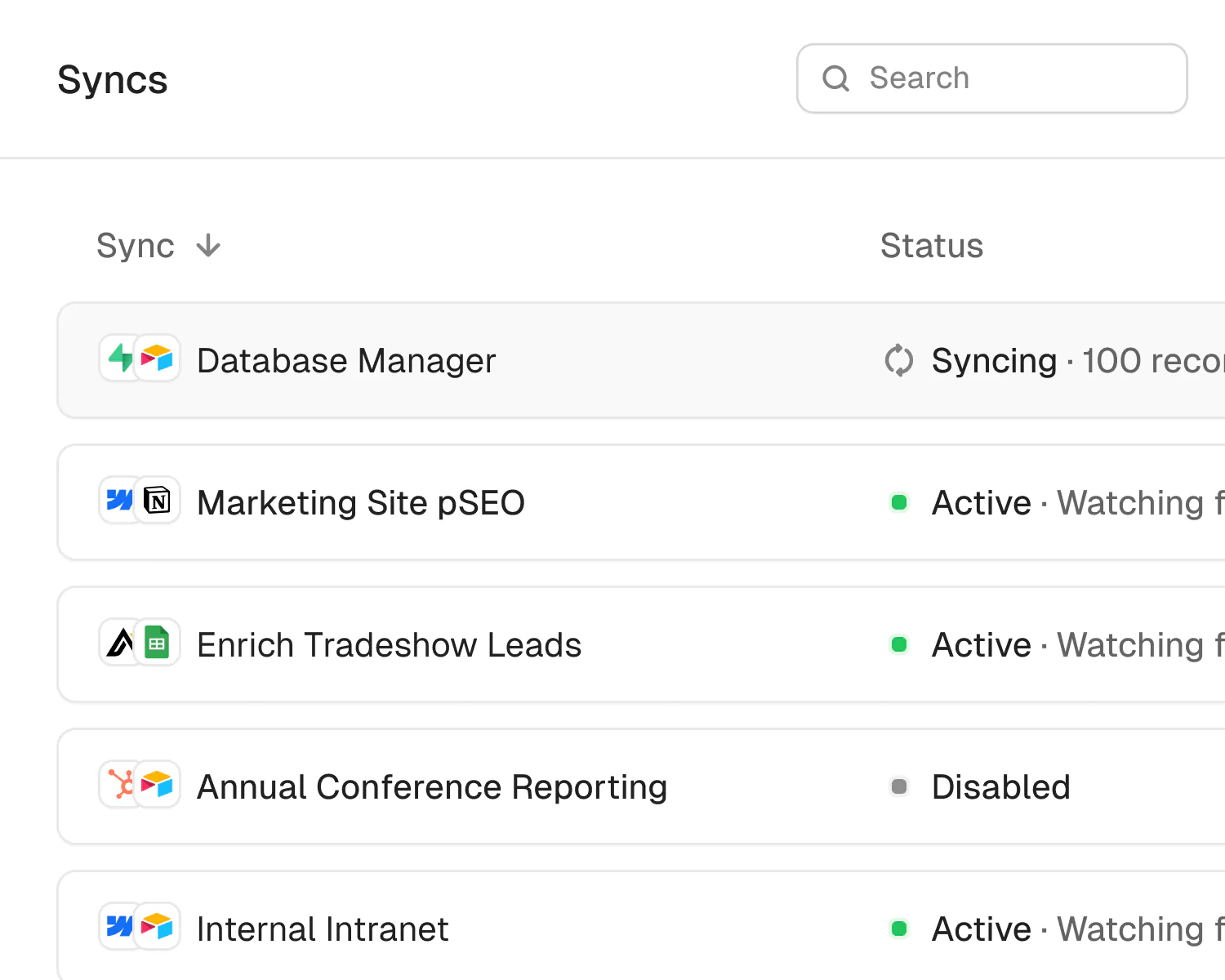
Whalesync shows a preview of how many records will be created in each tool before anything moves. Check it over, then activate. From that point on, the sync runs continuously: update a company in Attio and the matching Webflow item updates, edit copy on a collection item and the change flows back to the CRM record.
What syncs between Webflow CMS and Attio
On the Attio side, Whalesync syncs the core of your CRM:
- People
- Companies
- Deals
- Your custom Attio objects
On the Webflow side, you choose which collections take part. Custom objects are the quiet superpower here: directories, integrations, testimonials, and other content-shaped data can live as first-class objects in Attio and publish through Webflow, all from one synced source.
Three ways teams use a Webflow to Attio sync
Run your customer stories and logo wall from the CRM
The companies you feature on your site already exist in Attio. Sync a customers collection with your company records and the website stays consistent with the CRM: names, descriptions, and details update on the live site when they change in Attio, with no Webflow editing session required.
Publish a partner or integration directory that maintains itself
Partnerships teams work in the CRM, not the CMS. With a synced directory collection, adding or updating a partner record in Attio is all it takes to keep the public directory page current. The team that owns the relationship owns the data, and the website simply reflects it.
Let marketing and sales edit in their own tools
Marketing polishes copy in Webflow. Sales and partnerships update facts in Attio. Because the sync is two-way, both kinds of edits land in both systems, so nobody has to file a ticket or learn a second tool just to fix a description. Each team works where it is fastest, and the data stays whole.
Start syncing today
Your website and your CRM describe the same customers, partners, and deals, so they should agree with each other. Set up a two-way sync between Webflow and Attio with Whalesync and they will, in real time, without code. It takes about five minutes to connect, and the free trial lets you watch your first records flow before you commit. Stop copying data between tabs and let the sync do the remembering.
About Webflow and Attio
Webflow
Webflow is a visual web design tool for building sites without code.
What syncs
All CMS Collections
Attio
Attio is a modern, flexible CRM for go-to-market teams.
What syncs
People, Companies, Deals, and Custom Objects
Read only: Workspace Members
Powerful features, built for reliability
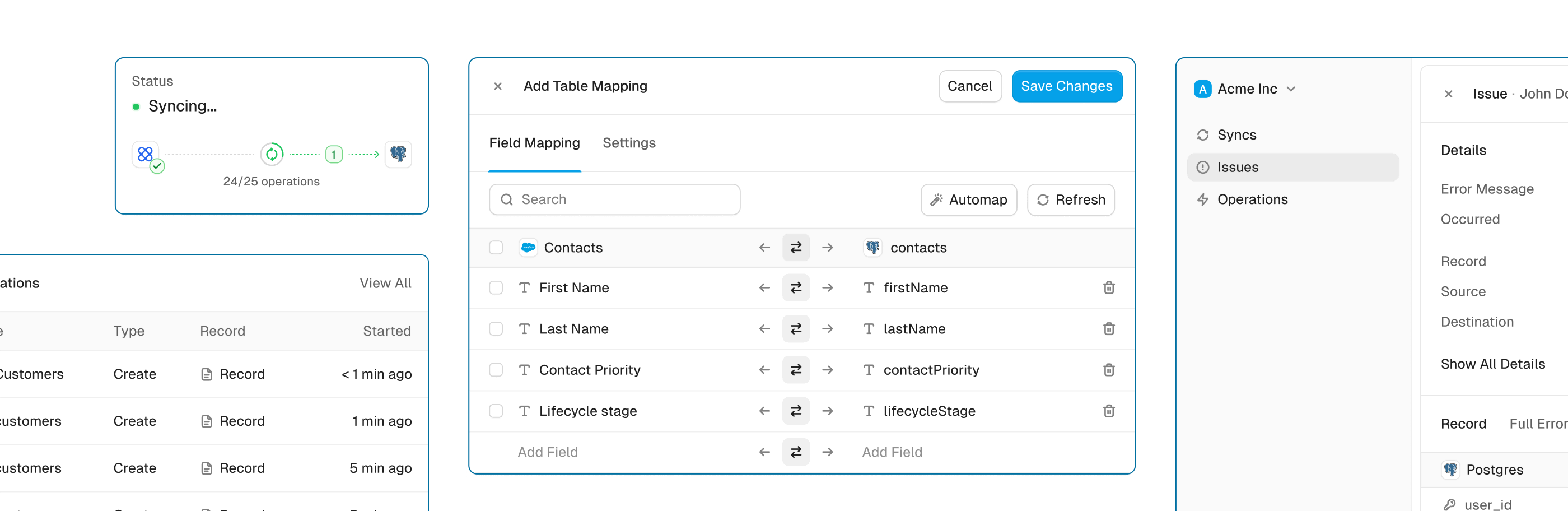
Get the power of an engineering-grade data sync with the simplicity of a no-code tool. Whalesync lets you build a robust, two-way, real-time sync between your apps in minutes, all through a simple visual interface.
Real-time & historical sync
Instantly sync new changes and bring over all your historical data. Your records will be up-to-date across apps from day one.
Efficient error handling
Instant email alerts for quick issue monitoring.
Automatic API handling
Forget about rate limits. Whalesync automatically manages API traffic and retries to ensure your sync runs smoothly without breaking.
Advanced filters
Precision filtering for targeted data sync.
Webflow and Attio guides
Built for Enterprise
Connect your data with top-grade security, role based access control, SSO, and audit logs.

Security
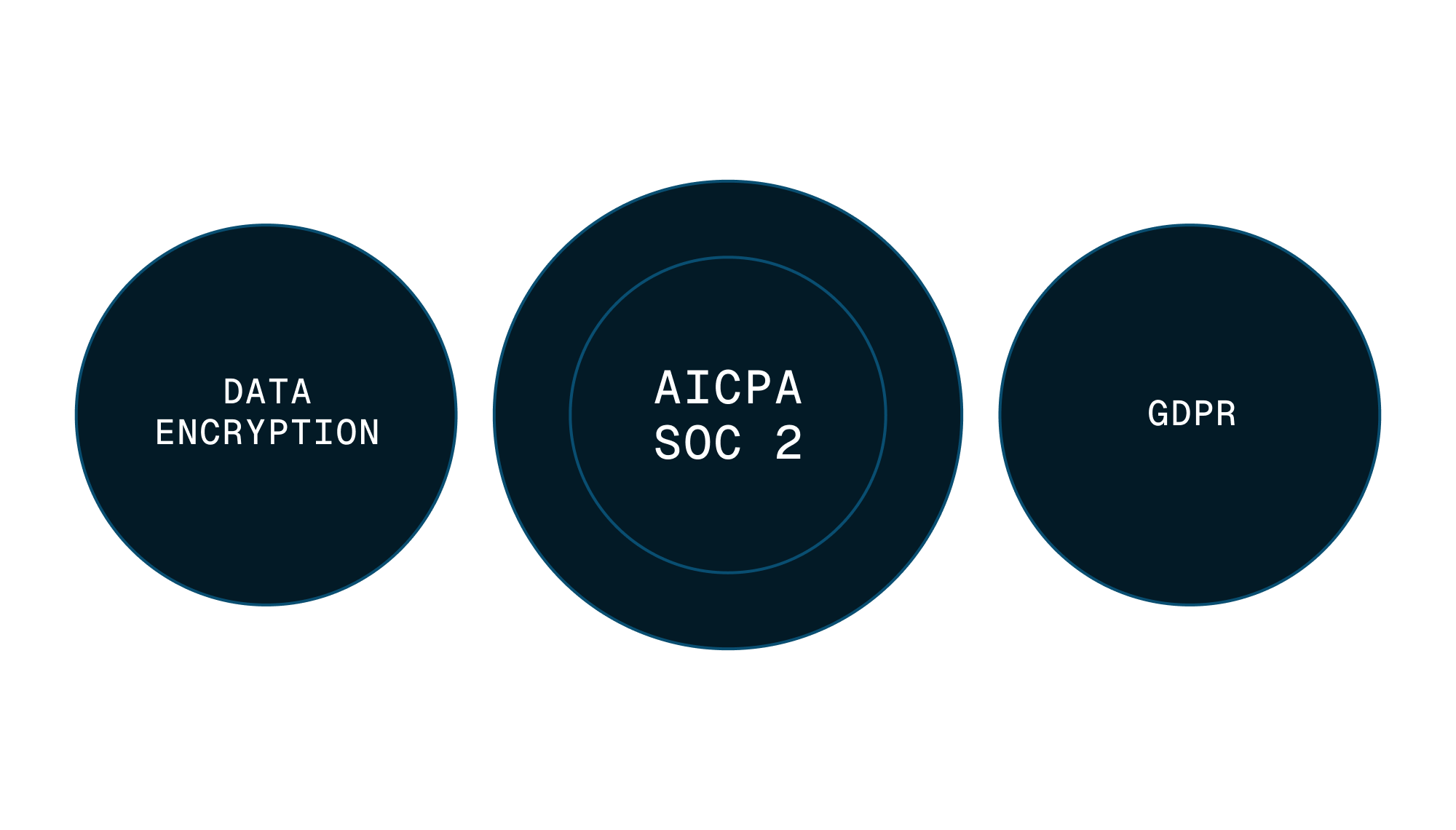
Enterprise-grade data safety with SOC 2 Type II, GDPR compliance, and encryption at rest monitored by Vanta.
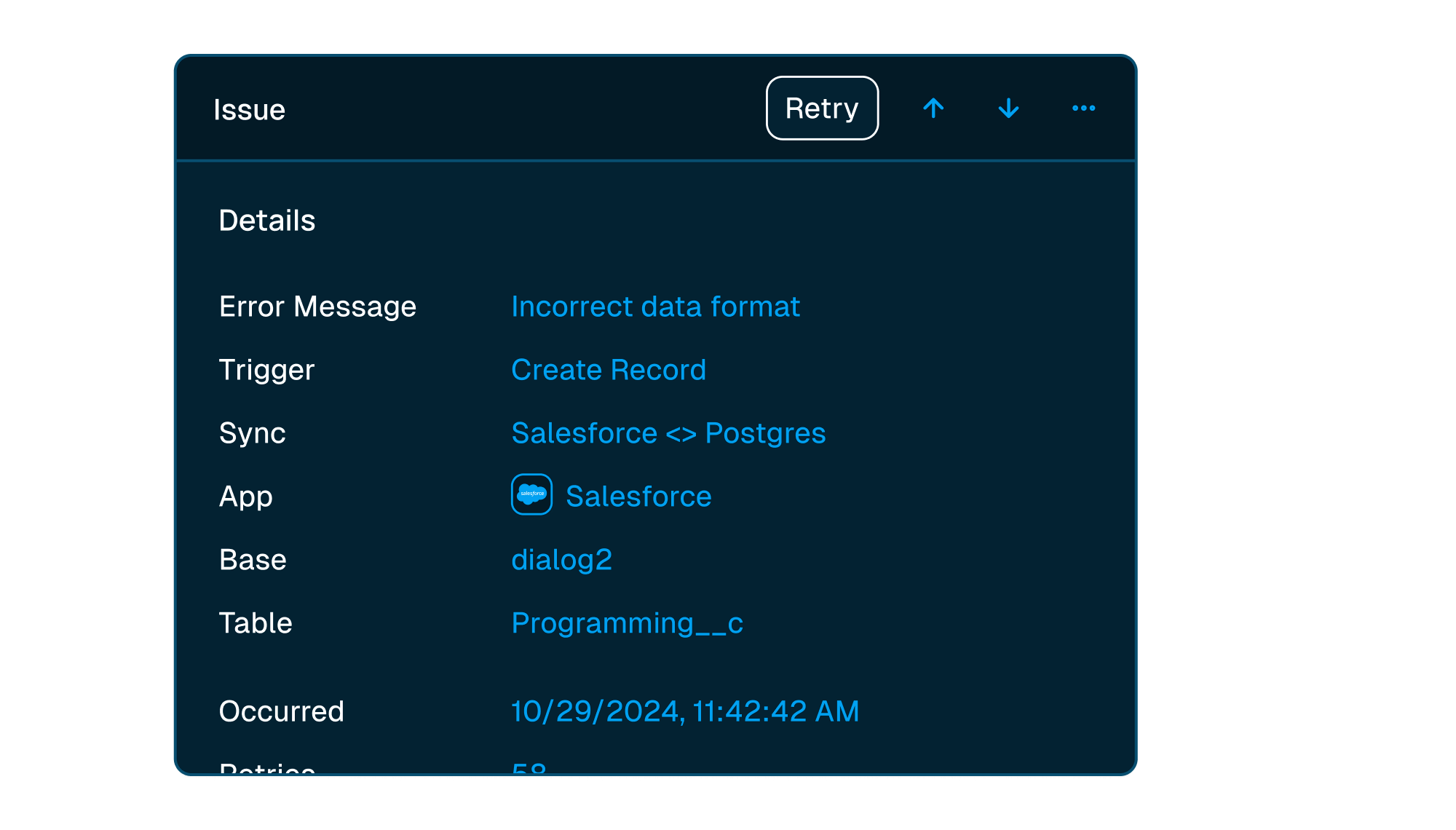


Scale with support
Easily manage issues at scale, while knowing you have a dedicated account manager on stand by to support.
Frequently asked questions
Is it really two-way sync?
Yes! Whalesync offers true two-way sync. Unlike most apps that offer one-way syncs in two directions, Whalesync actually keeps your data in sync bi-directionally. Update data in one app and see it instantly to sync to the other (or vice-versa).
What counts as a "record in sync"?
When a record syncs for the first time it becomes a record in sync. For example, if you sync 10 rows from Airtable to Webflow, you will have 10 records in sync. We do not "double-count" records across the two different apps.
Unlike other automation tools that count updates or tasks, Whalesync allows unlimited updates: those records can change as many times as you'd like.
What is a "sync"?
A sync is a connection between two different apps (e.g. Salesforce & Airtable). When you turn sync on, Whalesync will continuously sync data between your apps.
A single sync includes as many data tables and field as you'd like.
Does Whalesync support multi-reference fields? Rich text?
You bet! We've simplified all the annoying parts of setting up a sync with Zapier. We support multi-reference fields, rich text, and images. For a full list, see our supported fields docs.
What happens if my data has an error and can't be synced?
If data can't be synced (e.g. a required field is missing), Whalesync will alert you on the Issues page. This alert provides the exact error from your destination app and any other info that will help you fix the issue. In the meantime, Whalesync will continue to sync all data that doesn't have errors.
Do you offer a discount for nonprofits?
Absolutely! We love supporting organizations that are making the world a better place, so we're happy to offer a 20% discount to all nonprofits. To apply, just send us a note with proof of your nonprofit status (e.g. your 501(c)(3) determination letter) to support@whalesync.com and we'll get the discount applied to your account.




Connect your tools in minutes


