The easiest way to sync Attio and Google Sheets
Get true, two-way sync between Attio and Google Sheets in minutes. Update data in one tool, and Whalesync mirrors it in the other.


Empowering top operators — From startups to enterprises
-
 Series C$350M
-
 Series C$330M
-
 Series C$100M
-

-
 Series B$72M
-
 Series C$30M
-
 Series A$50M
-
 Series B$86M
-
 Series B$65M
-
 Series B$100M
How to connect Attio and Google Sheets in 3 steps
Connect Attio and Google Sheets, map the fields you want, and turn sync on. From then on, a change in either app shows up in the other.
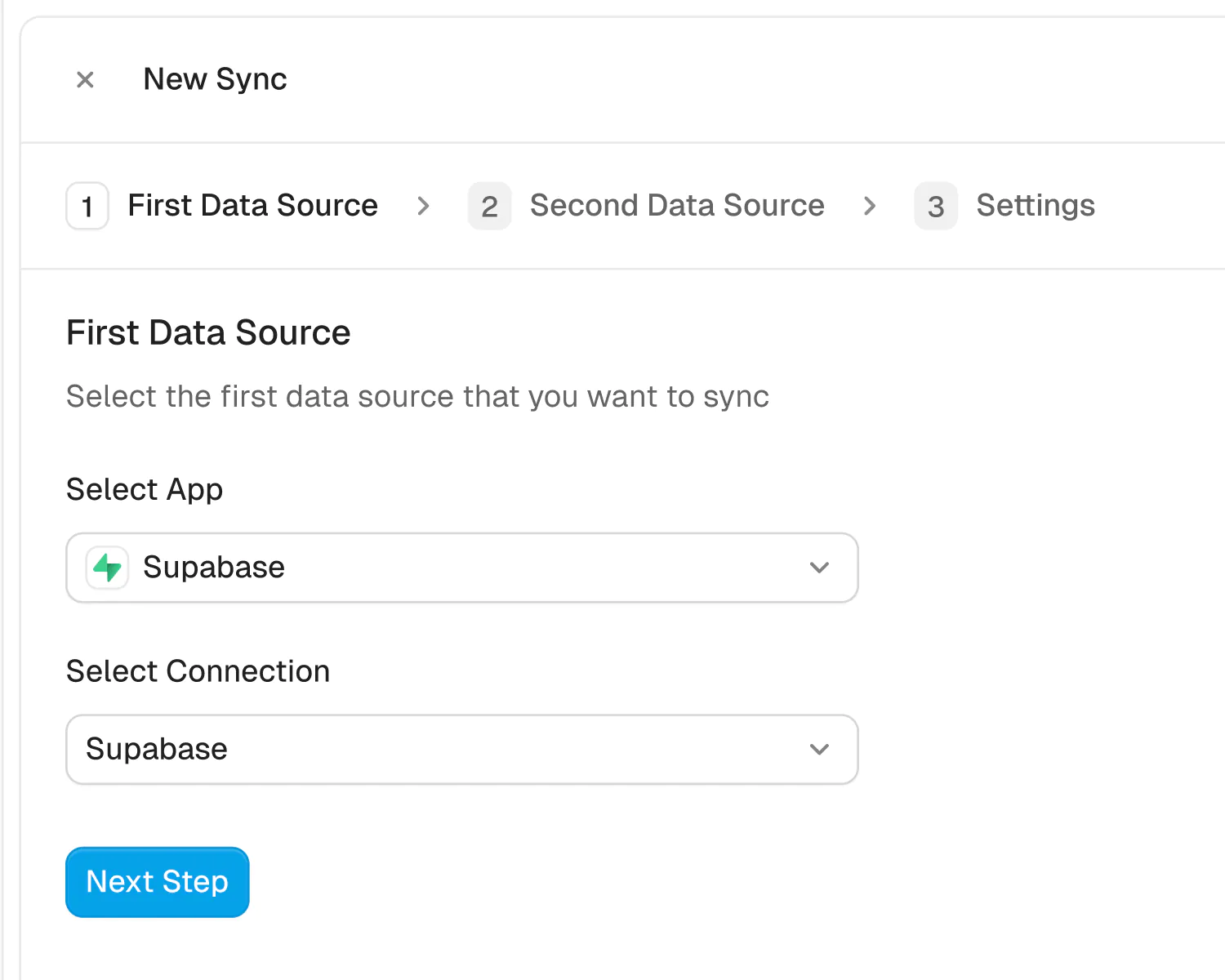
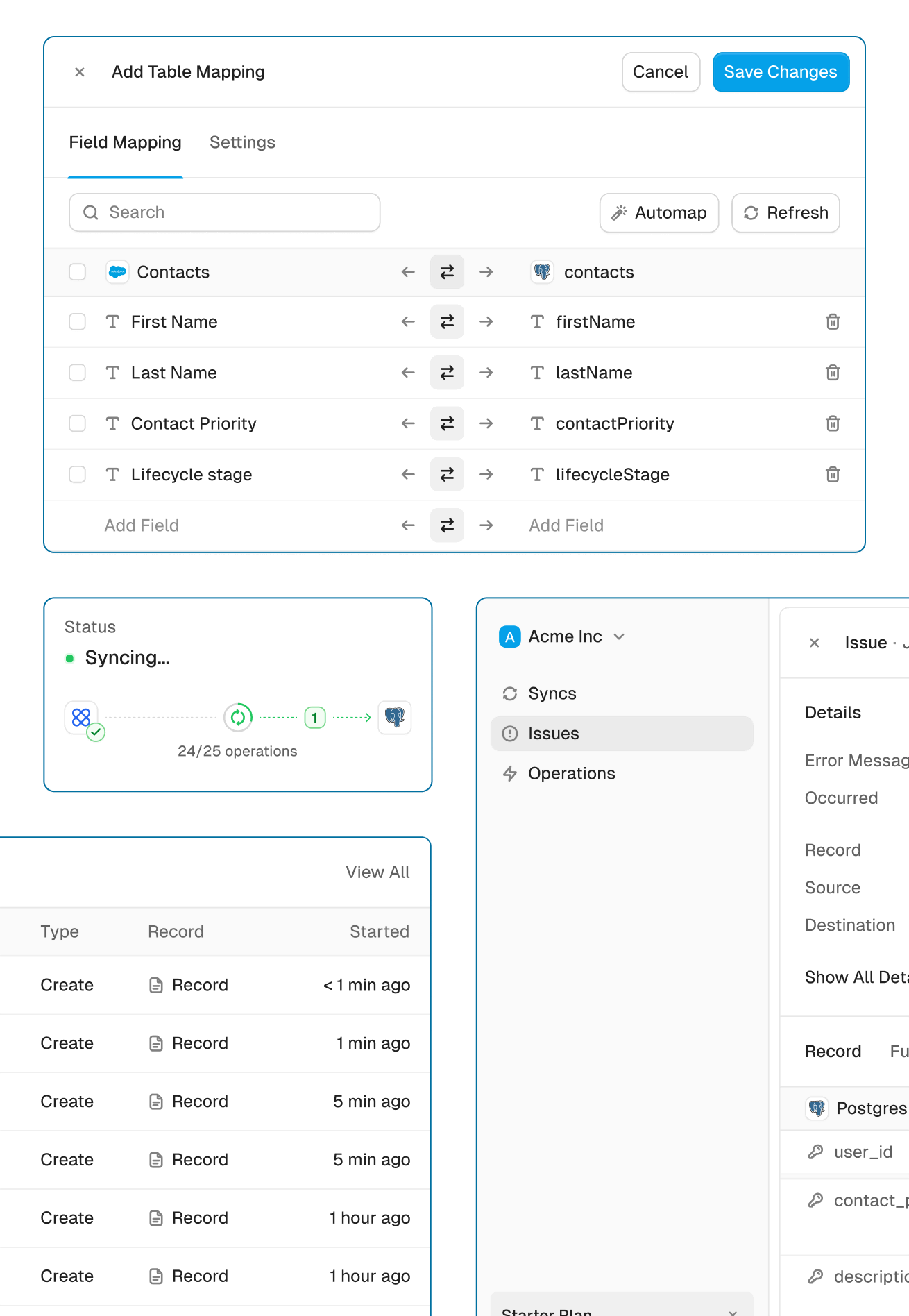
Connect your apps
Securely connect your Attio and Google Sheets accounts in seconds. Just authorize Whalesync with a few clicks and you're ready for the next step.
How to sync Google Sheets to Attio in 5 minutes
Google Sheets is the tool teams reach for first. Lead lists from events, prospect research, imported contacts, quick enrichment projects: if it has rows and columns, it probably starts life in a spreadsheet. Attio is a next-gen CRM that brings structure, visibility, and automation to your customer relationships, with a flexible data model built around people, companies, and deals.
The two make a natural pair. Sheets is unbeatable for fast edits, formulas, and sharing, but it is not a system of record. Attio gives you that system of record, but doing bulk edits or quick list work inside any CRM is slower than doing it in a spreadsheet. So most teams end up copying data back and forth between the two, and that is where things fall apart: versions drift, duplicates creep in, and nobody is quite sure which list is the current one.
Whalesync solves this with no-code, real-time, two-way sync. Edit a row in Google Sheets and the matching record updates in Attio. Update a record in Attio and the change appears in your sheet. In this guide, we'll walk through how to connect and sync Google Sheets to Attio in about five minutes.
Why two-way sync beats CSV exports and Zapier
The default way to move spreadsheet data into a CRM is a CSV import, and it works exactly once. The moment the import finishes, your sheet and Attio start drifting apart. Next month someone exports again, re-imports again, and spends an afternoon resolving duplicates and fixing columns that mapped to the wrong fields. The chore never ends, because a CSV is a photo of your data, not a connection to it.
Zapier-style automations remove some of the manual work, but they only push events in one direction. A new row can create a record in Attio, but the automation has no concept of the table as a whole. It cannot backfill the rows you already have, it will not carry edits from Attio back to the sheet, and covering updates and deletions in both directions means building and maintaining a pile of separate zaps.
Whalesync works at the table level instead. It matches the rows in your sheet to the records in Attio and keeps the two aligned continuously, in both directions, in real time. There is nothing to script and nothing to babysit, and because it is no-code, whoever owns the CRM can set the whole thing up in one sitting.
How to sync Google Sheets to Attio, step by step
Here is the entire setup, start to finish.
Step 1: Create your Whalesync account
Sign up for Whalesync and log in. A free trial is included, so you can try your sync end to end before paying anything. Click 'New sync' to begin.
Step 2: Connect Google Sheets
Select Google Sheets as your first app and authorize your Google account. The Whalesync Google Sheets connector lets you pick the spreadsheet you want to sync, and your columns become fields that are ready to map. A clean header row and one record per row is all the structure you need.
Step 3: Connect Attio
Next, select Attio and authorize your workspace. The Whalesync Attio connector brings in your objects, including people, companies, deals, and any custom objects you have defined. Authorizing both apps gives Whalesync permission to read and write data, which is what powers the two-way sync.
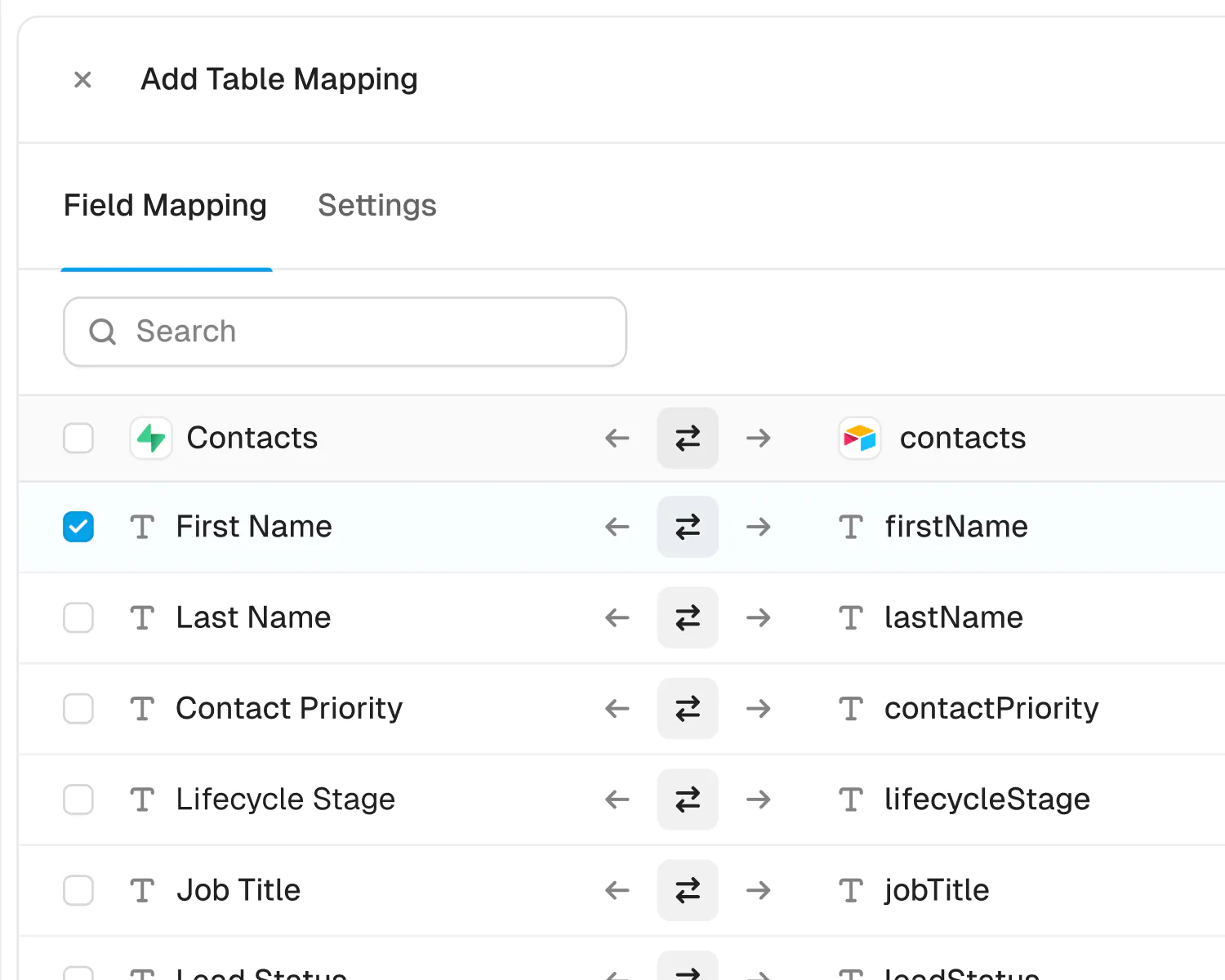
Step 4: Map your tables and fields
Choose which sheet syncs with which Attio object, for example a leads sheet with Attio people. Then map the fields. Whalesync's AI automapping suggests the matches automatically, pairing your 'Email' column with Attio's email field and so on, so confirming the mapping usually takes seconds. You can sync every column or just a subset, and you can add multiple table mappings to one sync.
Step 5: Turn on the sync
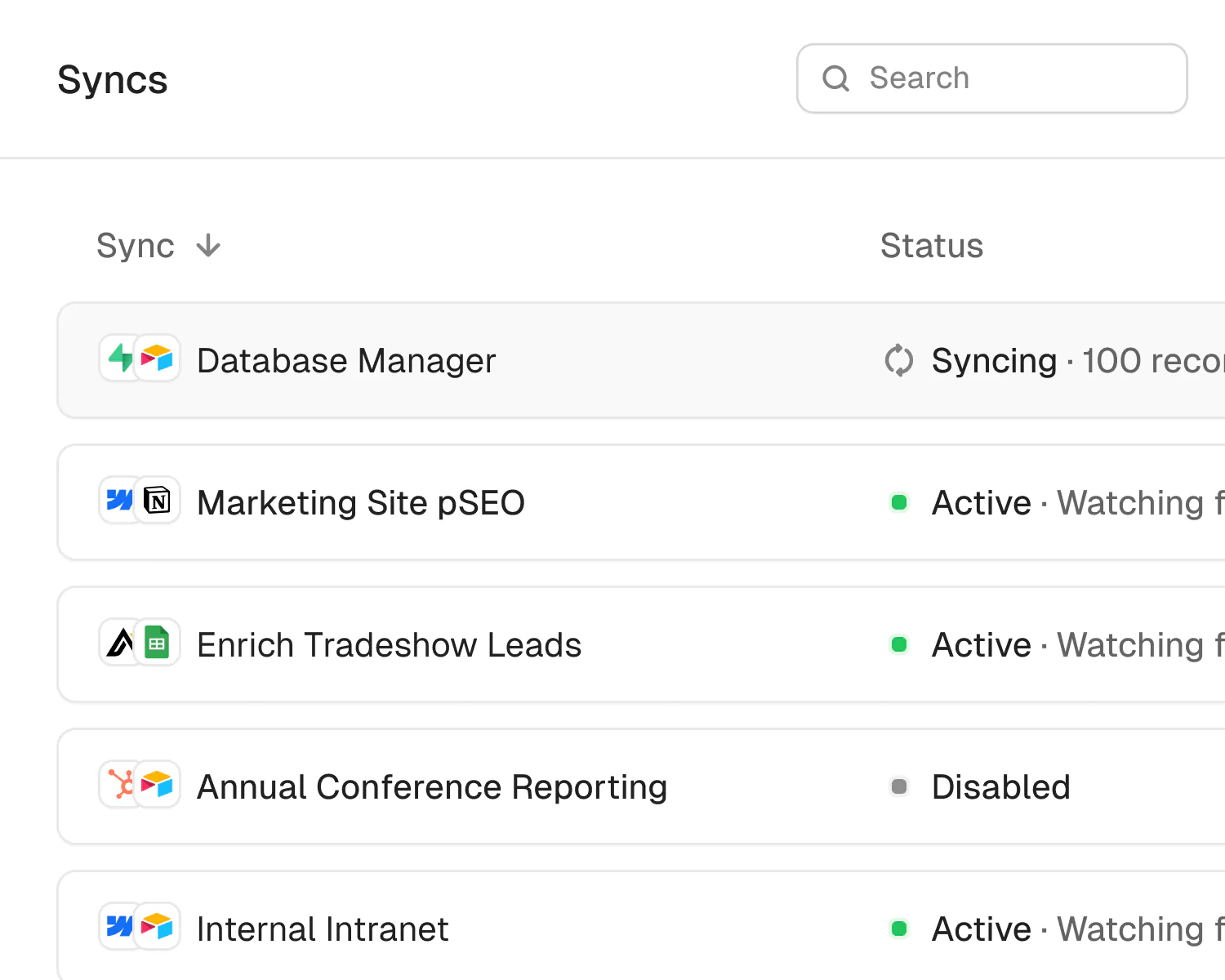
Whalesync shows you a preview of how many records will be created in each tool before anything happens. Review it, then activate. From here on, the sync runs in real time and in both directions: new rows become Attio records, and Attio updates flow back into your sheet.
What syncs between Google Sheets and Attio
On the Attio side, Whalesync syncs the objects at the heart of your CRM:
- People
- Companies
- Deals
- Your custom Attio objects
On the Sheets side, you decide which spreadsheets and columns take part. Custom object support matters more than it sounds: if your Attio workspace tracks partnerships, investments, or projects as custom objects, those can live in a spreadsheet view too.
Three ways teams use a Sheets to Attio sync
Clean and bulk-edit CRM data in a spreadsheet
Fixing three hundred job titles or standardizing company names inside a CRM, one record at a time, is miserable. In a synced sheet you can sort, filter, find and replace, and drag formulas, and every change writes back to the matching Attio record in real time. Your CRM gets spreadsheet-speed editing without ever exporting a thing.
Turn every list you receive into live CRM records
Event badge scans, webinar registrants, partner referrals: lists keep arriving as spreadsheets. Paste them into a synced sheet and they become people and companies in Attio automatically. And because the sync is two-way, when your team enriches or updates those records in Attio, the sheet reflects it.
Share live CRM data with people who live in spreadsheets
Agencies, advisors, and finance folks often do not work inside your CRM, but they are fluent in Google Sheets. A synced sheet gives them an always-current view of people, companies, or deals, and any edits they are trusted to make flow back into Attio instead of dying in a copy.
Start syncing today
Google Sheets gives your team speed, and Attio gives your customer data structure. You do not have to choose. Set up a two-way sync between Google Sheets and Attio with Whalesync, and both tools stay accurate without a single export. It takes about five minutes, there is a free trial, and no code is involved at any point. Your spreadsheets and your CRM can finally tell the same story.
About Attio and Google Sheets
Attio
Attio is a modern, flexible CRM for go-to-market teams.
What syncs
People, Companies, Deals, and Custom Objects
Read only: Workspace Members
Google Sheets
Google Sheets is the free web-based spreadsheet in Google Workspace.
What syncs
All Tables
Powerful features, built for reliability
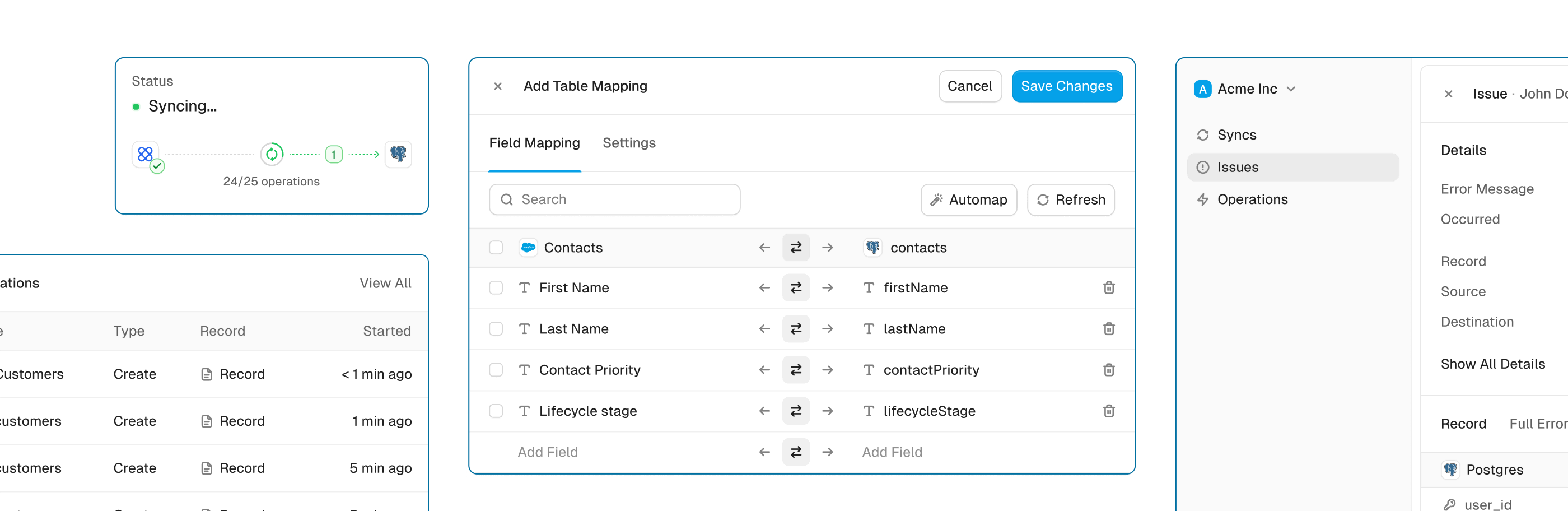
Get the power of an engineering-grade data sync with the simplicity of a no-code tool. Whalesync lets you build a robust, two-way, real-time sync between your apps in minutes, all through a simple visual interface.
Real-time & historical sync
Instantly sync new changes and bring over all your historical data. Your records will be up-to-date across apps from day one.
Efficient error handling
Instant email alerts for quick issue monitoring.
Automatic API handling
Forget about rate limits. Whalesync automatically manages API traffic and retries to ensure your sync runs smoothly without breaking.
Advanced filters
Precision filtering for targeted data sync.
Attio and Google Sheets guides
Built for Enterprise
Connect your data with top-grade security, role based access control, SSO, and audit logs.

Security
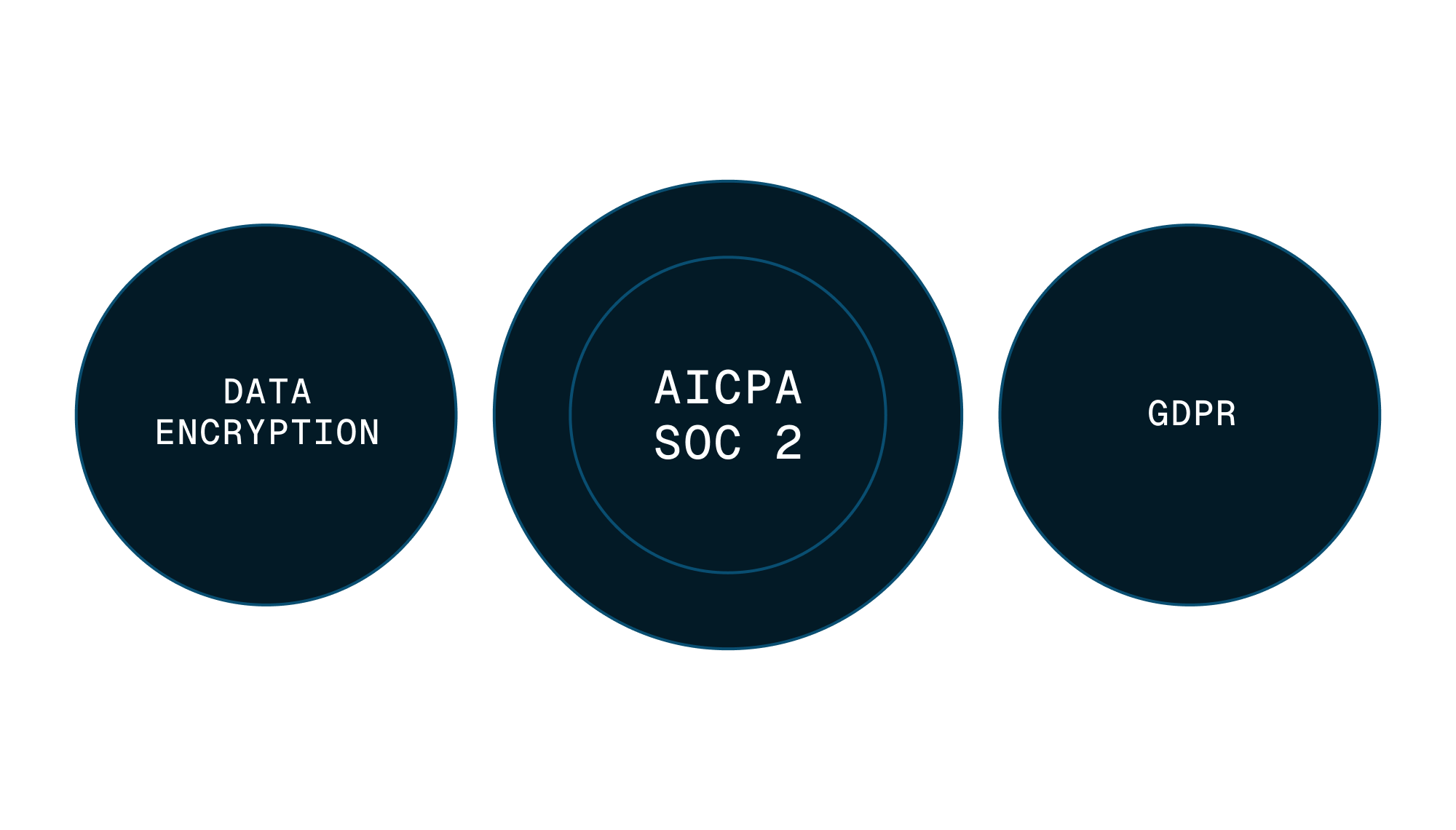
Enterprise-grade data safety with SOC 2 Type II, GDPR compliance, and encryption at rest monitored by Vanta.
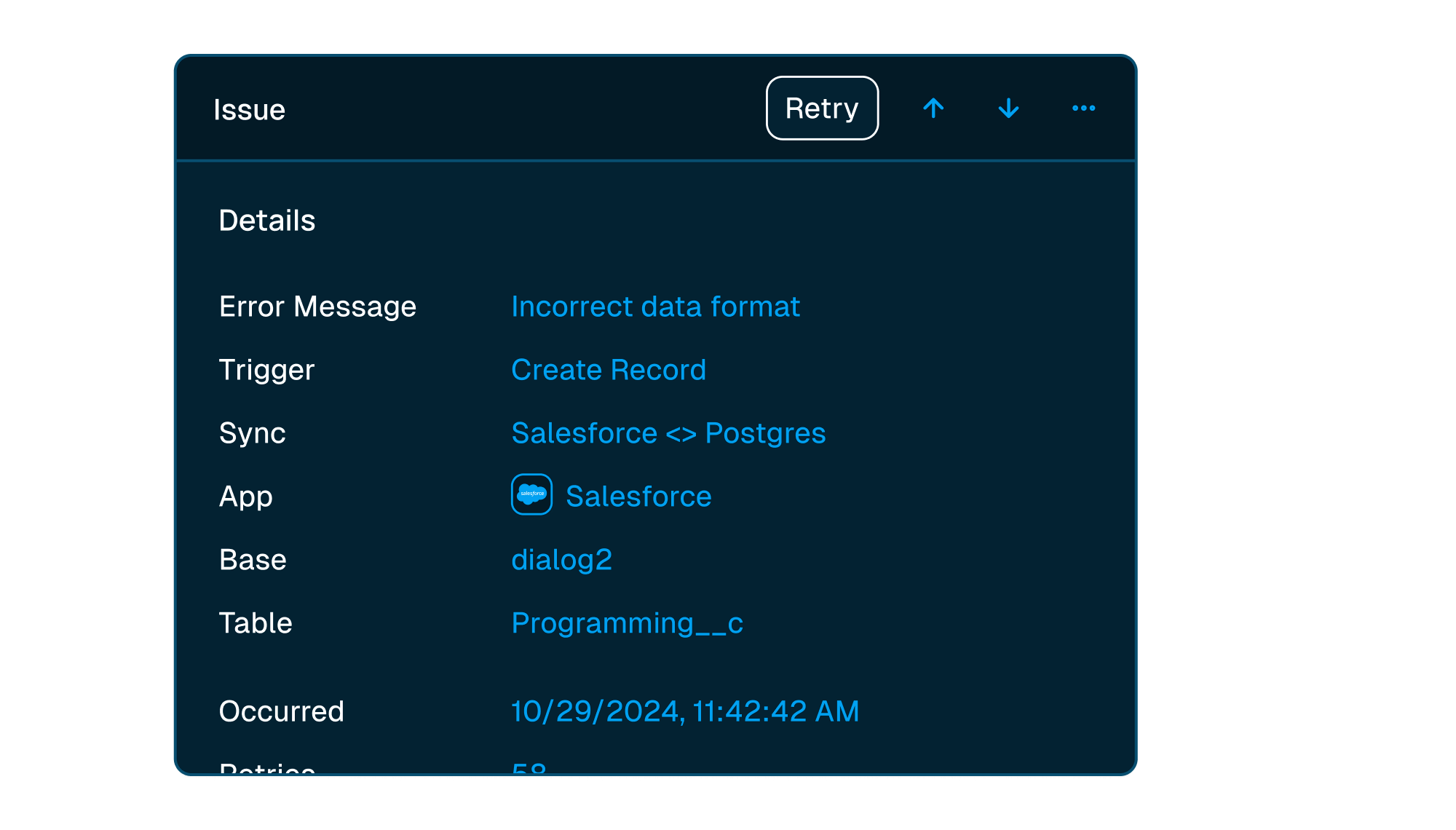


Scale with support
Easily manage issues at scale, while knowing you have a dedicated account manager on stand by to support.
Frequently asked questions
Is it really two-way sync?
Yes! Whalesync offers true two-way sync. Unlike most apps that offer one-way syncs in two directions, Whalesync actually keeps your data in sync bi-directionally. Update data in one app and see it instantly to sync to the other (or vice-versa).
What counts as a "record in sync"?
When a record syncs for the first time it becomes a record in sync. For example, if you sync 10 rows from Airtable to Webflow, you will have 10 records in sync. We do not "double-count" records across the two different apps.
Unlike other automation tools that count updates or tasks, Whalesync allows unlimited updates: those records can change as many times as you'd like.
What is a "sync"?
A sync is a connection between two different apps (e.g. Salesforce & Airtable). When you turn sync on, Whalesync will continuously sync data between your apps.
A single sync includes as many data tables and field as you'd like.
Does Whalesync support multi-reference fields? Rich text?
You bet! We've simplified all the annoying parts of setting up a sync with Zapier. We support multi-reference fields, rich text, and images. For a full list, see our supported fields docs.
What happens if my data has an error and can't be synced?
If data can't be synced (e.g. a required field is missing), Whalesync will alert you on the Issues page. This alert provides the exact error from your destination app and any other info that will help you fix the issue. In the meantime, Whalesync will continue to sync all data that doesn't have errors.
Do you offer a discount for nonprofits?
Absolutely! We love supporting organizations that are making the world a better place, so we're happy to offer a 20% discount to all nonprofits. To apply, just send us a note with proof of your nonprofit status (e.g. your 501(c)(3) determination letter) to support@whalesync.com and we'll get the discount applied to your account.
Other apps to connect






Connect your tools in minutes